Google Forms to PDF Online Without Monthly Fees: Save Forms, Responses, and Submission Records Without Another Subscription
Yes — you can save Google Forms to PDF online without monthly fees by opening the exact form or response view you need and using your browser's Print → Save as PDF workflow.
If the export looks cramped, the smartest next step is to switch to the linked response sheet first, then use LifetimePDF only for the one finishing step the final PDF still needs.
Most people searching for this are not trying to buy another document platform. They usually need a simple, practical result: archive a blank form, save one response as a record, send a summary to a teammate, or create a cleaner PDF report from collected answers. The useful answer is not a mystery converter. It is choosing the right Google Forms view, exporting that view cleanly, and only adding another PDF step if it clearly improves the handoff.
Fastest path: export the right Google Forms view first, then use LifetimePDF only for the cleanup the finished PDF still needs.
In a hurry? Jump to Quick start: save the right Google Forms view as PDF in a few minutes.
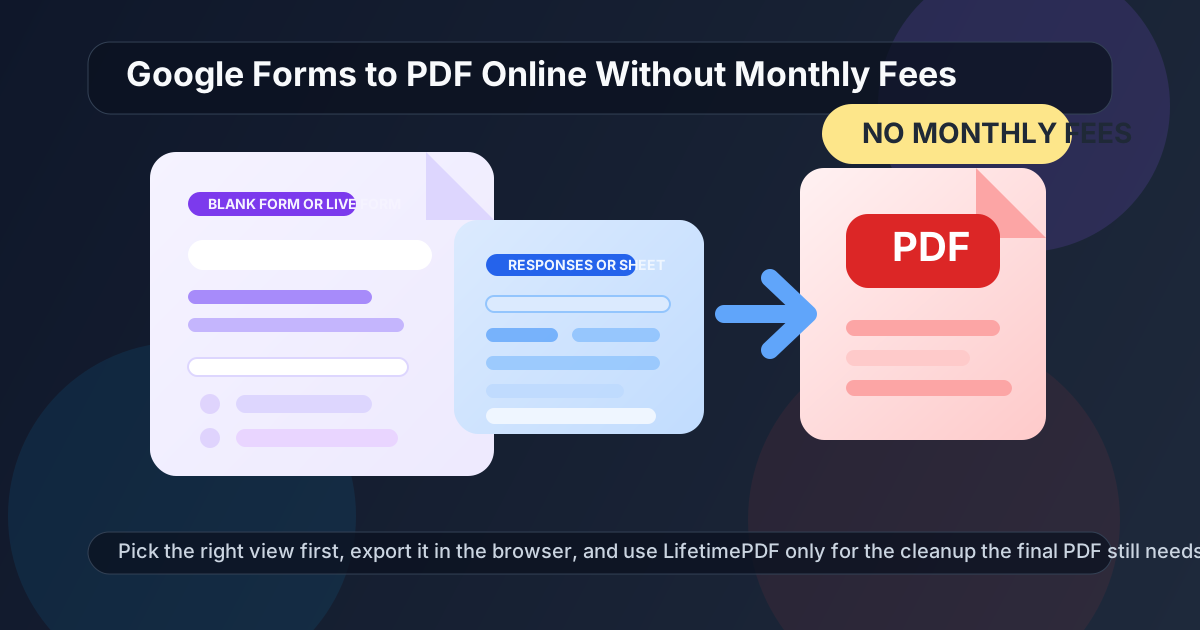
Table of contents
- Quick start: save the right Google Forms view as PDF in a few minutes
- What “online without monthly fees” should mean here
- Choose the right Google Forms view before exporting
- Step-by-step: Google Forms to PDF online without monthly fees
- When the linked Google Sheet is the smarter route
- Common Google Forms PDF problems and fixes
- What to do after the PDF is created
- Related LifetimePDF tools and guides
- FAQ (People Also Ask)
Quick start: save the right Google Forms view as PDF in a few minutes
If you just need the shortest reliable workflow, use this order:
- Decide whether you need the blank form, the response summary, one individual submission, or a cleaner report from the linked response sheet.
- Open that exact view in Google Forms or Google Sheets.
- Use your browser's print command and choose Save as PDF.
- Review margins, page breaks, chart cut-off, and whether the exported file is actually readable.
- If the summary view looks busy, switch to the linked spreadsheet and export that cleaner layout instead.
- Use LifetimePDF only for the final job the PDF still needs, such as protection, merging, compression, or a second spreadsheet-to-PDF route.
What “online without monthly fees” should mean here
In practical terms, this phrase should not mean find a random website and hope it understands Google Forms. It should mean using the export workflow already built into your browser and Google workspace, then paying only for the extra PDF step that genuinely helps.
For most people, the no-monthly-fees approach looks like this:
| If you need... | Best starting view | Best first move |
|---|---|---|
| A printable blank form | The live Google Form | Open the form exactly as respondents will see it and print that page to PDF |
| A quick response summary | The Responses dashboard | Print the summary only if it is readable and not too crowded |
| One submission as a record | Individual response view | Open the specific submission and save that single record as PDF |
| A cleaner report of many responses | The linked Google Sheet | Clean columns, filters, and page layout there before exporting |
| A protected or combined handoff | The finished PDF | Use LifetimePDF only after export, when you know the final file needs one more step |
That distinction matters because a lot of frustration comes from treating every Google Forms job like the same job. A blank form, a visual summary, and a printable report are not the same output. Once you define the exact deliverable, the export path gets much simpler.
Choose the right Google Forms view before exporting
This is the step most people skip, and it is the reason so many Google Forms PDFs look worse than they should. The browser can only save the page in front of you. If the wrong view is open, the PDF will faithfully preserve the wrong thing.
Use the live form when you need a blank copy
This is the right route when you want a printable questionnaire, intake form, checklist, survey blank, classroom worksheet, or approval form. Before exporting, remove any unfinished edits and make sure the questions, instructions, and section order are final.
Use the Responses dashboard for a quick summary
This works when you need a high-level snapshot for a meeting, a status review, or a fast internal reference. It is convenient, but not always pretty. If charts are cramped or the page becomes long and awkward, do not force it. That is your cue to switch to the linked sheet.
Use the individual response view for one submission record
This is usually the cleanest route for saving a single applicant, student, client, customer, or employee response. When one record needs to be archived or shared, the individual response view is often better than printing a giant summary page.
Use the linked Google Sheet for a cleaner multi-response report
The sheet is usually better when you need to sort responses, hide extra columns, group data, add filters, or build a more readable report layout. That is especially true for event registrations, surveys, feedback forms, intake pipelines, applications, and recurring reporting.
Step-by-step: Google Forms to PDF online without monthly fees
Once you know which view you actually need, the workflow is simple and repeatable.
1) Open the exact form or response view that matches the real deliverable
Do not export a summary when the recipient needs one response. Do not export the blank form when you actually need the results. This sounds obvious, but it is the single choice that affects the PDF most.
2) Clean up the view before printing
Check whether the page includes what you want and only what you want. If you are working from the linked sheet, hide helper columns, apply filters carefully, and make sure the print area is intentional. If you are saving the form itself, review titles, section headings, and instructions one last time.
3) Use the browser print workflow
Choose Print in the browser and select Save as PDF. This is the step many people overcomplicate. Most of the important quality decisions happen here: scale, margins, page breaks, orientation, and whether the content still reads like a finished document.
4) Review the preview instead of blindly downloading
Look for the common failure points:
- Charts cut off at the page edge
- Answer text broken across awkward pages
- Wide tables squeezed until they are barely readable
- Extra blank pages
- Headers or instructions that no longer make sense once exported
5) Switch to the linked sheet when the summary page gets messy
This is often the best move for larger forms. The response dashboard is great for quick viewing, but the sheet gives you more control over what goes into the final PDF and how it lands on the page.
6) Download the PDF and do one final human review
Open the file and check page 1, one middle page, and the last page. If those are clean, the export is usually safe to share. If they are not, the fix is often easier upstream in the source view than downstream in the PDF.
Need a cleaner spreadsheet-based backup route?
Best backup flow: linked sheet → cleaner layout → PDF export → finish only what the handoff still needs.
When the linked Google Sheet is the smarter route
A lot of Google Forms PDF problems are really layout problems. The form summary is fine for a quick view, but it is not always the best report format. The linked sheet usually wins when you need more control.
- You want a cleaner table: the sheet lets you remove clutter, resize columns, and make the report easier to scan.
- You need filters or sorting: this matters for applications, survey responses, event signups, support requests, and intake workflows.
- You only need part of the data: exporting one range is often cleaner than printing the entire response history.
- You are building a recurring report: the sheet is easier to reuse for weekly or monthly reporting.
- You know the final PDF will be shared widely: cleaner formatting matters more when the PDF is client-facing or part of a formal packet.
If you download the sheet as XLSX or want a second spreadsheet-to-PDF route, use Excel to PDF after the sheet is in good shape. That route is especially useful when the Google-side print output is close but not quite right, or when the PDF is about to be merged with other supporting documents.
Common Google Forms PDF problems and fixes
The PDF looks crowded
That usually means the response dashboard was the wrong source view. Switch to the linked sheet or export one individual response instead of forcing the summary to do every job.
Charts or answers break across pages awkwardly
Adjust margins, scale, or orientation in the print preview. If the layout still feels cramped, rebuild the report from the sheet where you have more control over spacing.
The exported file includes too much information
Export a narrower range, one response, or a cleaner filtered sheet. Good PDFs are selective. Dumping every response and helper column into one file usually makes the document less useful.
The PDF contains sensitive response data
Export first, then use Protect PDF before sharing. This is worth doing for applicant details, student data, HR records, survey responses with personal information, medical intake notes, and client intake forms.
The file is too large for email or upload
Use Compress PDF after export. The export might already be correct. The problem may be size, not layout.
The PDF needs to live inside a larger packet
Use Merge PDF after the form response file is final. That is cleaner than trying to force everything into one messy export step.
What to do after the PDF is created
Once the Google Form has become a PDF, the remaining work usually falls into one of four categories:
- Protect it if the file contains personal, internal, or client data.
- Compress it if the PDF is fine but too large for an upload portal or email attachment.
- Merge it if it belongs with contracts, appendices, policies, invoices, or signed pages.
- Rebuild it from the linked sheet if you realize the current export is technically acceptable but not pleasant to read.
Ready to finish the handoff? Use the tool that matches the real post-export job instead of adding unnecessary steps.
Related LifetimePDF tools and guides
- Excel to PDF — useful when the linked response sheet is the cleaner route
- Protect PDF — smart for personal, HR, student, applicant, or client response files
- Compress PDF — helpful when the export is correct but the file is too large to share comfortably
- Merge PDF — best when the response PDF belongs inside a larger packet
- Google Forms to PDF Online
- Google Forms to PDF Online Free
- Google Forms to PDF Without Monthly Fees
- Google Sheets to PDF Online Without Monthly Fees
FAQ (People Also Ask)
How do I save Google Forms as PDF online without monthly fees?
Open the exact Google Forms view you need and use your browser's print-to-PDF option. If the result feels crowded, switch to the linked Google Sheet first and export the cleaner layout instead.
Can I save Google Forms responses as PDF without another subscription?
Yes. You can export the response summary or one submission directly, and you can use the linked response sheet when you need a more readable report without adding another recurring tool.
What is the best way to make a cleaner Google Forms PDF report?
The linked Google Sheet is usually the better route because it gives you more control over columns, filtering, layout, and what actually appears in the final PDF.
What does “online without monthly fees” really mean here?
It means starting with the browser and Google workflow you already have, then paying only for the extra PDF step that genuinely helps. Most people do not need another subscription just to save a form or response record as PDF.
How should I share a Google Forms PDF that includes private information?
Export the PDF first, then protect it before sharing if it contains applicant details, student data, HR information, client intake records, or survey responses tied to real people.