Flatten PDF Form Data Without Monthly Fees: Lock Filled Forms Before You Send, Print, or Upload
To flatten PDF form data without monthly fees, finish the form, review every field, then use LifetimePDF's dedicated flattening tool to merge the visible answers into the page and download a final static copy.
That keeps completed fields visible for printing, portals, and email without leaving the file dependent on editable form boxes or a recurring subscription.
This is one of those PDF jobs that sounds minor until a form breaks at the worst moment. A document looks complete on your screen, then prints with blank fields, uploads poorly, or arrives on the other side still editable. Flattening is the practical finishing step that makes a completed form feel final. Doing it without monthly fees matters because a lot of people only need this workflow for occasional but important documents, not another subscription sitting quietly on a card.
Fastest path: complete the form, flatten the field data into the page, then protect or compress the final PDF only if the delivery step needs it.
In a hurry? Jump to quick start: flatten a completed form in about 4 minutes.
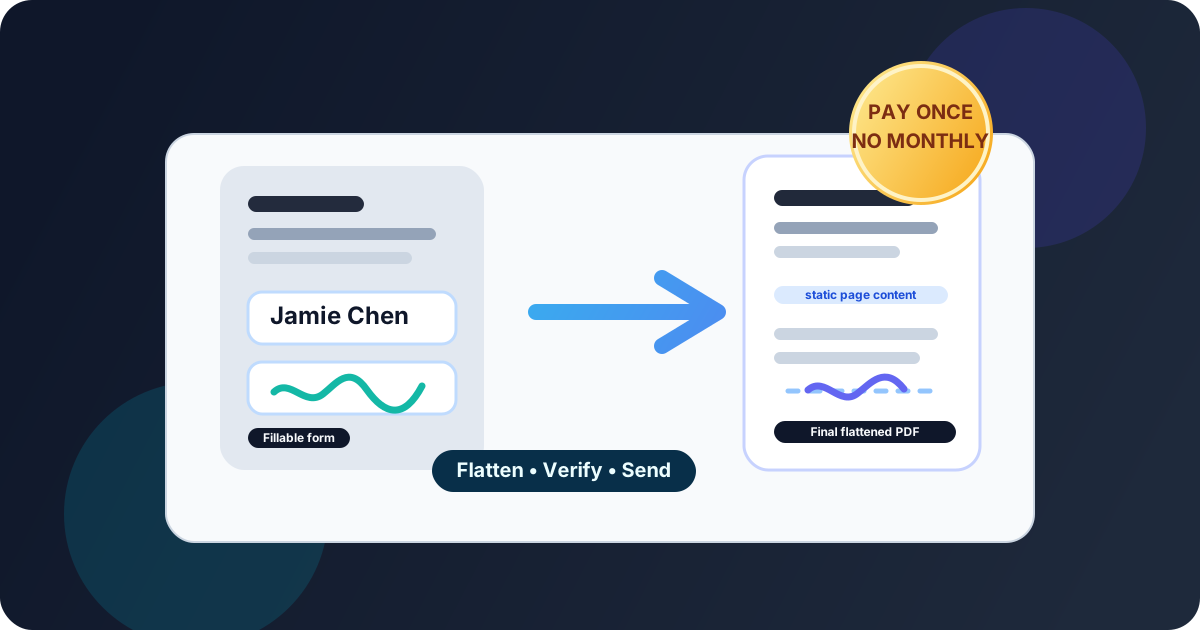
Table of contents
- Quick start: flatten a completed form in about 4 minutes
- What flattening PDF form data actually does
- Why this workflow matters without monthly fees
- Step-by-step: flatten PDF form data cleanly
- When to flatten and when to wait
- Flattening vs Print to PDF
- Portals, signatures, and final-file checks
- Common mistakes that create messy final forms
- Related LifetimePDF tools and guides
- FAQ
Quick start: flatten a completed form in about 4 minutes
If your PDF is already filled out and you just want a reliable final copy, this is the practical workflow:
- Open PDF Form Filler if the file still needs text, dates, checkboxes, or initials.
- Review every visible answer before you finalize anything.
- Open Flatten PDF Form Data.
- Flatten the interactive field appearances into the page.
- Download the result and open it once to confirm the values still look right.
- Only then print it, upload it to a portal, or email the final copy.
What flattening PDF form data actually does
A fillable PDF normally has interactive fields layered on top of the page. That is why you can click a name box, tab through a section, or toggle a checkbox. Flattening PDF form data takes the visible result of those fields and merges it into the page itself.
In plain English, the form stops acting like a draft you are still editing and starts acting like a finished document. The answers remain visible, but the file is far less likely to behave differently in another viewer, lose field appearances during printing, or invite accidental edits after you send it.
| Before flattening | After flattening |
|---|---|
| Fields are interactive and clickable | Answers look like part of the page |
| Some viewers may hide or mishandle field appearances | The completed form usually displays more consistently |
| Printing can produce blank or strange-looking fields | Print output is usually more predictable |
| Recipients may still edit the fields casually | The document feels more final and stable |
Why this workflow matters without monthly fees
A lot of people searching this phrase do not run a document department. They just need one completed form to survive the handoff. Maybe it is school paperwork, onboarding documents, a client intake form, a benefits packet, a tax form, or a portal upload that cannot afford to go wrong.
That is why without monthly fees is not just pricing fluff. It is a real use case. Flattening a form is often a narrow task: important, occasionally urgent, but not something that justifies another recurring bill. A pay-once tool fits that reality better for many people, especially when the job is straightforward and the finished PDF still needs to look clean.
- Occasional HR, school, healthcare, or tax forms
- Client paperwork that needs a stable final copy
- Portal uploads where editable fields can misbehave
- Teams that want the workflow without ongoing per-seat fees
- Blank-field printing surprises
- Editable forms leaving your workflow unfinished
- Subscription fatigue for a small but critical task
- Print-to-PDF workarounds that create worse files
Step-by-step: flatten PDF form data cleanly
Here is the workflow that usually gives the cleanest result.
1) Finish the form before you finalize it
If the file still needs field entries, start with PDF Form Filler. Complete names, dates, checkboxes, initials, and any notes before you flatten anything. If the document also needs a visible signature, place that as part of the form-completion stage rather than treating it as an afterthought.
2) Review the answers like the next person will
Scroll through the completed file and check the fields that cause the most pain when wrong:
- names, email addresses, and account or reference numbers
- dates, dollar amounts, and checkbox selections
- signature or initial placement
- multi-page sections where fields repeat
3) Flatten the form data
Use LifetimePDF's flattening workflow, or open the Flatten PDF Form Data guide, and run the finalization step. This merges the visible field appearances into the page so the PDF behaves more like a finished static document and less like a still-editable form template.
4) Verify the result before you send it
Reopen the flattened copy and do a short reality check:
- click where the old fields used to be
- zoom in and make sure text is still readable
- open print preview once
- confirm checkmarks, initials, and signatures did not shift
5) Protect or compress only if the handoff needs it
If the final PDF contains sensitive information, use PDF Protect. If the file is too large for a portal or attachment limit, run Compress PDF after flattening. That keeps the workflow clean: finalize first, then prepare for delivery.
Need the shortest version? Fill the form, flatten it once, verify it, then only add protection or compression if the destination actually requires those extra steps.
When to flatten and when to wait
Flattening is a great final step, but not always the next step.
Flatten when the form is finished
- You are submitting the document to a portal.
- You are emailing the final copy to someone else.
- You need the printout to match what you see on screen.
- You want an archive copy of exactly what was sent.
Wait if the file is still in draft mode
- Someone still needs to revise field values.
- You expect more signatures or initials in several places.
- You are still testing the wording or layout of the form itself.
- You need to keep the template reusable for later versions.
Flattening vs Print to PDF
People often try to flatten forms by choosing Print to PDF because it feels familiar. Sometimes that works well enough. Sometimes it creates a heavier, uglier, or less reliable file. Printing is not the same as flattening.
| Method | Best part | What to watch out for |
|---|---|---|
| Dedicated flatten PDF form data tool | Cleaner way to lock filled field appearances into the page | You still need one final review pass before sending |
| Print to PDF | Feels quick and familiar | Can bloat file size, reduce text quality, break links, or create a less dependable final document |
If the form matters, use the proper flattening workflow first. Print-based workarounds are better treated as emergency fixes than as the default professional path.
Portals, signatures, and final-file checks
The handoff step is where flattening earns its keep. That is when different viewers, upload systems, and printing workflows stop agreeing with each other.
Portal uploads
Some portals are picky about interactive PDFs. Flattening helps because the visible answers are no longer riding on editable form behavior.
Visible signatures vs digital signatures
If you are placing a normal visible signature, flattening often fits naturally into the final form workflow. But if the PDF already carries a true certificate-based digital signature, be careful. Changing the file afterward can invalidate it. When that matters, review the order of operations before you finalize anything.
Final sanity check
Before the PDF leaves your hands, confirm three things:
- The answers still appear correctly on every important page.
- The file opens and previews normally.
- The next step — print, upload, or email — works without needing another conversion hack.
Need signing too? Finish the fields, add the visible signature if needed, flatten the final form, then protect the file for delivery if privacy matters.
Common mistakes that create messy final forms
Flattening before you finish reviewing
A flattened typo is still a typo. It is just less convenient to fix.
Using Print to PDF as the first choice
It can work, but it is not the cleanest answer when a dedicated flattening workflow is available.
Forgetting to keep the editable working copy
If someone asks for one small change later, you will want the original fillable version instead of rebuilding the form from scratch.
Flattening after a digital-signature workflow without checking the impact
Signed PDFs deserve extra caution. The order of operations matters.
Skipping the final open-and-check pass
One quick review catches most avoidable problems before they become someone else's problem.
Related LifetimePDF tools and guides
Flattening form data works best as one step in a clean document workflow. These tools and guides fit naturally around it:
- Flatten PDF Form Data - finalize completed fillable forms so the visible answers become part of the page.
- PDF Form Filler - complete text fields, dates, checkboxes, and other form elements before finalizing.
- Sign PDF - add visible signatures where required.
- PDF Protect - add password protection when the final form contains sensitive information.
- Compress PDF - reduce file size after flattening if an upload limit gets in the way.
- PDF Field Editor - adjust the form itself if the underlying fields need repair rather than finalization.
Helpful related reading
- Flatten PDF Form Data Online
- Flatten PDF Without Monthly Fees
- PDF Form Filler Without Monthly Fees
- Sign PDF Without Monthly Fees
- Edit PDF Form Fields Online
Bottom line: if the form is done, flatten it once, verify it once, and send the clean final copy without signing up for another monthly PDF bill.
Best workflow for most filled forms: fill → review → flatten → verify → protect or compress only if needed.
FAQ
How do I flatten PDF form data without monthly fees?
Complete the form, review every field, then use a dedicated flatten PDF form data tool to merge the visible answers into the page. The final PDF keeps the completed values visible without depending on editable interactive form fields or a recurring subscription.
What does flattening PDF form data actually do?
It turns the visible form field results into normal page content. The file still looks completed, but it no longer behaves like an ordinary fillable PDF with clickable editable fields.
Is flattening better than Print to PDF?
Usually yes. Print to PDF can make files larger, reduce text quality, break links, or create a less dependable final document. A dedicated flattening tool is normally the cleaner path.
Should I flatten a PDF before or after signing it?
If you are just finishing form fields and placing a normal visible signature, flattening often fits at the end of the form workflow. If the PDF already has a true digital signature, be careful because changing the file afterward can invalidate it.
Why do people search for flatten PDF form data without monthly fees?
Because many people only need this workflow occasionally for forms that still matter a lot. A pay-once tool often makes more sense than carrying another subscription for a small but important PDF task.
Published by LifetimePDF — Pay once. Use forever.