Extract Text from Scanned PDF: Best OCR Workflow for Copyable, Searchable Text
To extract text from a scanned PDF, run OCR first, then copy or export the recognized text into TXT, Word, notes, or a rebuilt PDF.
If the scan is crooked, shadowed, or buried in blank margins, rotate or crop it before OCR so names, dates, totals, and headings come out cleaner.
That is the short answer, but the practical difference comes from knowing why scanned PDFs fail, how to tell whether the file really needs OCR, and which cleanup steps are worth doing before you press the button. People often think the problem is "PDF conversion" when the real issue is simpler: the file looks like a document to you, but behaves like a photograph to your computer. Once you fix that, the rest of the workflow becomes much easier.
Fastest reliable path: check whether the file is image-only, OCR it, review the key fields, and only then move the result into PDF to Text, Text to PDF, translation, summary, or sharing steps.
In a hurry? Jump to the quick answer and workflow.
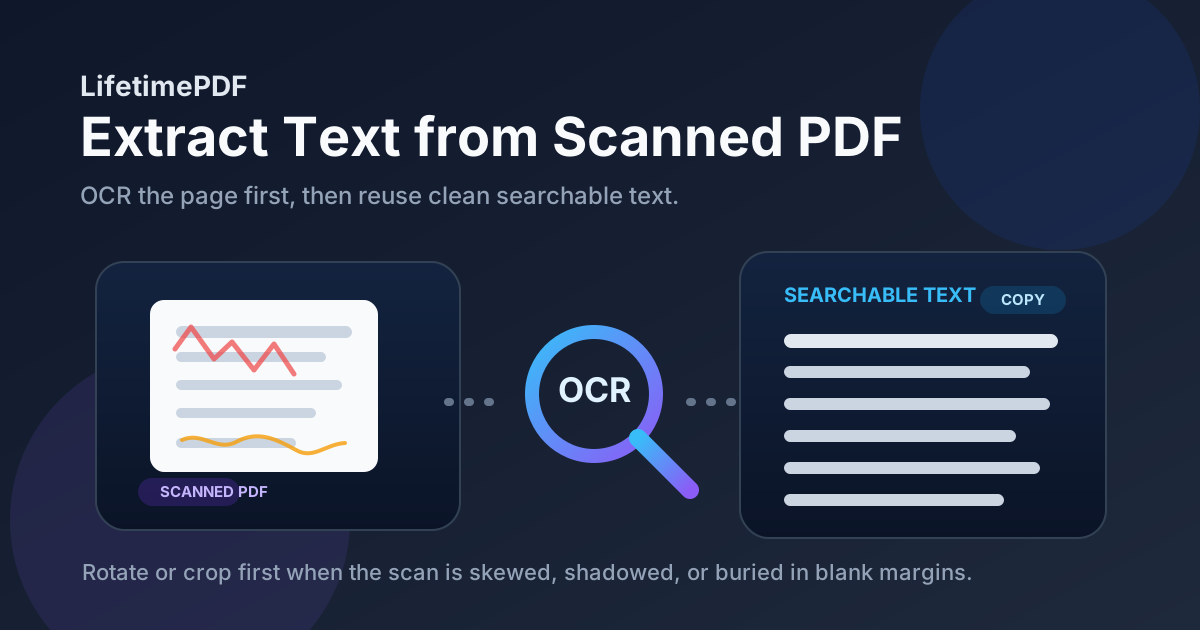
Table of contents
- Quick answer: the cleanest way to extract text from a scanned PDF
- Why scanned PDFs need OCR first
- How to tell whether your PDF needs OCR
- Step-by-step workflow with LifetimePDF
- How to improve OCR accuracy before extraction
- OCR vs PDF to Text: when each step matters
- What to do after the text is extracted
- Helpful tools and related guides
- FAQ
Quick answer: the cleanest way to extract text from a scanned PDF
If the file came from a scanner, copier, fax export, photographed document, or image-only archive, start with OCR PDF. That is the step that turns visible letters into actual searchable text. Without it, a lot of converters will either fail, return messy fragments, or act as if the document is empty.
After OCR, review the details that matter most: names, dates, totals, addresses, headings, invoice numbers, legal clauses, and any code-like strings. If those look right, you can copy the text directly, continue into PDF to Text for a cleaner plain-text extraction, or rebuild the content as a fresh document with Text to PDF.
Why scanned PDFs need OCR first
A searchable digital PDF already contains text data behind the page layout. That is why you can highlight a sentence, search for a phrase, or copy a paragraph into email. A scanned PDF is different. In many cases each page is stored as an image, so the file only looks like a document. To the software, it behaves more like a stack of photos.
OCR stands for Optical Character Recognition. It analyzes the letters inside those page images and builds a usable text layer. Once that text layer exists, the document becomes searchable, selectable, copyable, easier to summarize, easier to translate, and much easier to move into the rest of your workflow.
| Workflow | What the tool sees | Typical result |
|---|---|---|
| Scanned PDF → direct text extraction | An image that has not been recognized as text yet | Weak output, scrambled fragments, or no useful text |
| Scanned PDF → OCR → text extraction | Recognized words with a usable text layer | Far better searchable, copyable, reusable output |
That is why the most common mistake is trying to skip OCR entirely. People assume the converter is broken when the real problem is that the file never contained machine-readable text in the first place.
How to tell whether your PDF needs OCR
Before you run anything, spend 15 seconds checking the file. That will tell you whether OCR is necessary or whether the PDF already has real text and can go straight into extraction.
Test 1: try to highlight one sentence
Open the PDF and drag over a short phrase. If you can select word by word, the file probably already contains text. If your cursor grabs a big page area or behaves as if the whole page were a single image, OCR is likely required.
Test 2: search for an obvious word
Use Ctrl + F on Windows or Cmd + F on Mac and search for a word you can clearly see on the page. If the viewer cannot find it, the text layer is missing or unreliable.
Test 3: think about where the file came from
- Scanner or copier: usually needs OCR.
- Phone camera scan: usually needs OCR and may also need rotation or cropping.
- Old archive export or fax: often needs OCR.
- Born-digital PDF from Word, Docs, Excel, or a billing system: may already contain text.
Step-by-step workflow with LifetimePDF
- Check whether the file is image-only. Try search and text selection first.
- Fix obvious scan problems before OCR. Rotate sideways pages with Rotate PDF and remove oversized borders with Crop PDF.
- Open OCR PDF. Go to LifetimePDF OCR PDF.
- Upload the scanned file. Use the cleanest version you have, especially if the document includes small numbers, fine print, or dense tables.
- Run OCR and wait for recognition. This is the step that converts page images into actual text.
- Review the risky parts. Check names, dates, totals, item codes, contract clauses, page headers, and line breaks.
- Move the result into the next tool only after review. Use PDF to Text for a cleaner text output or Text to PDF if you want to rebuild the document in a tidier form.
The reason this workflow works so well is that it stays focused on the real job. You are not just trying to "convert a PDF." You are trying to turn a visually readable scan into text that humans and software can actually reuse.
Best sequence for most people: rotate or crop if needed, OCR the file, verify the important details, then continue into text extraction or document rebuilding.
How to improve OCR accuracy before extraction
Most OCR mistakes are not mysterious. They come from bad input: skewed pages, heavy shadows, tiny type, massive white borders, low contrast, or a second-generation copy of a second-generation copy. A little cleanup before OCR can make a bigger difference than people expect.
Fix the page before you ask software to read it
- Rotate sideways pages: letters that are upright are easier to recognize accurately.
- Crop dead space: huge borders shrink the useful content and make the real text occupy less of the page.
- Start from the cleanest source: if you have both a blurry phone scan and a sharper copier export, use the sharper file.
- Work on fewer pages when possible: if only two pages matter, isolate them first so review is faster and privacy exposure is lower.
- Double-check numbers: totals, dates, invoice IDs, and clause references are the first places where OCR errors hurt people.
Common places OCR goes wrong
- Receipts: tiny totals and faded print.
- Contracts: line breaks, footnotes, and signatures mixed into dense body text.
- Archived scans: skew, dust, copier streaks, and uneven exposure.
- Tables: values can shift columns if the scan is poor.
- Phone scans: shadows near page edges and perspective distortion.
OCR vs PDF to Text: when each step matters
These tools sound similar, but they solve different problems. Knowing the difference helps you avoid wasted steps.
| Tool | Best for | Use it when |
|---|---|---|
| OCR PDF | Image-only scans, photographed documents, copier exports | The PDF looks readable but does not behave like real text |
| PDF to Text | Searchable PDFs that already contain a text layer | You want a cleaner extraction after OCR or you already know the file is text-based |
In other words, OCR creates the text layer when it is missing. PDF to Text helps extract that text cleanly once it exists. For many scanned documents, both steps belong in the same workflow, just in the right order.
What to do after the text is extracted
Once the words are usable, the next step depends on your goal rather than the file format.
Good next moves after OCR
- Copy the text into email or notes when you only need a quote, clause, or summary.
- Use PDF to Text when you want a cleaner plain-text output for editing or import.
- Rebuild the document with Text to PDF when the original scan is ugly but the content still matters.
- Translate or summarize when the text is recognized well enough to feed into a downstream workflow.
- Keep the OCRed PDF if searchability is the main win and the original layout still needs to remain intact.
This is also the point where privacy habits matter. If the file contains personal or financial information, keep only the pages you need, review what was recognized, and protect or redact the result before sharing it more widely.
Helpful tools and related guides
If you do this more than once, these are the pages and tools that fit naturally around the scanned-text workflow:
- OCR PDF for recognizing text inside image-only documents
- PDF to Text for cleaner extraction after OCR or from already searchable PDFs
- Crop PDF for removing heavy scan borders first
- Rotate PDF for sideways or upside-down pages
- Text to PDF for rebuilding a cleaner document from extracted text
- Extract Text from Scanned PDF Online Free for the browser-first companion angle
- Extract Text from Scanned PDF Without Monthly Fees for the pay-once angle
- Convert Scanned PDF to Text for the closely related conversion angle
- How to OCR a PDF on Mac for device-specific workflow help
- How to OCR a PDF on iPad if the scan started on a tablet
Ready to make the scan usable? Clean the page a little, OCR it once, then move forward with searchable text instead of wrestling with image-only pages.
FAQ
How do I extract text from a scanned PDF?
Run OCR first, then copy or export the recognized text. If you skip OCR, a scanned PDF often behaves like a page image instead of a searchable document.
Why can’t I copy text from my scanned PDF?
Because many scanned PDFs contain pictures of pages rather than real digital text. OCR is the step that converts those page images into selectable words.
What is the difference between OCR and PDF to Text?
OCR creates a text layer from scanned or image-only pages. PDF to Text extracts text that already exists in a searchable PDF. If the file is a scan, OCR comes first.
How do I improve OCR accuracy on a scanned PDF?
Rotate crooked pages, crop oversized blank margins, use the clearest source available, and check important names, numbers, and dates after recognition. Cleaner input usually means better output.
What should I do after extracting text from a scanned PDF?
Copy it into your notes or email, continue into PDF to Text for a cleaner output, translate or summarize it, or rebuild it as a fresh PDF if you want a tidier document than the original scan.
Published by LifetimePDF — Pay once. Use forever.