Compress PDF for pdfFiller: Keep Fillable Forms, Contracts, and Approval Packets Small Without Losing the Details
To compress a PDF for pdfFiller, upload the final fillable form, contract, approval packet, or signer-ready PDF to LifetimePDF's Compress PDF tool, start with Medium compression, and keep the smaller copy only after fields, initials, signatures, labels, and fine print still look clean in the real pdfFiller workflow where the file gets reviewed, filled, shared, or signed.
For most pdfFiller documents, under 2MB is a strong target for simple forms and short agreements, while multi-page approval packets, onboarding files, and scan-heavier support documents usually work best around 2MB to 5MB after light cleanup.
In pdfFiller work, the goal is not to make the document tiny at any cost. The goal is to remove wasted file weight without making the file feel fragile. A smaller PDF should still open quickly, keep the important details readable, and feel trustworthy when someone has to type into it, review it, or sign it without hesitation.
Fastest path: run the final pdfFiller document through LifetimePDF's Compress PDF tool on Medium, then delete stale pages, extract the live section, or split a bulky appendix only if the PDF is still heavier than the real workflow needs.
In a hurry? Jump to Quick start: compress a pdfFiller PDF in about 2 minutes.
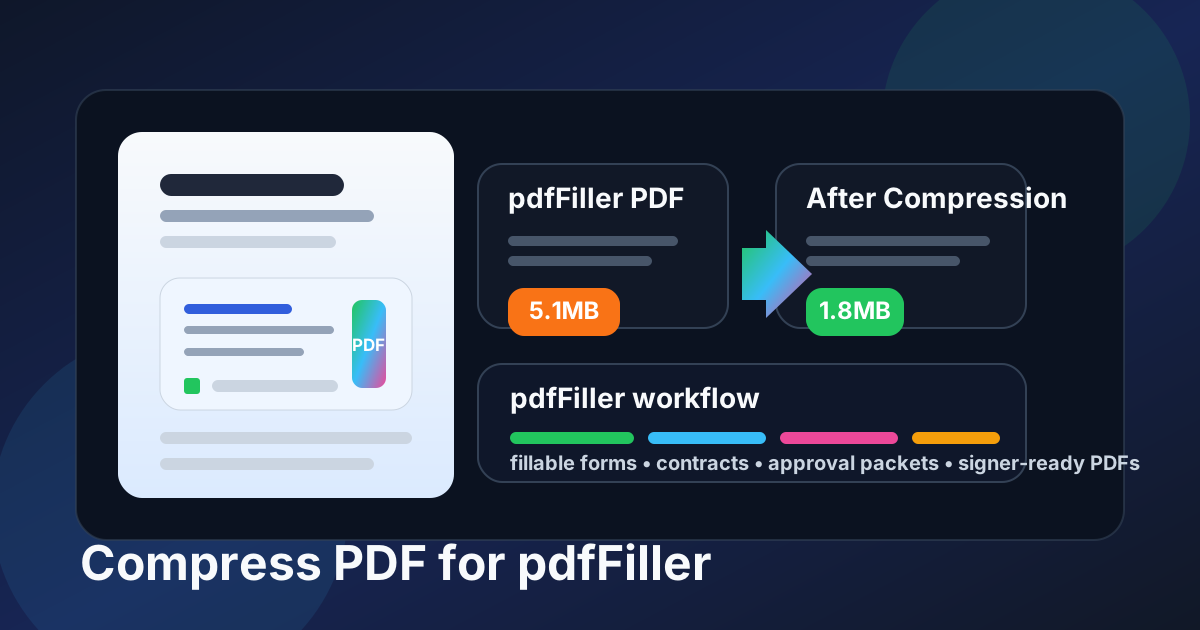
Table of contents
- Quick start: compress a pdfFiller PDF in about 2 minutes
- Why pdfFiller PDFs get heavy so quickly
- Where large files create friction
- What file size should you aim for?
- Which compression level should you choose?
- Step-by-step: shrink a pdfFiller document with LifetimePDF
- Best strategy for common pdfFiller file types
- What if the file is still too big?
- How to protect fields, signatures, and fine print
- Workflow habits that keep pdfFiller files lighter
- Related LifetimePDF tools and useful internal reading
- FAQ (People Also Ask)
Quick start: compress a pdfFiller PDF in about 2 minutes
- Open Compress PDF.
- Upload the final pdfFiller-ready form, contract, approval packet, or signer-facing PDF.
- Start with Medium compression.
- Download the smaller copy and reopen it once before replacing the original.
- If the file is still too large, delete stale pages, extract the live section, or split the appendix before trying stronger compression.
That is usually enough. Most pdfFiller documents do not need aggressive compression. They need a realistic file-size target, one deliberate quality check, and better structure if the packet is carrying more baggage than the workflow actually needs.
Why pdfFiller PDFs get heavy so quickly
pdfFiller files often get bloated for a boring reason: people keep adding context. A simple form turns into a larger packet after someone merges in supporting pages, scans, screenshots, repeated drafts, backup copies, or instructions that were useful once but do not belong in the live document anymore.
Another common issue is scanned source material. Even when the document itself is short, phone captures and office scans can add shadows, extra margins, blank backs, or oversized images that contribute plenty of file weight without making the PDF more useful. Compression helps, but structure matters just as much.
Where large files create friction
A bigger file is not automatically a broken file. The problem is that unnecessary weight shows up at exactly the wrong moments:
- Form review: the person opening the file should see it quickly, not wait for a bloated packet.
- Mobile completion: heavy documents are more annoying to open and navigate on a phone.
- Internal approval: bulky PDFs slow down handoffs when someone only needs the live pages.
- Signer trust: a contract feels shakier when the document is slow and cluttered before anyone even reaches the signature line.
- Archive cleanup: oversized files are harder to store, resend, split, or reuse later.
A smaller PDF reduces that drag without changing the substance of the document. Done well, it makes the file easier to work with while keeping the details that still carry the trust of the document.
What file size should you aim for?
There is no perfect number for every file, but these practical ranges work well for most pdfFiller workflows:
| Document type | Practical target | Why it works |
|---|---|---|
| Simple fillable form or short agreement | < 1MB to 2MB | Usually enough for fast loading while keeping fields, labels, and signatures clear |
| Approval packet or onboarding file | 2MB to 3MB | Leaves room for multiple pages, logos, tables, and instructions without feeling heavy |
| Scan-heavy support document or mixed bundle | 2MB to 5MB | Safer when small text, stamps, IDs, or faint scans still need to stay readable |
If the document already opens quickly and the important details still look clean, stop there. Compression is supposed to improve the workflow, not win a file-size contest.
Which compression level should you choose?
For pdfFiller work, Medium is usually the best default. It lowers file size enough to remove friction without making fields, initials, labels, or signature areas look questionable.
- Low compression: best when the source file is already clean and only needs a modest reduction.
- Medium compression: the safest first choice for most forms, contracts, approval packets, and signer-ready PDFs.
- High compression: use only after checking whether cleanup or splitting would solve the problem more cleanly.
If the PDF includes fine print, faint scans, small field labels, initials boxes, or narrow signature lines, treat aggressive compression as the last step, not the first one.
Step-by-step: shrink a pdfFiller document with LifetimePDF
- Start with the final document. Use the actual form, agreement, approval packet, or signer-facing PDF instead of an earlier working draft.
- Upload it to Compress PDF. Open LifetimePDF Compress PDF and add the file.
- Choose Medium first. That is usually the best balance for pdfFiller documents.
- Download the smaller copy. Save it clearly so it does not get confused with older versions.
- Check the fragile details. Review field labels, signature lines, initials areas, dates, totals, checkbox text, and the smallest paragraph that still matters.
- If the PDF contains live fields, test one or two. Reopen the file and make sure the compressed copy still behaves the way you expect before replacing the original.
- Trim structure if needed. If the file is still heavy, delete repeated pages, extract the live section, crop scan waste, or split the backup material before you try stronger compression.
That order keeps you from solving the wrong problem. In most pdfFiller workflows, the cleanest outcome is not the smallest possible file. It is the lightest file that still feels trustworthy when someone needs to fill, review, or sign it.
Best strategy for common pdfFiller file types
Fillable forms and intake documents
These usually compress well because the important information is mostly text, fields, and short instructions. Medium compression is normally enough. Just make sure labels, required fields, and checkboxes still feel obvious at ordinary reading zoom.
Contracts and signer-ready agreements
Be more careful here. The document does not need to be huge, but it does need to look dependable. Keep an eye on signature lines, initials boxes, dates, fee tables, and the smallest legal or instructional text before you decide the smaller copy is ready.
Approval packets and onboarding bundles
These get heavy because they collect multiple parts of a process in one place. If the file stays stubbornly large, extract the exact pages the next reviewer actually needs instead of forcing the entire bundle through aggressive compression.
Scanned support documents
Scan-heavy PDFs often carry the most pointless weight. Crop extra borders, delete blank backs, and remove duplicate scans before you compress harder. In many cases, cleaner structure reduces more weight than a stronger compression setting.
What if the file is still too big?
Do not keep pushing compression harder without checking the structure of the PDF. If Medium does not get you where you need to be, try one of these first:
- Use Delete Pages to remove duplicate sheets, blank backs, or stale instructions.
- Use Extract Pages to keep only the section that actually needs to travel.
- Use Split PDF when the live document and the backup appendix should not stay together.
- Use Crop PDF to remove scan borders and wasted margins.
- Use PDF Form Filler if you want a cleaner typed copy before the final file gets shared.
Those steps usually remove more useful weight than immediately jumping to High compression.
How to protect fields, signatures, and fine print
The easiest mistake is checking only the first page. For pdfFiller documents, inspect the details that actually affect confidence in the file:
- field labels, checkboxes, radio options, and required markers
- signature lines, initials areas, dates, and small approval blocks
- fee tables, totals, rates, and short instructions near fields
- the smallest paragraph on the busiest page
- any faint scan, stamp, or low-contrast support page that still matters
If those details look fuzzy, cramped, or annoying to zoom into, keep the gentler setting or clean the file another way. Compression should remove waste, not certainty.
Workflow habits that keep pdfFiller files lighter
A few boring habits save a lot of cleanup later:
- Keep a clean final packet instead of stacking new exports onto the old one.
- Separate backup material from the actual live document whenever possible.
- Avoid print-scan-rescan loops if a digital source is available.
- Trim scan borders and blank backs before they become part of the final file.
- Compress once near the end instead of repeatedly recompressing the same bloated PDF.
These habits matter because the easiest PDF to compress well is the one that never became unnecessarily heavy in the first place.
Related LifetimePDF tools and useful internal reading
If pdfFiller is part of a broader document workflow, these tools and guides pair well with this job:
- Compress PDF for the actual size-reduction step.
- PDF Form Filler for a cleaner typed copy before sharing.
- Extract Pages when only the live section should stay attached.
- Delete Pages to remove duplicates or outdated instructions.
- Split PDF for packets that carry too much backup material.
- Crop PDF to clean scan borders and dead margins.
- Compress PDF for DocHub.
- Compress PDF for SignNow.
- Compress PDF for Jotform Sign.
- Compress PDF for Acrobat Sign.
- Compress PDF for DocuSign.
- Lifetime access if PDF cleanup is a repeat part of your workflow.
Bottom line: for most pdfFiller documents, start with Medium compression, review the file once, and fix packet structure before you push the whole PDF harder.
FAQ (People Also Ask)
How do I compress a PDF for pdfFiller?
Upload the final PDF to a compressor, start with Medium compression, download the smaller copy, and keep it only after fields, initials, signatures, labels, and small text still look clean. Medium is usually the safest first pass for pdfFiller documents.
What file size should I aim for in pdfFiller?
For simple fillable forms and short contracts, under 2MB is a strong target. Multi-page approval packets, onboarding files, and scan-heavier support documents often work best around 2MB to 5MB as long as the important details remain readable.
Will compression blur form fields or signature areas?
It can if you compress too aggressively. That is why Medium compression is the best place to start. Always review the smallest labels, signature lines, initials areas, dates, totals, and fine print before you keep the smaller PDF.
Should I merge documents before or after compressing them for pdfFiller?
If you already know the exact final packet, merge first and compress the finished PDF once. If the packet is oversized because it includes duplicate scans, outdated pages, or a bulky appendix, trim those parts first.
What if my pdfFiller PDF is still too large after compression?
Delete stale pages, crop scan borders, extract only the live section, split bulky backup material, or rebuild the source export more cleanly. In many cases, better structure helps more than stronger compression.
Published by LifetimePDF - Pay once. Use forever.