Compress PDF for Zoho Sign: Keep Contracts, Forms, and Signature-Ready Packets Small Without Losing the Details
To compress a PDF for Zoho Sign, upload the final file to LifetimePDF's Compress PDF tool, start with Medium compression, and keep the smaller copy only if names, dates, signature fields, initials, labels, and fine print still read cleanly.
For most Zoho Sign workflows, under 2MB is a strong target for text-heavy contracts and forms, while scanned packets, mixed-content approvals, and image-heavier bundles usually work best around 2MB to 5MB.
Zoho Sign usually shows up near the finish line. The document is already approved enough to matter, which means the job is not to make it tiny at any cost. The job is to remove wasted file weight without making the signer-facing copy feel blurry, fragile, or awkward to trust.
Fastest path: use LifetimePDF's Compress PDF tool at Medium, then trim appendices, crop scan waste, or split bulky supporting material only if the final Zoho Sign packet is still heavier than it needs to be.
Need the short version? Jump to Quick start: compress a Zoho Sign PDF in about 2 minutes.
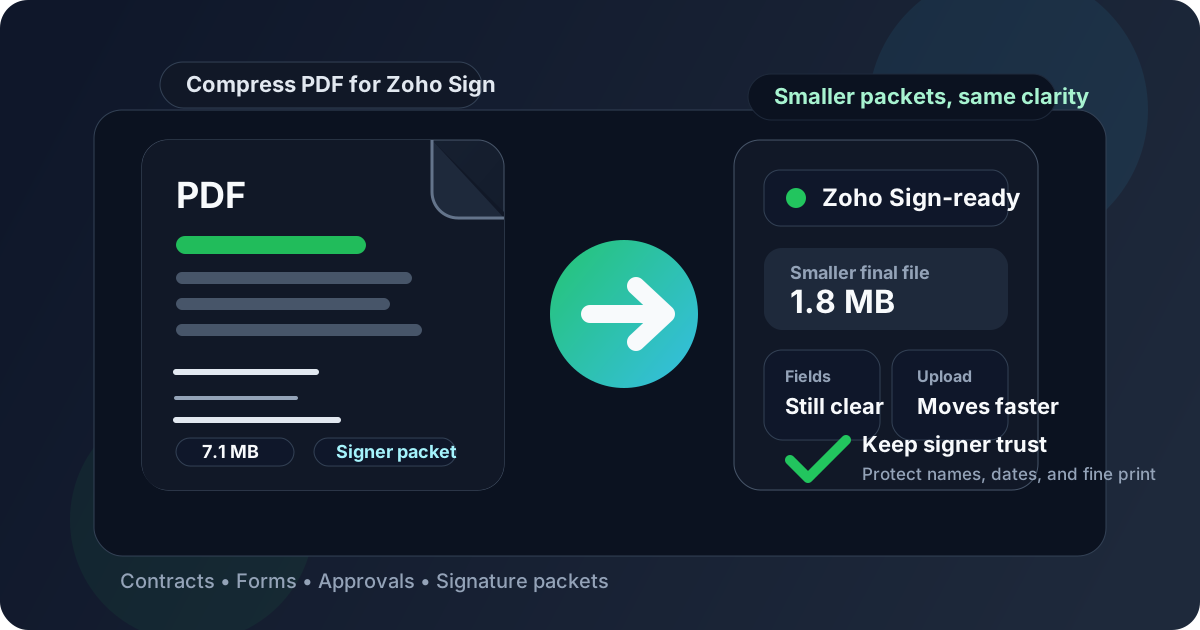
Table of contents
- Quick start: compress a Zoho Sign PDF in about 2 minutes
- Why smaller PDFs help in Zoho Sign workflows
- What size should a Zoho Sign PDF be?
- Which compression level should you choose?
- Step-by-step: shrink a PDF with LifetimePDF
- Best approach for common Zoho Sign document types
- What to do if the PDF is still too large
- How to keep signer-facing details readable
- Workflow habits that prevent PDF bloat
- Related LifetimePDF tools and useful reading
- FAQ (People Also Ask)
Quick start: compress a Zoho Sign PDF in about 2 minutes
If your real goal is simply make this Zoho Sign PDF smaller so it uploads cleanly and still looks trustworthy, this workflow is usually enough:
- Start with the contract, NDA, approval form, onboarding packet, quote, or agreement you actually plan to send.
- Open Compress PDF.
- Choose Medium compression first.
- Download the smaller result and compare the new size.
- Check the fragile details once: signer names, dates, signature blocks, initials areas, checkbox labels, totals, and the smallest legal or instructional text.
- If the file is still bulky, use Delete Pages, Extract Pages, Split PDF, or Crop PDF before trying stronger compression.
Why smaller PDFs help in Zoho Sign workflows
Zoho Sign documents are often high-intent files. They are contracts, approvals, HR packets, vendor forms, sales agreements, or internal documents that are already close to a decision. When those PDFs are heavier than they need to be, the friction appears at exactly the wrong moment: right before review, right before signature, or right before the file needs to be reopened on a phone.
Smaller PDFs upload faster, preview more smoothly, and are easier to resend or archive later. That matters even more when the source packet picked up scan shadows, oversized screenshots, duplicate pages, or appendix material that never really belonged in the signer-facing copy in the first place.
- Faster uploads: useful when a packet needs to move now, not after another cleanup loop.
- Better phone review: many recipients first open a signing packet on mobile.
- Cleaner internal handoffs: sales, legal, HR, finance, and operations all benefit from leaner files.
- Less scan waste: rescanned or photographed paperwork often carries bulk that adds no value.
- Better downstream work: smaller PDFs are easier to split, extract, crop, merge, and archive later.
What size should a Zoho Sign PDF be?
There is no single perfect number for every Zoho Sign workflow, so practical ranges are more useful than chasing the smallest possible file. You want a PDF that feels easy to open and professional to sign.
| Document type | Practical target | Why it works |
|---|---|---|
| Text-heavy contract, NDA, or ordinary form | < 1MB to 2MB | Usually enough for clean uploads and fast review without hurting readability |
| Approval packet, proposal, or mixed-content document | 1MB to 3MB | Leaves room for moderate images, tables, and supporting pages without feeling bulky |
| Scan-heavy packet, exhibits, or onboarding bundle | 2MB to 5MB | Often safer when small text, signatures, and image-based pages still need to stay clear |
If your file is already within a sensible range and still opens quickly, stop there. Compression is supposed to make the workflow smoother, not win a size contest.
Which compression level should you choose?
Most Zoho Sign users do best by treating compression like a quality dial rather than a one-way shrink button.
- Low compression: useful when the source is already lean and you only need a mild size drop.
- Medium compression: the best starting point for most Zoho Sign documents because it usually lowers size without damaging important signer-facing details.
- High compression: best reserved for bulky scans or internal drafts after you confirm the final copy still looks trustworthy.
If the PDF includes fine print, initials, faint signature lines, tiny table labels, or scanned approvals, go gentler first. Over-compressing those details creates more risk than value.
Step-by-step: shrink a PDF with LifetimePDF
- Export or save the final Zoho Sign-ready PDF.
- Open LifetimePDF's Compress PDF tool.
- Upload the file and choose Medium compression.
- Download the smaller version.
- Preview the exact details that matter most: names, dates, signature fields, initials boxes, checkbox labels, totals, and the smallest legal text.
- If the file still feels too heavy, clean the structure before you compress harder.
Best approach for common Zoho Sign document types
Contracts and NDAs
Start with Medium compression and verify clause text, dates, names, and signature lines. These files are often mostly text, so if they feel unusually large, the problem is usually hidden scan weight or unnecessary appended pages.
Approval forms and internal sign-off packets
Watch checkboxes, initials, routing notes, and table labels. Small UI-like details can degrade faster than body text if the source export was already low quality.
Onboarding or HR packets
These often carry mixed content: forms, policy pages, photo IDs, and signed acknowledgments. A 2MB to 5MB result can be completely reasonable if it keeps the important pages readable and easy to reopen later.
Scanned agreements
If the PDF came from a scanner or phone camera, crop dead borders, delete blank backs, or run OCR PDF when needed so the final file is searchable as well as smaller.
What to do if the PDF is still too large
When Medium compression is not enough, the next best move is usually structural cleanup, not brute force.
- Delete duplicate or stale pages.
- Crop scan borders and dead margins.
- Extract only the signer-facing pages.
- Split a heavy appendix into a separate file.
- Rebuild a messy export if it contains huge screenshots or repeated scans.
In other words, sending less PDF often works better than compressing the same bloated packet harder.
How to keep signer-facing details readable
Do one deliberate review after compression. You do not need a full audit. You just need to inspect the fragile parts that would create hesitation if they looked rough.
- Names and legal entity details
- Dates and effective dates
- Signature lines and initials areas
- Checkbox labels and short instructions
- Tables, totals, and fine print
- Any scanned stamp, handwritten note, or low-contrast section
If those still look clean at ordinary reading zoom, the PDF is probably ready.
Workflow habits that prevent PDF bloat
- Keep a clean master packet instead of repeatedly exporting new variants.
- Do not merge reference material into the signer copy unless it is truly needed.
- Prefer digital source files over print-scan-rescan cycles.
- Separate appendices from the actual signature packet when possible.
- Compress once near the end instead of stacking multiple rounds of compression.
These habits matter because the easiest PDF to compress well is the one that was not bloated in the first place.
Related LifetimePDF tools and useful reading
- Compress PDF for the actual size reduction step
- Extract Pages when only part of the packet needs to travel
- Split PDF for heavy appendices and support material
- Crop PDF to remove scan borders and wasted margins
- Compress PDF for Zoho Sign: Upload Smaller Contracts and Forms Faster
- Compress PDF for Zoho Sign Without Monthly Fees
FAQ (People Also Ask)
How do I compress a PDF for Zoho Sign?
Upload the final Zoho Sign-ready PDF to a compressor, start with Medium compression, and keep the smaller copy only after checking names, dates, signature fields, initials, labels, and fine print. For most signer-facing documents, Medium is the safest first step.
What file size should I aim for before uploading to Zoho Sign?
Under 2MB is a strong target for text-heavy contracts and ordinary forms. Mixed-content packets and scan-heavy files often work better around 2MB to 5MB if that keeps the important details readable.
Will compression hurt signature fields or legal text?
It can if you compress too aggressively. That is why Medium compression is usually the best starting point. Always review signature lines, dates, initials, checkbox labels, and small legal text before keeping the smaller file.
Should I compress before or after merging documents for Zoho Sign?
If you already know the final signer packet, merge first and compress the finished file once. If the packet is heavy because it includes duplicate scans or pages the signer does not really need, trim or split those sections before compressing.
What if my Zoho Sign PDF is still too large after compression?
Delete duplicate pages, crop scan borders, extract the signer-facing section, split a large appendix, or rebuild an oversized export more cleanly. In many cases, better packet structure helps more than stronger compression.
Ready to shrink the file? Start with the final Zoho Sign packet, use Medium compression, and keep the smaller copy only after a quick readability check.