Compress PDF for Weebly: Speed Up File Links, Menus, and Lead Magnets
To compress a PDF for Weebly, upload the final file to LifetimePDF's Compress PDF tool, start with Medium compression, and replace the live copy only after it opens cleanly from your page link, store item, button, or member area.
For most Weebly PDFs, under 3MB is a comfortable target for menus, checklists, and short downloads, while longer brochures, catalogs, and image-heavy guides usually work best around 3MB to 6MB after light cleanup.
In Weebly, a PDF does not have to be enormous to feel slow. A menu linked from a homepage, a lead magnet behind a button, a downloadable store file, or a member resource can still feel clunky once someone opens it on mobile. The goal is not the tiniest possible PDF. The goal is a lighter file that still feels polished and worth downloading.
Fastest path: run the Weebly PDF through LifetimePDF's Compress PDF tool on Medium, then test the exact live button, page link, or store download before you swap out the original.
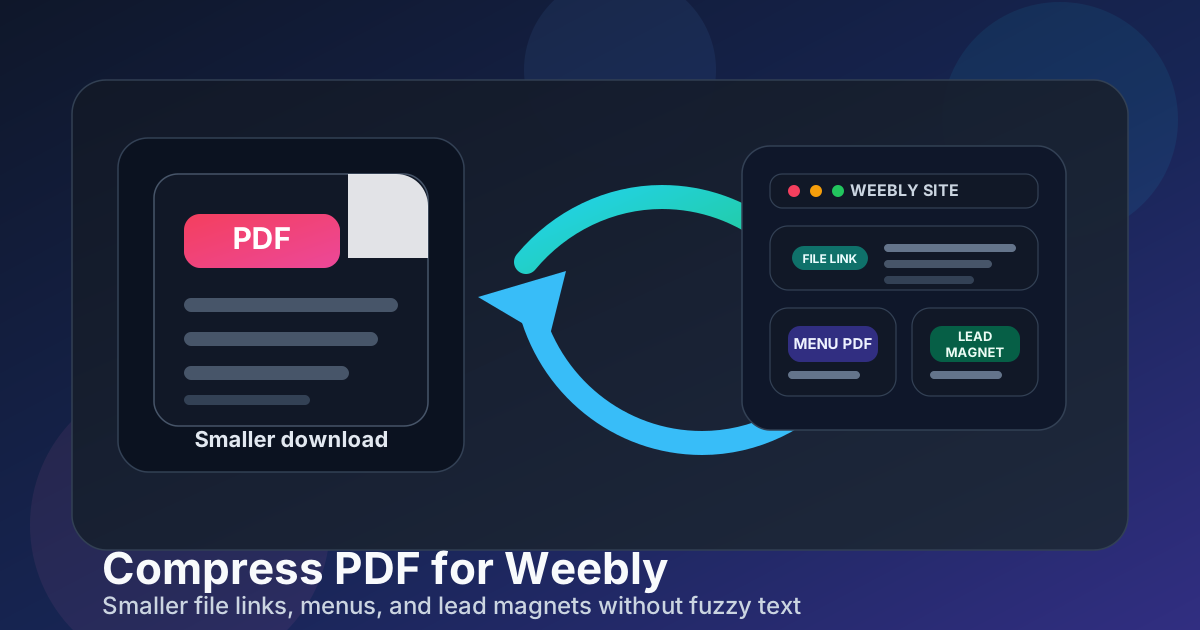
Table of contents
- Quick start: compress a Weebly PDF in about 2 minutes
- Why Weebly PDFs get heavy so quickly
- Where large PDFs slow the Weebly experience
- What file size should you aim for?
- Which compression level should you choose?
- Step-by-step: shrink a Weebly PDF with LifetimePDF
- Best strategy for common Weebly PDF types
- What if the file is still too heavy?
- How to keep text, logos, and screenshots readable
- Workflow habits that keep Weebly PDFs lighter
- Related LifetimePDF tools and useful internal reading
- FAQ (People Also Ask)
Quick start: compress a Weebly PDF in about 2 minutes
If your real goal is simply make this PDF small enough for Weebly without making it feel cheap, this workflow is usually enough:
- Open Compress PDF.
- Upload the exact menu, lead magnet, brochure, store file, member download, or guide you plan to publish.
- Choose Medium compression first.
- Download the smaller file and compare the new size with the original.
- Place that copy in the exact Weebly page, button, store listing, navigation link, or member area you actually use.
- Open the live link once on desktop and once on mobile, then check the weak points: smallest text, logos, prices, screenshots, forms, QR codes, and CTA sections.
- If the file is still too heavy, split the appendix, delete extra pages, or crop wasted margins before trying stronger compression.
Why Weebly PDFs get heavy so quickly
Weebly PDFs often become larger than they need to be because the file started somewhere else. A restaurant menu may have been designed for print. A lead magnet may have been exported from Canva or slides at full print resolution. A brochure may carry oversized background images, duplicated logo treatments, and extra pages meant for internal review rather than public download.
Another common issue is that one PDF quietly tries to do too many jobs. It becomes the website download, the email follow-up asset, the printable version, the client handout, and the archive master all at once. Compression helps, but the strongest result usually comes from a cleaner web copy plus balanced compression rather than squeezing one oversized master harder and harder.
Weebly site owners also tend to publish PDFs in places where speed is noticeable. A visitor clicks from a phone, a social bio link, a QR code on a counter, or a store item after already deciding to engage. If the file opens slowly there, the site feels less polished even when the content itself is good.
Where large PDFs slow the Weebly experience
The cost of a heavy PDF is not just file size on paper. It shows up in the visitor experience:
- Page buttons and file links: a homepage or service page feels less responsive when the linked PDF drags on mobile.
- Restaurant menus: diners scanning a QR code want the menu immediately, not after a long blank load.
- Lead magnets: if a checklist or workbook feels slow, the handoff after a sign-up loses momentum.
- Store downloads: product manuals, sewing patterns, templates, and digital extras feel more trustworthy when they arrive quickly.
- Member or client areas: private guides, onboarding packets, and lesson materials feel easier to use when they open without friction.
In other words, a lighter PDF supports the same thing every strong Weebly site is trying to do: reduce hesitation after the click.
What file size should you aim for?
There is no single perfect target, but practical ranges help:
- Under 2MB: great for simple menus, one-page brochures, checklists, coupons, and short lead magnets.
- 2MB to 3MB: a strong target for most Weebly downloads that mix text with a few images or branded design elements.
- 3MB to 6MB: acceptable for longer guides, small catalogs, onboarding packets, and image-heavier resources if the content still reads cleanly.
- Over 6MB: often a sign that the file needs cleanup, splitting, or a lighter export before you rely on compression alone.
The smallest useful size wins. If a 1.8MB file makes tiny menu prices fuzzy or turns screenshots muddy, that file is too small. If a 3.4MB file still looks sharp and opens quickly from the live Weebly page, that is probably the better choice.
Which compression level should you choose?
For Weebly workflows, the safest order is simple:
- Medium compression first: best default for most menus, guides, downloads, and lead magnets.
- Low compression: useful when the PDF contains very small text, fine pricing tables, QR codes, or screenshots that must stay crisp.
- High compression: use only when the file is still too heavy after cleanup and you can verify that the smallest important elements still hold up.
If you jump straight to aggressive compression, you often save less time than you think. The file gets smaller, but then you have to rebuild trust by checking whether the menu is still readable, whether the price list still looks clean, and whether the screenshots still make sense. Medium usually gives the best balance on the first pass.
Step-by-step: shrink a Weebly PDF with LifetimePDF
- Start with the final public copy. Use the exact file you plan to link, not a layered working draft with extra review pages.
- Open the compressor. Go to Compress PDF.
- Upload the file. Add the menu, brochure, lead magnet, store attachment, or member resource.
- Choose Medium. It is the best first pass for most web-facing PDFs.
- Download the smaller copy. Compare the new size with the original so you know whether the change is meaningful.
- Swap it into the real Weebly workflow. Update the file link, button destination, store item, or member page that visitors actually use.
- Test the real click path. Open the PDF from a live page on phone and desktop instead of judging the file only from local preview.
- Check the fragile areas. Look closely at prices, body text, small labels, screenshots, forms, logos, and any page that has to look premium.
If it still feels too heavy after that, the next move is usually structural cleanup, not immediate maximum compression.
Best strategy for common Weebly PDF types
Restaurant or cafe menus
Menus need fast open times more than almost any other Weebly PDF because many people reach them by QR code on mobile. Use Medium compression first, then check the smallest price text, allergen notes, and item descriptions. If the menu still feels heavy, removing decorative full-bleed backgrounds often helps more than stronger compression.
Lead magnets and opt-in freebies
A lead magnet should feel instant and polished. Readers will forgive a modest file size, but they notice if a workbook or checklist opens slowly right after they sign up. Keep the web version focused on the core promise. If the PDF contains a bonus appendix, archive pages, or print-only extras, split those out rather than dragging down the main download.
Store files and digital extras
Weebly store downloads often include manuals, quick-start guides, certificates, templates, or printable packs. Here the key test is whether the file still feels clean after payment or after clicking from a product page. Keep instructions, diagrams, and warranty details readable, then reduce size only as far as the file can go without losing trust.
Brochures, media kits, and service guides
These files often carry large cover art and image-heavy inner pages. Medium compression is still the right starting point, but you may get a bigger improvement by simplifying page backgrounds, resizing oversized photos, or removing repeated brand pages before you compress.
Member or client resources
Private course handouts, onboarding packets, and member downloads do not need to be tiny, but they should still feel smooth. If people return to the resource often, a cleaner smaller file saves repeated friction over time.
What if the file is still too heavy?
If Medium compression still leaves the PDF heavier than you want, try these moves in order:
- Delete outdated appendix pages, duplicate covers, or internal notes with Delete Pages.
- Split long bundles into smaller downloads with Split PDF.
- Extract only the reader-facing section with Extract Pages.
- Crop excessive white space or print margins with Crop PDF.
- Move update-heavy material onto the page itself with PDF to HTML instead of hiding everything inside one file.
This usually works better than forcing the whole document through aggressive compression and hoping the result still looks professional.
How to keep text, logos, and screenshots readable
When judging the final Weebly copy, do not stop at the cover page. Check the places that break first:
- small body text in menus and brochures
- prices and tiny footnotes
- screenshots inside tutorials or onboarding PDFs
- QR codes, coupon codes, and promo codes
- logos, icons, and thin line art
- tables, checklists, and printable boxes
Open the live Weebly link on a phone at normal viewing size. If a visitor would pinch-zoom immediately just to understand the file, the compression or cleanup went too far.
Workflow habits that keep Weebly PDFs lighter
The easiest way to keep future Weebly PDFs under control is to separate the web copy from the archive master. That one habit prevents a lot of oversized uploads.
- Keep a print-ready master if you need one, but publish a web-ready version for the site.
- Compress only the final public copy instead of every draft version along the way.
- Remove unused appendix pages before export, not after the file is already live.
- Resize giant photos in the source design when possible.
- Use clearer file names so you do not accidentally re-upload the heavy original later.
- Check the real live link once after updating it. That single habit catches most problems quickly.
A fast Weebly PDF workflow is mostly about clean handoffs. Smaller files help, but disciplined publishing habits help even more.
Related LifetimePDF tools and useful internal reading
If Weebly is part of your normal publishing workflow, these tools and articles pair well with this guide:
- Compress PDF for the first size-reduction pass.
- Split PDF for long downloads that should be broken into smaller parts.
- Delete Pages to remove stale appendix or duplicate cover pages.
- Crop PDF to trim wasted margins from print-oriented layouts.
- PDF Metadata Editor for cleaner titles and download properties.
- HTML to PDF if you want a cleaner downloadable version of a page.
- Compress PDF for Wix.
- Compress PDF for Squarespace.
- Compress PDF for WordPress.
- Compress PDF for Shopify.
- Compress PDF for OpenCart.
- Lifetime access if PDF cleanup is a recurring part of your publishing stack.
Bottom line: for most Weebly PDFs, start with Medium compression, test the live page or store link, and clean up structure before you use stronger compression.
FAQ (People Also Ask)
How do I compress a PDF for Weebly?
Upload the final PDF to a compressor, start with Medium compression, download the smaller copy, and test the exact Weebly page, button, store item, or member link before leaving it live. Medium is usually the safest first pass because it lowers file size without making text, logos, screenshots, or CTA pages feel unreliable.
What file size should I aim for on a Weebly site?
For many Weebly menus, checklists, and short downloadable guides, under 3MB is a comfortable target. Longer brochures, catalogs, member resources, and image-heavy PDFs often land best around 3MB to 6MB as long as the smallest useful text still reads clearly.
Why does a Weebly PDF still feel slow after I upload it?
Because the upload itself is only part of the experience. A PDF can be stored correctly and still feel heavy once someone opens it from a phone, a page button, a QR code, or a store link. Compression helps, but removing extra pages, wide margins, and oversized images often helps even more.
Will compression make my Weebly menu or lead magnet blurry?
It can if you compress too aggressively. That is why Medium compression is the best place to start. Always check the smallest body text, prices, QR codes, screenshots, logos, and call-to-action sections before replacing the original file.
Should I split a long Weebly PDF instead of compressing harder?
Often, yes. If the file contains a core reader section plus a long appendix, full catalog, or archive material, splitting it usually creates a better visitor experience than forcing the entire document through aggressive compression.
Published by LifetimePDF - Pay once. Use forever.