Compress PDF for VuePress: Keep Docs, API Guides, and Downloadable PDFs Lighter
To compress a PDF for VuePress, upload the final guide, API appendix, printable manual, migration pack, or shared reference PDF to LifetimePDF's Compress PDF tool, start with Medium compression, and replace the original only after reopening the smaller copy from the exact VuePress page where readers will use it.
For most VuePress sites, aim for under 4MB for text-heavy documentation and roughly 4MB to 10MB for screenshot-rich guides, training packets, or longer downloadable manuals that still need to feel trustworthy.
VuePress pages often feel fast and focused until one linked PDF slows the whole experience down. A clean setup page loses its rhythm when the attached handbook is oversized, a migration note bundle takes forever to reopen, or a documentation sidebar points to a heavy file that feels much bigger than the answer the reader came for. The fix is rarely extreme compression. The better move is to keep the download light enough to open quickly while protecting the details that make the document genuinely useful.
Fastest path: compress the finished VuePress PDF on Medium, reopen the smaller copy from the real page or sidebar link, then split, crop, extract, or OCR only if the file is still heavier than the workflow needs.
Need the short version? Jump to Quick start: compress a PDF for VuePress in under 2 minutes.
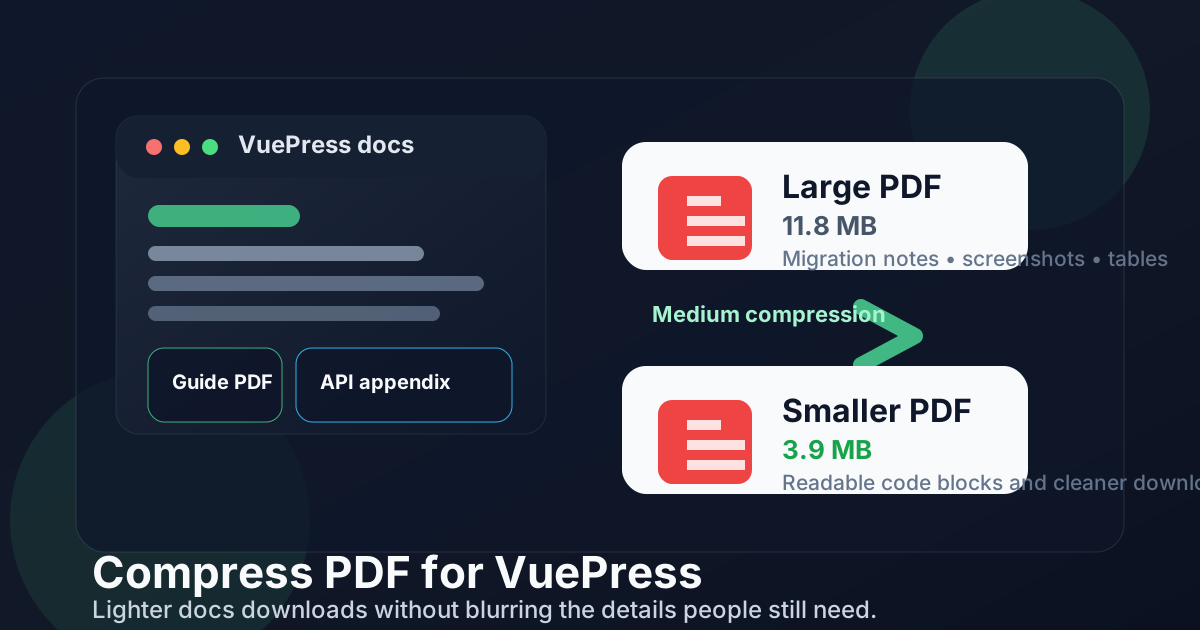
Table of contents
- Quick start: compress a PDF for VuePress in under 2 minutes
- Why smaller PDFs help in VuePress
- What makes a good VuePress PDF download
- What file size should you aim for?
- Which compression level should you choose?
- Step-by-step: shrink a VuePress PDF with LifetimePDF
- Best strategy for common VuePress PDF types
- What if the PDF is still too large?
- Documentation habits that keep VuePress downloads lean
- Related LifetimePDF tools and useful internal links
- FAQ
Quick start: compress a PDF for VuePress in under 2 minutes
If your real goal is simply make this VuePress download lighter without making it annoying to use, this workflow is usually enough:
- Open Compress PDF.
- Upload the exact guide, API appendix, release packet, printable policy, or support handout you plan to link from VuePress.
- Choose Medium compression first.
- Download the smaller copy and compare the new size with the original.
- Put the lighter file where it will actually live in your VuePress docs, not in a separate test folder you never use again.
- Open it once from the real page, sidebar item, or call-to-action where readers will find it.
- If it is still too heavy, use Extract Pages, Split PDF, or Crop PDF before jumping straight to harsher compression.
Why smaller PDFs help in VuePress
VuePress is often used for product docs, internal knowledge bases, onboarding portals, developer references, and publish-once handbooks. In each of those cases, the page itself does most of the teaching and the PDF acts like a deeper attachment. When that attachment is too big, it interrupts the flow. Readers click expecting one helpful extra resource and instead get a sluggish download, a heavy tab on mobile, or a file that feels bloated compared with the clean page around it.
Why lighter PDFs usually fit better
- Faster follow-through: readers are more likely to open a smaller guide right away instead of putting it off.
- Better mobile experience: docs links shared in chat or email often get opened on phones where oversized PDFs feel especially clumsy.
- Cleaner docs architecture: each sidebar link or inline CTA feels more intentional when it leads to a right-sized file.
- Easier version management: lighter attachments are simpler to swap out when you update one release, one policy, or one manual.
- More reliable sharing: support teams, customers, and coworkers can pass the file along without fighting size limits quite as often.
- Stronger perceived quality: a PDF that opens quickly and stays readable makes the whole documentation stack feel better maintained.
Compression is not only a storage decision. It is a usability decision. A right-sized PDF lets VuePress stay focused on answers instead of making the download the slowest part of the experience.
What makes a good VuePress PDF download
A good VuePress PDF is not just smaller than before. It should still feel like a deliberate document, not a sacrificed one. That usually means keeping one clear purpose per file and protecting the details that matter once the reader is away from the page.
- One job per file: a setup checklist, API appendix, migration guide, printable white paper, or customer handoff pack should each serve one main workflow.
- Readable dense areas: table columns, code screenshots, terminal captures, diagram labels, signatures, and callout notes should still hold up when zoomed out a bit.
- Predictable naming: readers should understand what they are opening before the download finishes.
- Searchable text when possible: if the PDF is mostly scanned pages, OCR PDF can improve usefulness more than brute-force compression.
- Reasonable page count: repeated covers, blank separators, retired sections, and appendix clutter are weight you can often remove without losing value.
- Metadata that matches the content: clean titles and document properties help the file look credible when it gets downloaded, forwarded, or archived.
If a smaller PDF becomes harder to trust, the compression missed the point. The best result is a file that still feels reliable, just less wasteful.
What file size should you aim for?
There is no perfect number for every VuePress file, but practical targets help. For many text-heavy downloads, under 4MB is a strong goal. It usually keeps the file easy to share and quick to reopen without introducing obvious visual damage.
Screenshot-heavy guides, printable manuals, training decks turned into PDF, or mixed-media onboarding packets often land best around 4MB to 10MB. If the document includes many full-page images, dense diagrams, or small interface text inside screenshots, keeping it a little larger is often the smarter choice.
If the PDF is still above 10MB after a sensible pass, that usually means there is structural cleanup to do. Splitting the file, deleting stale sections, or cropping wasted margins may help more than more compression.
Which compression level should you choose?
The right level depends on the kind of PDF you are linking from VuePress. Start conservative, then get more aggressive only if the file still feels heavier than the job requires.
Low compression
Use Low when visual fidelity matters most and the file is only slightly too large. This is a safe choice for manuals with fine diagrams, PDFs that include signed pages, or documents with screenshots where tiny UI labels matter.
Medium compression
Medium is the best starting point for most VuePress workflows. It usually gives meaningful size reduction while keeping tables, code blocks inside screenshots, diagrams, and body text readable. If you only try one setting first, make it this one.
High compression
Use High only when size pressure is real and the document can tolerate more visual simplification. It can work for simple text-first handouts, but it is more likely to hurt screenshot clarity, chart labels, or scanned pages. If High is the only way to make the file small enough, check the weakest pages carefully before publishing it.
Step-by-step: shrink a VuePress PDF with LifetimePDF
- Pick the final file. Do not optimize a draft that still contains old sections, placeholder pages, or duplicated appendices.
- Open Compress PDF. Upload the exact PDF that your VuePress page will point to.
- Start on Medium. This usually gives the best first-pass result for docs downloads.
- Download the compressed copy. Compare the original size and the new size so you know whether the change is meaningful.
- Reopen the file from the real location. Test the PDF through the actual sidebar link, page CTA, or resource card inside VuePress.
- Inspect the fragile spots. Check code screenshots, wide tables, tiny chart labels, and any scan-heavy pages first.
- Clean structure if necessary. If the file is still too large, remove dead pages, split the bundle, crop empty margins, or run OCR before trying stronger compression.
Best strategy for common VuePress PDF types
Different download types fail in different ways. The best compression decision depends on what the PDF is doing for the page.
API references, plugin docs, and technical appendices
These files usually contain dense text, tables, example payloads, endpoint notes, or screenshots of configuration panels. Medium compression is usually safe, but check any page where code was captured as an image instead of exported as text. If an appendix is bloated because it bundles unrelated modules, splitting by topic may be better than squeezing the whole thing harder.
Setup guides and migration notes
These PDFs often mix instructional text with screenshots and callouts. That combination benefits from Medium first, plus a close review of screenshot-heavy pages. If the file includes multiple migration paths or historical sections, extract only the relevant pages for the version your VuePress page actually supports.
Printable manuals, white papers, and handbooks
Reader expectations are different here. People may save the file, print it, or share it outside the docs site. You can still compress it, but keep charts, headings, and page furniture polished enough that the document still feels official. Low or Medium often beats aggressive size chasing for these files.
Internal runbooks, support packets, and customer handoff docs
These are often assembled quickly and carry hidden weight from repeated screenshots, pasted scans, or whole-page exports that no one cleaned up. Compression helps, but structure cleanup matters more. Delete filler pages, keep only the useful sections, and break giant packets into smaller role-specific downloads when that makes the docs easier to navigate.
Scanned legacy docs and signed approvals
Scan-heavy PDFs are where over-compression becomes ugly fastest. If the file looks like a photo of paper, try OCR PDF first so the document becomes more searchable and often easier to manage. Then compress carefully. If signatures, stamps, or faint annotations matter, Low or Medium is usually safer than High.
What if the PDF is still too large?
When Medium compression does not get the file small enough, the next step is usually not to keep crushing the same document. It is to remove unnecessary weight.
- Extract only the useful pages: use Extract Pages when one section is valuable and the rest is baggage.
- Split giant bundles: use Split PDF if one file tries to do the job of several smaller downloads.
- Delete stale sections: repeated covers, outdated release notes, and blank separators should not survive into the final file.
- Crop wasted whitespace: use Crop PDF when huge margins or scanner borders are inflating the file.
- Fix scans first: run OCR PDF if the document is mostly image-based paper pages.
- Re-export from the source if possible: a cleaner source PDF often beats repeated compression passes on a messy one.
If a document is still awkward after all that, it may simply be too broad. VuePress readers usually benefit more from two targeted PDFs than one giant everything-file.
Documentation habits that keep VuePress downloads lean
The easiest PDF to compress well is the one that was organized sensibly before export. A few habits reduce bloat before it ever reaches your docs site.
- Publish final builds only: do not attach review drafts, outdated appendices, or all-version bundles if the page only needs the latest document.
- Keep one download per use case: separate setup instructions, policy documents, and technical appendices when they serve different readers.
- Use clean screenshots: oversized screenshots with lots of empty space add weight without adding clarity.
- Avoid repeated cover pages: one polished opening page is enough in most docs workflows.
- Name files clearly: a readable filename and clean document title help the PDF stay useful after it leaves VuePress.
- Review mobile behavior: if the PDF is painful on a phone, it is probably larger than it needs to be.
These habits make compression less of a rescue mission and more of a final polish step.
Related LifetimePDF tools and useful internal links
Compress PDF is the main starting point, but a cleaner VuePress workflow often uses a few companion tools too.
- Extract Pages when only one chapter, appendix, or section deserves to stay linked.
- Split PDF when a huge reference bundle should become smaller topic-based downloads.
- Delete Pages to remove blank pages, repeated covers, outdated notes, or appendix clutter.
- Crop PDF to trim scanner borders and oversized white margins.
- OCR PDF when scanned pages need searchable text before compression.
- PDF Metadata Editor to clean titles and properties so downloads look more professional after sharing.
Want the simplest workflow? Start with compression, then only add structural cleanup if the result is still too large or too messy for the page.
FAQ: Compress PDF for VuePress
How do I compress a PDF for VuePress?
Upload the final file to a PDF compressor, start with Medium compression, and keep the smaller copy only if code screenshots, tables, diagrams, and small labels still look clean when you reopen the file from the actual VuePress page where it will live.
What file size should I aim for in VuePress?
Under 4MB is a strong target for many text-heavy docs downloads. Screenshot-rich guides, printable manuals, and mixed-media handbooks often land best around 4MB to 10MB if the important details remain easy to read.
Will compression hurt code examples, tables, or screenshots?
Usually not if you begin with Medium compression and the source file is already decent. The first places to inspect are terminal screenshots, chart labels, dense table columns, and any tiny UI text embedded inside images.
Should I split a large VuePress PDF instead of compressing harder?
Usually yes when the document covers several unrelated topics. VuePress works better when each linked download has one clear purpose, so splitting a giant bundle often creates a better reader experience than forcing one file to do everything.
Which LifetimePDF tools pair best with VuePress?
Compress PDF is the starting point. Extract Pages, Split PDF, Delete Pages, Crop PDF, OCR PDF, and PDF Metadata Editor are the best companions when you want lighter, cleaner documentation downloads.
Published by LifetimePDF - Pay once. Use forever.