Compress PDF for Vendasta: Share Smaller Snapshot Reports, Listing Audits, and Agency PDFs Faster
To compress a PDF for Vendasta, export or print the report as PDF, upload it to Compress PDF, start with Medium compression, and keep the smaller copy only if charts, listing details, screenshots, and notes still look clean.
For most Vendasta PDFs, under 2MB works well for short Snapshot Reports and sales leave-behinds, while broader listing audits, screenshot-heavy sales decks, and white-label client packs usually work best around 2MB to 5MB.
If the file is still heavy, split appendix pages, remove repeated screenshots, or extract only the pages your next reader actually needs before you try stronger compression.
Vendasta PDFs usually get shared when agency work needs to leave the platform for a moment. Maybe you are sending a Snapshot Report to a prospect, handing a listing audit to an account manager, or packaging a monthly recap for a client who wants something they can forward internally. In those moments, smaller PDFs help. They upload faster, feel easier to send, and reduce friction when the real goal is discussing the recommendation instead of wrestling with a bulky attachment. The best result is not the tiniest possible file. The best result is a smaller PDF that still feels dependable when someone checks charts, map screenshots, listing statuses, review trends, and next-step notes.
Fastest path: Run the Vendasta export through LifetimePDF's Compress PDF tool at Medium, then do one quick readability check before you email, upload, or archive the smaller copy.
Short on time? Jump to Quick start: compress a PDF for Vendasta in under a minute.
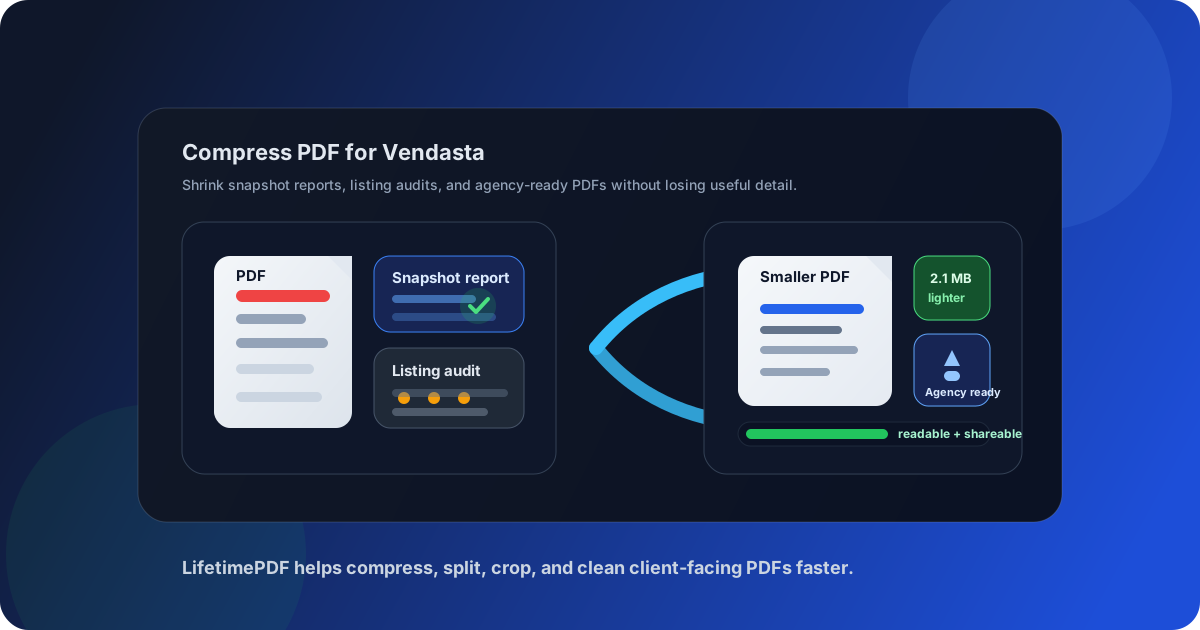
Table of contents
- Quick start: compress a PDF for Vendasta in under a minute
- Why smaller PDFs help in Vendasta workflows
- What file size should you aim for?
- Which compression level should you choose?
- Step-by-step: shrink a PDF with LifetimePDF
- Best strategy for Snapshot Reports, listing audits, and client handoffs
- What if the PDF is still too large?
- How to keep charts, listings, and notes readable
- Workflow habits that reduce PDF bloat
- Related LifetimePDF tools and internal links
- FAQ (People Also Ask)
Quick start: compress a PDF for Vendasta in under a minute
If your real goal is simply make this Vendasta PDF smaller so it is easier to send, review, and save, this is the shortest reliable workflow:
- Open Compress PDF.
- Upload the Vendasta Snapshot Report, listing audit, review summary, proposal appendix, or monthly client recap you want to shrink.
- Choose Medium compression first.
- Download the smaller file and compare the new size with the original.
- Open it once to check chart labels, location names, listing tables, screenshots, and recommendation notes.
- If the file is long, use Split PDF or Extract Pages to keep only the pages the next reader actually needs.
- If the pack includes repeated screenshots, old appendix pages, or multiple locations that should live separately, trim that weight before trying a stronger compression level.
Why smaller PDFs help in Vendasta workflows
Vendasta documents often exist to support sales conversations, reporting handoffs, or quick client communication outside the platform itself. That could be a Snapshot Report shared with a prospect, a listing audit passed to an internal strategist, or a monthly recap a client forwards to their owner or regional lead. That is where file size starts to matter.
Heavy PDFs are slower to upload, more annoying to email, and easier for busy readers to postpone. In practice, the extra weight usually comes from screenshot-heavy pages, repeated audit sections, white-label appendices, or one PDF trying to serve too many audiences at the same time. Good compression is not about forcing the file to the smallest possible number. It is about trimming waste while keeping the details people still rely on, such as charts, listing statuses, screenshots, account highlights, and the action notes that explain what should happen next.
When a PDF feels lighter and cleaner, people are more likely to actually use it. That matters whether you are sending a prospect-facing leave-behind, a client-ready recap, or an internal multi-location audit pack.
What file size should you aim for?
A good Vendasta PDF target depends on who will read it and what the document contains. There is no perfect number, but these ranges work well in real sales and account-management workflows:
| Use case | Recommended target | Why it works |
|---|---|---|
| Short Snapshot Reports, focused sales leave-behinds, and quick client summaries | < 2MB | Easy to email, quick to preview, and low-friction for busy readers |
| Most listing audits, review summaries, and screenshot-heavy sales or client PDFs | 2MB to 5MB | Usually the best balance between readability and convenience |
| Large multi-location packs, white-label appendices, and combined monthly reporting decks | 5MB+ | Still workable internally, but often a sign that the file should be split or trimmed before wider sharing |
If the PDF is going to a prospect or client who mostly needs the headline takeaway and next step, lean smaller. If it is going to an internal specialist who needs every screenshot and every location table, you can accept a somewhat larger file as long as the smallest text stays readable.
Which compression level should you choose?
For Vendasta, the safest first choice is usually Medium compression. It normally reduces file size enough to make sharing easier while still keeping charts, screenshots, listing tables, and notes usable.
- Low compression: best when the PDF includes tiny chart labels, dense listing tables, or screenshots with small callouts someone may zoom into closely.
- Medium compression: the best starting point for most Vendasta exports because it balances size and readability well.
- High compression: only use it after you have already removed unnecessary pages and you still need the file much smaller.
If high compression makes location names, table rows, map screenshots, or recommendation notes feel muddy, step back. A slightly larger file that stays readable is more useful than a tiny one that nobody trusts.
Step-by-step: shrink a PDF with LifetimePDF
- Export the Vendasta report as PDF.
- Open LifetimePDF Compress PDF.
- Upload the file and choose Medium compression.
- Download the compressed copy.
- Review the result carefully, especially chart labels, listing tables, screenshots, location names, and recommended next steps.
- If the report still feels too large, remove unnecessary pages with Delete Pages or split the appendix from the main report with Split PDF.
- Rename the final copy clearly so the client or teammate knows it is the cleaned version.
That last step matters more than people expect. A file name like Vendasta-Snapshot-Report-Compressed.pdf makes the handoff feel intentional instead of improvised.
Best strategy for Snapshot Reports, listing audits, and client handoffs
Different Vendasta PDFs benefit from different cleanup choices. The best compression workflow depends on what the document is actually doing.
Snapshot Reports
These are often summary-driven and prospect-facing. If the file mainly exists to show opportunity, visibility, or high-level performance, medium compression is usually enough. Keep the headline charts and screenshots crisp. If there are repeated sections or a long appendix, cut those before you compress harder.
Listing audits
Listing audits can be more fragile because small rows, statuses, and location details matter. Start with medium compression, then zoom in on the smallest table text before you keep the result. If anything feels soft, try low compression instead of forcing a smaller file.
Sales leave-behinds and proposal appendices
These often include screenshots, charts, annotations, and several pages that support a pitch rather than the final recommendation. Before compressing harder, remove repeated visuals, crop oversized screenshots, and separate must-see summary pages from supporting material. In many cases, Crop PDF helps more than a stronger compression setting.
Monthly client recaps and multi-location packs
These often combine executive summaries, screenshots, location details, and recommendations for several stakeholders. The cleanest approach is to keep the main narrative short and move extra supporting pages into a separate appendix if needed. That makes the PDF smaller and easier to read.
Useful combo: compress the main Vendasta PDF first, then split out appendix pages if a prospect or client only needs the core summary.
What if the PDF is still too large?
If the file is still too big after one careful compression pass, the answer usually is not compress harder immediately. It is usually remove weight more intelligently.
- Split multi-location reports into separate files.
- Extract only the summary pages a client or prospect needs.
- Delete repeated screenshots or outdated appendix sections.
- Crop oversized screenshots that include too much empty space.
- Move supporting evidence into its own file.
These fixes often produce a better final PDF than aggressive compression because they reduce file size without sacrificing the most useful visual detail.
How to keep charts, listings, and notes readable
The fastest post-compression quality check is simple. Open the smaller PDF and look for the pieces that matter most:
- small chart labels and axis text
- location names, listing statuses, and table rows
- map screenshots and supporting callouts
- review or performance highlights
- recommended fixes and next steps
If those still look clear, the compression was probably successful. If any of them feel fuzzy, the file may technically be smaller but practically worse. In that case, revert to a lighter compression level or split the report instead.
Workflow habits that reduce PDF bloat
Good Vendasta PDFs usually start smaller before compression even happens. A few habits help a lot:
- avoid exporting more pages than the next reader needs
- skip duplicate screenshots unless they prove something important
- separate appendix material from the main prospect or client narrative
- crop empty margins around screenshots and visuals
- use a focused summary instead of stacking every possible report view into one file
This matters because compression works best on a clean document. If the PDF is bloated before it ever reaches the compressor, the final result usually feels heavier and messier than it needs to.
Related LifetimePDF tools and internal links
If you work with Vendasta exports often, these tools usually save more time than compression alone:
- Compress PDF for the main file-size reduction step
- Split PDF for separate client packs and appendices
- Extract Pages for summary-only handoffs
- Delete Pages for removing repeated screenshots or outdated sections
- Crop PDF for oversized screenshots and visuals
- PDF Metadata Editor for cleaning document details before client delivery
Related reading on LifetimePDF:
FAQ (People Also Ask)
How do I compress a PDF for Vendasta?
Export the Vendasta report as a PDF, upload it to a PDF compressor, start with medium compression, and review the result before sharing it. Medium compression is usually the safest starting point because it reduces file size without ruining charts, listing tables, screenshots, or notes.
What file size should I aim for before sending a Vendasta PDF?
For a short Snapshot Report or focused sales summary, under 2MB is a practical target. For broader listing audits, monthly client packs, or screenshot-heavy PDFs, around 2MB to 5MB is usually more realistic as long as the key visual detail still looks clear.
Will compression make Vendasta charts or listing details blurry?
It can if you compress too aggressively. That is why medium compression is usually the best first pass. Always check chart labels, screenshot callouts, listing rows, and action notes before you keep the compressed version.
Is it better to split a large Vendasta report instead of compressing it harder?
Often, yes. If the PDF mixes several locations, screenshots, appendix pages, and different sections for different readers, splitting it usually creates a more useful file than forcing stronger compression on everything.
Which LifetimePDF tools help most with Vendasta exports?
Compress PDF is the main starting point. Split PDF, Extract Pages, Delete Pages, Crop PDF, Compare PDFs, and PDF Metadata Editor are also useful when you need smaller, cleaner, agency-ready reporting files.
Ready to clean up a Vendasta PDF? Start with compression, then split or extract pages only if the report still feels heavier than it needs to be.
Published by LifetimePDF - Pay once. Use forever.