Compress PDF for Thruuu: Keep SERP Analysis Reports, Content Briefs, and Client PDFs Small Without Losing Search Context
To compress a PDF for Thruuu, export the report you actually need, upload it to LifetimePDF's Compress PDF tool, start with Medium compression, and keep the smaller copy only if SERP screenshots, headings, tables, and notes still look sharp.
For most Thruuu PDFs, under 2MB works well for short content briefs and focused SERP snapshots, while broader competitor reviews, screenshot-heavy research packs, and client recaps usually land best around 2MB to 4MB.
Thruuu reports are useful because they preserve search context. They show what is ranking, how headings are structured, which questions keep appearing, and where a brief should go deeper or stay tighter. That is exactly why careless compression is annoying here. You do not want a smaller file if it makes screenshots fuzzy, turns headings into mush, or makes the final recommendation harder to trust. The goal is a lighter PDF that still feels dependable when a writer, strategist, editor, or client opens it.
Fastest path: run the Thruuu export through LifetimePDF's Compress PDF tool at Medium, then do one quick readability check before you email, upload, store, or hand off the smaller copy.
In a hurry? Jump to Quick start: compress a Thruuu PDF in about 2 minutes.
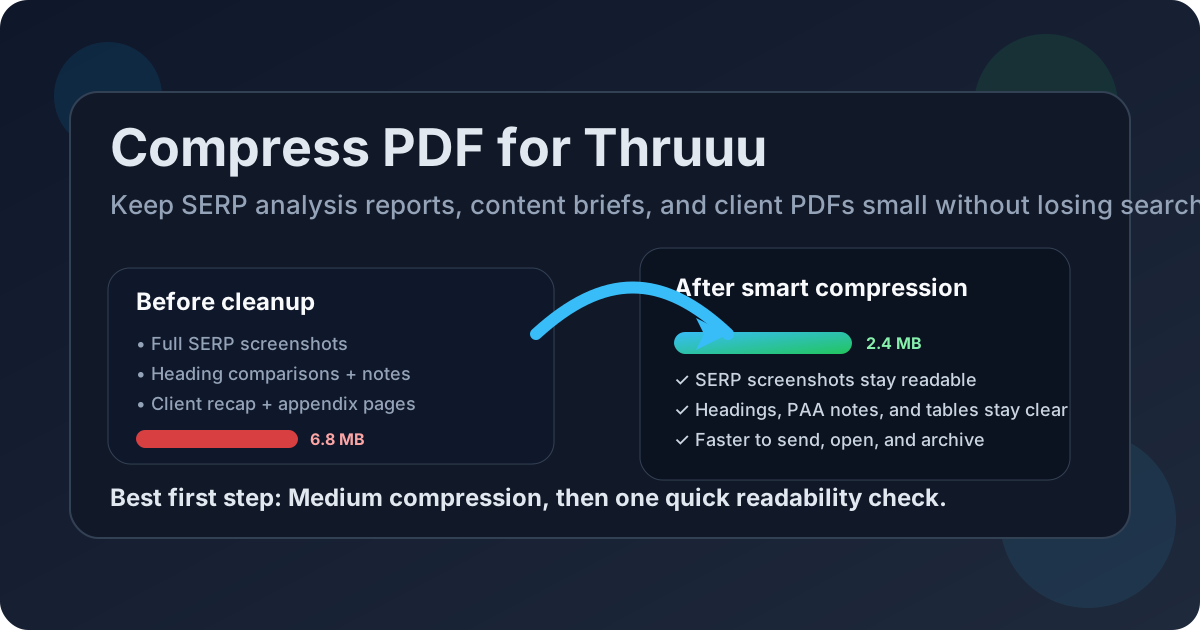
Table of contents
- Quick start: compress a Thruuu PDF in about 2 minutes
- Why Thruuu PDFs get heavy so quickly
- What file size should you aim for?
- Which compression level should you choose?
- Step-by-step: shrink a Thruuu PDF with LifetimePDF
- Best strategy for common Thruuu PDF types
- When to split instead of compressing harder
- How to protect readability after compression
- Workflow habits that keep Thruuu PDFs smaller
- Related LifetimePDF tools and useful internal reading
- FAQ (People Also Ask)
Quick start: compress a Thruuu PDF in about 2 minutes
If your real goal is simply make this Thruuu PDF smaller so it is easier to send, review, and archive, this workflow is usually enough:
- Open Compress PDF.
- Upload the exact Thruuu export you plan to share, such as a SERP analysis report, content brief, heading comparison, People Also Ask snapshot, or client-ready recap.
- Choose Medium compression first.
- Download the smaller file and compare the new size with the original.
- Open it once and check screenshots, heading structures, tables, question notes, and final recommendations.
- If the file is still bulkier than it should be, split the appendix, extract only the shareable pages, crop empty space, or delete repeated screenshot pages before trying a stronger setting.
Why Thruuu PDFs get heavy so quickly
Thruuu exports are often heavier than they first appear because they mix visual proof with written guidance. A screenshot-only report grows fast. A heading comparison with notes grows fast. A client recap plus appendix grows faster still. Then somebody adds duplicate SERP captures, extra competitor pages, and “just in case” sections for a second audience. That is usually where the bloat comes from.
In other words, the problem is not always compression. It is packaging. One PDF is trying to serve a writer, a strategist, and a client at the same time. That makes the file heavier than the next reader actually needs. Compression helps, but clean packaging plus balanced compression usually works better than brute force alone.
What usually adds the most weight
- Full-page SERP screenshots: image-heavy pages inflate size much faster than text-heavy pages.
- Long competitor appendices: broad comparison sets are useful internally but often unnecessary in the final handoff.
- One-file-for-everyone workflows: writers, editors, and clients rarely need the exact same depth.
- Repeated proof pages: similar screenshots or overlapping exports quietly add weight.
- Wide layouts with empty space: landscape pages and screenshot margins waste file size without adding clarity.
What file size should you aim for?
There is no single perfect target because a short content brief behaves differently from a screenshot-backed client recap. Still, a few practical ranges help you stop compressing at a sensible point.
- Under 2MB: ideal for short briefs, narrow SERP snapshots, and simple writer handoffs.
- 2MB to 4MB: a strong target for broader competitor comparisons, screenshot-heavy research packs, and client-ready summaries.
- Over 4MB: acceptable when the PDF truly needs detailed visual evidence, but it is often a signal that splitting the pack would help more than compressing it harder.
The right answer is not “smallest possible.” The right answer is “small enough to move easily, large enough to stay readable.” For Thruuu exports, that usually means preserving the smallest useful screenshot labels and heading notes rather than chasing one more megabyte.
Which compression level should you choose?
If you are not sure where to begin, use this quick rule:
- Low compression: best when the PDF is already reasonably small and you only want a light trim.
- Medium compression: best for most Thruuu exports because it reduces file size while keeping screenshots, headings, tables, and notes usable.
- High compression: only use it when the file still feels too heavy after cleanup and the PDF is not relying on very small screenshot detail.
Step-by-step: shrink a Thruuu PDF with LifetimePDF
- Export the final share copy. Use the actual PDF you plan to send, not a draft with backup sections you may not need.
- Open Compress PDF.
- Upload the Thruuu file. This can be a SERP comparison, outline brief, client recap, or question-summary PDF.
- Start with Medium compression. It is the most reliable first pass for balancing smaller size and readable detail.
- Download and preview the result. Check screenshots, heading comparisons, People Also Ask callouts, tables, and the final action list.
- Trim smarter if needed. If the file is still too big, use Extract Pages, Split PDF, Delete Pages, or Crop PDF before increasing compression strength.
That order matters. Most of the time, you get a better final result by reducing unnecessary pages first and compressing second, not the other way around.
Best strategy for common Thruuu PDF types
SERP snapshot PDFs
These are usually the easiest to shrink. If the file is short and mainly visual, Medium compression often does enough by itself. Just verify the screenshot labels and highlighted details still read clearly.
Content brief PDFs
Briefs often combine screenshots, heading structures, suggested questions, and summary notes. Medium compression is usually still the right starting point, but these files benefit even more from removing duplicated evidence pages before you compress.
Client-ready recap PDFs
These usually need the cleanest presentation. Do not over-compress them. If the PDF contains evidence pages plus a short executive summary, consider splitting the appendix into a second file so the main recap stays light and polished.
Large evidence or appendix packs
If a PDF exists mainly as backup material, stronger compression is more acceptable. Even then, it is often smarter to separate the appendix from the main brief instead of crushing both together.
When to split instead of compressing harder
Sometimes the right answer is not “compress more.” It is “stop forcing one PDF to do several jobs.”
Split the Thruuu PDF if:
- the first few pages are the real brief and the rest is backup evidence,
- one audience only needs the summary while another wants the appendix,
- the file contains many repeated screenshots or region-by-region comparisons,
- the PDF combines outline guidance, SERP screenshots, and client commentary in one long pack.
In those cases, Split PDF or Extract Pages usually gives a cleaner result than stronger compression.
How to protect readability after compression
Do not just compare file sizes. Open the compressed copy and scan the details that actually matter in Thruuu workflows:
- SERP screenshots: can you still read the visible page titles, snippets, and highlighted elements?
- Heading comparisons: do H2 and H3 differences still look clear enough to be useful?
- Tables and notes: are small labels, comments, and recommendations still easy to follow?
- Question boxes and intent notes: are the supporting observations still readable without excessive zooming?
- Final summary pages: does the client-facing explanation still feel polished?
Workflow habits that keep Thruuu PDFs smaller
- Export only the pages you plan to send.
- Separate the appendix from the main brief.
- Delete duplicate screenshots and outdated comparisons.
- Crop empty margins on wide image pages.
- Compare the compressed copy before replacing the original.
- Keep an archive copy and a share copy. They rarely need to be the same file.
Those habits usually reduce size more consistently than aggressive compression alone. They also produce a better handoff because the PDF becomes easier to understand, not just smaller.
Related LifetimePDF tools and useful internal reading
If you work with Thruuu exports often, these tools usually pair well together:
- Compress PDF for the first size reduction.
- Split PDF when the appendix deserves its own file.
- Extract Pages for summary-only handoffs.
- Delete Pages to remove duplicate proof sections.
- Crop PDF to trim wasted screenshot margins.
- Compare PDFs when you want to confirm the smaller version still preserves the important details.
Related reading:
Want the shortest path? Compress the Thruuu PDF first, then split or trim only if the reduced copy is still heavier than the next reader needs.
FAQ (People Also Ask)
How do I compress a PDF for Thruuu?
Export the final Thruuu PDF, upload it to a compressor, begin with Medium compression, and preview the smaller copy before you send it. If the file is still too large, split the appendix or remove duplicate screenshot pages before pushing compression harder.
What file size should I aim for with Thruuu PDFs?
Under 2MB is a strong target for short briefs and focused SERP snapshots. For larger competitor comparisons, screenshot-heavy research packs, and client recaps, 2MB to 4MB is usually more realistic as long as the smallest useful detail still reads clearly.
Will compression blur Thruuu screenshots or heading comparisons?
It can if you compress too aggressively. That is why Medium compression is usually the safest first pass. Always review screenshots, headings, question notes, tables, and final recommendations before you keep the compressed version.
Should I split a large Thruuu PDF instead of compressing it harder?
Often, yes. If one PDF combines the main brief, evidence pages, appendices, and client commentary for different readers, splitting it usually creates a cleaner handoff than stronger compression across the whole document.
Which LifetimePDF tools pair best with Thruuu exports?
Compress PDF is the main starting point. Split PDF, Extract Pages, Delete Pages, Crop PDF, Compare PDFs, and PDF Metadata Editor are especially helpful when you want a lighter, cleaner Thruuu handoff without carrying every backup page forward.