Compress PDF for ThoughtSpot: Keep Liveboard Exports, Search Answers, and KPI PDFs Small Without Losing the Details
To compress a PDF for ThoughtSpot, export the file you actually plan to share, upload it to LifetimePDF's Compress PDF tool, start with Medium compression, and keep the smaller copy only if filters, KPI cards, labels, notes, and table detail still look clear.
For most ThoughtSpot PDFs, under 2MB works well for short search answers and lightweight snapshots, while Liveboard exports, stakeholder decks, and appendix-heavy reporting packets usually land best around 2MB to 5MB.
ThoughtSpot PDFs usually become important the moment someone leaves the live analytics view. They get attached to leadership emails, dropped into board updates, saved with monthly operating reviews, and forwarded to people who will never open the original Liveboard. That is why the goal is not to crush every file to the smallest possible number. The goal is a lighter PDF that still feels dependable when someone zooms in on a filter chip, a KPI card, a trend label, a date range, or one small explanatory note during review.
Fastest path: run the ThoughtSpot export through LifetimePDF's Compress PDF tool on Medium, then do one quick readability check before you send, archive, or replace the lighter copy.
Need the short version? Jump to Quick start: compress a ThoughtSpot PDF in about 2 minutes.
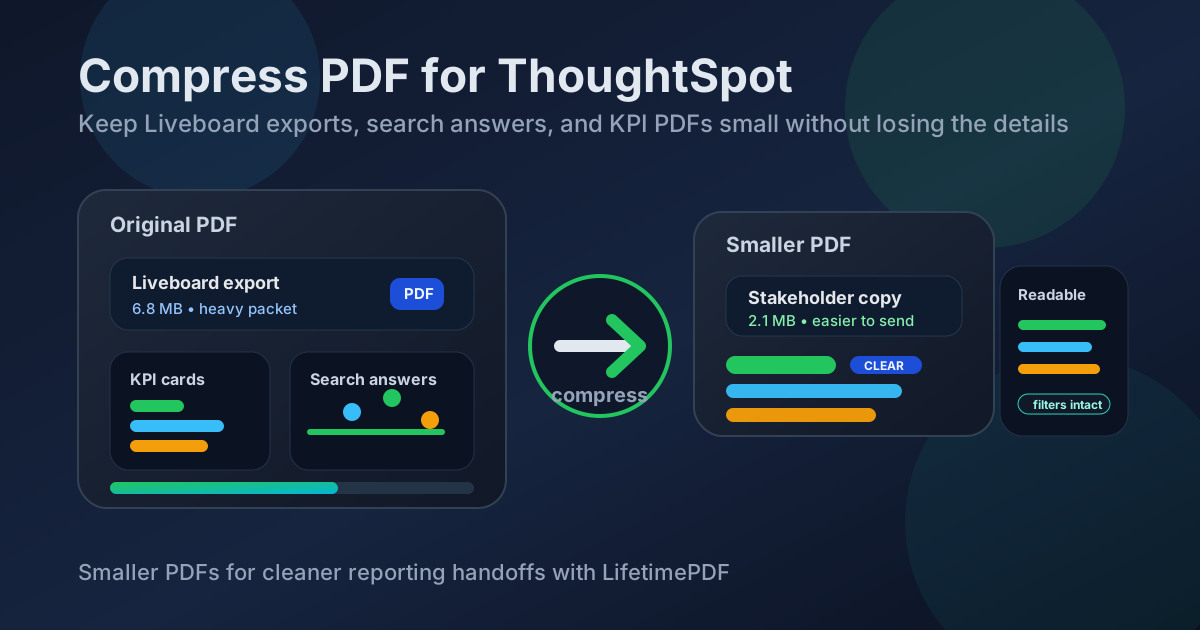
Table of contents
- Quick start: compress a ThoughtSpot PDF in about 2 minutes
- Why ThoughtSpot PDFs get heavy so quickly
- What file size should you aim for?
- Which compression level should you choose?
- Step-by-step: shrink a ThoughtSpot PDF with LifetimePDF
- Best strategy for common ThoughtSpot PDF types
- What if the export is still too large?
- How to protect chart and table readability
- Export habits that keep ThoughtSpot PDFs lighter
- Related LifetimePDF tools and internal links
- FAQ (People Also Ask)
Quick start: compress a ThoughtSpot PDF in about 2 minutes
If your real goal is simply make this ThoughtSpot PDF smaller without making it annoying to review, this workflow is usually enough:
- Open Compress PDF.
- Upload the ThoughtSpot file you actually plan to share, such as a search answer, Liveboard export, KPI packet, stakeholder update, or board-ready appendix bundle.
- Choose Medium compression first.
- Download the smaller result and compare the new size with the original.
- Preview the weakest details once: filter chips, scorecard numbers, chart labels, legends, dates, answer text, notes, and any narrow table columns.
- If the file still feels bulky, extract only the needed pages or split the appendix instead of immediately pushing compression harder.
- If the export includes scans, screenshots, or repeated support pages, trim that weight before you run a second pass.
Why ThoughtSpot PDFs get heavy so quickly
ThoughtSpot exports often become larger than expected because one PDF tries to satisfy several readers at once. A leadership packet may need a one-page summary for an executive, dashboard context for a manager, and backup tables for an analyst. Once multiple Liveboards, search answers, screenshots, and appendix pages get bundled together, the export starts carrying far more weight than the next reader actually needs.
Compression helps, but it works best when you understand what made the file heavy in the first place. In ThoughtSpot workflows, the biggest contributors are usually not the headline KPI cards. They are the extra pages around them: repeated Liveboard states, dense table pages, screenshot-heavy supporting material, scan-heavy approvals, and support evidence that belongs in a second PDF instead of the main packet.
What usually adds weight
- Multi-page Liveboard exports: several dashboards, notes, and support views rolled into one file.
- Search-answer collections: many small answers bundled together even though only a few matter for the next decision.
- Dense table pages: long rows, tiny labels, and narrow columns that do not tolerate harsh compression well.
- Scan-heavy appendices: approvals, screenshots, or evidence pages added after the ThoughtSpot export.
- Mixed audiences: one PDF trying to be an executive summary, analyst backup, and archive copy all at once.
What file size should you aim for?
There is no single perfect number for every ThoughtSpot PDF, but these ranges are practical enough to keep you from over-compressing:
| ThoughtSpot PDF type | Good target | Details you should protect |
|---|---|---|
| Single search answer or short KPI snapshot | Under 2MB | Filter chips, scorecard values, dates, and short answer text |
| Liveboard export or stakeholder update | 2MB to 4MB | Chart labels, legends, dashboard context, and written callouts |
| Leadership packet or monthly review deck | 3MB to 5MB | Summary pages, table detail, appendix references, and footnotes |
| Scan-heavy appendix or evidence bundle | Split if possible | Searchability, sign-off marks, and readable text on every scan page |
The best target is the smallest size that still feels normal to review at standard zoom. If a stakeholder packet ends up at 3.6MB but opens quickly and keeps the scorecards, labels, and notes intact, that is usually a better outcome than forcing it under 2MB and making the report harder to trust.
Which compression level should you choose?
The right compression level depends on what the next reader needs to inspect:
- Light compression: best for text-heavy answer pages, dense tables, or review files where small row labels matter.
- Medium compression: the best default for most ThoughtSpot PDFs because it lowers file size without sacrificing too much clarity.
- Stronger compression: useful for quick previews, internal reference copies, or archives where convenience matters more than tiny visual detail.
Step-by-step: shrink a ThoughtSpot PDF with LifetimePDF
- Export the final version first. Use the ThoughtSpot PDF you actually plan to share, not an older draft with extra pages you already know you will remove.
- Open Compress PDF. Upload the search answer collection, Liveboard export, KPI packet, or stakeholder bundle.
- Start with Medium compression. This usually gives the best balance for scorecards, labels, notes, legends, and table detail.
- Download and compare. Check how much size you saved before you do anything else.
- Review the weakest details once. Zoom in on filter chips, scorecard values, labels, table headers, notes, and dates instead of only checking the cover page.
- Only then decide whether it needs cleanup. If the packet is still too large, remove unnecessary pages or split the appendix before trying a stronger setting.
That order matters. Many people go straight from one compression pass to a harsher one when the real issue is that the PDF contains more pages than the next reader actually needs.
Best strategy for common ThoughtSpot PDF types
Search answers
These are usually the easiest to compress because the main goal is keeping the answer readable and the context intact. Focus on filter chips, date ranges, scorecard values, and any short commentary. If those still read cleanly after Medium compression, you are usually done.
Liveboard exports
Liveboard PDFs often carry several charts that feel simple individually but become heavy together. Compress them, but do not judge the result from the first page alone. Check later pages too, especially where labels, legends, and callouts get smaller.
KPI packets and stakeholder updates
These benefit the most from splitting. If one PDF includes the executive summary, deeper answer pages, appendix tables, screenshot evidence, and sign-off pages, make a lighter stakeholder packet for the main audience and keep the backup material in a second file. That usually works better than trying to crush everything into one all-purpose document.
Dense tables and appendix pages
Long tables are where over-compression becomes obvious. Small row labels, percentages, and notes can get annoying quickly. Use lighter compression here, or keep those pages separate from the main summary packet if only a few readers actually need them.
What if the export is still too large?
If the compressed ThoughtSpot PDF still feels bulky, stronger compression is only one option. Often it is not the best one.
- Use Extract Pages to keep only the decision-ready section.
- Use Split PDF to separate the appendix from the main report.
- Use Delete Pages to remove repeated support pages, blank separators, or outdated exports.
- Use Crop PDF if oversized margins or whitespace make each page heavier than it needs to be.
- Use OCR PDF if a scan-heavy appendix also needs better searchability later.
How to protect chart and table readability
A compressed ThoughtSpot PDF is only useful if the next person can still trust what they are seeing. That means checking the details most likely to fail first:
- Filter chips and date ranges
- KPI scorecards and summary numbers
- Chart legends and color labels
- Axis labels and small percentage markers
- Table headers, row labels, and totals
- Answer text, annotations, commentary, and footnotes
If those weak points still look normal at the zoom level people actually use during review, the compression is probably good enough. If they feel shaky, keep the original, use a lighter setting, or reduce the page count instead.
Export habits that keep ThoughtSpot PDFs lighter
The cleanest compression result usually starts before compression. A few small export habits reduce PDF bloat without any extra work later:
- Export only the pages you need: do not include every answer page if only the summary matters.
- Separate summary from backup: leadership readers usually do not need the analyst appendix in the same file.
- Avoid repeated dashboard states: keep only the pages that add meaning to the narrative.
- Remove scan-heavy support pages from the main packet: keep them in a second file when possible.
- Review margins and whitespace: oversized empty areas add bulk without improving the report.
Those habits matter because compression works best when the PDF already has a clear purpose. A focused export compresses better, reads better, and travels better.
Related LifetimePDF tools and internal links
If you are cleaning up ThoughtSpot exports regularly, these tools and companion guides usually help the most:
- Compress PDF for the main size reduction step.
- Split PDF for separating the stakeholder packet from the appendix.
- Extract Pages for decision-ready summaries.
- Delete Pages for removing duplicate or outdated sections.
- Crop PDF for trimming wasted margins.
- OCR PDF if the appendix includes scans.
- Compress PDF for ThoughtSpot Without Monthly Fees if the main objection is another recurring tool bill.
- Compress PDF for ThoughtSpot: Share Smaller Search Answers, Liveboard Exports, and KPI Reports Faster for an adjacent ThoughtSpot workflow guide.
Practical takeaway: start with compression, then reduce page count only if the file is still heavier than the next reader needs.
FAQ (People Also Ask)
How do I compress a PDF for ThoughtSpot?
Export the ThoughtSpot file as a PDF, upload it to a PDF compressor, start with Medium compression, and keep the smaller copy only if filters, KPI cards, labels, notes, and table detail still look clear. Medium compression is usually the safest first pass because it reduces file size without making the report annoying to review.
What file size should I aim for with a ThoughtSpot PDF?
Under 2MB is a strong target for short search answers and lightweight snapshots. Liveboard exports, stakeholder decks, and appendix-heavy reporting packets usually feel best around 2MB to 5MB as long as the smallest useful labels and notes still look clear.
Will compression make ThoughtSpot filters or scorecards blurry?
It can if you compress too aggressively. That is why Medium compression is usually the best starting point. Always check filter chips, scorecard numbers, chart labels, table headers, and date ranges before you replace the original export.
Should I split a large ThoughtSpot reporting packet instead of compressing harder?
Often, yes. If one PDF includes the executive summary, multiple Liveboards, search answers, appendix tables, screenshots, and sign-off pages for different audiences, splitting it usually works better than forcing stronger compression across the whole packet.
Which LifetimePDF tools pair best with ThoughtSpot workflows?
Compress PDF is the main starting point. Split PDF, Extract Pages, Delete Pages, Crop PDF, OCR PDF, and Compare PDFs are especially useful when you want smaller, cleaner ThoughtSpot handoff files without sending more PDF than the next reader actually needs.