Compress PDF for StoryChief Without Monthly Fees: Shrink Editorial Briefs, Approval PDFs, and Content Packs Without Another Subscription
If you need to compress a PDF for StoryChief without monthly fees, upload the brief or approval file to LifetimePDF's Compress PDF tool, start with Medium compression, and keep the smaller copy only if headings, comments, screenshots, and action notes still look clear.
For most StoryChief workflows, that is enough to shrink editorial briefs, approval PDFs, campaign recaps, and client-ready content packs without paying for another recurring subscription just to finish routine handoff cleanup.
This is the kind of task that should stay boring. A strategist wants to send a brief. An editor wants a lighter approval packet. A client wants the recap without another login. None of those jobs really call for another monthly bill. They call for a reliable way to make the PDF smaller without wrecking the context that makes the document useful.
Fastest path: save the StoryChief handoff as PDF, run it through LifetimePDF's Compress PDF tool at Medium, then split, extract, or trim pages only if the file still carries more weight than the next reader actually needs.
In a hurry? Jump to Quick start: compress a StoryChief PDF in about 2 minutes.
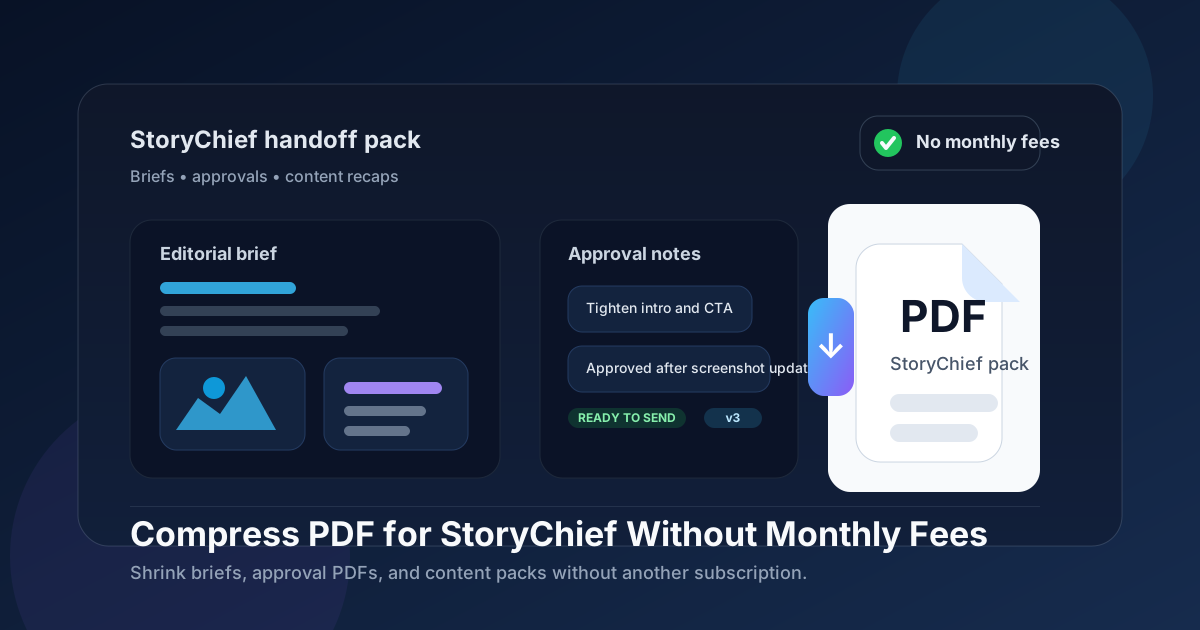
Table of contents
- Quick start: compress a StoryChief PDF in about 2 minutes
- Why "without monthly fees" matters here
- Why smaller PDFs help in StoryChief workflows
- What file size should a StoryChief PDF be?
- Which compression level should you choose?
- Step-by-step: use LifetimePDF to shrink the file
- Best approach for common StoryChief PDFs
- What to do if the PDF is still too large
- How to keep comments and screenshots readable
- Workflow habits that reduce PDF bloat
- Related LifetimePDF tools and useful reading
- FAQ (People Also Ask)
Quick start: compress a StoryChief PDF in about 2 minutes
If your real goal is simply make this StoryChief PDF smaller so it is easier to share, this workflow is usually enough:
- Save the final handoff version first, whether that is a brief, an approval packet, a publishing checklist, or a recap deck.
- Open Compress PDF.
- Upload the file and choose Medium compression first.
- Download the smaller result and compare the new size.
- Preview the weak details once: headings, screenshot labels, editorial comments, due dates, action notes, and approval context.
- If the file is still bulky, use Extract Pages, Split PDF, or Delete Pages before trying stronger compression.
Why "without monthly fees" matters here
StoryChief sits inside a stack that is already busy and already paid for. Content teams juggle writing tools, SEO tools, analytics platforms, project trackers, storage, review workflows, and client communication. Adding one more recurring subscription just to shrink a handoff PDF is exactly the kind of software creep people try to avoid.
That is why the no-subscription angle is not just marketing fluff. Compressing briefs and approval packets is recurring operations work. It tends to sit next to other practical cleanup tasks like splitting long packets, extracting only the approved pages, deleting dead appendix material, or trimming oversized screenshot margins. A pay-once PDF workflow fits that reality better than a tool you keep renting just to make exports behave.
- Recurring job: briefs, approvals, and recap PDFs keep happening.
- More than one fix: compression often leads to extraction, splitting, deletion, or cropping.
- Better cost fit: a pay-once toolkit matches recurring content operations better than another SaaS bill.
- Lower friction: when the workflow is simple, people are more likely to clean the file before it becomes someone else's problem.
Why smaller PDFs help in StoryChief workflows
StoryChief work usually turns into PDF when it has to leave the platform. A writer needs the brief in one portable file. An editor wants an approval copy for review. A client wants the recap without opening another workspace. Once the work becomes a handoff document, file size starts affecting how usable it feels.
Heavy PDFs create ordinary friction. They upload more slowly, feel clumsy in email, and are harder to preview on smaller screens when someone only needs the short version. The extra weight usually comes from screenshot-heavy pages, duplicated appendix material, overly wide margins, or one oversized pack trying to answer every possible follow-up in one file. Good compression removes that drag while keeping the editorial context intact.
Why compression usually helps
- Faster handoffs: lighter PDFs are easier to send in email, project tools, and client portals.
- Smoother review: a smaller file opens faster when someone only needs the summary or approval page.
- Cleaner archives: recurring briefs and recaps take up less space when they are not padded with dead weight.
- Better collaboration: writers, editors, SEOs, and clients are more likely to actually open a focused lightweight file.
- Less resend friction: you are less likely to hear “can you send a smaller version?” after the pack is already out.
What file size should a StoryChief PDF be?
There is no single perfect number for every StoryChief workflow, so practical ranges are more useful than chasing a magic limit. You want a file that sends comfortably, opens quickly, and still leaves the important details readable.
| StoryChief PDF type | Practical target | What to protect |
|---|---|---|
| Single editorial brief or focused approval PDF | Under 2MB | Headings, comments, dates, notes, and action items |
| Publishing checklist or short content pack | 1.5MB to 3MB | Status details, screenshot labels, and section structure |
| Screenshot-backed campaign recap or client review pack | 2MB to 4MB | Visual proof, summary notes, highlighted changes, and next-step clarity |
| Anything above 5MB | Usually needs cleanup first | At that size, appendix sprawl, repeated screenshots, or wasted margins are often the real problem |
Which compression level should you choose?
Most people should not begin with the strongest option. That is the quickest route to fuzzy headings, soft screenshot labels, or comments that technically survived but no longer feel comfortable to read. For StoryChief PDFs, Medium is usually the right first move.
| Compression level | Best use | Main trade-off |
|---|---|---|
| Low | Already clean PDFs that only need a light trim | Protects clarity best but may not reduce size enough |
| Medium | Most briefs, approvals, publishing checklists, and recap packs | Best balance of smaller size and readable detail |
| High | Only after you remove duplicate pages, crop wasted space, or split the appendix | Highest risk of hurting tiny comments, screenshot text, and labels |
If the PDF started as a clean export, compression usually behaves well. If it is built from many screenshots and appendix pages, trimming the packet structure often helps more than stronger compression alone.
Step-by-step: use LifetimePDF to shrink the file
- Save the final version first. Use the exact brief, approval packet, recap deck, or checklist you plan to share, not a draft with pages nobody needs.
- Open Compress PDF.
- Upload the StoryChief PDF. This can be a brief, an approval summary, a publishing checklist, a campaign recap, or a client-ready content pack.
- Choose Medium compression. That is the safest default in most StoryChief workflows.
- Download the smaller copy. Compare the new size before moving on.
- Open the result once. Check headings, dates, comments, screenshot labels, revision notes, and any action item somebody still needs to follow.
- Only do more if needed. If the PDF is still too heavy, clean the page mix instead of immediately forcing stronger compression.
Useful combo: compress first, then use Extract Pages or Split PDF if the audience only needs part of the packet.
Best approach for common StoryChief PDFs
Editorial briefs
These usually compress well because most of the important material is structural text. Medium compression is often enough. The real risk is not losing a pretty cover. It is softening headings, must-cover points, notes, and examples just enough to slow the next writer down.
Approval packets
Approval files often mix the core brief with comments, screenshots, revision context, and status notes. If the packet stays heavy after one pass, the fix is often cleanup rather than harsher compression. Keep the pages that support the decision and move the backup evidence elsewhere.
Publishing checklists and handoff packs
These files exist to help someone act. That means clarity matters more than chasing the smallest possible number. If the checklist is long, split the appendix or extract the current round instead of forcing the whole packet smaller.
Client-ready content plans and recap decks
Client PDFs are where bloat sneaks in. They collect notes, screenshots, examples, and appendix pages because everyone wants to be thorough. Compression helps, but smarter packaging helps more. Keep the main story in one file and the backup evidence in another if the client does not need both at once.
What to do if the PDF is still too large
If Medium compression still leaves the file larger than you want, the next move is usually structural cleanup, not panic. Many oversized StoryChief PDFs have extra weight that can be removed without damaging the useful content.
- Extract the pages that matter most: send the summary or approval section instead of the whole appendix.
- Split large packs: keep one PDF for the core recommendations and one for supporting evidence.
- Delete repeated screenshots: duplicates add weight fast and rarely help the next reader.
- Crop wasted margins: giant screenshot borders and empty white space make files heavier than they need to be.
- Rebuild the export more tightly: if one PDF is trying to serve five audiences, a cleaner smaller pack is usually better than a harsher compression pass.
How to keep comments and screenshots readable
Before you share the smaller file, check the details somebody else may need to trust later. In StoryChief workflows, that usually means:
- section headings and workflow labels
- dates and status text on approval pages and checklists
- editorial comments, notes, and highlighted revisions
- screenshot callouts, visual proof, and labeled examples
- recommendations and action items the next person is expected to follow
- any detail a writer, editor, strategist, or client may need tomorrow
If the faintest or smallest section is still readable, you are usually in good shape. If the weak details turned fuzzy, go back one step. A slightly larger file is still the better file when it keeps the handoff intact.
Workflow habits that reduce PDF bloat
The easiest way to avoid oversized StoryChief PDFs is not heroic compression. It is better packet hygiene before the file gets messy.
- Export only what the next reader needs.
- Separate proof from presentation.
- Trim before you merge.
- Keep only screenshots that add proof.
- Store a clean final version: the next time you reuse the report, you start from a focused PDF instead of the bloated master.
- Reuse a simple finishing workflow: trim, compress, review, send.
The best PDF workflow is rarely the fanciest one. It is the one your team can repeat quickly without turning a small editorial handoff task into a side project.
Related LifetimePDF tools and useful reading
Useful tools
Best fit
This workflow is a strong fit if you regularly share content briefs, approval packets, publishing checklists, screenshot-backed campaign recaps, or client-ready content plans and want a pay-once way to keep recurring document cleanup under control.
Want the short version? Use LifetimePDF to compress the StoryChief PDF first, check readability once, then split or extract pages only if the audience does not need the full packet.
FAQ (People Also Ask)
How do I compress a PDF for StoryChief without monthly fees?
Use a pay-once PDF tool like LifetimePDF, upload the StoryChief PDF, start with Medium compression, and review the smaller result before you send it. If the packet is still bulky, extract the key pages, split the appendix, or remove repeated screenshots instead of over-compressing everything at once.
What file size should I aim for with StoryChief briefs and approval PDFs?
Under 2MB is a strong target for single briefs and focused approval PDFs. Multi-page content packs, screenshot-backed recaps, and client-ready review files often work better around 2MB to 4MB as long as the smallest useful details still look clear.
Will compression make StoryChief screenshots or comments blurry?
It can if you compress too aggressively. That is why Medium compression is usually the safest first pass. Always check screenshot labels, editorial comments, highlighted notes, dates, and headings before keeping the smaller copy.
Why look for a StoryChief PDF workflow without monthly fees?
Because content teams already pay for writing, SEO, analytics, and collaboration tools. A pay-once PDF workflow fits better when the real need is reliable compression, splitting, cleanup, and easier sharing around editorial handoffs you already create.
What should I do if my StoryChief PDF is still too large after compression?
Delete repeated screenshots, split the appendix from the main brief, crop wasted margins, and extract only the pages the next reader needs before trying stronger compression. In many StoryChief workflows, sending less PDF works better than compressing the whole pack more aggressively.
Published by LifetimePDF - Pay once. Use forever.