Compress PDF for Spendesk: Keep Receipts, Invoices, and Spend Documents Small Without Losing the Details
To compress a PDF for Spendesk, upload the finished file to LifetimePDF's Compress PDF tool, start with Medium compression, and keep the smaller copy only if merchant names, dates, totals, VAT lines, invoice numbers, and approval notes still read cleanly.
For most Spendesk workflows, under 2MB is a strong target for text-heavy receipts, invoices, and standard spend-support PDFs, while reimbursement backups, statement excerpts, and scan-heavy packets usually work best around 2MB to 5MB after light cleanup.
Spendesk PDFs rarely get heavy because the underlying spend is complicated. They get heavy because a routine record keeps collecting extra layers: a phone-captured receipt, an exported invoice, a statement page, an approval note, a screenshot, then one more print-to-PDF handoff. The useful fix is usually balanced compression plus a little cleanup, not brute force that makes the evidence harder to trust.
Fastest path: save the final Spendesk-ready PDF, run it through LifetimePDF's Compress PDF tool at Medium, then use OCR, page cleanup, or splitting only if the file is still heavier than the next finance or approval step actually needs.
Need the short version? Jump to Quick start: compress a Spendesk PDF in about 2 minutes.
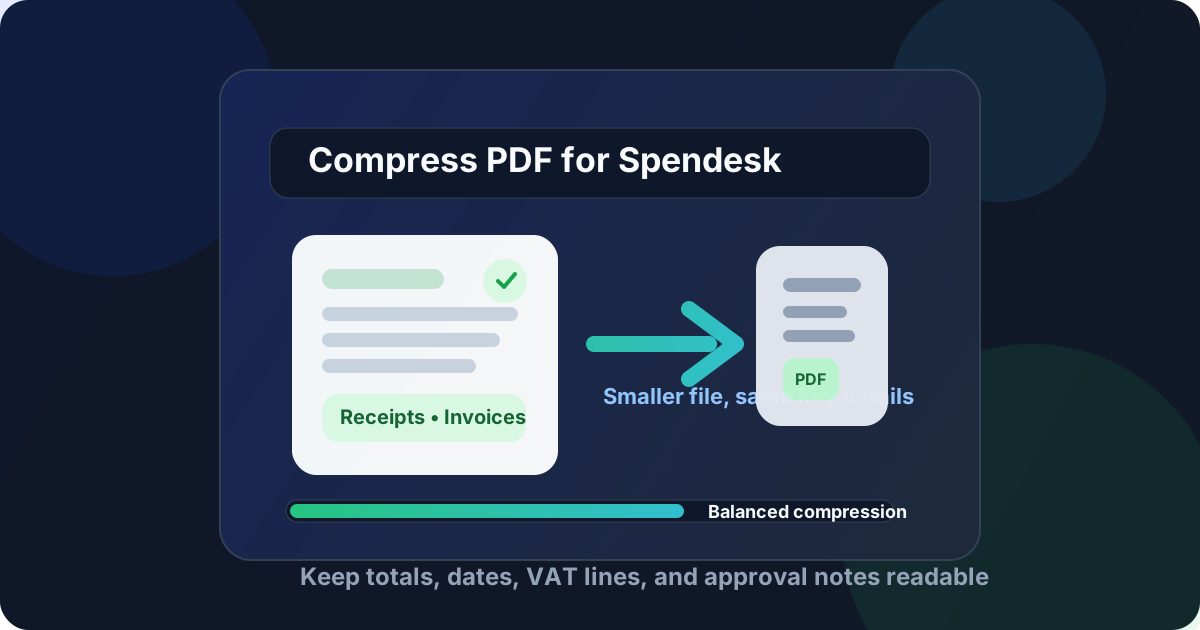
Table of contents
- Quick start: compress a Spendesk PDF in about 2 minutes
- Why Spendesk PDFs get bulky
- What file size should you aim for?
- Which compression level should you choose?
- Step-by-step: shrink a Spendesk PDF with LifetimePDF
- Best approach for common Spendesk document types
- What to clean up before compressing harder
- How to keep spend details readable
- Workflow habits that reduce PDF bloat
- Related LifetimePDF tools and useful reading
- FAQ (People Also Ask)
Quick start: compress a Spendesk PDF in about 2 minutes
If your real goal is simply make this Spendesk PDF smaller so it is easier to upload, review, and archive, this workflow is usually enough:
- Start with the receipt packet, supplier invoice, reimbursement backup, statement page, approval memo, or spend-support PDF you actually plan to keep.
- Open Compress PDF.
- Upload the file and choose Medium compression first.
- Download the smaller result and compare the new size with the original.
- Preview the weak spots: merchant names, dates, totals, VAT lines, invoice numbers, card references, and the faintest scanned text.
- If the file came from a scanner or phone capture, run OCR PDF when needed so the final document is searchable as well as smaller.
- If the packet still feels bulky, split the appendix, extract only the useful pages, or delete duplicates before trying stronger compression.
Why Spendesk PDFs get bulky
Spendesk workflows gather the kinds of files that bloat quietly. Receipts come from phones, supplier invoices get exported more than once, reimbursement backups pick up screenshots, and statement excerpts get merged into approval packets that were never meant to stay together forever. By the time the final file is ready, the PDF often weighs much more than the underlying proof really needs.
Smaller PDFs help because they move faster through normal spend work. They upload more cleanly, open more quickly, and are less annoying when someone needs to revisit them during approvals, bookkeeping, month-end review, or audit prep. The goal is not to erase detail. The goal is to remove wasted image weight while keeping the record trustworthy.
- Faster upload and retrieval: useful when finance teams are moving through several attachments in a row.
- Cleaner review experience: lighter PDFs open faster for approvers, finance staff, and auditors.
- Better archive quality: smaller files are easier to store, resend, and reuse later.
- Less scan bloat: photographed receipts and rescanned support paperwork often contain far more visual weight than they need.
- More flexible follow-up work: compact PDFs are easier to split, crop, OCR, merge, and compare later.
What file size should you aim for?
There is no single perfect number for every Spendesk workflow, so practical ranges are more useful than chasing the tiniest result possible. You want a file that feels easy to open and review while still looking like a dependable spend record.
| Document type | Practical target | What to protect |
|---|---|---|
| Text-heavy invoice, receipt PDF, or ordinary spend-support file | < 1MB to 2MB | Merchant names, invoice numbers, dates, totals, VAT lines, and short approval notes |
| Receipt bundle or reimbursement backup | 2MB to 4MB | Line items, taxes, dates, totals, and the faintest receipt text |
| Card statement excerpt or approval packet | 1MB to 3MB | Statement references, card details, memo notes, and support rows the next reviewer still needs |
| Mixed scan-heavy spend packet | 2MB to 5MB | Signatures, references, handwritten notes, and the smallest useful text on scanned pages |
If a simple invoice or receipt PDF is still much larger than these ranges, the size problem often comes from scan waste, duplicate pages, large screenshots, or a packet that is trying to serve too many audiences at once. Compression helps, but structure usually matters just as much.
Which compression level should you choose?
Start conservative and only push harder if the file stays too large after one sensible pass.
- Low compression: best when the PDF is already clean or contains delicate text, small receipt print, VAT lines, or invoice tables that cannot afford much softening.
- Medium compression: the best default for most Spendesk PDFs because it balances size reduction and readability.
- High compression: useful for scan-heavy packets or phone-captured receipts, but it should always be followed by a real quality check.
Step-by-step: shrink a Spendesk PDF with LifetimePDF
- Save the final Spendesk-ready file. Start with the version the next person actually needs, not a giant master packet with every backup page still attached.
- Open LifetimePDF Compress PDF. This is the quickest way to remove unnecessary weight before upload or archive.
- Upload the PDF and start with Medium. For most receipts, invoices, statement excerpts, and spend-support files, that is the safest first pass.
- Download the smaller copy and compare the size change. You want a lighter file, not a damaged record.
- Review the details that fail first. Check merchant names, invoice numbers, dates, totals, VAT rows, approval notes, card references, and the faintest scan text.
- Use OCR if the file is image-only. Open OCR PDF so the document stays searchable after cleanup.
- Trim page weight only if needed. If the PDF is still too heavy, use Delete Pages, Extract Pages, Crop PDF, or Split PDF before trying stronger compression.
Shortcut: if you only need one practical workflow, do this in order: compress → review → OCR if scanned → trim pages only if the packet is still too large.
Best approach for common Spendesk document types
Receipts and reimbursement backups
This is where phone-camera noise and repeated exports cause the most waste. Compress first, then check the smallest merchant text, dates, taxes, and totals. If one giant bundle still feels heavy, split it into logical groups instead of forcing one over-compressed master PDF.
Supplier invoices
Text-heavy invoices usually compress well. Start with Medium and focus your review on the supplier name, invoice number, invoice date, due date, totals, tax rows, and any remittance references. If the file still feels oversized, the problem is often a scan or export issue rather than the invoice itself.
Statement excerpts and card-support pages
These often become bloated because they include pages nobody actually needs. Before turning the compression level up, ask whether the next reviewer needs the full statement, the whole email thread, or just a narrow excerpt that proves the point. Smaller scope usually beats harsher compression.
Approval packets with mixed evidence
Be more cautious here. Mixed packets can carry screenshots, notes, receipts, invoices, and signatures all at once. Low or Medium compression is usually safer than jumping to High. If the file came from a scanner, OCR is often more helpful than extra compression because it improves searchability without throwing away useful clarity.
What to clean up before compressing harder
If Medium compression barely moves the size, the PDF probably has a structure problem rather than a compression problem.
- Delete duplicate pages: common after merging receipts, invoices, and backup material from several sources.
- Crop empty scan borders: oversized white margins add weight without adding value.
- Extract only the useful section: a reviewer may only need the invoice or one statement page, not the whole packet.
- Split large packets: one primary file and one appendix often work better than one bulky all-in-one PDF.
- Run OCR on scans: especially useful for photographed receipts, fax-like forms, and rescanned paperwork.
In a lot of spend-management workflows, sending less PDF solves the problem faster than sending the same bloated file at a harsher compression level.
How to keep spend details readable
Spendesk PDFs are only useful if someone can still trust the details after cleanup. Before you keep the smaller file, review the parts that matter most:
- Merchant or supplier name
- Invoice number, statement reference, or receipt ID
- Date of purchase, issue date, or posting date
- Subtotal, taxes, VAT lines, and final total
- Approval notes, coding labels, or spend references
- Card details or statement lines that support the transaction
- The faintest text on photographed receipts or rescanned pages
Workflow habits that reduce PDF bloat
The easiest way to keep Spendesk PDFs manageable is to stop extra weight before it piles up.
- Keep the final upload file separate from the giant internal backup packet.
- Use direct PDF exports when available instead of print-to-PDF after every handoff.
- Ask for cleaner scans when a receipt or supplier document is blurry the first time.
- Merge only the pages the next reviewer really needs.
- Run OCR early on paper-origin documents so later searches do not depend on image-only files.
- Archive a clean version once instead of repeatedly rescanning the same record.
None of this is glamorous, but it cuts friction across approvals, bookkeeping, month-end review, and audit follow-up.
Related LifetimePDF tools and useful reading
If you are cleaning a Spendesk file, these tools and guides usually help next:
- Compress PDF for the first size reduction pass.
- OCR PDF for scanned receipts, invoices, and statement pages.
- Crop PDF to remove wasted borders from scans and phone captures.
- Split PDF when one packet should really be two files.
- Compress PDF for Spendesk: Upload Smaller Receipts, Invoices, and Spend Documents Faster for the upload-speed companion angle.
- Compress PDF for Spendesk Without Monthly Fees for the pay-once cost angle.
- Compress PDF for Airbase, Compress PDF for Tipalti, and Compress PDF for Airwallex for closely related finance workflows.
FAQ (People Also Ask)
How do I compress a PDF for Spendesk?
Upload the Spendesk-ready PDF to a PDF compressor, start with Medium compression, and preview the smaller result before you keep it. For most Spendesk workflows, Medium compression is the safest starting point because it reduces file size while keeping merchant names, dates, totals, VAT lines, invoice details, and approval notes readable.
What file size should I aim for with Spendesk PDFs?
Under 2MB is a strong target for text-heavy invoices, receipts, and ordinary spend-support PDFs. Receipt bundles, reimbursement backups, statement excerpts, and scan-heavy packets often work better around 2MB to 5MB as long as the smallest useful details still look clear.
Should I run OCR on scanned Spendesk documents before compressing them?
Usually yes if the file came from a scanner or phone camera and the text is not selectable. OCR helps receipts, invoices, statements, and support paperwork stay searchable, easier to review, and easier to reuse later during bookkeeping, approval checks, and audits.
Will compression make totals or VAT lines blurry?
It can if you compress too aggressively. That is why Medium compression is usually the best first move. Always review totals, dates, merchant names, VAT lines, invoice numbers, and the faintest scanned text before keeping the smaller PDF.
What if my Spendesk PDF is still too large after compression?
Delete duplicate or blank pages, crop empty scan borders, split one oversized packet into smaller PDFs, extract only the pages the next reviewer needs, or run OCR on image-only paperwork. In many spend-management workflows, sending less PDF works better than compressing the same bloated file harder.
Ready to clean the file up? Start with the compressor, then use OCR or page tools only if the PDF still carries more weight than the next reviewer needs.