Compress PDF for SEOptimer: Keep Audit Reports, White-Label Exports, and Prospect PDFs Small Without Losing Clarity
To compress a PDF for SEOptimer, export the report, upload it to Compress PDF, start with Medium compression, and keep the smaller copy only if scores, screenshots, issue labels, and recommendations still look clear.
For most SEOptimer PDFs, under 2MB works well for short prospect audits and summary handoffs, while fuller white-label reports and multi-section client packs usually sit best around 2MB to 5MB after light cleanup.
SEOptimer reports are built for handoffs. They move from a browser tab into a sales email, a client update, a shared folder, or an internal review packet. That is where file size starts to matter. The goal is not to crush the PDF until it looks cheap. The goal is to make it easier to send and easier to open while keeping the scorecards, screenshots, and recommendations credible.
Fastest path: run the finished SEOptimer export through LifetimePDF's Compress PDF tool at Medium, then do one quick readability check before you send, upload, or archive the smaller copy.
Short on time? Jump to Quick start: compress a SEOptimer PDF in under 2 minutes.
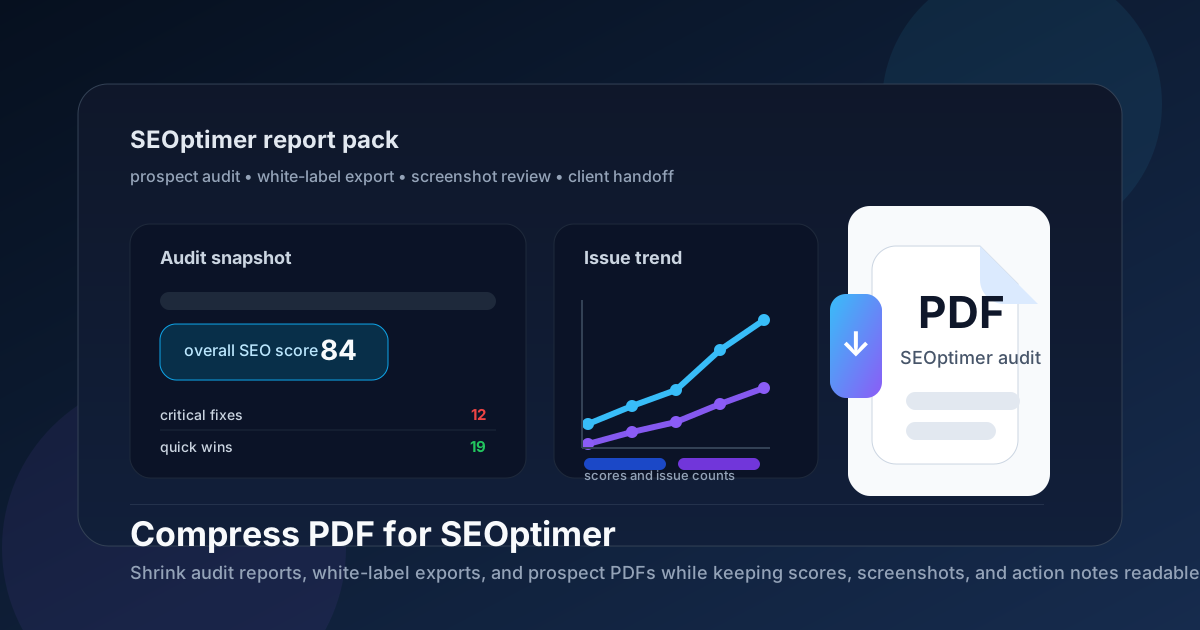
Table of contents
- Quick start: compress a SEOptimer PDF in under 2 minutes
- Why smaller PDFs help in SEOptimer workflows
- What file size should you aim for?
- Which compression level should you choose?
- Step-by-step: shrink a SEOptimer PDF with LifetimePDF
- Best approach for common SEOptimer PDF types
- What if the PDF is still too large?
- How to keep scores, issue lists, and screenshots readable
- Workflow habits that keep SEOptimer PDFs cleaner
- Related LifetimePDF tools and useful reading
- FAQ
Quick start: compress a SEOptimer PDF in under 2 minutes
If your real goal is simply make this SEOptimer PDF smaller so it is easier to send, review, or archive, this workflow is usually enough:
- Open Compress PDF.
- Upload the exact SEOptimer file you plan to share, such as a prospect audit, white-label report, site review, score summary, or client-facing recommendation pack.
- Choose Medium compression first.
- Download the smaller result and compare the new size with the original.
- Preview the weak points once: score cards, issue labels, screenshot callouts, URL examples, charts, and short recommendations.
- If the file still feels bulky, use Split PDF, Extract Pages, or Delete Pages before you try stronger compression across the whole report.
Why smaller PDFs help in SEOptimer workflows
SEOptimer PDFs tend to appear at the last mile of the workflow. The analysis is done. The score is there. The recommendations are written. Now the file has to travel. It gets attached to an outreach email, added to a proposal, uploaded into a client portal, or dropped into a project thread where several people need the same fixed version.
That is why file size matters. Heavy PDFs slow the handoff down, especially when the report includes branded pages, screenshots, issue summaries, and appendix material. Good compression removes that friction. Bad compression makes the PDF harder to trust because the very details people care about first, such as audit scores, tiny labels, or screenshot callouts, start looking soft.
Why compression usually helps
- Faster prospect handoffs: smaller audit PDFs are easier to email and easier for a lead to open quickly.
- Smoother client delivery: lighter white-label reports upload more comfortably into portals and project tools.
- Cleaner recurring archives: weekly and monthly PDF exports stay manageable when they are not bloated.
- Less meeting friction: a smaller report opens faster during calls when someone wants to look at a score block or recommendation together.
- Better mobile tolerance: lighter PDFs are less painful on phones and tablets.
What file size should you aim for?
There is no single perfect number for every SEOptimer export, but a few practical ranges stop you from compressing harder than necessary:
| SEOptimer PDF type | Practical target | Why it works |
|---|---|---|
| Prospect audits, one-page summaries, and focused score snapshots | Under 2MB | Usually small enough for quick outreach, easy downloads, and comfortable first-pass reading |
| White-label client reports and broader site reviews | 2MB to 5MB | Leaves room for screenshots, findings, and recommendations without making the file awkwardly heavy |
| Screenshot-heavy proof packs and appendix-rich reports | Up to about 5MB after cleanup | Reasonable if the smallest labels and callouts still remain easy to trust |
| Over 5MB | Usually needs structural cleanup first | Repeated screenshots, extra appendices, and too many audiences in one PDF are often the real problem |
If the file will mainly be emailed or attached to a proposal, staying comfortably under about 5MB is a strong everyday target. If it is a short summary, you can often go much smaller. If it contains detailed screenshots or longer explanation blocks, preserve clarity first and chase file size second.
Which compression level should you choose?
For most SEOptimer workflows, the safest answer is Medium compression. It usually removes enough weight to matter without immediately softening the details people still rely on.
| Level | Best for | Watch out for |
|---|---|---|
| Low | Dense screenshots, tiny labels, and exports where clarity matters more than maximum size reduction | May not shrink enough if the report is heavy because of repeated pages, large screenshots, or appendix sections |
| Medium | Most prospect audits, white-label reviews, summary decks, and client-ready SEOptimer PDFs | The best default, but still review score blocks, screenshot captions, issue rows, and short notes before replacing the original |
| High | Last-resort cleanup for image-heavy copies where the tiniest text matters less | Can blur issue details, narrow labels, screenshot callouts, and recommendation text faster than you expect |
Step-by-step: shrink a SEOptimer PDF with LifetimePDF
- Start with the final version. Use the PDF you actually plan to send, not a working draft with backup pages or repeated exports.
- Open Compress PDF.
- Upload the file. This could be a prospect audit, a score summary, a branded client report, or a screenshot-backed technical review.
- Select Medium compression. That is the safest first pass for most SEOptimer use cases.
- Download the smaller result. Compare it with the original so you can judge whether the size drop was worth it.
- Review the fragile details once. Check score blocks, issue labels, chart labels, URLs, screenshot callouts, and action notes.
- Trim more only if needed. If the file is still too heavy, use Extract Pages, Delete Pages, or Crop PDF before you try a stronger setting.
That review step matters more than it seems. Compression problems usually show up first in the smallest details: a score card number, a screenshot annotation, a tiny issue label, or a one-line recommendation that looked perfectly fine before the file got smaller.
Good workflow: compress first, then decide whether you also need page cleanup, splitting, metadata cleanup, or a before-and-after comparison.
Best approach for common SEOptimer PDF types
1) Prospect audit PDFs
Prospect audits need to open quickly and make a point fast. A shorter file is helpful here, but only if the score, top issues, and next-step recommendations still feel polished. If the PDF is only for first contact, the summary pages often matter far more than the full appendix.
2) White-label client reports
White-label reports often blend presentation with proof. That makes them useful and heavy at the same time. Keep the main client story in the core PDF, then move deeper support sections into a separate appendix if the file starts feeling bloated.
3) Screenshot-backed site reviews
Screenshot-heavy reports are where file size jumps fastest. Crop wide captures, remove duplicates, and keep only the screenshots that actually explain the problem. That usually produces a better result than crushing the entire PDF harder.
4) Internal handoff packs
Internal readers often need the conclusion and the next action more than every supporting image. If the PDF exists to brief another teammate, extract the pages that answer the handoff question and archive the fuller version separately.
5) Archive copies
Archive copies should still be readable enough to answer future questions about scores, issue examples, or what changed between reviews. Keep the file practical, not perfect. A clean 3MB archive that preserves detail is often more useful than an ultra-small file that weakened the evidence.
What if the PDF is still too large?
If Medium compression did not cut enough weight, do not assume stronger compression is the only answer. SEOptimer PDFs often stay large because they contain too much material, not because the setting was too gentle.
- Extract only the pages the next reader needs: use Extract Pages for a tighter handoff.
- Split oversized report packs: use Split PDF for summary-versus-appendix workflows.
- Delete repeated pages or stale proof: use Delete Pages when the file carries duplicates or outdated evidence.
- Crop oversized screenshots: use Crop PDF if wide captures are inflating the file.
- Only then try stronger compression: once the structure is cleaner, another pass makes more sense.
How to keep scores, issue lists, and screenshots readable
Before you replace the original, review the parts most likely to show quality loss. Do not stop at the cover page. Open the visually busiest page and the page with the smallest useful text.
- Score blocks, grade labels, and summary numbers
- Issue headings, counts, and compact recommendation notes
- Chart labels, comparison dates, and small interface text
- Screenshot callouts, arrows, highlights, and captions
- URLs, page examples, and short next-step guidance
If those areas feel annoying to read, the PDF is probably compressed too hard for its real job. Step back a level or clean the structure instead.
Workflow habits that keep SEOptimer PDFs cleaner
- Export only the version you actually need: focused PDFs are easier to share and easier to compress.
- Separate the summary from the appendix: most readers need the main story first, not every backup screenshot.
- Trim duplicate proof: repeated captures and stale slides add weight without adding value.
- Keep screenshot margins tight: wide browser captures often make SEOptimer PDFs heavier than necessary.
- Name the shared copy clearly: labels like
summary,client-copy, orsharedreduce confusion later. - Clean metadata before delivery: use PDF Metadata Editor when a polished external copy matters.
These habits usually improve the reading experience more than aggressive compression alone. A tidy SEOptimer PDF is easier to send, easier to compress, and easier to trust later.
Related LifetimePDF tools and useful reading
Compressing a PDF for SEOptimer is usually one step inside a broader SEO reporting or client-delivery workflow. These tools and related articles are the most useful companions:
- Compress PDF for the first size-reduction pass.
- Extract Pages when only part of the report needs to go out.
- Split PDF for summary-versus-appendix sharing.
- Delete Pages to remove duplicate proof or stale sections.
- Crop PDF to trim wide screenshot margins.
- Compare PDFs if you want a quick before-and-after review.
- Compress PDF for SEOptimer: Share Smaller SEO Audit Reports for the companion handoff-focused guide.
- Compress PDF for SEOptimer Without Monthly Fees if avoiding another subscription is the main concern.
- Compress PDF for SEO Audit Reports for the broader category workflow.
- Compress PDF for SEObility if you work across adjacent audit platforms.
- Browse all LifetimePDF articles.
FAQ
How do I compress a PDF for SEOptimer?
Export the SEOptimer report as a PDF, upload it to LifetimePDF's Compress PDF tool, start with Medium compression, and review the smaller result before sharing it. That is usually the safest first pass because it reduces file size while keeping scores, screenshots, issue labels, and recommendations readable.
What file size should I aim for with a SEOptimer PDF?
Under 2MB is a practical target for short prospect audits and summary handoffs. Fuller white-label reports, screenshot-heavy reviews, and broader client packs usually sit best around 2MB to 5MB as long as the smallest important text still looks clear.
Will compression make SEOptimer screenshots or issue sections blurry?
It can if you compress too aggressively. That is why Medium compression is usually the best default. Always check score cards, issue rows, chart labels, URL examples, screenshot callouts, and recommendation notes before keeping the smaller copy.
Is it better to split a large SEOptimer report instead of compressing it harder?
Often, yes. If one PDF mixes the executive summary, the full audit findings, screenshot evidence, and appendix material for different readers, splitting it usually works better than forcing stronger compression across the whole file.
Which LifetimePDF tools pair best with SEOptimer exports?
Compress PDF is the main starting point. Split PDF, Extract Pages, Delete Pages, Crop PDF, Compare PDFs, and PDF Metadata Editor all help when you need smaller, cleaner, client-ready SEO report files.
Ready to shrink your SEOptimer PDF? Start with Medium compression, keep the details readable, and only split or trim further if the file is still heavier than it should be.
Published by LifetimePDF - Pay once. Use forever.