Compress PDF for SEOprofiler: Keep Audit Reports, Ranking Updates, and Client PDFs Small Without Losing Clarity
To compress a PDF for SEOprofiler, export the finished report, upload it to LifetimePDF's Compress PDF tool, start with Medium compression, and keep the smaller copy only if keyword tables, chart labels, screenshots, and recommendations still read clearly.
For most SEOprofiler PDFs, under 2MB is a strong target for short updates, while fuller audits, backlink reviews, and client-ready report packs usually sit best around 2MB to 5MB after light cleanup.
SEOprofiler exports usually become awkward at the handoff stage. The analysis is done, the ranking movement has been captured, the audit findings are ready, and now someone needs a PDF that opens quickly and still feels trustworthy. That someone may be a client, a manager, a writer, a developer, or your future self scanning an archive later. Smaller PDFs help because they reduce friction, but only if the details that explain the SEO story survive the compression.
Fastest path: run the finished SEOprofiler export through LifetimePDF's Compress PDF tool at Medium, then do one quick readability check before you send, upload, or archive it.
Short on time? Jump to Quick start: compress an SEOprofiler PDF in under 2 minutes.
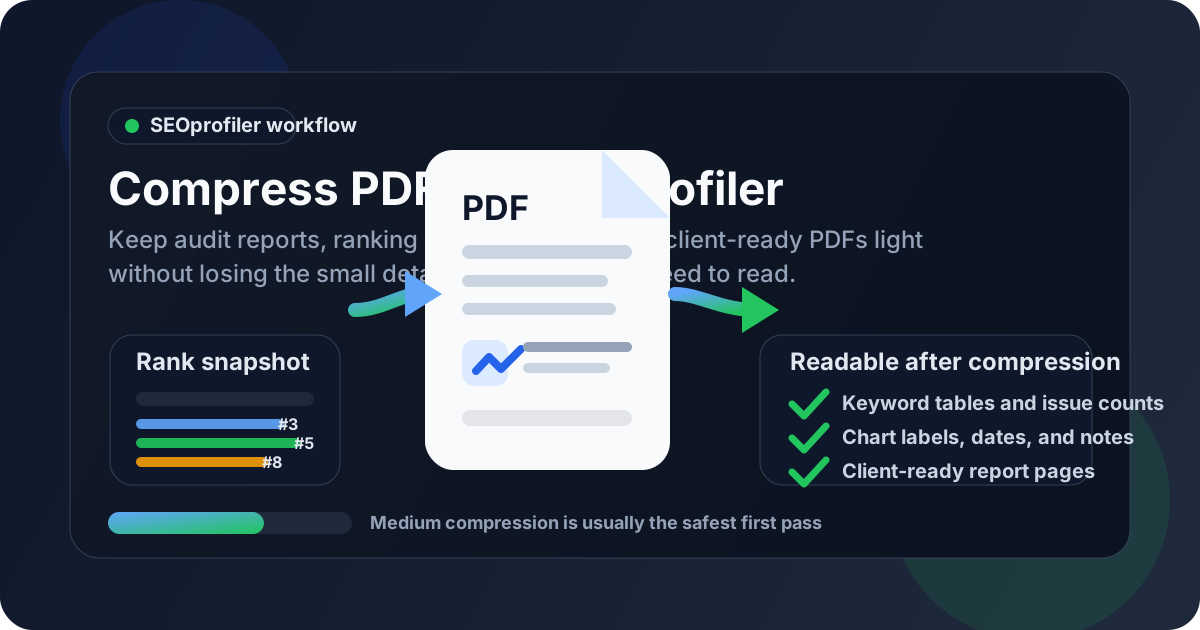
Table of contents
- Quick start: compress an SEOprofiler PDF in under 2 minutes
- Why SEOprofiler PDFs get heavy so quickly
- What file size should you aim for?
- Which compression level should you choose?
- Step-by-step: shrink a PDF with LifetimePDF
- Best approach for common SEOprofiler PDF types
- What to trim before stronger compression
- How to keep tables, charts, and notes readable
- Workflow habits that reduce PDF bloat
- Related LifetimePDF tools and internal links
- FAQ (People Also Ask)
Quick start: compress an SEOprofiler PDF in under 2 minutes
If your real goal is simply make this SEOprofiler PDF smaller so it is easier to send and easier to open, this workflow is usually enough:
- Open Compress PDF.
- Upload the SEOprofiler PDF you actually plan to share, such as a ranking update, site audit summary, backlink review, technical SEO export, or white-label client report.
- Choose Medium compression first.
- Download the smaller copy and compare the new size with the original.
- Check the fragile details once: keyword rows, chart legends, date ranges, issue labels, screenshot callouts, and written recommendations.
- If the file is still bulky, use Split PDF, Extract Pages, or Delete Pages before trying a stronger compression pass.
Why SEOprofiler PDFs get heavy so quickly
The data itself is not always the problem. Most file weight comes from what gets wrapped around the data. A simple rankings update can quietly turn into a bulky PDF once it carries cover pages, screenshots, audit evidence, branded sections, appendix notes, and extra pages for readers who may never need them.
SEOprofiler is often used as a translation layer between live SEO work and decisions made by other people. A strategist may need grouped keyword movement. A client may need a clear summary. A developer may only care about a few audit findings. When all of that gets pushed into one PDF, the export becomes heavier than the next handoff actually requires.
Why smaller PDFs help
- Faster client delivery: lighter reports are easier to email, upload to portals, and attach to project systems.
- Cleaner internal handoffs: teams can open the file quickly instead of waiting on a large attachment.
- Better archive hygiene: recurring SEO reports stay easier to store and revisit later.
- Less last-minute rework: compressing one finished file is usually easier than rebuilding the report pack after someone complains it is too large.
- More useful meetings: the conversation stays on rankings, findings, and next steps instead of file friction.
What file size should you aim for?
There is no perfect number for every SEOprofiler export. A short ranking recap behaves differently from a screenshot-heavy site audit. Still, a few practical ranges make the decision easier.
| SEOprofiler PDF type | Good target | Protect these details |
|---|---|---|
| Short ranking updates and executive summaries | Under 2MB | Keyword rows, movement notes, date ranges, and headline takeaways |
| Site audit summaries and backlink reviews | 2MB to 4MB | Issue counts, severity labels, screenshots, and recommendations |
| White-label client packs | 3MB to 5MB | Charts, branded sections, notes, and polished visual clarity |
| Appendix-heavy evidence bundles | Split instead of chasing one tiny file | The right pages for the right audience, not everything at once |
Under 2MB is a strong goal when the report is short and focused. Once the PDF includes screenshots, deep audit sections, or several audience layers, a slightly larger target is usually the smarter choice. The right question is not How small can this get? It is How small can this get while still staying easy to trust at normal zoom?
Which compression level should you choose?
Most SEOprofiler PDFs should start with Medium compression. It usually removes enough weight to matter without immediately damaging the small text and compact visuals that make SEO reports useful.
Use Medium first in most cases
- Low compression: useful when the file is already close to the target size and visual detail matters more than maximum reduction.
- Medium compression: the safest default for ranking updates, audit summaries, backlink reviews, and most client-ready handoffs.
- Stronger compression: best treated as a second step after you trim unnecessary pages, not as the first thing you try.
Over-compression usually breaks the least visible but most important details first. That means tiny keyword rows, chart legends, screenshot annotations, dates, and note blocks often become annoying before the overall page looks obviously bad. That is why a quick review matters more than the raw size number.
Step-by-step: shrink a PDF with LifetimePDF
- Export the finished report. Use the exact SEOprofiler PDF you really plan to send.
- Open LifetimePDF Compress PDF.
- Upload the file and start with Medium compression.
- Download the smaller result. Compare the new file size with the original.
- Check the weakest details. Look at keyword tables, issue counts, legends, dates, screenshot callouts, and summary notes.
- Trim only if needed. If the report still feels heavy, use Extract Pages, Delete Pages, Crop PDF, or Split PDF before trying a more aggressive setting.
Quick win: most SEOprofiler PDFs improve enough with one Medium pass and one fast quality check.
Best approach for common SEOprofiler PDF types
Ranking updates and keyword snapshots
These files usually answer one simple question: what moved, what held, and what matters next? They compress well as long as the smallest keyword rows, comparison dates, and movement notes remain easy to scan. If those details soften, the PDF stops doing its job.
Site audit summaries
Audit PDFs often combine issue tables, severity labels, screenshots, and short recommendations. Medium compression is usually enough. If the file still feels bulky, the bigger win often comes from removing repetitive appendix pages rather than pushing quality lower.
Backlink reviews and evidence packs
These can get heavy fast because they often mix tables with screenshot proof and commentary. Tight page selection matters here. Keep the pages that support the conclusion, not every export that happened during the investigation.
White-label client reports
Client-facing PDFs need to feel polished as well as light. If the audience only needs the story and the recommended actions, split deeper technical backup into a second file. That usually produces a better client handoff than crushing every page into one aggressively compressed attachment.
What to trim before stronger compression
If the PDF is still too large after one reasonable compression pass, the issue is often structural rather than visual. In other words, the file may simply contain more material than the next reader needs.
- Repeated cover pages or branded separators
- Old comparison pages that are no longer part of the current update
- Screenshots that repeat the same evidence
- Large appendix sections meant only for internal reference
- Wide margins or oversized screenshot borders
- Several audience layers bundled into one report pack
In many SEOprofiler workflows, better packaging solves more than heavier compression. A cleaner summary PDF plus a separate appendix usually feels more professional than one giant file that tries to serve every reader at once.
How to keep tables, charts, and notes readable
The best quality check is quick and specific. You do not need to inspect every pixel. You do need to look at the exact elements that carry meaning when someone skims the report.
- Keyword tables: the smallest rows should still be readable without constant zooming.
- Chart legends and labels: trends need to remain obvious at a glance.
- Issue counts and severity markers: technical priorities should still stand out instantly.
- Date ranges and comparison notes: reporting periods should stay easy to spot.
- Screenshot annotations: arrows, highlights, and callouts should still point to the right thing.
- Recommendations: next-step notes should feel easy to skim, not washed out or cramped.
Workflow habits that reduce PDF bloat
The easiest PDF to compress is the one prepared with the handoff in mind. A few habits make SEOprofiler exports easier to shrink and easier to use later.
- Separate summary pages from proof pages: not every reader needs the full evidence stack.
- Export only the sections that matter for this update: focused PDFs are easier to share and easier to review.
- Trim repetitive screenshots: one clear example usually beats several near-identical images.
- Archive one full version, share lighter audience versions day to day: that keeps both needs covered.
- Clean document details before sending: PDF Metadata Editor is useful when the final file should feel more polished.
- Compare before and after when needed: Compare PDFs helps when you want to confirm that the cleaned-up version still preserves what matters.
Compression works best as the final tidy step, not as the rescue plan for a report that tried to do too many jobs at once.
Related LifetimePDF tools and internal links
If you work with SEOprofiler PDFs regularly, these tools usually cover the whole cleanup path:
- Compress PDF for the first size-reduction pass
- Split PDF for separating summaries from appendices
- Extract Pages for sending only decision-ready sections
- Delete Pages for duplicate covers, repeated screenshots, or stale sections
- Crop PDF for oversized screenshot borders and wasted margins
Related reading: Compress PDF for SEOprofiler: Share Smaller SEO Reports, Site Audit Exports, and Client PDFs Faster, Compress PDF for SEOprofiler Without Monthly Fees, Compress PDF for SEObility, Compress PDF for WebCEO, and Compress PDF Online Free.
Ready to clean up the file? Start with compression, then trim pages only if the report is still heavier than the next reader needs.
FAQ (People Also Ask)
How do I compress a PDF for SEOprofiler?
Export the SEOprofiler report as a PDF, upload it to a PDF compressor, start with Medium compression, and preview the smaller result before sharing it. Medium is usually the safest first pass because it reduces size while keeping keyword tables, audit summaries, chart labels, and notes readable.
What file size should I aim for with SEOprofiler PDFs?
Under 2MB is a strong target for short ranking updates and executive summaries. Larger site audits, backlink reviews, and white-label client packs usually work best around 2MB to 5MB as long as the smallest useful text still looks clear.
Will compression make SEOprofiler tables or charts blurry?
It can if you compress too aggressively. That is why Medium compression is usually the best starting point. Review the smallest keyword rows, chart labels, screenshot annotations, and recommendation blocks before you keep the compressed copy.
Should I split a large SEOprofiler PDF instead of compressing it harder?
Often, yes. If one PDF combines summary pages, screenshots, client notes, audit evidence, and appendix material for different audiences, splitting it usually works better than forcing stronger compression across the whole report.
Which LifetimePDF tools pair well with SEOprofiler exports?
Compress PDF is the main starting point. Split PDF, Extract Pages, Delete Pages, Crop PDF, Compare PDFs, and PDF Metadata Editor all help when you need smaller, cleaner, client-ready SEOprofiler files.