Compress PDF for SEOcrawl: Keep Search Console Reports, Opportunity Exports, and Client PDFs Small Without Losing the Details
To compress a PDF for SEOcrawl, export the report, upload it to LifetimePDF's Compress PDF tool, start with Medium compression, and keep the smaller copy only if charts, URL paths, and opportunity notes still look clear.
For most SEOcrawl PDFs, under 2MB works well for focused exports, while broader client recaps, grouped page reviews, and monthly reporting packs usually land best around 2MB to 4MB.
SEOcrawl reports are useful precisely because they collect a lot of evidence in one place. Search Console trends, page-group performance, click and impression patterns, content decay clues, opportunity lists, and stakeholder notes all end up inside the same PDF. That makes the export useful, but it also makes the file heavier than it needs to be once the report leaves the platform and starts moving through email, Slack, Google Drive, or a client portal. The right goal is not to create the tiniest possible file. The goal is a smaller PDF that still feels dependable when somebody opens it later and needs to trust the chart labels, page names, numbers, and action notes.
Fastest path: run the SEOcrawl export through LifetimePDF's Compress PDF tool on Medium, then do one quick readability check before you send, upload, or archive the smaller copy.
Need the short version? Jump to Quick start: compress an SEOcrawl PDF in under 2 minutes.
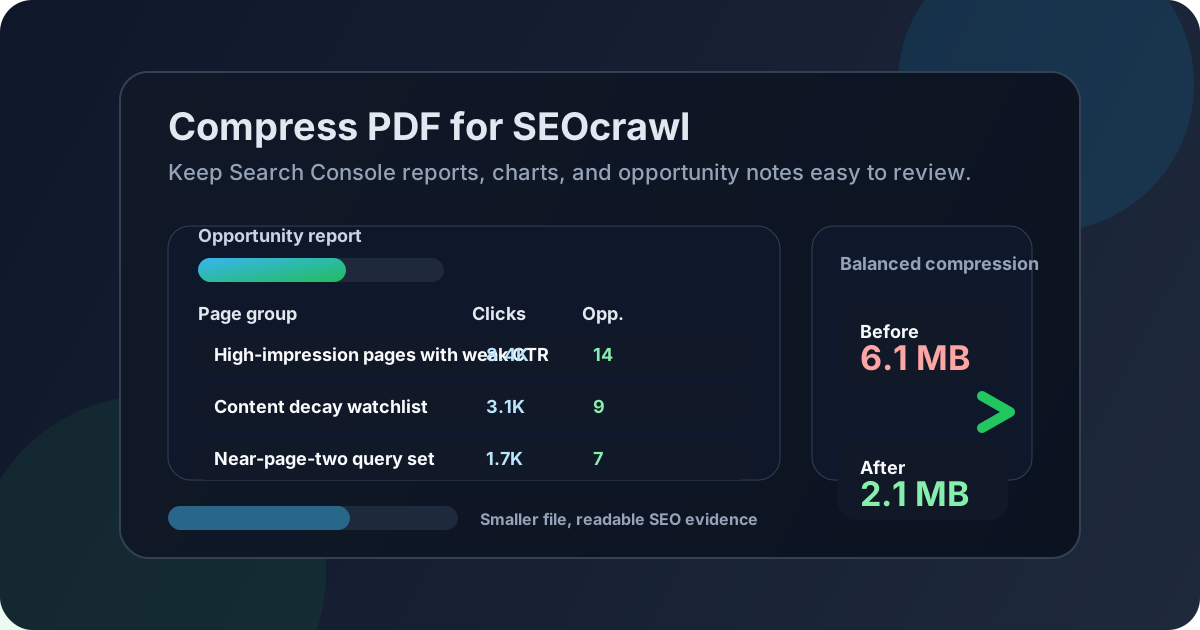
Table of contents
- Quick start: compress an SEOcrawl PDF in under 2 minutes
- Why SEOcrawl PDFs get heavy so quickly
- What file size should you aim for?
- Which compression level should you choose?
- Step-by-step: shrink an SEOcrawl PDF with LifetimePDF
- Best approach for common SEOcrawl PDF types
- What if the PDF is still too large?
- How to protect chart, table, and URL readability
- Workflow habits that keep SEOcrawl exports cleaner
- Related LifetimePDF tools and useful reading
- FAQ (People Also Ask)
Quick start: compress an SEOcrawl PDF in under 2 minutes
If your real goal is simply make this SEOcrawl PDF smaller so it is easier to share and review, this workflow is usually enough:
- Open Compress PDF.
- Upload the Search Console summary, page-group review, opportunity export, content decay recap, or client-ready PDF you actually plan to send.
- Choose Medium compression first.
- Download the smaller result and compare the file size.
- Open it once and check the weak spots: chart labels, URL paths, page titles, click and impression figures, annotations, and action notes.
- If the file is still bulkier than it should be, split the appendix, extract only the useful pages, or crop oversized screenshots before trying stronger compression.
Why SEOcrawl PDFs get heavy so quickly
SEOcrawl exports often become heavier than expected because one report is trying to serve several readers at once. The same PDF might be an executive summary for a client, a page-group review for an SEO strategist, a task list for content writers, and a backup evidence file for internal documentation. That is a lot of jobs for one document.
These files also mix elements that compress very differently. Clean text pages usually shrink well. Wide screenshots, chart-heavy pages, exported tables, and repeated appendix material do not. That is why the best outcome usually comes from balanced compression plus a little cleanup instead of just forcing the strongest setting.
What usually adds unnecessary weight
- Repeated screenshots: multiple captures of the same trend line, dashboard state, or opportunity view quietly inflate the file.
- One report for every audience: clients, SEOs, editors, and account managers rarely need the same depth.
- Oversized appendix pages: backup exports, unused page groups, and raw evidence often travel along even when nobody will read them.
- Wide URL tables: exported page lists and opportunity tables can become image-heavy fast when they are saved as screenshots.
- Scanned notes or approvals: image-based pages are often bulkier than the SEO report itself.
What file size should you aim for?
There is no perfect size for every SEOcrawl export, but a few practical ranges help you stop before readability starts to suffer:
| PDF type | Good target | Why that range works |
|---|---|---|
| Focused Search Console summary | 0.7MB to 1.5MB | Usually enough for a short trend recap, a few charts, and key notes. |
| Keyword opportunity or page-group export | 1MB to 2MB | Keeps the file light without making row labels and notes hard to scan. |
| Content decay or page review packet | 2MB to 3MB | Leaves room for screenshots and annotations while still sharing comfortably. |
| Client-ready monthly recap | 2MB to 4MB | Broad reporting packs usually need more space if charts and callouts should stay readable. |
Those numbers are only guides. If the smallest important detail in the PDF is still easy to read, you are in a good range. If charts, page titles, or opportunity notes already look soft, the file is probably compressed enough even if it is larger than you hoped.
Which compression level should you choose?
Most SEOcrawl exports should start at Medium compression because the files often contain a mix of text, charts, and screenshots. That balance matters. Stronger compression can save more space, but it also increases the risk that chart labels, URL paths, and small annotations start to blur together.
- Low compression: useful when the PDF is already fairly small and you only need a gentle trim.
- Medium compression: the best default for most SEOcrawl files because it reduces weight while preserving the details teams actually check later.
- High compression: better for internal convenience copies, not for reports where tiny labels, notes, or chart values still matter.
Step-by-step: shrink an SEOcrawl PDF with LifetimePDF
- Export or print the final SEOcrawl report as PDF.
- Open Compress PDF.
- Upload the file and choose Medium compression.
- Download the smaller version and compare the old and new file size.
- Open the compressed PDF and review the details that matter most.
- If needed, use Extract Pages, Delete Pages, or Crop PDF before trying a heavier pass.
Check these details before you keep the smaller copy
- page titles and URL paths
- click, impression, and CTR labels
- small chart legends and axis labels
- opportunity notes and summary callouts
- any screenshot that somebody else must interpret later
A one-minute review usually saves more trouble than chasing the absolute smallest file. If the report still feels easy to trust at normal laptop zoom, it is probably ready.
Best approach for common SEOcrawl PDF types
Search Console summaries
These usually compress well because the reader mostly needs the top trends, a few charts, and short notes. Medium compression is often enough on its own unless the report includes many full-width screenshots.
Opportunity exports and page-group reviews
These files can get heavy because wide tables, grouped pages, and annotations add visual density quickly. Medium compression works best when paired with trimming unused groups or appendix pages that only the analyst needed.
Content decay reviews
These reports often include before-and-after evidence, screenshots, and more commentary. If the file still feels bulky after compression, splitting the summary from the backup evidence usually works better than applying a harsher setting across everything.
Client-ready monthly recaps
These PDFs tend to carry extra branding pages, repeated explanations, and supporting screenshots. They benefit most from deciding what the client actually needs in the main packet and moving backup proof to a separate appendix.
What if the PDF is still too large?
If Medium compression does not get you far enough, the better move is usually to reduce scope before increasing pressure. Try one or more of these:
- extract the summary pages people will actually read
- split the appendix into a separate backup file
- delete repeated screenshots or duplicate report covers
- crop wide images or empty margins that do not add meaning
- separate the client deck from the technical proof pack
How to protect chart, table, and URL readability
The biggest risk with aggressive compression is not that the PDF becomes ugly. It is that the report becomes less trustworthy. That matters for SEO because readers often rely on small details to decide what action to take next.
- Check the smallest text, not the headline chart. Tiny URL paths and notes reveal quality issues first.
- Review screenshot-heavy pages separately. They usually degrade before text-only pages do.
- Prioritize action pages. If a page drives a decision, it deserves more clarity than a backup appendix.
- Stop when the PDF feels comfortable. The last bit of file-size reduction is often the least valuable.
A quick review at ordinary laptop zoom is usually enough. If the next reader can confirm what changed, why it matters, and what they should do next without constantly zooming in, the compression level is probably right.
Workflow habits that keep SEOcrawl exports cleaner
The best long-term fix is not only better compression. It is fewer bloated exports entering the workflow in the first place.
- Export only what the next audience needs.
- Keep client summaries separate from analyst backup evidence.
- Use one clear screenshot instead of several similar ones.
- Trim duplicate revisions before the final handoff.
- Default to Medium compression for recurring SEO reporting tasks.
- Think about the next person opening the file on a normal laptop or phone, not a giant monitor.
These habits matter because compression works best as finish-line polish, not as the rescue plan for a report that tried to do too many jobs at once.
Related LifetimePDF tools and useful reading
If SEOcrawl reporting is part of your normal workflow, these tools and guides pair well with this article:
- Compress PDF for the first size reduction pass.
- Extract Pages when only part of the report needs to be shared.
- Split PDF for long packs with summaries and appendices.
- Delete Pages to remove repeated covers or stale support sections.
- Crop PDF to trim screenshot waste.
- Compare PDFs if you want a quick before-and-after review.
- PDF Metadata Editor if you want the final document properties to look cleaner.
- Compress PDF for SEOcrawl: Share Smaller Search Console Reports, Keyword Opportunity Exports, and Client PDFs Faster for the broader companion guide.
- Compress PDF for SEOcrawl Without Monthly Fees if pricing model is part of the search.
- Compress PDF for Google Search Console, Compress PDF for Ahrefs, and Compress PDF for ContentKing if your SEO reporting workflow crosses more than one platform.
Bottom line: for most SEOcrawl PDFs, start with Medium compression, review the smallest useful details once, and trim page weight before you use stronger compression.
FAQ (People Also Ask)
How do I compress a PDF for SEOcrawl?
Export the SEOcrawl report to PDF, upload it to a compressor, start with Medium compression, and keep the smaller copy only if charts, URL-level tables, opportunity notes, and labels still read clearly. Medium compression is usually the safest first pass because it lowers file size without making the report annoying to review.
What file size should I aim for with SEOcrawl PDFs?
Under 2MB works well for focused Search Console summaries and opportunity exports. Broader reporting packs, grouped page reviews, and client-ready recaps usually land best around 2MB to 4MB as long as the smallest useful details still read clearly.
Will compression make SEOcrawl charts or tables blurry?
It can if you compress too aggressively. That is why Medium compression is usually the best starting point. Always review chart labels, page titles, click and impression figures, annotations, and URL-level details before you keep the smaller file.
Should I split a large SEOcrawl report instead of compressing it harder?
Often, yes. If one PDF combines an executive summary, page-group analysis, screenshot evidence, and appendix pages for different readers, splitting it usually works better than forcing stronger compression across the whole packet.
Which LifetimePDF tools pair best with SEOcrawl workflows?
Compress PDF is the main starting point. Split PDF, Extract Pages, Delete Pages, Crop PDF, Compare PDFs, and PDF Metadata Editor are especially useful when you want smaller, cleaner SEOcrawl PDFs without dragging every backup page along.