Compress PDF for Remotive: Make Remote-Job Resumes, Cover Letters, and Portfolios Easier to Send and Review
To compress a PDF for Remotive, upload your final resume, cover letter, portfolio, or supporting file to LifetimePDF's Compress PDF tool, start with Medium compression, and keep the smaller copy only if text, dates, and links still look clean.
For most Remotive applications, aim for under 2MB for resumes and cover letters, and roughly 2MB to 5MB for portfolios, writing samples, certificates, and scan-heavy supporting PDFs.
Remotive is often where the application journey starts, not where it ends. You may discover the role there, then continue into a company ATS, recruiter inbox, founder email, or direct application form. A lighter PDF helps that handoff feel smoother. It uploads faster, forwards more easily, and is less likely to feel annoying when somebody opens it on a phone, slow connection, or shared remote-work setup.
Fastest path: run the exact Remotive file through LifetimePDF's Compress PDF tool on Medium, then do one quick readability check before you upload or send it.
Want the short version? Jump to Quick start: compress a PDF for Remotive in under 2 minutes.
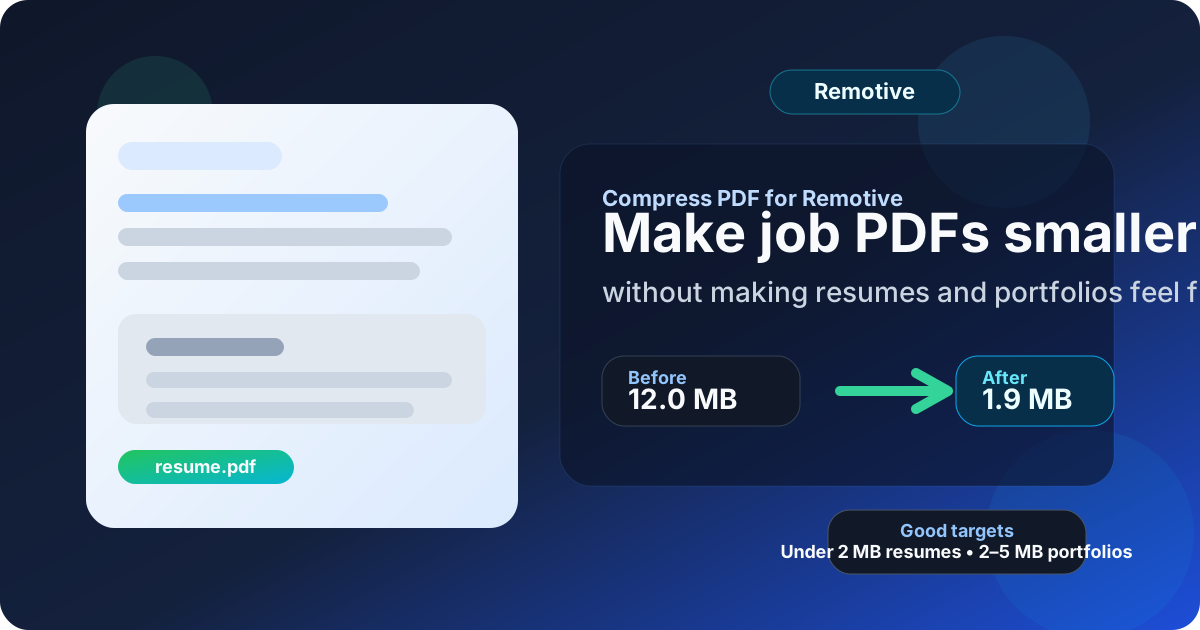
Table of contents
- Quick start: compress a PDF for Remotive in under 2 minutes
- Why smaller PDFs help in Remotive workflows
- What file size should you aim for?
- Which compression level should you choose?
- Step-by-step: shrink a Remotive PDF with LifetimePDF
- Best strategy for common Remotive file types
- What to fix before compressing harder
- How to keep the file readable and ATS-friendly
- Smarter document habits for remote applications
- Related LifetimePDF tools and internal links
- FAQ (People Also Ask)
Quick start: compress a PDF for Remotive in under 2 minutes
If your actual problem is simply I need this application PDF smaller before I send it anywhere, this is the cleanest reliable workflow:
- Open Compress PDF.
- Upload the exact file you plan to use, whether that is a resume, cover letter, portfolio, writing sample, certificate, transcript, or another supporting PDF.
- Choose Medium compression first.
- Download the smaller result and compare the new size with the original.
- Open it once and check your contact details, dates, section headings, links, and any small text inside screenshots or sample pages.
- If the file still feels heavier than it should, trim extra pages or crop scan waste before trying a stronger setting.
Why smaller PDFs help in Remotive workflows
Remotive often feeds into other systems. You click a listing, then continue into a company site, ATS, founder inbox, recruiting team email, or application form owned by another platform. That means your PDF has to survive more than one moment. It needs to upload cleanly, reopen quickly, and still look credible after the first click.
Oversized PDFs create drag that adds no value. They slow down uploads, feel clumsy on mobile, and make tailored application packets harder to manage. Smaller PDFs are easier to resend, easier to forward internally, and easier to store when you are applying to multiple remote roles in the same week. The goal is not to crush the file into the smallest possible number. The goal is to remove wasted weight while preserving the details that make a human reviewer trust what they are seeing.
- Cleaner uploads: lighter files are easier to submit when a Remotive listing sends you into another application system.
- Less friction for recruiters: smaller files reopen faster when somebody forwards your application to another teammate.
- Better mobile handling: resumes and work samples often get opened on phones before anybody reaches a laptop.
- Easier version control: role-specific PDFs stay easier to rename, store, and compare.
- More professional feel: a right-sized file signals care without looking fussy.
What file size should you aim for?
Remotive does not impose one universal file-size rule for every employer workflow, so practical ranges are more useful than chasing one magic number. You want a file that feels easy to upload and quick to review without stripping away the details that prove you are careful.
| Document type | Practical target | Why it works |
|---|---|---|
| Resume or cover letter | Under 1MB to 2MB | Usually enough to keep text sharp while making uploads feel quick and low-friction. |
| Certificate, transcript, or writing sample | About 1MB to 3MB | Leaves room for denser pages or mild scan artifacts without making the PDF feel bloated. |
| Portfolio or work sample PDF | About 2MB to 5MB | Gives you enough space for screenshots, charts, mockups, or layouts while staying easy to review. |
| Large combined packet | Keep it focused, not just smaller | If separate files are allowed, separate files usually beat one oversized bundle. |
The right target depends on what the file is supposed to do. A resume should feel light and immediate. A portfolio can carry a little more weight if the visuals actually matter. A writing sample can do the same if spacing and readability are part of the evaluation. The best size is the smallest one that still lets somebody understand the important parts quickly.
Which compression level should you choose?
For most Remotive workflows, Medium compression is the safest starting point. It usually cuts enough size to matter while preserving the text quality you want in resumes, cover letters, and supporting material. But the source document still matters.
Use Low compression when:
- Your PDF includes design work, charts, interface screenshots, annotated visuals, or layout-sensitive pages.
- You already started with a clean export and only need a modest size reduction.
- You care more about visual polish than squeezing out the last bit of file size.
Use Medium compression when:
- Your file is mostly text with a few graphics.
- You want a safe default for resumes, cover letters, transcripts, certificates, and most writing samples.
- You are trying to lower size without turning the document into a quality gamble.
Use High compression only when:
- You are still too large after removing obvious structural waste.
- The upload limit matters more than visual perfection.
- You reviewed the compressed file and it still looks acceptable for real hiring use.
Step-by-step: shrink a Remotive PDF with LifetimePDF
- Start with the final version. Use the exact PDF you intend to submit, not an earlier draft with old details or extra pages.
- Open the compressor. Go to LifetimePDF Compress PDF.
- Choose Medium first. That is the most reliable starting point for most Remotive application files.
- Download the result. Compare the new size with the original so you know the reduction was meaningful.
- Review the essentials once. Check your name, email, dates, section headings, hyperlinks, and any small text inside work samples or certificates.
- Escalate only if needed. If the file is still larger than you want, trim extra content or try a stronger setting after a clean re-export.
One review pass is usually enough. You are not looking for perfection under a microscope. You are confirming that the PDF still feels trustworthy when opened quickly by another person.
Need the tool right now? Compress first, then clean up structure only if the file is still heavier than it needs to be.
Best strategy for common Remotive file types
Resume
A text-based resume should compress well. If it stays larger than expected, the cause is often decorative icons, background shapes, exported slides, or an image-based layout that never needed to be that heavy.
Cover letter
Cover letters usually do not need aggressive compression. If yours feels bulky, the problem is more likely the source export than the amount of text. Clean formatting beats harsh compression almost every time.
Portfolio or case study
This is where people damage quality most often. If the file contains screenshots, charts, product mockups, or layout-heavy pages, start with Low or Medium compression. Then remove weaker pages or build a tighter role-specific sample pack before sacrificing image quality.
Writing sample
Writing samples are slightly different because line spacing, pagination, and clean headings matter. Start with Low or Medium compression, not High. If the sample is still large, cut appendices or extract only the requested section before compromising readability.
Certificates, transcripts, and scanned proof
Scan-heavy PDFs often carry hidden waste like crooked pages, empty backsides, huge margins, or unnecessarily high-resolution images. Cleaning that waste first usually beats trying to brute-force the whole file smaller.
Combined supporting packet
If the employer workflow after Remotive gives you separate upload fields, keep your files separate. A combined packet only helps when one attachment is explicitly required or when you have a specific reason to present a curated bundle.
What to fix before compressing harder
When one pass through the compressor does not do enough, the issue is often structure, not the compressor. Before you push image quality lower, reduce the document's waste.
- Delete blank pages, duplicates, or irrelevant extras.
- Extract only the pages that actually support this application.
- Crop wide scan borders or oversized white margins.
- Split one massive sample pack into smaller role-specific PDFs.
- Re-export the source file from Word, Docs, or your design tool instead of repeatedly compressing an already messy PDF.
- Run OCR if a cleaned scan also needs searchable text.
How to keep the file readable and ATS-friendly
Your Remotive PDF may eventually land in front of a recruiter, hiring manager, founder, or ATS that never saw the original listing. That is why readability matters more than shaving off the final few kilobytes.
- Keep real text real: avoid resumes or samples built from screenshots or flattened slide exports.
- Check links: portfolio, LinkedIn, GitHub, and personal-site links should still look right and remain usable.
- Protect scanning cues: your name, role titles, dates, and section headings should still stand out immediately.
- Preview one smaller screen: a quick phone check exposes cramped text and weak contrast fast.
- Favor clean structure over visual tricks: compression cannot rescue a cluttered source document.
The strongest compressed file is not the tiniest file. It is the one that still feels easy to trust after a fast skim.
Smarter document habits for remote applications
Remote jobs often mean more iteration: more tailored resumes, more role-specific samples, more follow-ups, and more systems where the same documents get reused. A few simple habits make that easier.
- Keep a clean master resume and export tailored PDFs from it.
- Use filenames that clearly separate roles, dates, and versions.
- Do not merge every supporting file unless the workflow explicitly asks you to.
- Trim portfolios and writing samples to the role instead of sending the biggest version you have.
- Check hidden metadata when you are sharing heavily revised files or older drafts.
These habits save time because a remote-job search is rarely one-and-done. Cleaner PDFs are easier to update, easier to reuse, and easier to trust every time they move to a new person or system.
Related LifetimePDF tools and internal links
If you often prepare files for Remotive applications, these tools usually matter more than compression alone:
- Compress PDF for the main size-reduction pass
- Word to PDF for cleaner resume and cover-letter exports
- Extract Pages for smaller role-specific work samples
- Delete Pages for duplicates and irrelevant extras
- Crop PDF for scan borders and wasted margins
- OCR PDF when cleaned scan files need searchable text
- PDF Metadata Editor for removing stale author or title metadata
If you also apply through nearby job platforms, related guides like Compress PDF for Remote OK, Compress PDF for Remote.co, Compress PDF for We Work Remotely, and How to Make a PDF ATS-Friendly for Job Applications can help you keep the same file-quality habits across multiple application routes.
Ready to clean up the file? Start with compression, then trim or crop only if the PDF is still heavier than it needs to be.
FAQ (People Also Ask)
How do I compress a PDF for Remotive?
Upload the PDF to a compressor, start with Medium compression, and keep the smaller copy only if names, dates, links, and key document details still look clean. Medium is usually the safest first pass because it reduces size without making the file feel flimsy.
What file size should I aim for on Remotive?
Under 2MB is a strong target for most resumes and cover letters. Portfolios, writing samples, certificates, and scan-heavy supporting PDFs usually work well in the 2MB to 5MB range as long as the important details remain readable.
Will compressing my Remotive resume hurt ATS readability?
Usually not if the file starts as a real text-based PDF and you avoid aggressive compression too early. The bigger risks are screenshot-based layouts, exported slides, and messy scans. Review the compressed copy once and make sure the text still looks crisp and selectable.
Should I combine my resume and portfolio into one PDF for Remotive?
Only if the next step clearly asks for one file. If the employer workflow gives separate upload fields, separate PDFs are usually easier to tailor and easier for the reviewer to skim quickly.
What should I do if my PDF is still too large after compression?
Remove unnecessary pages, crop wasted margins, extract only the relevant sections, or split one oversized sample pack before using heavier compression. Structural cleanup usually keeps the file looking better than forcing the whole PDF through a stronger setting.