Compress PDF for Redash: Make Dashboard Exports and Query PDFs Smaller Without Breaking Readability
To compress a PDF for Redash, export or print the exact dashboard, query result, or report you need, upload it to LifetimePDF's Compress PDF tool, start with Medium compression, and keep the smaller copy only if chart labels, filters, timestamps, and row-level detail still look clean.
For most Redash workflows, under 2MB is a strong goal for short dashboard snapshots, while longer query-result PDFs, browser print copies, and weekly review packs usually sit more safely around 2MB to 5MB.
Redash is great at getting answers out of data quickly, but the final handoff is often still a PDF. That is where the friction starts. A manager wants a smaller report for email, a client needs a clean dashboard snapshot that opens fast on mobile, or an analyst needs an archive copy that does not balloon in storage just because a browser print added wide margins and ten pages of rows nobody will read. Good compression solves that finish-line problem without making the underlying report harder to trust.
Fastest path: run the Redash export through Compress PDF at Medium, then crop browser margins or split the file only if the first pass still leaves more weight than the next reader needs.
Need the short version? Jump to Quick start: compress a Redash PDF in a few minutes.
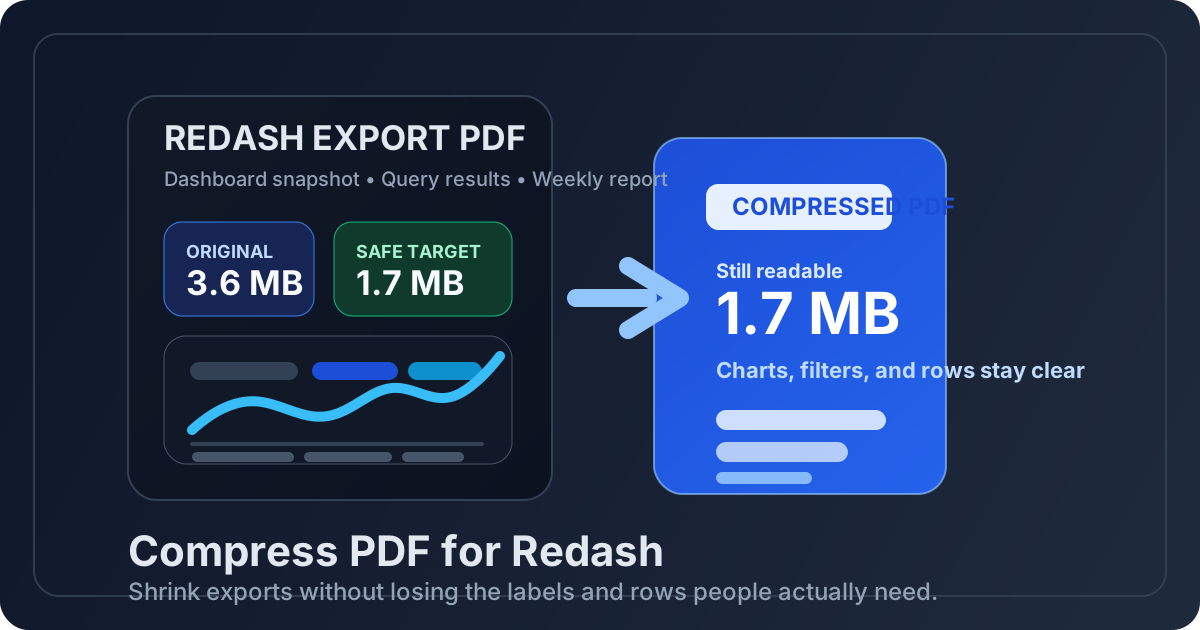
Table of contents
- Quick start: compress a Redash PDF in a few minutes
- Where Redash PDFs usually get heavy
- What file size should you aim for?
- Which compression level should you choose?
- Step-by-step: shrink a Redash PDF with LifetimePDF
- Best workflow by Redash PDF type
- What to clean up before compressing harder
- Redash readability checklist before you send the file
- Related LifetimePDF tools and internal links
- FAQ
Quick start: compress a Redash PDF in a few minutes
If your actual goal is simply make this Redash PDF smaller without wrecking the report, this is the workflow that usually gets the job done:
- Open Compress PDF.
- Upload the dashboard export, query-result PDF, scheduled report, or browser print copy you really plan to share.
- Choose Medium compression first.
- Download the smaller file and compare the new size with the original.
- Open it once and check the smallest useful details: chart labels, legends, parameter values, table rows, filters, timestamps, and totals.
- If the PDF came from a browser print, remove wasted white margins with Crop PDF.
- If the file is still bulky, keep only the pages the next reader needs with Extract Pages, Delete Pages, or Split PDF.
Where Redash PDFs usually get heavy
Most oversized Redash PDFs are not oversized because the analytics are too advanced. They are oversized because the export workflow quietly adds bulk around the useful part.
Common causes of file bloat
- Browser print margins: print-to-PDF workflows often add wide white borders that increase the page area without adding information.
- Long result tables: a query that is helpful in the browser may turn into page after page of rows once it is flattened into PDF form.
- Too many dashboards in one packet: one PDF may combine executive summary pages, diagnostic charts, appendix tables, and support screenshots for several audiences.
- Repeated filters and headers: every page may repeat the same framing elements, which is fine for viewing but wasteful in a file people only skim.
- Screenshot-heavy notes: pasted visuals and exported browser sections can add image weight faster than people expect.
That is why smart compression often works best when it is paired with small structural cleanup. If the PDF is fundamentally carrying too much material, stronger compression alone is rarely the cleanest answer.
What file size should you aim for?
There is no single perfect number, but these ranges work well for most Redash sharing and archive workflows:
| Redash PDF type | Good target | What you need to protect |
|---|---|---|
| One-page dashboard snapshot | Under 2MB | Chart labels, legends, KPI cards, and filter context |
| Focused KPI review PDF | 1MB to 3MB | Annotations, totals, date ranges, and comparison charts |
| Query-result PDF | 2MB to 4MB | Row text, wrapped values, column headers, and timestamps |
| Weekly or monthly report pack | 2MB to 5MB | Page order, section headings, appendix references, and readability at normal zoom |
| Browser print with wide margins | Variable | Usually improve layout first, then compress |
The better question is not How small can I force this file? It is How small can I make it while the next person still reads it comfortably without zooming into every row?
Which compression level should you choose?
For Redash PDFs, the answer is usually simpler than people think.
Start here
- Medium compression: best default for dashboard exports, KPI packs, and most query-result PDFs.
- Lighter compression: useful when the PDF contains dense tables, small footnotes, or fine chart labeling that must stay especially crisp.
- Stronger compression: best saved for archive copies, oversized appendix material, or PDFs where the receiving side mainly needs the file to upload successfully.
Step-by-step: shrink a Redash PDF with LifetimePDF
Use this sequence when you want a repeatable workflow instead of trial and error:
- Pick the right source file. Use the exact report, dashboard, or query-result PDF the next reader needs. Starting with a smaller, tighter source file always helps.
- Compress first. Open Compress PDF and start with Medium.
- Review the smallest useful details. Look at chart labels, legend text, narrow columns, parameter values, timestamps, and totals before you move on.
- Fix obvious layout waste. If the file came from a browser print, remove dead margins with Crop PDF.
- Trim the audience version. Use Extract Pages or Delete Pages when only a subset of pages matters.
- Split mixed-purpose packets. A leadership summary and a technical appendix usually travel better as separate PDFs. Use Split PDF if the file is doing too many jobs.
- Keep the reviewed copy. Once the file feels light enough and still reads clearly, stop there. You do not need to chase the smallest possible number.
Best workflow by Redash PDF type
Different Redash exports benefit from slightly different cleanup decisions.
1) Dashboard snapshots
These are usually the easiest to compress. Start with Medium compression and check the legends, axes, and filter tags. If the PDF is still bigger than expected, the issue is often extra page area from a browser print rather than the charts themselves.
2) Query-result PDFs
Row-heavy PDFs are where people most often over-compress. Tiny text, long cell values, and narrow columns can become tiring fast. In this case, it is often better to keep compression moderate and reduce the number of pages instead.
3) Scheduled weekly review packs
These often combine summary charts, diagnostic pages, and appendix material. If the file is consistently large every week, split the summary section from the deeper backup section. That makes the shared version easier to open and keeps the detailed version available when someone actually needs it.
4) Browser print copies for records or approvals
Browser-generated PDFs often carry the most avoidable waste. Before you assume the report is intrinsically large, check whether wide margins, repeated headers, or oversized page dimensions are inflating the file. A crop pass can make a surprisingly big difference.
What to clean up before compressing harder
If your first compression pass did not go far enough, work through these cleanup options in order:
- Crop empty space. Remove white borders and print margins with Crop PDF.
- Extract the summary pages. Keep the leadership version short with Extract Pages.
- Delete appendix or duplicate sections. Use Delete Pages when some material only exists for internal reference.
- Split by audience. Use Split PDF to separate executive summaries from diagnostic detail.
- Compare the cleaned copy. If you want a final confidence check, use Compare PDFs to make sure the meaningful content still matches what you intended to send.
Redash readability checklist before you send the file
Before you email, upload, or archive the smaller PDF, check the parts most likely to break first:
- Chart labels and legends: especially on dense dashboard pages
- Filter and parameter values: readers need to know what slice of data they are looking at
- Timestamps and date ranges: small metadata often matters more than people realize
- Row-level text: long query results can become tiring if rows blur or wrap badly
- Totals and KPI cards: the top-line numbers must remain instantly readable
- Page order: make sure summary pages still precede supporting material after any cleanup
If those elements still hold up at normal viewing size, the PDF is usually ready.
Related LifetimePDF tools and internal links
Redash PDFs rarely live in isolation. These tools are the most useful follow-ups when compression alone is not enough:
- Compress PDF for the first size reduction pass
- Crop PDF for browser margins and wasted page space
- Extract Pages for summary-only handoffs
- Delete Pages for appendix cleanup
- Split PDF for audience-specific versions
- Compare PDFs when you want to confirm the cleaned copy still says what the original said
Ready to shrink the file? Start with Compress PDF, then clean up only the parts that still add unnecessary weight.
FAQ
How do I compress a PDF for Redash?
Export or print the Redash file as a PDF, upload it to a PDF compressor, start with Medium compression, and review the smaller copy before sharing it. Medium is usually the safest first step because it reduces size while keeping charts, filters, row values, and timestamps readable.
What size should a Redash PDF be before I send it?
For one-page dashboard snapshots, under 2MB is a strong target. Larger query-result PDFs and report packs often land more naturally around 2MB to 5MB, as long as labels and row-level text still look clear.
Why do browser-printed Redash PDFs feel so bloated?
Because browser print workflows often add wide margins, repeated headers, extra whitespace, and larger page dimensions than the report really needs. Cropping the layout can reduce weight before you even touch stronger compression.
Should I split a long Redash report pack instead of compressing it harder?
Often, yes. If one PDF tries to serve executives, analysts, and auditors at the same time, splitting it into smaller purpose-built files usually preserves readability better than heavy compression across every page.
Which LifetimePDF tools work best with Redash exports?
Compress PDF is the starting point. Crop PDF, Extract Pages, Delete Pages, Split PDF, and Compare PDFs are especially useful for turning large Redash exports into lighter, cleaner files that are easier to share and archive.