Compress PDF for Pandoc: Keep Technical Manuals, Research Papers, and Offline Handbooks Lighter
To compress a PDF for Pandoc, upload the final Pandoc-exported PDF to LifetimePDF's Compress PDF tool, start with Medium compression, and keep the smaller copy only if code blocks, citations, footnotes, tables, and diagrams still look clear when you reopen it from the exact workflow where people will actually use it.
For most Pandoc workflows, aim for under 4MB for text-heavy manuals, references, and white papers, and roughly 4MB to 10MB for figure-heavy reports, research papers, and offline handbooks that still need crisp detail.
Pandoc is great at turning Markdown, source notes, and structured writing into polished deliverables, but the final PDF can still end up bulkier than it needs to be. Teams export internal manuals, training packets, research appendices, policy handbooks, product guides, and partner documents because one clean PDF is still easier to archive, forward, or open offline. The goal is not to flatten the file until the pages feel cheap. The goal is to remove wasted weight while keeping the details readers still depend on easy to trust.
Fastest path: compress the final Pandoc PDF on Medium, reopen the lighter copy from the real reading or handoff flow, then split, crop, extract, or OCR only if the file is still heavier than the job requires.
Need the short version? Jump to Quick start: compress a PDF for Pandoc in under 2 minutes.
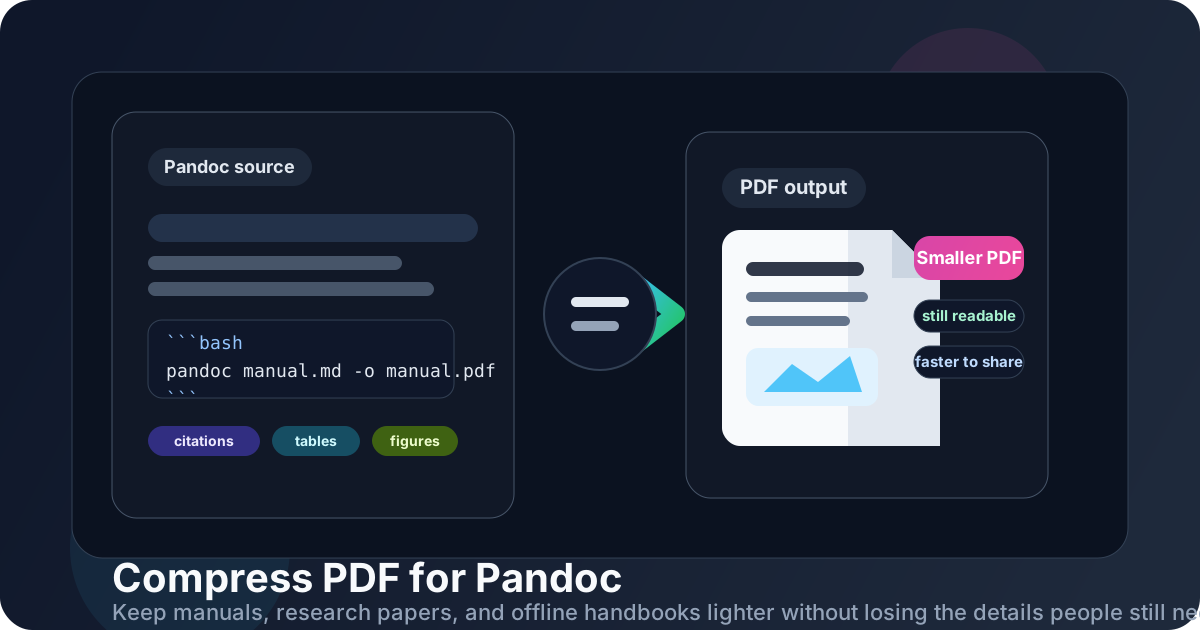
Table of contents
- Quick start: compress a PDF for Pandoc in under 2 minutes
- Why smaller PDFs help in Pandoc workflows
- What makes a good Pandoc PDF
- What file size should you aim for?
- Which compression level should you choose?
- Step-by-step: shrink a Pandoc PDF with LifetimePDF
- Best strategy for common Pandoc PDF types
- What if the PDF is still too large?
- Workflow habits that keep Pandoc PDFs lighter
- Related LifetimePDF tools and useful internal links
- FAQ
Quick start: compress a PDF for Pandoc in under 2 minutes
If your real goal is simply make this Pandoc PDF lighter before I send or archive it, this workflow is usually enough:
- Open Compress PDF.
- Upload the exact Pandoc-exported manual, report, paper, or handbook you actually plan to keep.
- Choose Medium compression first.
- Download the smaller copy and compare its size with the original.
- Put the lighter file back where it really belongs in the workflow.
- Reopen it once from the LMS upload, documentation folder, approval packet, email attachment, or offline storage folder where readers will actually find it.
- If it is still too bulky, use Extract Pages, Split PDF, or Crop PDF before trying stronger compression.
Why smaller PDFs help in Pandoc workflows
Pandoc often sits in the middle of serious document work. A technical writer exports a handbook. A developer turns Markdown release notes into a distribution-ready PDF. A trainer packages a workshop manual. A researcher builds a paper with tables, references, and appendices. Once the content becomes a PDF, file size starts affecting how quickly people can download, open, forward, upload, or keep it.
Why lighter PDFs usually work better
- Faster sharing: manuals, reports, and white papers move more easily through email, portals, learning systems, and approval workflows.
- Better offline use: lighter PDFs are easier to keep on a laptop, tablet, or phone when somebody needs the document without opening the whole docs stack.
- Cleaner review cycles: a focused PDF is easier for stakeholders to download and read during approval or revision rounds.
- Less archive friction: smaller files are easier to store, version, and replace without turning folders into a swamp of bulky duplicates.
- Better mobile reading: someone checking a procedure, reference, or appendix from a phone is less likely to give up before the file opens.
- Less upload pain: client portals, LMS systems, forms, and internal tools often behave better with a right-sized PDF.
Compression is not just a storage trick. It protects momentum. A good Pandoc PDF should feel like a clean handoff, not the slowest part of the workflow.
What makes a good Pandoc PDF
A good Pandoc PDF is not simply smaller. It is readable, focused, and still easy to trust after it leaves your source files and lands in someone else's inbox, downloads folder, or archive.
- One clear purpose: a handbook, paper, report, internal guide, or training packet should each support one main job.
- Readable detail: code blocks, citations, footnotes, small tables, diagrams, and headings still need to hold up.
- Only the pages that matter: duplicated covers, stale appendices, draft notes, empty spacer pages, and repeated front matter are just dead weight.
- Searchable text when possible: if the PDF includes scans or screenshot-heavy source material, OCR PDF may help more than brute-force compression.
- Clean document identity: a tidy filename and metadata make the PDF easier to recognize and trust once it is forwarded around.
What file size should you aim for?
There is no perfect universal number because a short text-heavy manual behaves very differently from a figure-heavy research report, a training workbook, or a scan-heavy appendix. Still, rough ranges help. The right goal is not the smallest possible file. It is the smallest file that still feels dependable.
| Pandoc PDF type | Comfortable target | What to check before keeping it |
|---|---|---|
| Text-heavy manuals, references, white papers, and policy guides | Under 4MB | Headings, code blocks, footnotes, links, and citation markers |
| Reports, handbooks, and papers with figures, charts, or screenshots | 4MB to 10MB | Figure labels, table lines, image captions, and small text in charts |
| Scan-heavy appendices, signed forms, and archive packets | As small as practical without hurting readability | Faint text, signatures, crop quality, and OCR usefulness |
| Large mixed-purpose bundles | Often split first | Whether the file should really become several smaller PDFs |
If the file saves a few megabytes but makes code samples, citations, chart labels, or footnotes harder to trust, the compression was too aggressive. A dependable handoff is usually worth more than a prettier file-size number.
Which compression level should you choose?
Most Pandoc workflows do not need a complicated decision tree. Start with Medium and only get more aggressive if the file is still clearly heavier than the job it needs to do.
Low compression
Use Low when the PDF is already fairly clean and you only want a modest size drop without risking subtle degradation in code blocks, small table text, figure captions, or footnotes.
Medium compression
Medium is the best default for most Pandoc workflows. It usually trims enough size to matter while keeping reports, manuals, research papers, policy packets, and offline handbooks comfortable to use.
High compression
Use High only when the file is still annoyingly bulky after smarter cleanup or when the PDF is more of a convenience attachment than a close-reading source. If readers depend on the document for exact wording, data tables, figure labels, or code examples, test it before you trust it.
Step-by-step: shrink a Pandoc PDF with LifetimePDF
- Start with the final file. Use the exact report, handbook, appendix packet, or offline export you really want people to open.
- Open Compress PDF.
- Choose Medium compression first. That is usually the safest balance for Pandoc-generated documents.
- Download the smaller copy. Compare the new size with the original so the reduction is actually worth keeping.
- Put it back in the real workflow. Reopen the file from the review packet, LMS folder, partner handoff, or offline storage location where it belongs.
- Check one difficult page. Review a page with dense code, a citation-heavy section, a wide table, or a figure with small labels.
- Run one trust test. Scroll the document once and confirm the parts people really depend on still hold up.
- Clean structure only if needed. If the file is still too heavy, split it, crop wasted margins, remove dead pages, or OCR scan-heavy sections before trying harsher compression.
Best strategy for common Pandoc PDF types
Not every Pandoc export deserves the same treatment. The right workflow depends on what the file is supposed to help someone do once it leaves the source files.
Technical manuals and internal guides
These usually need clean typography more than dramatic size cuts. Section hierarchy, code blocks, inline links, and caution notes should remain easy to trust. Medium compression is usually the safest place to stop.
Research papers and white papers
These often compress well, but protect the details people actually cite: figure labels, footnotes, references, equations rendered as images, and chart captions. A smaller file is only better if the document still feels serious and readable.
Training packets and offline handbooks
These usually benefit from moderate compression plus cleanup. Remove repeated covers, stale appendices, duplicate worksheets, and internal review notes before you lower image quality more aggressively. A focused packet usually beats one giant everything bundle.
Scan-heavy appendices and signed pages
These are often the real troublemakers. Compression helps, but the bigger win often comes from trimming scanner waste and using OCR PDF so the file becomes easier to search and reuse later.
What if the PDF is still too large?
If one compression pass did not get you where you want, do not assume the next answer is maximum compression. Very often the better answer is better structure.
- Use Extract Pages when you only need one chapter, one appendix, one report section, or one figure packet.
- Use Delete Pages to remove duplicated title pages, stale revision history, or irrelevant archive material.
- Use Split PDF when one giant export would work better as several role-specific downloads.
- Use Crop PDF if empty margins and scanner waste are inflating the file.
- Use OCR PDF if the real problem is that the scan is hard to search, not just large.
- Use PDF Metadata Editor when the final download needs a cleaner title and document identity.
In most Pandoc workflows, a cleaner PDF beats a more aggressively compressed PDF. Better structure is usually worth more than one more round of quality loss.
Workflow habits that keep Pandoc PDFs lighter
Compression only counts as a win if the workflow feels easier after the change. A few habits make that much more likely.
- Compress before sharing when possible: it is easier to start with a right-sized file than to clean up several copies later.
- Keep each export focused: one clear PDF usually works better than one giant mixed-purpose bundle.
- Let the source files carry extra context: if the repository or notes already keep the raw material, the PDF can stay tighter and more purposeful.
- Check the pages readers actually depend on: citations, code blocks, figure labels, footnotes, and tables matter more than the cover page.
- Preserve the original until the replacement proves itself: do not delete the source immediately if the file matters.
- Trim stale exports: cleaner attachments are easier to maintain than archives that keep growing forever.
The goal is not to win a file-size contest. The goal is to keep the handoff readable, useful, and light enough that people still want to open it.
Related LifetimePDF tools and useful internal links
If you want a smoother Pandoc workflow, these are the most useful companion tools and guides:
- Compress PDF for the main size-reduction step.
- Extract Pages when only part of a document belongs in the final handoff.
- Split PDF for large mixed-topic bundles.
- OCR PDF for scan-heavy files you still want to search.
- Crop PDF to trim wasted margins before compressing.
- PDF Metadata Editor when you want a cleaner final download.
If your workflow overlaps with other documentation stacks, these related guides may help too: Compress PDF for Asciidoctor, Compress PDF for DocC, Compress PDF for mdBook, and Compress PDF for OpenAPI Generator.
Bottom line: shrink the PDF just enough that the Pandoc handoff feels lighter, then stop. If the file is still awkward, improve the structure of the packet instead of endlessly squeezing it.
FAQ: Compress PDF for Pandoc
How do I compress a PDF for Pandoc?
Upload the final Pandoc PDF to a compressor, start with Medium compression, and keep the smaller copy only if code blocks, citations, footnotes, tables, and diagrams still look clear when you reopen it from the exact workflow where people will use it. Medium is usually the safest first step because it removes wasted weight without making the document frustrating to trust later.
What file size should I aim for in a Pandoc workflow?
Under 4MB is a strong target for many text-heavy manuals, references, and white papers. Figure-heavy reports, research packets, and offline handbooks often land best around 4MB to 10MB if the important details remain readable.
Will compression hurt citations, code blocks, or tables?
Usually not if you begin with Medium compression and the source file is already clean. Problems usually show up first in tiny monospace text, footnotes, figure labels, citation markers, and wide comparison tables, so those are the places worth checking before you replace the original.
Should I split a large Pandoc PDF instead of compressing harder?
If one PDF contains the main handbook, long appendices, screenshot evidence, review notes, and scanned signoff pages all at once, splitting it is usually better than pushing compression harder. Pandoc workflows work better when each file has one clear purpose and readers do not have to dig through a giant bundle.
Which LifetimePDF tools pair best with Pandoc?
Compress PDF is the main starting point. Extract Pages, Split PDF, Delete Pages, Crop PDF, OCR PDF, and PDF Metadata Editor are the most useful companion workflows when you want smaller, cleaner manuals, reports, and offline handbooks.
Published by LifetimePDF — Pay once. Use forever.