Compress PDF for Page Optimizer Pro: Make SEO Reports, Content Briefs, and Client PDFs Smaller Without Losing What Matters
To compress a PDF for Page Optimizer Pro, export the report, upload it to LifetimePDF's Compress PDF tool, start with Medium compression, and keep the smaller copy only if score boxes, recommendation notes, screenshots, and page details still look clear.
For most Page Optimizer Pro PDFs, under 2MB works well for briefs and short summaries, while full recommendation packs usually feel best around 2MB to 4MB after light cleanup.
Page Optimizer Pro exports are usually not the final destination. They are the handoff. A writer needs the brief, a strategist needs the recommendation list, a client needs the summary, or a stakeholder needs proof that the changes are grounded in something concrete. That is why file size matters. A lighter PDF moves faster through review, email, shared drives, and approval threads, but only if the details people still need to trust have not been crushed along the way.
Fastest path: run the Page Optimizer Pro export through LifetimePDF's Compress PDF tool on Medium, then do one quick readability check before you send, upload, or archive the smaller copy.
Need the short version? Jump to Quick start: compress a Page Optimizer Pro PDF in under 2 minutes.
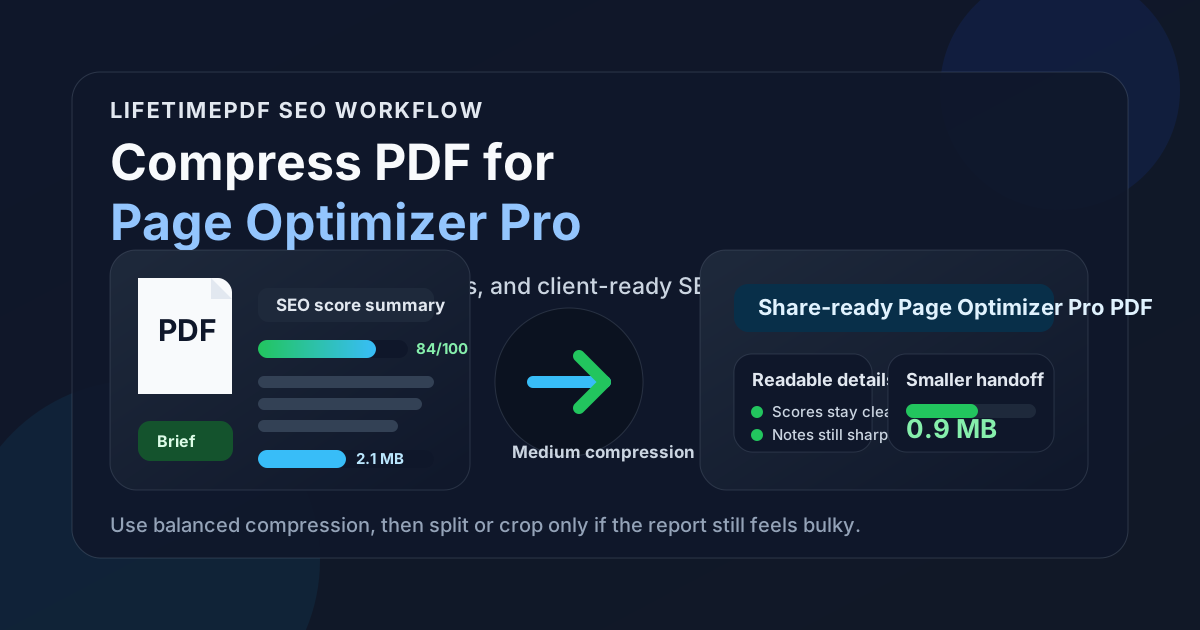
Table of contents
- Quick start: compress a Page Optimizer Pro PDF in under 2 minutes
- Why Page Optimizer Pro PDFs get heavy so quickly
- What file size should you aim for?
- Which compression level should you choose?
- Step-by-step: shrink a Page Optimizer Pro PDF with LifetimePDF
- Best strategy for common Page Optimizer Pro PDF types
- What if the PDF is still too large?
- How to protect score and screenshot readability
- Workflow habits that keep SEO PDFs cleaner
- Related LifetimePDF tools and useful reading
- FAQ (People Also Ask)
Quick start: compress a Page Optimizer Pro PDF in under 2 minutes
If your real goal is simply make this Page Optimizer Pro PDF smaller so it is easier to send and review, this workflow is usually enough:
- Open Compress PDF.
- Upload the report, content brief, recommendation pack, or client-ready PDF you actually plan to share.
- Choose Medium compression first.
- Download the smaller result and compare the size difference.
- Open it once and check the details that matter: score boxes, highlighted terms, notes, screenshot labels, and action items.
- If the PDF still feels bulky, extract only the pages the next reader needs or split the appendix before you try stronger compression.
Why Page Optimizer Pro PDFs get heavy so quickly
Page Optimizer Pro PDFs often become larger than they need to be because one export is trying to do too many jobs at once. The same file may include the executive recommendation, writer-facing brief, screenshot proof, competitor examples, and backup pages for internal review. Compression helps, but the deeper size problem is usually packaging. The PDF carries more pages, more screenshots, and more duplicate context than the next reader actually needs.
SEO reports also compress unevenly. A mostly text-based recommendation sheet behaves very differently from a screenshot-heavy packet full of annotations, colored score boxes, browser captures, and side-by-side examples. That is why the safest workflow is usually balanced compression plus light cleanup instead of immediately pushing the strongest possible setting.
What usually adds weight
- Screenshot-heavy evidence: page examples and browser captures grow much faster than plain text recommendations.
- Too many audiences in one file: a writer, strategist, client, and approver rarely need the exact same version.
- Appendix sprawl: backup exports, repeated pages, or extra competitor examples quietly inflate the file.
- Wide layouts: zoomed-out screenshots and large margin captures increase size without always increasing usefulness.
- Multiple revision snapshots: before-and-after proof is useful, but carrying every version in one PDF makes sharing harder.
What file size should you aim for?
There is no perfect file size for every Page Optimizer Pro export, but a few practical targets prevent you from compressing harder than the workflow needs:
| PDF type | Good target | What matters most |
|---|---|---|
| Single-page recommendation or quick summary | Under 2MB | Scores, headings, and next actions stay instantly readable. |
| Writer brief or on-page checklist | 1MB to 3MB | Term recommendations, notes, and structure guidance remain clear. |
| Client-ready recommendation pack | 2MB to 4MB | Summary tables, screenshots, and explanatory notes survive without blur. |
| Screenshot-heavy audit appendix | 3MB to 6MB | The file stays manageable without turning proof images into mush. |
These are not hard rules. They are sanity checks. If a smaller file makes the PDF materially harder to use, the file is no longer better just because the number went down.
Which compression level should you choose?
Page Optimizer Pro exports usually work best when you match the compression level to the type of content inside the PDF.
Low compression
Use low compression when the file already is not very large or when the report includes lots of small labels, dense notes, and screenshot callouts that need to stay crisp. It is the safe choice for already-compact recommendation sheets.
Medium compression
This is the best default for most Page Optimizer Pro PDFs. It usually cuts enough size to make sharing easier while keeping score boxes, tables, headings, and annotations easy to read at normal zoom.
High compression
High compression is best reserved for files that are still too heavy after cleanup or for PDFs where image softness is less important than getting under a strict upload limit. If the export contains lots of screenshot proof, high compression deserves a closer review before you send it.
Best starting point: Medium compression first, then fix structure only if the file is still larger than it should be.
Step-by-step: shrink a Page Optimizer Pro PDF with LifetimePDF
The best workflow is short and repeatable. You should not need a long checklist every time you want to hand off a report.
1) Use the final PDF you actually plan to share
Start with the real handoff file, not the biggest master version. If the next reader only needs the summary and action pages, do not compress a bloated working draft that also includes backup material they will never open.
2) Open Compress PDF
Go to LifetimePDF's Compress PDF tool and upload the file.
3) Start with Medium compression
For most Page Optimizer Pro exports, Medium gives the best tradeoff between size reduction and readability. It is usually enough for writer briefs, shareable audits, and client-ready summaries.
4) Review the weaker visual spots once
You do not need to reread the whole report. Just inspect the areas compression is most likely to hurt:
- optimization scores and score boxes,
- small labels or highlighted terms,
- browser screenshot notes,
- heading suggestions and examples,
- summary actions at the end of the report.
5) Fix structure if the file is still too large
If the PDF is still bulkier than the workflow needs, do not assume stronger compression is the next step. In many cases, Extract Pages, Split PDF, or Delete Pages produces a better result than forcing more shrinkage across every page.
Best strategy for common Page Optimizer Pro PDF types
Writer brief
Writer briefs usually need clarity more than extreme size reduction. The writer needs term guidance, structure hints, notes, and maybe one or two examples. Medium compression is usually enough. If the file still feels heavy, the better fix is often removing backup pages that the writer does not need.
Client-ready recommendation summary
A client summary should stay light, clean, and confidence-building. That means readable score snapshots, understandable action items, and just enough proof to support the recommendations. If the file is getting large, split the appendix instead of sending one oversized report to everyone.
Internal audit packet
Internal packets often grow because they carry more evidence. That is fine when the audience needs it. But if the file is becoming awkward to store or share, break it into a main recommendation PDF plus a separate evidence appendix.
Before-and-after review PDF
These can become screenshot-heavy very quickly. Crop oversized margins, remove duplicate captures, and keep only the comparisons that help someone verify the change. That usually produces a better result than compressing everything harder.
What if the PDF is still too large?
If compression alone does not get the file where you want it, use a structural fix. That is often where the biggest gains come from.
- Extract the handoff pages: use Extract Pages to keep only the summary, recommendations, or brief pages.
- Split the appendix: use Split PDF so the main report and backup proof travel separately.
- Delete duplicated pages: if the PDF includes repeated exports or stale screenshots, Delete Pages usually helps more than stronger compression.
- Crop oversized captures: use Crop PDF when screenshots carry too much empty space.
- Compare versions before replacing the original: use Compare PDFs if you want to verify that the smaller copy still preserves the important visual detail.
Most Page Optimizer Pro PDFs get smaller faster when you remove unnecessary weight first and compress second.
How to protect score and screenshot readability
A compressed SEO PDF is only useful if people can still interpret the evidence correctly. Before you keep the smaller copy, review these spots once:
- Score boxes: make sure the numbers and labels are still immediately legible.
- Highlighted terms and notes: small annotations should not turn muddy or faint.
- Screenshot callouts: labels, arrows, and examples should still support the recommendation instead of becoming vague decoration.
- Headings and structural cues: the report should remain easy to scan, not just technically readable.
- Action sections: the parts that tell someone what to change next should stay friction-free.
Workflow habits that keep SEO PDFs cleaner
The easiest file to compress is the one that was packaged sensibly in the first place. A few habits help a lot:
- Create separate versions for writers, clients, and internal review instead of using one oversized catch-all PDF.
- Keep the main recommendation pages together and move backup proof into an appendix only when it is truly needed.
- Crop browser screenshots before export when the interesting detail only fills part of the page.
- Remove duplicate pages or outdated captures before the PDF becomes the permanent share version.
- Use clear file names so the light handoff copy does not get mixed up with the full archive copy later.
Those habits matter because the goal is not simply smaller PDFs. The goal is smoother review. Smaller files just happen to be one part of that.
Related LifetimePDF tools and useful reading
If you work with Page Optimizer Pro reports often, these tools usually pair well with compression:
- Compress PDF for the first pass.
- Extract Pages when only part of the report needs to be shared.
- Split PDF for separating the main summary from screenshot appendices.
- Crop PDF for oversized browser captures.
- Compare PDFs when you want to verify that the smaller version still holds up.
If you want more examples of SEO-focused PDF workflows, these guides are also useful:
Want the simplest workflow? Compress the Page Optimizer Pro PDF first, then split or extract only if the file is still heavier than the handoff needs.
FAQ (People Also Ask)
How do I compress a PDF for Page Optimizer Pro?
Export the Page Optimizer Pro file as a PDF, upload it to a compressor, start with Medium compression, and preview the result before you share it. That first pass is usually enough to reduce size without making the report harder to read.
What file size should I target for Page Optimizer Pro reports?
Under 2MB is a strong goal for short summaries and briefs. Larger recommendation packs and screenshot-heavy exports usually feel more realistic around 2MB to 4MB as long as the useful detail still looks clear.
Will compression hurt the SEO score boxes or screenshots?
It can if you compress too aggressively. That is why Medium compression is the safest place to start. Always check small labels, score boxes, notes, and screenshot callouts before you replace the original export.
Is it better to split the PDF than compress it harder?
Often, yes. If the file mixes the main recommendation, writer brief, screenshots, and backup evidence for different audiences, splitting it usually works better than forcing every page through a stronger compression setting.
Which LifetimePDF tools are most useful after compression?
Extract Pages, Split PDF, Crop PDF, Delete Pages, and Compare PDFs are the most useful companions because they help you remove unnecessary weight while keeping the report easier to review.