Compress PDF for OneSpan Sign Without Monthly Fees: Shrink Contracts, Disclosures, and Lending Packets Without Another Subscription
If you need to compress a PDF for OneSpan Sign without monthly fees, export the final signer-ready file, upload it to LifetimePDF's Compress PDF tool, start with Medium compression, and keep the smaller copy only if signature blocks, dates, initials, and fine-print clauses still look clean.
For most OneSpan Sign workflows, that is enough to shrink contracts, disclosures, lending packets, onboarding forms, and scanned agreements without adding another subscription just to solve file-size problems.
OneSpan Sign usually enters the picture near the finish line. The document has already been drafted, approved, exported, and routed. At that point, paying yet another monthly fee just to make the PDF lighter feels silly. A pay-once workflow makes more sense: shrink the extra weight, keep the signer-facing details readable, and send the file without turning the last step into another software commitment.
Fastest path: run the OneSpan Sign file through LifetimePDF's Compress PDF tool at Medium, then split, extract, crop, or delete pages only if the packet still carries more weight than the next signer actually needs.
In a hurry? Jump to Quick start: compress a OneSpan Sign PDF in under 2 minutes.
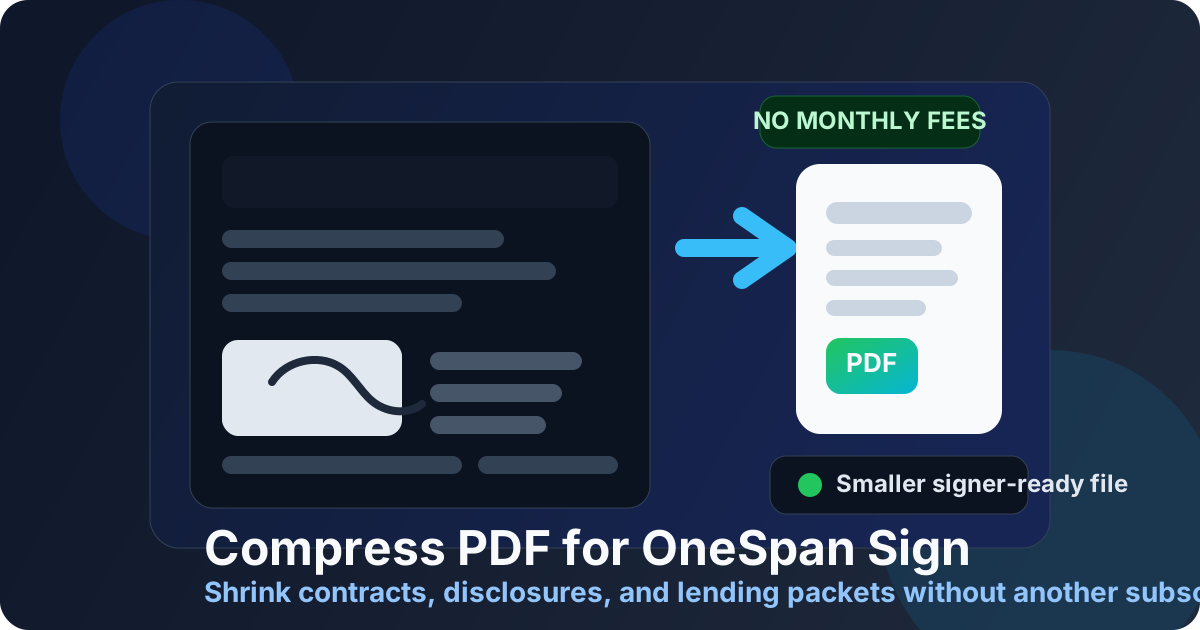
Table of contents
- Quick start: compress a OneSpan Sign PDF in under 2 minutes
- Why "without monthly fees" matters here
- Why smaller PDFs help in OneSpan Sign workflows
- What file size should a OneSpan Sign PDF be?
- Which compression level should you choose?
- Step-by-step: use LifetimePDF to shrink the file
- Best approach for common OneSpan Sign PDFs
- What to do if the PDF is still too large
- How to keep signer-facing details readable
- Related LifetimePDF tools and useful reading
- FAQ (People Also Ask)
Quick start: compress a OneSpan Sign PDF in under 2 minutes
If your real goal is simply make this OneSpan Sign PDF smaller so it is easier to upload, review, and sign, this workflow is usually enough:
- Export the final contract, disclosure, lending packet, agreement, approval form, or signer-ready PDF you actually plan to send.
- Open Compress PDF.
- Upload the file and choose Medium compression first.
- Download the smaller result and compare the new size.
- Preview the details that matter most: signature blocks, initials boxes, names, dates, field labels, and the smallest legal text.
- If the file is still bulky, use Extract Pages, Split PDF, Crop PDF, or Delete Pages before forcing stronger compression across the whole packet.
Why "without monthly fees" matters here
The real question behind this keyword is not only, "Can I make this PDF smaller?" It is usually, "Can I finish this job without adding another recurring cost?" That is a fair question. OneSpan Sign is already part of a paid workflow for many teams. When the only problem left is an oversized PDF, another monthly subscription just to shave off a few megabytes is hard to justify.
A pay-once PDF workflow fits this stage better. Compression is usually a short task, not an entire system. You open the file, remove the extra weight, check readability, and move on. That is especially true when the problem is temporary: one lending packet full of scans, one approval bundle with duplicate exhibits, or one contract package that grew because too many pages hitched a ride into the final export.
Why smaller PDFs help in OneSpan Sign workflows
OneSpan Sign files usually need to travel cleanly. They are not archive copies that can sit untouched on a drive forever. They are documents someone still needs to open, review, sign, or return. Extra file weight adds friction at exactly the wrong moment.
Smaller files usually upload faster, feel better on mobile, and are easier to resend when the wrong version went out the first time. They also create less hesitation for recipients who just want the document to open quickly and look professional.
Compression helps because it can:
- Speed up uploads: useful when you are replacing a document or routing several files in a row.
- Reduce mobile frustration: plenty of people first open signing packets on a phone or tablet.
- Clean up scan-heavy files: oversized scanned pages often carry far more visual weight than they need.
- Make review easier: lighter files feel faster to download, preview, and return.
- Help internal handoffs: legal, lending, HR, operations, sales, and compliance teams all appreciate files that do not feel bloated for no reason.
Good compression is not about chasing the smallest possible number. It is about removing waste while keeping the parts that make the document usable: names, dates, clauses, checkboxes, initials, signature areas, and readable small text.
What file size should a OneSpan Sign PDF be?
There is no single perfect number for every document, so practical targets are more useful than aggressive size goals. The right answer depends on how text-heavy or scan-heavy the file is and whether the recipient still needs to read details closely.
| Document type | Practical target | Why it works |
|---|---|---|
| Text-heavy contracts and disclosures | < 1MB to 2MB | Usually enough for fast upload and quick review without hurting readability |
| Standard approval forms and onboarding packets | 1MB-3MB | Leaves room for form fields, signature blocks, and modest scan content |
| Lending packets and mixed-content files | 2MB-5MB | More realistic when multiple supporting pages and scanned sections are involved |
| Large scanned agreements or support bundles | As small as possible without harming critical details | Often improved more by splitting or trimming than by pushing harsh compression |
If your PDF is mostly text, it usually should not feel heavy. If it does, the extra weight often comes from scans, large embedded images, unused exhibits, blank pages, or duplicate exports.
Which compression level should you choose?
Most people do not need a complicated compression strategy. They need a good starting point and a simple way to avoid ruining the document. For OneSpan Sign prep, Medium is usually the best first move.
| Compression level | Best for | Main risk |
|---|---|---|
| Low | Already-clean PDFs that only need a modest size reduction | May not remove enough weight from scan-heavy documents |
| Medium | Most contracts, disclosures, forms, lending packets, and onboarding documents | Usually the safest balance, but still deserves a quick review |
| High | Only when the file is still too large after smarter cleanup | Can make small text, handwritten marks, and light scan details look rough |
The mistake is treating stronger compression like the only tool available. In reality, oversized PDFs are often better fixed by removing unnecessary pages, cropping dead scan borders, or splitting one oversized packet into cleaner parts.
Step-by-step: use LifetimePDF to shrink the file
Here is the practical workflow that works for most OneSpan Sign files:
- Export the final version: do not compress a draft if you already know pages will be added, removed, or replaced.
- Open Compress PDF: upload the signer-ready file you truly plan to send.
- Start with Medium compression: this is usually the best balance for business documents with signatures, initials, and small print.
- Download and inspect the result: look at the smallest text, names, dates, checkboxes, and signature areas instead of only admiring the lower file size.
- Clean structure if needed: if the document is still heavy, use Extract Pages, Delete Pages, or Crop PDF before trying stronger compression again.
Best approach for common OneSpan Sign PDFs
OneSpan Sign is used across several document-heavy workflows, so the right cleanup strategy depends on what kind of file you are preparing.
Contracts and sales agreements
These are usually text-heavy and compress well. Medium compression is often enough, especially if the bloated size mainly comes from embedded logos, exported screenshots, or a few unnecessary attachment pages.
Disclosures and lending packets
These often contain more pages, more small text, and more scan content. Be careful here. The best move is usually Medium compression plus structural cleanup. Split out exhibits or supporting documents if the signer does not need them in the same upload.
Onboarding and HR forms
These usually mix signatures, dates, initials, and checkboxes. That makes readability more important than winning the smallest file size. If fields start to look soft, stop compressing harder and trim the packet instead.
Scanned agreements and branch-office paperwork
Scan-heavy files usually grow bulky because of shadows, crooked edges, blank backs, and large image areas that add size without adding value. In those cases, Crop PDF, Rotate PDF, or Delete Pages can do more good than simply turning the compression knob higher.
Signer-facing packets with extra exhibits
If a single PDF includes the agreement, appendices, price sheets, old drafts, and internal reference pages, the problem is usually packet design rather than compression. Use Split PDF or Extract Pages so the signer gets what they actually need.
What to do if the PDF is still too large
If Medium compression produces only a small improvement, the file probably carries structural waste that compression alone cannot fix elegantly. That is normal.
- Extract the signer-facing pages only: do not send an exhibit bundle if the signer only needs the agreement section.
- Delete duplicate or blank pages: scan jobs often carry extra sheets that nobody notices until the PDF feels heavy.
- Crop oversized borders: wide margins and scanner shadows add weight without improving the document.
- Split the packet: send the main signature document separately from supporting reference material.
- Only then try stronger compression: once the structure is cleaner, heavier compression usually has to do less damage to achieve the same size goal.
How to keep signer-facing details readable
The moment you compress a PDF for OneSpan Sign, you are making a trade: smaller size in exchange for some degree of visual change. The goal is to make that trade almost invisible to the person who opens the file.
Check these details before you keep the compressed copy:
- Signature blocks: lines and surrounding labels should stay crisp.
- Initials boxes: tiny fields are often the first thing to look rough when compression is too aggressive.
- Dates and names: these are easy to miss if the smallest text softens.
- Checkboxes and disclosure labels: especially important in onboarding, lending, and compliance paperwork.
- Scanned handwriting and stamps: if they already looked faint, stronger compression can push them too far.
Do not check only the first page. Skim the pages with the smallest type, densest tables, or faintest scan content. Those are usually the pages that tell you whether the compressed result is genuinely safe to send.
Related LifetimePDF tools and useful reading
If you are building a smoother OneSpan Sign prep workflow, these LifetimePDF tools help more than repeatedly over-compressing one oversized file:
- Compress PDF for the first size reduction pass.
- Extract Pages when signers only need part of a large packet.
- Split PDF when exhibits or support files should travel separately.
- Crop PDF to remove dead scan borders and oversized margins.
- Delete Pages to strip out duplicate scans, instructions, and blank pages.
- Compress PDF for OneSpan Sign: Upload Smaller Contracts and Forms Faster for the broader upload-focused companion guide.
- Compress PDF for DocuSign Without Monthly Fees and Compress PDF for Dropbox Sign Without Monthly Fees for related signer-ready workflows.
Keep it simple: compress first, then clean the packet structure if needed. That usually gives a better OneSpan Sign result than forcing heavy compression from the start.
FAQ (People Also Ask)
How do I compress a PDF for OneSpan Sign without monthly fees?
Use a pay-once PDF tool like LifetimePDF, upload the OneSpan Sign document, start with Medium compression, and review the smaller result before sending it. If the file is still too large, split or extract the pages the signer actually needs instead of over-compressing the whole packet.
What file size should I aim for with OneSpan Sign PDFs?
Under 2MB is a strong target for text-heavy contracts, disclosures, and ordinary signer-facing forms. Scan-heavy packets and mixed-content PDFs usually work better around 2MB to 5MB as long as signature areas, dates, and small text still read clearly.
Will compression make OneSpan Sign files blurry?
It can if you compress too aggressively. That is why Medium compression is usually the safest first pass. Review signature lines, checkboxes, initials areas, dates, and the smallest legal text before keeping the compressed file.
Should I split a large packet instead of compressing it harder?
Often, yes. If one PDF mixes the actual signer-facing pages with exhibits, internal notes, supporting scans, or duplicate attachments, splitting it usually works better than pushing stronger compression across the whole packet.
Why look for a OneSpan Sign workflow without monthly fees?
Because shrinking the final signer-ready PDF is usually finish-line work. If you already pay for signing, document, or business software, another recurring bill just to reduce file size is hard to justify. A pay-once workflow fits the job better.