Compress PDF for Nightwatch: Keep Rank Tracking Reports, Keyword Snapshots, and Client PDFs Small Without Losing the Details
To compress a PDF for Nightwatch, export the finished report, upload it to LifetimePDF's Compress PDF tool, start with Medium compression, and keep the smaller copy only if keyword rows, chart labels, visibility summaries, and notes still look clean.
For most Nightwatch workflows, under 2MB is a strong target for short ranking updates and simple keyword snapshots, while multi-page visibility recaps, grouped keyword reports, and client-ready monthly packs usually work best around 2MB to 5MB after light cleanup.
Nightwatch exports often become the fixed version of a reporting conversation that usually lives inside dashboards and live rank views. They get forwarded to clients, pasted into monthly review decks, uploaded to project folders, or saved as evidence for later discussions about movement, visibility, and next steps. Smaller PDFs help because they remove friction from that handoff. The real goal is not to crush every file into the smallest number possible. It is to make the export light enough to send, open, archive, and review comfortably while preserving the details people still need to trust the report.
Fastest path: run the Nightwatch PDF through LifetimePDF's Compress PDF tool on Medium, then use Extract Pages, Split PDF, or Delete Pages only if the report still includes appendix sections, repeated screenshots, or backup material the next reader does not actually need.
Need the quick version? Jump to Quick start: compress a Nightwatch PDF in under 2 minutes.
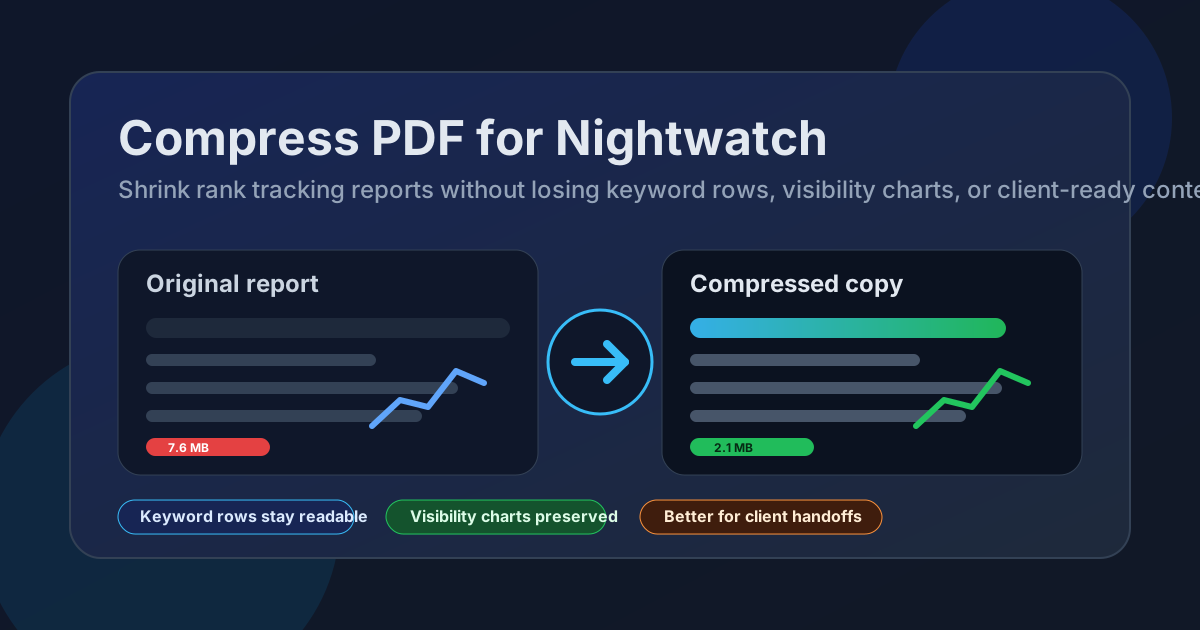
Table of contents
- Quick start: compress a Nightwatch PDF in under 2 minutes
- Why Nightwatch PDFs get heavy so quickly
- What file size should you aim for?
- Which compression level should you choose?
- Step-by-step: shrink a Nightwatch PDF with LifetimePDF
- Best strategy for common Nightwatch PDF types
- What if the PDF is still too large?
- How to protect keyword rows, charts, and notes
- Workflow habits that keep Nightwatch exports cleaner
- Related LifetimePDF tools and useful reading
- FAQ (People Also Ask)
Quick start: compress a Nightwatch PDF in under 2 minutes
If your real goal is simply make this Nightwatch PDF smaller so it is easier to send, open, and archive, this workflow is usually enough:
- Open Compress PDF.
- Upload the Nightwatch export you actually plan to share, such as a rank tracking report, keyword snapshot, visibility recap, grouped keyword summary, or client-ready SEO pack.
- Choose Medium compression first.
- Download the smaller result and compare the new size with the original.
- Open it once and check the weak spots: keyword rows, chart legends, date ranges, segment labels, notes, and screenshot callouts.
- If the file is still bulkier than it should be, extract only the needed pages, split the appendix, or delete repeated evidence before trying a stronger setting.
Why Nightwatch PDFs get heavy so quickly
Nightwatch PDFs often become large for the same reason many SEO report exports do: one document quietly starts trying to do too many jobs. The same file becomes a client update, a strategist's proof pack, an internal monthly recap, and an archive copy all at once. Compression helps, but the deeper size problem is often that the PDF is carrying more screenshots, appendix sections, repeated comparison views, and backup context than the next reader really needs.
Nightwatch exports also mix different types of visual weight. Dense keyword tables, visibility charts, screenshots, notes, segment summaries, and appendix pages do not all compress the same way. A clean report with mostly text and vector charts behaves differently from a browser-print packet full of screenshots and pasted annotations. That is why the best result usually comes from balanced compression plus a little cleanup instead of simply forcing the strongest setting.
What usually adds weight
- Overloaded report packs: one PDF tries to satisfy clients, analysts, account managers, and archive needs at the same time.
- Screenshot-heavy pages: SERP captures, annotations, and pasted visuals add bulk quickly.
- Appendix sprawl: backup keyword lists, market breakdowns, and supporting charts stay attached by default.
- Repeated report pages: duplicate covers, repeated charts, or old revision pages quietly inflate size without adding value.
- Wide margins and empty space: exported pages often carry more unused canvas than the next reader actually needs.
What file size should you aim for?
There is no single perfect size for every Nightwatch export, but a few practical ranges keep you from compressing harder than necessary:
- Under 2MB: short executive updates, a focused keyword snapshot, a single campaign recap, or a one-audience SEO summary.
- 2MB to 5MB: weekly ranking reports, grouped keyword summaries, visibility recaps, competitor comparisons, and client-ready monthly packs.
- Over 5MB: usually a sign the PDF includes appendix sections, repeated screenshots, broad multi-market comparisons, or more proof than the recipient actually needs.
If you are sharing a monthly client pack, do not chase the smallest possible file. Aim for a report that opens quickly, forwards cleanly, and still lets the reader zoom in on a keyword row or chart label without frustration.
Which compression level should you choose?
Compression level matters because Nightwatch exports mix text, table structure, charts, and sometimes screenshots. That blend rewards restraint.
Light compression
Use this when the PDF is already close to the size you want and you mainly need a small cleanup. It is also useful when the file contains tiny ranking changes, narrow keyword columns, or screenshot annotations you do not want to risk softening.
Medium compression
This is usually the best first pass. It tends to reduce size enough to matter while keeping segment labels, keyword rows, chart legends, dates, and notes readable. For most Nightwatch workflows, this is the setting that gives the best trade-off.
Strong compression
Use this only after you have already trimmed structural waste. If the report still feels too heavy after splitting appendices or removing repeated evidence, stronger compression can help. Just make sure you review the smallest text on the page before you keep the result.
Step-by-step: shrink a Nightwatch PDF with LifetimePDF
- Export the final version first. Work from the exact PDF you plan to send, not an earlier draft.
- Open Compress PDF.
- Upload the file and choose Medium compression. This is the safest default for most Nightwatch reports.
- Download the smaller copy and compare sizes. If the gain is already meaningful, stop there.
- Review the fragile details. Check keyword rows, movement markers, chart legends, comparison dates, notes, and screenshot callouts.
- Trim structure before pushing harder. If the file is still too large, extract the summary pages or split the appendix before trying Strong compression.
That order matters. Most over-compressed SEO PDFs happen because someone reaches for the strongest setting before removing pages the recipient did not need in the first place.
Best strategy for common Nightwatch PDF types
Short ranking updates
These are usually the easiest to compress. If the PDF is only a few pages and mostly table-driven, Medium compression is often enough to get under 2MB without making the report feel cheap.
Keyword snapshots and grouped reports
These deserve a closer check after compression because grouped labels, tags, and narrow keyword rows can become harder to scan when the file is pushed too hard. Start with Medium and review one dense page at normal zoom.
Visibility and competitor comparison reports
These often bloat because they contain repeated layouts with only slight data changes. If several markets, locations, or competitors are bundled together, split the PDF by audience instead of forcing one master file to carry every variation.
Client-ready monthly packs
These are usually where size problems show up. Keep the executive summary up front, move evidence into a later appendix, and consider extracting only the pages the client will actually review in the next meeting.
What if the PDF is still too large?
If Medium compression still leaves the PDF larger than you want, trim waste before you squeeze quality harder. The biggest wins usually come from removing structure, not crushing the whole file further.
- Delete repeated cover or separator pages with Delete Pages.
- Extract only the executive summary or top sections with Extract Pages.
- Split client-facing pages from backup evidence with Split PDF.
- Crop oversized margins or screenshot whitespace with Crop PDF.
- Remove old comparison copies that only exist because the report was assembled from several exports.
If you do that cleanup first, Strong compression becomes a last resort instead of the main plan.
How to protect keyword rows, charts, and notes
A compressed Nightwatch PDF only succeeds if the recipient can still use it without effort. Before you send it, review the details most likely to degrade:
- small keyword rows and ranking deltas
- segment labels and grouped sections
- chart legends and axes
- comparison dates and visibility percentages
- screenshot callouts and annotations
- summary recommendations at the bottom of the page
You do not need a full QA loop. One careful pass on the densest page is usually enough. If that page looks clean, the rest of the report is usually fine too.
Workflow habits that keep Nightwatch exports cleaner
The cleanest Nightwatch PDFs usually come from better report habits upstream. A few small decisions make later compression easier:
- Export only the sections tied to the next conversation.
- Keep client summaries separate from deep-dive evidence when possible.
- Use one strong screenshot instead of three similar ones.
- Archive full evidence internally and send a tighter reader-facing version externally.
- Compare the original and compressed copy once with Compare PDFs if the report supports a sensitive decision.
That approach saves time because you stop treating every ranking export like a permanent record for everyone. Most readers only need the pages that answer the question in front of them.
Related LifetimePDF tools and useful reading
If you handle Nightwatch exports often, these tools usually matter more than compression alone:
- Compress PDF for the first size reduction pass.
- Split PDF for separating summaries from appendices.
- Extract Pages for sending only the pages a client or teammate needs.
- Delete Pages for cutting repeated covers or outdated proof.
- PDF Metadata Editor for cleaner final handoffs.
Useful companion reading: Share Smaller Rank Tracking Reports, Keyword Snapshots, and Client PDFs Faster and Compress PDF for Nightwatch Without Monthly Fees.
Need the practical version? Compress the finished Nightwatch PDF at Medium, review one dense page, and then split or extract pages only if the file is still bigger than you want.
FAQ (People Also Ask)
How do I compress a PDF for Nightwatch?
Export the Nightwatch report as a PDF, upload it to a PDF compressor, start with Medium compression, and preview the smaller result before sharing it. Medium is usually the safest first pass because it cuts file size while keeping keyword rows, chart labels, visibility summaries, and notes readable.
What file size should I aim for with Nightwatch PDFs?
Under 2MB works well for short ranking updates and focused keyword snapshots. Broader visibility recaps, grouped reports, and client-ready SEO packs usually work best around 2MB to 5MB as long as the smallest useful details still look clear.
Will compression make Nightwatch tables or charts blurry?
It can if you compress too aggressively. That is why Medium compression is usually the best first pass. Always review keyword rows, chart legends, segment labels, comparison dates, screenshot callouts, and commentary before keeping the smaller copy.
Should I split a long Nightwatch PDF instead of compressing harder?
Often, yes. If one PDF combines an executive summary, grouped keyword evidence, screenshots, competitor comparisons, and appendix pages for different readers, splitting it usually works better than forcing stronger compression across the whole file.
Which LifetimePDF tools pair well with Nightwatch exports?
Compress PDF is the main starting point. Split PDF, Extract Pages, Delete Pages, Crop PDF, Compare PDFs, and PDF Metadata Editor all help when you need smaller, cleaner, client-ready Nightwatch files.