Compress PDF for Moz Local Without Monthly Fees: Shrink Listing Reports, Visibility Summaries, and Client PDFs Without Another Subscription
If you need to compress a PDF for Moz Local without monthly fees, export the report, run it through LifetimePDF Compress PDF, start with Medium compression, and review the smaller copy once before you send it.
For most Moz Local workflows, that is enough to shrink listing reports, visibility summaries, review snapshots, and client-ready local SEO PDFs without adding one more recurring tool bill just to finish the file cleanup.
This is the kind of task that should stay simple. The report already exists. The local SEO work is already done. The only thing left is making the PDF light enough to upload, email, archive, or drop into a client portal without friction. That is exactly where a pay-once PDF workflow makes sense. It handles the boring but necessary last step without turning ordinary reporting hygiene into another monthly subscription.
Fastest path: export the Moz Local PDF, use LifetimePDF's Compress PDF tool at Medium, then split or extract pages only if the file still feels heavier than the next reader needs.
In a hurry? Jump to Quick start: compress a Moz Local PDF in under 2 minutes.
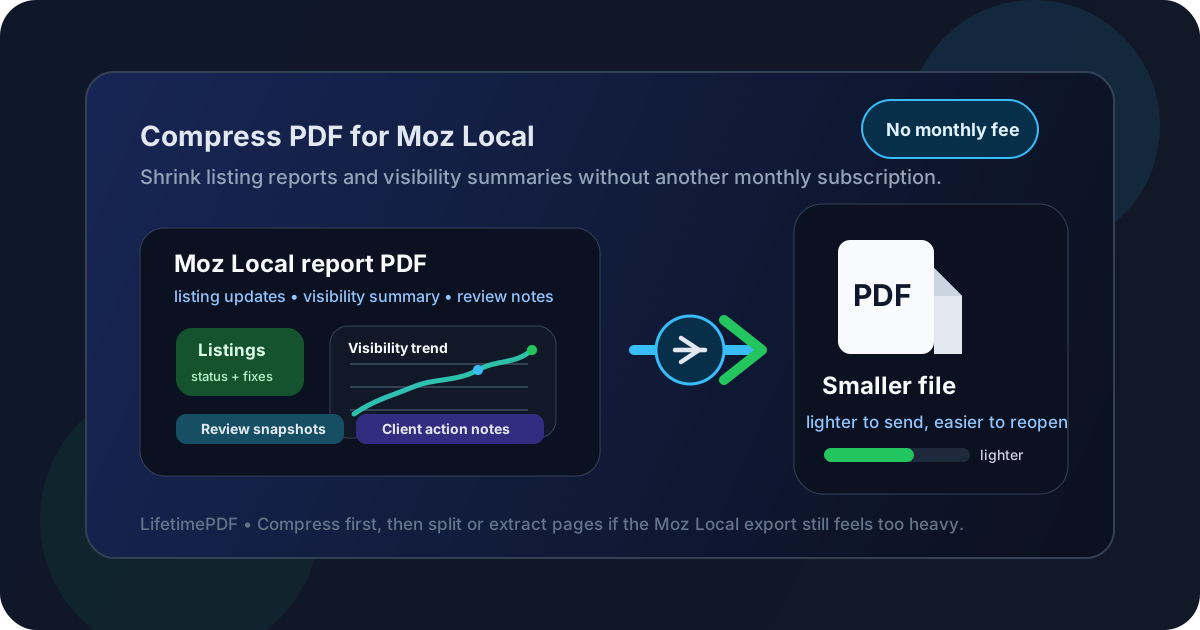
Table of contents
- Quick start: compress a Moz Local PDF in under 2 minutes
- Why without monthly fees matters here
- Why smaller PDFs help in Moz Local workflows
- What size should a Moz Local PDF be?
- Which compression level should you choose?
- Step-by-step: use LifetimePDF to shrink the file
- Common Moz Local PDFs that benefit from compression
- What to do if the PDF is still too large
- How to keep listings, screenshots, and notes readable
- Workflow habits that reduce PDF bloat
- Related LifetimePDF tools and guides
- FAQ (People Also Ask)
Quick start: compress a Moz Local PDF in under 2 minutes
If your real goal is simply make this Moz Local PDF smaller so it is easier to send, use this workflow:
- Export the final listing report, visibility summary, review recap, or client-ready PDF first.
- Open Compress PDF.
- Upload the Moz Local file you want to shrink.
- Choose Medium compression first.
- Download the smaller file and compare the new size.
- Preview the details that matter most: business names, listing statuses, screenshots, dates, review notes, and recommended fixes.
- If the report is still bulky, use Extract Pages, Split PDF, or Delete Pages before trying heavier compression.
Why without monthly fees matters here
People do not search this because PDF compression is exciting. They search it because the task is small and recurring billing feels disproportionate. A local SEO consultant, franchise marketer, agency account manager, or small business owner may already be paying for listings software, rank tracking, reporting tools, and review management. Adding another monthly charge just to make exported PDFs smaller is the kind of stack creep that quietly becomes annoying.
Moz Local exports are normal operational documents. They get used in monthly check-ins, proof-of-work updates, onboarding packs, and cleanup recaps. Sometimes the PDF is a little too heavy for email or a client portal. That is a file-handling problem, not a reason to rent another app forever. A pay-once workflow fits better because it solves the actual need and then gets out of the way.
There is also a trust issue. Some "free" PDF tools are only free until the last step, where they suddenly ask for an account, a trial, or a subscription. When the job itself takes less time than the pricing detour, people understandably start looking for a cleaner option.
Local SEO reporting already has enough recurring costs. Your PDF cleanup workflow does not need to become another one.
Why smaller PDFs help in Moz Local workflows
Even when a Moz Local PDF technically sends fine, that does not mean it is pleasant to work with. Heavy files take longer to upload, feel slower to forward, and create unnecessary friction when the real goal is just reviewing the work. That friction shows up everywhere: sending a one-location listing summary to a business owner, attaching a visibility recap to a monthly report, or storing before-and-after documentation for later reference.
The weight usually comes from the same places. Screenshot-heavy appendices, repeated location sections, long review snapshots, cover pages people do not need, or a single PDF trying to serve several audiences at once. Good compression helps, but the best result usually comes from a mix of compression plus smarter page selection.
Smaller PDFs are easier to reopen on phones, easier to attach inside CRMs or client portals, and easier for busy people to actually read. That last part matters. A report that feels light and clear is more likely to be used. A bulky report tends to become inbox furniture.
What size should a Moz Local PDF be?
There is no perfect number, but there are practical ranges that make day-to-day sharing easier.
| Report type | Comfortable target | Why it works |
|---|---|---|
| Single-location listing report | Under 2MB | Usually easy to email, upload, and archive without friction. |
| Visibility summary or review recap | 1MB to 3MB | Keeps graphs and screenshots readable while still feeling lightweight. |
| Multi-location client update | 2MB to 5MB | Realistic when a file includes several locations, screenshots, and notes. |
| Appendix-heavy proof pack | Split it | One giant PDF is rarely better than a short summary plus a separate appendix. |
The more useful rule is this: stop shrinking once the file is easy to share and the smallest important detail is still readable. That includes listing statuses, platform labels, screenshots, dates, review snippets, and recommended actions.
Which compression level should you choose?
For most Moz Local exports, Medium is the safest starting point. It usually removes enough excess weight without noticeably damaging charts, screenshots, or smaller labels.
- Low compression: best when the PDF is already close to your target size and you just need a modest reduction.
- Medium compression: the best first choice for most local SEO PDFs because it balances smaller size with readable detail.
- High compression: useful only when file size is the main problem and you are willing to inspect the result more carefully.
Step-by-step: use LifetimePDF to shrink the file
Here is a clean workflow that works well for everyday Moz Local reporting.
1. Export the final version first
Do not compress a draft if you already know more pages will be removed. Finalize the report structure first so you are shrinking the file you actually plan to share.
2. Upload to Compress PDF
Open Compress PDF and upload the report. This can be a quick listing audit, a visibility summary, a review snapshot, or a broader local search update.
3. Start at Medium
Medium is usually enough. It handles normal file bloat without forcing you into a quality gamble right away.
4. Review the compressed copy once
Open the smaller file and check the places where local SEO PDFs most often become frustrating:
- small listing status labels
- business names and addresses
- tiny chart labels or map legends
- review screenshots or before-and-after comparisons
- summary notes and next-step recommendations
5. Trim before re-compressing
If the PDF is still too large, your next move should usually be structural, not harsher compression. Pull out appendix pages, split a long deck into sections, or delete pages that only repeat information. That often creates a better result than crushing the whole document harder.
Useful combo: compress the report first, then use page tools only if it is still larger than you want.
Common Moz Local PDFs that benefit from compression
Not every PDF behaves the same way. These are the Moz Local outputs where file-size cleanup is especially common:
- Listing reports: good candidates when you need a clean before-and-after document for a client or location manager.
- Visibility summaries: often compact already, but screenshots and branded cover pages can add unnecessary weight.
- Review snapshots: image-heavy sections can inflate the file quickly, especially when several locations are included together.
- Multi-location monthly packs: these almost always benefit from compression plus splitting by audience or region.
- Cleanup recaps: useful for proof-of-work, but they can become bloated if every screenshot stays in the same client-facing PDF.
If you routinely send two different audiences the same giant file, that is usually a sign the PDF should be split into a short decision-ready summary and a separate evidence appendix.
What to do if the PDF is still too large
When compression alone is not enough, use one of these cleanup moves:
- Extract only the pages a stakeholder needs. Owners and executives rarely need every appendix page.
- Split multi-location packs. Separate one long report into smaller per-location or per-region files.
- Delete repeated screenshots. Duplicate visual proof is one of the easiest ways to waste PDF space.
- Crop wasted margins. If screenshots contain big empty borders, use Crop PDF to tighten them up.
- Compress after cleanup again if needed. Once the structure is leaner, a second pass often works better.
How to keep listings, screenshots, and notes readable
A smaller file is only useful if the information still survives the trip. For local SEO reporting, readability usually matters more than raw compression percentage.
- Check the smallest listing-status text, not just the large headings.
- Zoom in on screenshots that contain map snippets, review details, or platform interfaces.
- Look at the last page too. Compression problems often show up in image-heavy appendices first.
- Make sure notes and recommendations still feel comfortable to scan on a laptop, not only at 150% zoom.
If any of those elements look strained, keep the slightly larger copy. The point is smoother sharing, not winning a tiny file-size contest.
Workflow habits that reduce PDF bloat
The easiest PDF to compress is the one that was assembled thoughtfully in the first place. A few habits make a real difference over time:
- Build audience-specific reports: do not make every reader open the full proof pack.
- Use fewer redundant screenshots: keep the screenshots that prove something, not every nearly identical variation.
- Archive evidence separately: store deep appendix material in its own file rather than merging everything into the client summary.
- Compress near the end: do it after pages are finalized so you do not repeat the step more than necessary.
- Protect sensitive client files when needed: if the report includes confidential notes, pair cleanup with Protect PDF.
These habits save time even when you are not obsessed with file size. They simply make reporting cleaner and easier to work with.
Related LifetimePDF tools and guides
If you are building a smoother local SEO PDF workflow, these links are the most useful companions:
- Compress PDF for the first size reduction pass.
- Extract Pages when one client only needs key pages.
- Split PDF for multi-location or appendix-heavy packs.
- Delete Pages to remove duplicate covers and proof pages.
- Crop PDF to tighten screenshots with wasted margins.
- Compress PDF Without Quality Loss for a broader quality-first compression guide.
Keep local SEO reports easy to share.
Use a pay-once PDF workflow to shrink Moz Local exports, trim extra pages, and send cleaner files without adding another monthly bill.
FAQ
How do I compress a PDF for Moz Local without monthly fees?
Export the report, upload it to a pay-once PDF tool like LifetimePDF, start with Medium compression, and preview the smaller file before sharing it. If it is still too large, trim pages before you try stronger compression.
Why do Moz Local PDFs get so large?
They often include screenshots, repeated location sections, review snapshots, cover pages, or appendix material that adds weight quickly. Multi-location reports are especially prone to this.
What is a good size for a Moz Local report PDF?
Under 2MB works well for shorter one-location reports. Multi-location or screenshot-heavy client deliverables often land more comfortably in the 2MB to 5MB range.
Should I split a large Moz Local PDF instead of compressing it harder?
Often yes. A short summary plus a separate appendix usually gives readers a better experience than one oversized file that tries to serve every audience at once.
Which LifetimePDF tools pair best with Moz Local exports?
Compress PDF is the main starting point. Extract Pages, Split PDF, Delete Pages, Crop PDF, and Protect PDF are the most useful follow-up tools for local SEO workflows.