Compress PDF for Miro: Keep Board Exports, Workshop Handouts, and Review PDFs Small Without Losing Context
To compress a PDF for Miro, export the version you actually plan to share, upload it to LifetimePDF's Compress PDF tool, start with Medium compression, and keep the smaller copy only if sticky-note text, frame labels, screenshots, comments, and diagram details still look clear.
For most Miro PDFs, under 2MB works well for short handouts and summaries, while board exports and review packs usually land best around 2MB to 5MB.
Miro is built for collaborative movement, not heavy document drag. When a board export, workshop packet, review PDF, retrospective summary, or design handoff carries more pages and image weight than the next person actually needs, it turns a quick share into a slower review. The goal is not to make the file tiny at any cost. The goal is to make it smaller while keeping enough context that teammates, clients, or workshop participants can still follow what the board is saying.
Fastest path: run the Miro PDF through LifetimePDF's Compress PDF tool at Medium, then split or trim extra sections only if the file still feels heavier than the next collaborator needs.
Need the short version? Jump to Quick start: compress a Miro PDF in about 2 minutes.
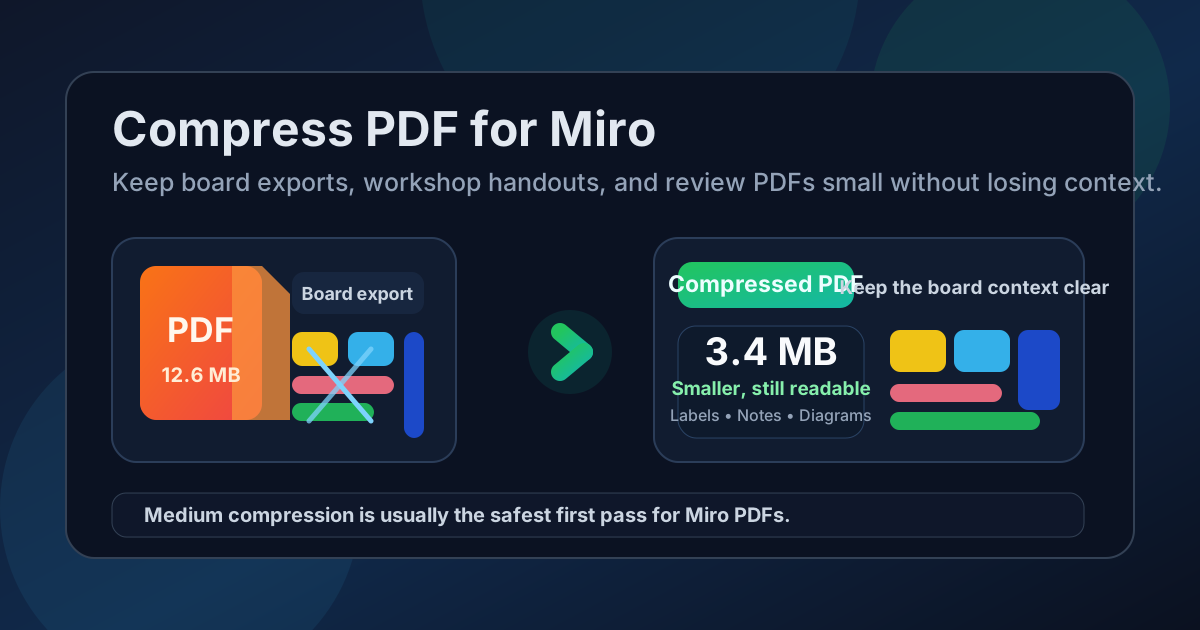
Table of contents
- Quick start: compress a Miro PDF in about 2 minutes
- Why Miro PDFs get heavy so quickly
- What file size should you aim for?
- Which compression level should you choose?
- Step-by-step: shrink a Miro PDF with LifetimePDF
- Best strategy for common Miro PDF types
- What if the export is still too large?
- How to protect readability and board context
- Workflow habits that keep Miro PDFs lighter
- Related LifetimePDF tools and useful reading
- FAQ (People Also Ask)
Quick start: compress a Miro PDF in about 2 minutes
If your real goal is simply make this Miro PDF smaller without making it harder to review, this workflow is usually enough:
- Open Compress PDF.
- Upload the board export, workshop handout, design review packet, retrospective summary, or reference PDF you actually plan to share.
- Choose Medium compression first.
- Download the smaller result and compare the new size with the original.
- Preview the weakest details once: sticky-note text, connector labels, screenshots, legends, small tables, comments, and diagram captions.
- If the PDF is still bulkier than you want, split older sections or extract only the pages people actually need instead of pushing compression harder right away.
Why Miro PDFs get heavy so quickly
Miro exports often become larger than expected because one file is trying to do several jobs at once. The same PDF may include the workshop summary, supporting screenshots, detailed diagrams, board snapshots, old frames, meeting notes, and an appendix that only a few people will ever open. Compression helps, but it works best when you stop treating every frame and support page as if it belongs in the final handoff.
In many Miro workflows, the real file-size problem is not the main board summary. It is the extra weight around it: duplicate exports, screenshots that no longer matter, long retrospectives folded into client-facing PDFs, or raw research pages that should have stayed separate from the decision-ready version.
What usually adds weight
- Long board exports: several frames, workshop segments, or old review states combined into one PDF.
- Screenshot-heavy sections: research snapshots, comments, reference captures, and browser images added at full size.
- Visual detail everywhere: sticky notes, labels, icons, diagrams, tables, and connectors all competing for clarity on the page.
- Mixed audiences: one file trying to be an internal archive, workshop artifact, and client-ready review pack at the same time.
- Untrimmed appendices: backup frames, outdated sections, and old versions that survived the export even though the next reader does not need them.
What file size should you aim for?
There is no single perfect number for every Miro PDF, but these ranges are practical enough to keep you from over-compressing:
| Type of Miro PDF | Good target | Why it works |
|---|---|---|
| Short agendas, workshop handouts, simple summaries | < 2MB | Easy to open, forward, and review from almost anywhere |
| Typical board exports and review packs | 2MB-5MB | Usually the best balance between readability and shareability |
| Screenshot-heavy design or research packets | 5MB-8MB | Still workable, but worth trimming if several people will open it repeatedly |
| Over 10MB | Compress again or split it | Often larger than the next collaborator actually needs |
These are not hard limits. They are decision guides. If a slightly bigger file keeps an important legend, screenshot, or tiny annotation readable, that trade-off is often worth it. But if a Miro PDF is still huge after one pass, the better answer is usually to trim or split the export instead of forcing extreme compression.
Which compression level should you choose?
LifetimePDF keeps the choice simple: Low, Medium, or High. For most Miro workflows, that is enough. The real question is whether the PDF becomes easier to share while still preserving the pieces that make the board understandable.
Low compression
- Best when visual polish matters more than aggressive size reduction.
- Useful for polished review decks, client-facing concept boards, or print-friendly handouts.
- Usually not the best first choice unless the file is already close to the size you want.
Medium compression
- Best default for most Miro PDFs.
- Usually shrinks the file enough to make sharing easier while keeping notes, screenshots, diagrams, and labels readable.
- The safest starting point for workshop exports, retrospectives, design reviews, roadmaps, and summary packets.
High compression
- Best when size matters more than perfect appearance.
- Useful for scan-heavy reference documents, old board archives, or simple PDFs where slight softness is acceptable.
- Riskier for sticky-note text, screenshots, or dense diagrams, so review carefully before replacing the original.
Step-by-step: shrink a Miro PDF with LifetimePDF
This is the safest workflow when you want a smaller Miro PDF without losing the details that help other people follow the board.
1) Start with the final share version
Use the PDF you actually plan to send. If the board export still contains retired frames, old review states, or a backup appendix that belongs in a separate file, trim that weight before you treat compression as the whole solution.
2) Open the compressor
Go to LifetimePDF's Compress PDF tool and upload the Miro-ready file.
3) Start with Medium compression
Medium usually gives the best balance for Miro because it reduces upload friction without wrecking the parts people actually read: labels, notes, comments, screenshots, flow arrows, legends, and diagram captions.
4) Review the smallest details once
Before you replace the original, zoom in on the weak points. If the smallest sticky notes, comments, connector labels, screenshots, or table text still look clean, the PDF is usually ready.
5) Only push harder if the file is still too heavy
If the result is still larger than you want, try a second pass only after trimming dead weight. That usually works better than compressing the same bloated export more aggressively.
Ready to do it now? Compress first, then split or extract only if the packet still feels heavier than the next review actually needs.
Best strategy for common Miro PDF types
Not every Miro PDF behaves the same way. These patterns help you choose the simplest fix.
Board exports and workshop summaries
Start with Medium compression. These files usually contain a mix of text, colored shapes, notes, and a few screenshots. They often shrink well as long as you do not push so hard that the smallest notes lose their edge.
Design review packets
Be a little more careful. Review PDFs often include screenshots, comments, annotations, and small labels that people reference during feedback. If the file is only a bit too large, Low or Medium is usually safer than jumping straight to High.
Research summaries and screenshot-heavy exports
These are where splitting helps most. If the PDF mixes findings with raw evidence, consider keeping the summary light and parking the deep appendix in a separate file. That protects the quick-read version without over-compressing every screenshot.
Scan-heavy reference packs
Scanned PDFs are often the heaviest Miro attachments because each page behaves more like an image. Compress them, but also crop scanner borders, remove blank pages, and use OCR PDF if you want searchable text as a side benefit.
What if the export is still too large?
If one pass of compression does not get the file where you want it, the answer is usually structural cleanup rather than brute force.
- Extract the decision-ready pages: keep the summary, conclusions, or client-facing sections in one lighter PDF.
- Split older workshop sections: one export does not need to carry every phase of the board's history.
- Delete duplicate or outdated pages: many exports include frames that were useful during the session but irrelevant later.
- Crop empty borders: dead margins add weight without adding clarity.
- Separate raw evidence from the main handoff: especially useful for research boards and screenshot-heavy review packs.
In other words, if the file is still too big, ask whether the next reader truly needs everything inside it. Miro collaboration gets better when each PDF has a clear job.
How to protect readability and board context
The biggest fear behind this keyword is simple: I do not want the smaller PDF to become confusing. That is a valid concern, because Miro files often depend on visual relationships more than ordinary text documents do.
What to check before you keep the smaller file
- The smallest sticky-note text that still matters
- Frame titles and connector labels
- Comment screenshots and callouts
- Tables, legends, and mini charts
- Color-coded states or diagram groupings that people use to interpret the board
- Any page that will be discussed live in a workshop or review meeting
A quick zoom check is usually enough. If the file still reads comfortably at the size people will actually use, you are done. If not, step back and trim the packet instead of trying to force the whole export into a smaller number.
Workflow habits that keep Miro PDFs lighter
The easiest compression job is the one you never create. A few export habits make Miro PDFs lighter before they even reach the compressor.
- Export only the final frames that matter for the next handoff.
- Keep internal archive copies separate from client-ready or workshop-ready PDFs.
- Remove dead appendix pages before you export again.
- Use shorter summary packets when a full board export is overkill.
- Compress before the file starts getting forwarded across email, chat, and project updates.
These habits reduce rework. They also make collaboration cleaner, because the document people open is closer to the version they actually need.
Related LifetimePDF tools and useful reading
If you regularly use Miro for workshops, planning, reviews, or design collaboration, these tools and guides pair well with the core compression workflow:
- Compress PDF for the main size reduction step
- Split PDF when one export is carrying too many sections
- Extract Pages for summary-only or client-ready handoffs
- Crop PDF to remove waste around scans and image-heavy pages
- Compress PDF for Miro: Upload Smaller Board Attachments and Workshop Docs Faster
- Compress PDF for Miro Without Monthly Fees
- Compress PDF for Figma for design-review-adjacent workflows
- Compress PDF for Notion for lighter knowledge-base and workspace handoffs
If you handle Miro exports often: a pay-once PDF workflow is usually more practical than paying a monthly fee just to compress, split, crop, and clean collaboration files over and over.
FAQ (People Also Ask)
How do I compress a PDF for Miro?
Export the Miro-ready file, upload it to a PDF compressor, start with Medium compression, and keep the smaller copy only if the labels, screenshots, sticky-note text, comments, and diagrams still look clear. Medium is usually the safest first pass for most Miro PDFs.
What file size should I aim for before sharing a PDF in Miro?
Under 2MB is a strong target for short summaries, agendas, and lightweight workshop handouts. Mixed board exports and review packets usually work best around 2MB to 5MB, especially when they include screenshots or visual detail.
Will compression make sticky-note text blurry?
It can if you compress too aggressively. That is why Medium compression is usually the best starting point. Always check the smallest notes, labels, screenshots, and comments before replacing the original file.
Should I split a large Miro export instead of compressing it harder?
Often, yes. If one PDF contains several workshops, old board states, appendices, or screenshots that different readers do not all need, splitting it usually works better than forcing stronger compression across the entire file.
Which LifetimePDF tools are most useful alongside Compress PDF?
Split PDF, Extract Pages, Crop PDF, Delete Pages, OCR PDF, and Compare PDFs are the most useful companions. They help you remove dead weight, preserve the parts that matter, and keep the final Miro handoff easier to open and understand.