Compress PDF for Localo: Keep Google Business Profile Reports, Local Rank Tracking Exports, and Client PDFs Small Without Losing the Details
To compress a PDF for Localo, export the final Localo view, upload it to LifetimePDF's Compress PDF tool, start with Medium compression, and keep the smaller copy only if rankings, map labels, business names, screenshots, and notes still read clearly.
For most Localo PDFs, under 2MB is a strong target for single-location snapshots and focused Google Business Profile reviews, while broader multi-location packs, map-grid evidence sets, and client-ready recaps usually feel best around 2MB to 5MB after light cleanup.
Localo PDFs usually show up when a live local SEO view needs to become a simple file that somebody else can open fast. That might be a Google Business Profile health check, a local rank tracking summary, a map-grid proof pack, or a monthly client recap for a business owner who does not want to log in. In those moments, smaller PDFs help. They move faster through email, project tools, shared drives, and review workflows. The important part is preserving the proof. The goal is not the tiniest file possible. The goal is a lighter PDF that still keeps rankings, map labels, profile details, screenshots, and action notes easy to trust.
Fastest path: run the Localo PDF through LifetimePDF's Compress PDF tool on Medium, then do one quick readability check before you email, upload, archive, or attach the smaller copy to a client update.
Want the shortest version? Jump to Quick start: compress a Localo PDF in about 2 minutes.
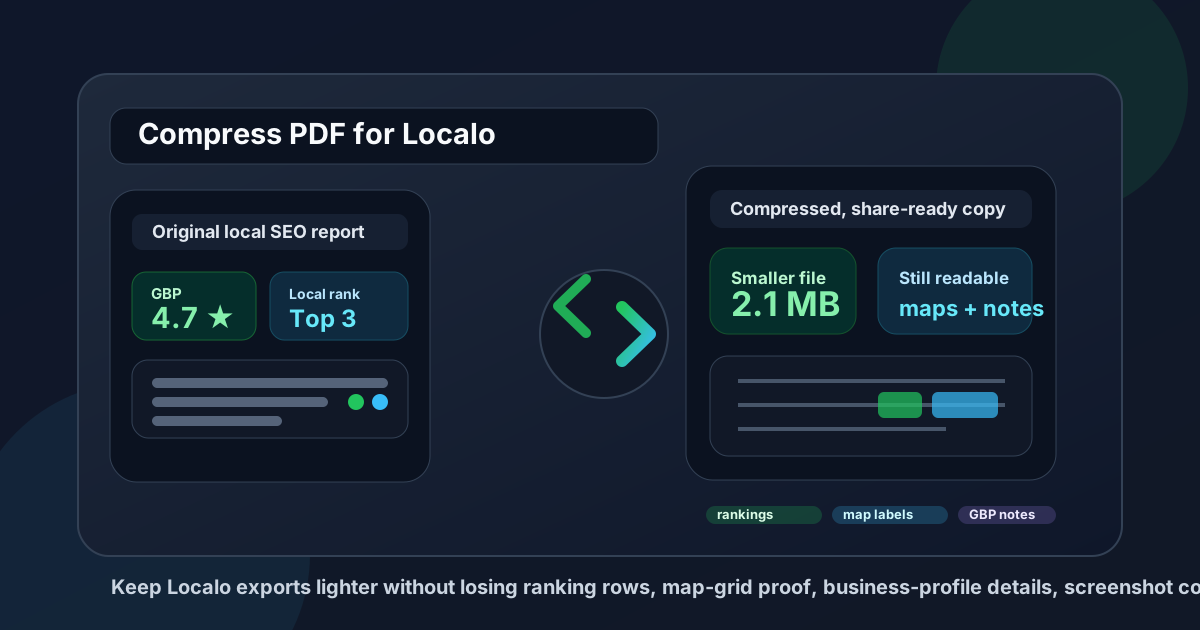
Table of contents
- Quick start: compress a Localo PDF in about 2 minutes
- Why Localo PDFs get heavy so quickly
- What file size should you aim for?
- Which compression level should you choose?
- Step-by-step: shrink a Localo PDF with LifetimePDF
- Best strategy for common Localo PDF types
- When to split instead of compressing harder
- How to protect rankings, map labels, and Localo evidence
- Workflow habits that keep Localo exports cleaner
- Related LifetimePDF tools and useful reading
- FAQ (People Also Ask)
Quick start: compress a Localo PDF in about 2 minutes
If your real goal is simply make this Localo PDF smaller so it is easier to send, review, and archive, this workflow is usually enough:
- Open Compress PDF.
- Upload the exact Localo file you plan to share, such as a Google Business Profile snapshot, a local rank tracking packet, a map-grid export, or a client recap.
- Choose Medium compression first.
- Download the smaller result and compare the new size with the original.
- Open it once and check the weak spots: ranking positions, business names, map labels, screenshot callouts, and short action notes.
- If the PDF is still bulkier than it should be, extract the summary pages, split the appendix, or crop wasted margins before you try stronger compression.
Why Localo PDFs get heavy so quickly
Localo PDFs often become oversized because one file starts doing too many jobs at once. It is a local rank proof pack, a Google Business Profile review, a screenshot archive, a client update, and an internal reference all in the same document. Once map views, profile screenshots, grid evidence, commentary pages, and appendix captures stack up, the file grows much faster than the next reader's actual needs.
The issue is rarely just compression. It is packaging. Local SEO evidence is image-heavy by nature, and the useful details inside those images are small. That means aggressive compression can save space but also damage the business names, ranking markers, grid labels, and notes that make the file worth sharing. A cleaner document plus balanced compression usually works better than maximum shrinkage alone.
What usually adds the most weight
- Map-grid screenshots: wide local ranking visuals add size quickly.
- Repeated before-and-after captures: multiple dates, devices, or locations can create quiet duplication.
- One file for every audience: business owners, account managers, and SEO specialists rarely need the same depth.
- Commentary plus proof mixed together: summaries and full evidence packs often work better as separate files.
- Oversized margins and empty space: browser-print PDFs and screenshot exports often carry visual waste that no reader needs.
What file size should you aim for?
There is no single perfect target because a one-location snapshot behaves differently from a screenshot-heavy multi-location deck. Still, a few practical ranges make it easier to know when to stop compressing.
- Under 2MB: best for short Google Business Profile snapshots, quick stakeholder proofs, and single-location checks.
- 2MB to 5MB: a strong range for multi-location recaps, map-grid evidence sets, and client-ready monthly updates.
- 5MB and up: often acceptable only when the file includes many screenshots that genuinely need to stay together.
If you can only hit a lower size by making the map labels, ranking positions, or business details hard to read, you went too far. The next reader needs to trust the evidence at normal zoom.
Which compression level should you choose?
For most Localo workflows, the compression level matters less than people think. The real decision is whether you are protecting tiny local SEO details or just shrinking a file for easier delivery.
Light compression
Use this when the file already feels close to manageable and you mainly want a safer first pass. It is a good fit for PDFs that include tiny map labels, small ranking tables, or screenshots with many annotations.
Medium compression
This is usually the best default. It gives you a meaningful size reduction while still preserving rankings, map labels, business names, profile details, and action notes well enough for normal review. Most Localo PDFs should start here.
Strong compression
Save this for situations where the file is still too large after cleanup and the PDF is mostly for quick viewing rather than close inspection. If the file includes tiny grid labels, map markers, or screenshot notes, strong compression can push the document past the point where it is comfortable to use.
Step-by-step: shrink a Localo PDF with LifetimePDF
- Export the final file: use the actual Localo PDF you plan to send, not a giant working archive with every spare screenshot.
- Open Compress PDF: upload the file and begin with Medium compression.
- Download the smaller version: compare the new file size to the original so you can judge whether the reduction is worth keeping.
- Review the smallest important details: ranking positions, business names, map labels, review callouts, GBP status notes, and action items.
- Trim the document if needed: use Extract Pages, Delete Pages, or Crop PDF before forcing heavier compression.
- Share the focused copy: the best handoff is usually the smallest useful file, not the most comprehensive archive.
Best strategy for common Localo PDF types
1) Single-location snapshots
These are often the easiest to shrink. Medium compression is usually enough because the file is small to begin with and the goal is just to make it easier to email or attach to a task. Review the ranking rows and business details once, then move on.
2) Multi-location comparison packs
These get heavy faster because they combine several locations, screenshots, and commentary pages. Instead of compressing harder, consider splitting the file by branch, market, or audience. The account manager may only need the summary pages, while the SEO lead keeps the full evidence pack.
3) Map-grid evidence sets
Grid captures, map screenshots, and location-specific comparisons are especially sensitive to blur. Use Medium compression first and pay attention to map labels, business names, and ranking markers. If those get soft, keep the slightly larger version.
4) Client-ready monthly recaps
Client PDFs often include covers, summaries, screenshots, and appendix pages. If the document feels bulky, extract the executive summary into a standalone PDF and keep the deeper proof as a separate attachment. That usually creates a better reading experience than crushing one large file harder.
When to split instead of compressing harder
Compression is not always the best fix. Sometimes the problem is simply that one PDF is trying to serve too many readers at once.
- Split the file when it contains an executive summary plus many pages of proof that only some readers need.
- Extract pages when the important story lives in three or four screenshots and the rest is backup.
- Delete duplicate pages when you printed several versions of essentially the same local report.
- Crop first when wide browser margins or unnecessary whitespace are inflating the file.
If the next reader only needs a tight summary, splitting will often create a smaller and more useful result than stronger compression.
How to protect rankings, map labels, and Localo evidence
The biggest risk with Localo PDFs is not the file staying a bit large. It is losing the tiny details that explain what happened in local search.
- Check small text at normal zoom: if the ranking labels or business names feel uncomfortable to read, the compression was too aggressive.
- Review labels and annotations: grid markers, review notes, map snapshots, and screenshot callouts need to stay clear.
- Watch screenshot-heavy pages first: those pages usually degrade before text-heavy summary pages do.
- Keep one clean master copy: if you need a lighter send-out version, keep the original export archived separately.
- Compare versions when in doubt: use Compare PDFs if you want to verify that trimming or revisions did not remove something important.
Workflow habits that keep Localo exports cleaner
- Export only the sections the next reader needs: focused PDFs are easier to compress and easier to act on.
- Separate the summary from the proof: a short decision document and a deeper appendix often work better than one giant file.
- Remove repeated captures: duplicate screenshots quietly add size without adding much insight.
- Keep branded presentation light: polished covers are fine, but repeated design pages increase weight fast.
- Clean metadata before delivery: use PDF Metadata Editor when the final client-facing file should look tidy and intentional.
- Archive the original separately: your send-out PDF and your internal reference copy do not need to be the same file.
These habits often improve delivery more than compression alone. A tidy Localo packet is faster to share, easier to scan, and easier to trust later.
Related LifetimePDF tools and useful reading
Compressing a PDF for Localo is usually one step inside a broader local SEO reporting or client-handoff workflow. These tools pair especially well with it:
- Compress PDF - shrink Google Business Profile reviews, map-grid evidence packs, and client-ready local SEO reports
- Split PDF - break one oversized Localo packet into focused files
- Extract Pages - isolate the exact screenshots or summary pages a reader needs
- Delete Pages - remove blanks, duplicates, or stale appendix pages
- Crop PDF - trim wasted margins and oversized screenshot borders
- PDF Metadata Editor - clean hidden title, author, and keyword fields before delivery
- Compare PDFs - useful when report packs change between review rounds
Suggested internal blog links
- Compress PDF for Localo Without Monthly Fees
- Compress PDF for Localo: Share Smaller Google Business Profile Reports, Local Rank Tracking Exports, and Client PDFs Faster
- Compress PDF for Topvisor
- Compress PDF for Rank Tracker
- Compress PDF for SERPChecker
- Compress PDF for Geckoboard
- How to Reduce PDF File Size for Email
- Compare PDF Versions Online
- Browse all LifetimePDF articles
FAQ (People Also Ask)
1) How do I compress a PDF for Localo?
Export the Localo report as a PDF, upload it to a PDF compressor, start with medium compression, download the smaller result, and preview it before sharing it. For most Localo workflows, Medium compression is the safest first pass because it reduces size while keeping rankings, map labels, business names, and notes readable.
2) What file size should I aim for before sharing a Localo report?
A practical target is under 2MB for short Google Business Profile snapshots, quick stakeholder checks, and single-location proofs. For broader multi-location recaps, map-grid evidence sets, and monthly client reports, somewhere in the 2MB to 5MB range is often more realistic as long as the smallest important labels stay clear.
3) Will compressing a PDF make Localo maps or rankings blurry?
It can if you compress too aggressively. That is why Medium compression is usually the best place to start. Always review ranking rows, map labels, business names, screenshot callouts, and action notes before you keep the compressed copy.
4) Should I split a large Localo report instead of compressing it harder?
Often, yes. If one PDF includes the summary, grid screenshots, multi-location evidence, commentary, and appendix pages for different audiences, splitting it usually works better than forcing strong compression across the full document.
5) Which LifetimePDF tools pair best with Localo exports?
Compress PDF is the main starting point. Split PDF, Extract Pages, Delete Pages, Crop PDF, PDF Metadata Editor, and Compare PDFs all help when you need smaller, cleaner, client-ready Localo PDFs.
Ready to shrink your Localo PDF?
Best workflow: Export the Localo PDF - Compress - Review - Split or trim if needed - Share or archive.
Published by LifetimePDF - Pay once. Use forever.