Compress PDF for Local Viking Without Monthly Fees: Shrink Geo-Grid Reports, GBP Audit PDFs, and Client Exports Without Another Subscription
If you need to compress a PDF for Local Viking without monthly fees, use a pay-once PDF tool, start with Medium compression, and review grid cells, map labels, and notes once before you send the smaller file.
For most Local Viking workflows, that is enough to shrink geo-grid reports, Google Business Profile audit PDFs, and client exports without turning routine file cleanup into one more recurring software bill.
Local Viking already handles the valuable part: showing local visibility patterns, scheduled report snapshots, location comparisons, and the sort of proof clients actually want to see. The annoying part usually happens at the end. You have a PDF that is useful, but heavier than it needs to be for email, a client portal, a shared drive, or a quick handoff to the next person. The goal is not to flatten the file until it looks cheap. The goal is to make it lighter while keeping the geo-grid, map detail, comments, and screenshot evidence clear enough that someone can still trust what they are reading.
Fastest path: export the Local Viking PDF you actually need, run it through LifetimePDF's Compress PDF tool at Medium, then split or extract pages only if the report still feels heavier than the next reader needs.
In a hurry? Jump to Quick start: compress a Local Viking PDF in under 2 minutes.
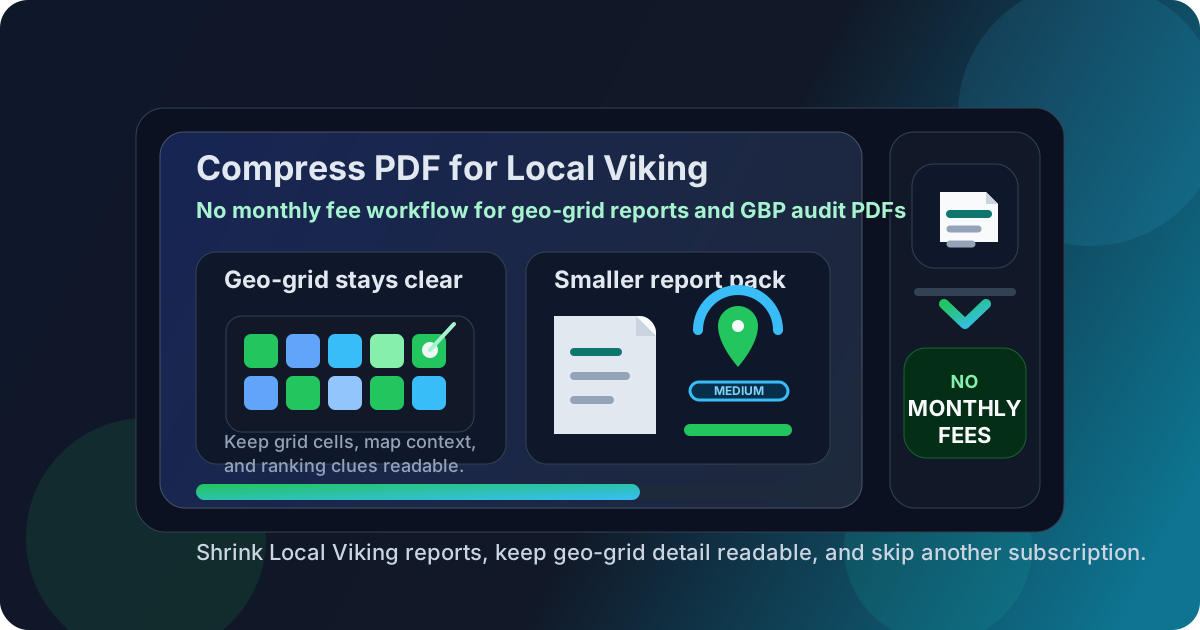
Table of contents
- Quick start: compress a Local Viking PDF in under 2 minutes
- Why "without monthly fees" matters here
- Why smaller PDFs help in Local Viking workflows
- What size should a Local Viking PDF be?
- Which compression level should you choose?
- Step-by-step: use LifetimePDF to shrink the file
- Common Local Viking PDFs that benefit from compression
- What to do if the PDF is still too large
- How to keep grid cells, labels, and screenshots readable
- Workflow habits that reduce PDF bloat
- Related LifetimePDF tools and internal links
- FAQ (People Also Ask)
Quick start: compress a Local Viking PDF in under 2 minutes
If your real goal is simply make this Local Viking PDF smaller so it is easier to send, use this workflow:
- Open Compress PDF.
- Upload the Local Viking export you want to share.
- Choose Medium compression first.
- Download the smaller file and compare the new size.
- Preview the sections that matter most: grid cells, rank numbers, map labels, screenshot callouts, comments, and recommendations.
- If the PDF is still bulky, use Extract Pages, Split PDF, or Delete Pages instead of repeatedly crushing the whole report.
Why "without monthly fees" matters here
This keyword exists for a very normal reason. People already pay for the tool that generated the report. They may also pay for rank tracking, review management, call tracking, client reporting software, storage, and project management. Adding another monthly plan just to make one exported PDF smaller feels like the least satisfying kind of software sprawl.
Local Viking PDFs are finish-line work. The geo-grid scan is already done. The Google Business Profile audit is already done. The visibility story is already sitting in the file. The remaining job is simply making that file easier to send, upload, or archive without damaging the parts people still need to read. That is exactly the kind of task where a pay-once workflow makes more sense than another recurring fee.
There is also a trust issue with many supposedly free PDF sites. You upload the report, wait for processing, then discover the clean download is locked behind a trial wall, watermark, or account prompt. When you are trying to finish a local SEO handoff before the day ends, that friction is worse than the large file you started with. A straightforward tool that lets you compress the PDF, download it, and move on is the better fit.
Why smaller PDFs help in Local Viking workflows
Local Viking exports often leave the dashboard because someone needs a fixed, shareable proof point. Maybe it is a client who wants to see map-pack movement. Maybe it is a franchise owner who only needs their location summary. Maybe it is an internal strategist preparing for a call. In all of those cases, file size becomes a delivery problem.
Large PDFs are slower to upload, more annoying to forward, and easier for busy readers to postpone. The extra weight usually comes from repeated map screenshots, multi-location bundles, before-and-after comparisons, and one oversized report trying to answer every question for every audience. Compression helps, but the deeper win is making the file small enough to move easily while keeping the details people still rely on, such as grid colors, ranking positions, map labels, notes, and next-step recommendations.
When the report feels lighter and cleaner, people are more likely to actually open it, skim it, and use it. That matters whether the PDF is a quick internal review or a polished client deliverable.
Where the weight usually comes from
- Geo-grid screenshots: they are useful proof, but visual evidence adds size fast.
- Multi-location packs: one report for several stores or service areas grows quickly.
- Historical comparisons: stacking multiple reporting periods into one PDF often adds more pages than the next reader actually needs.
- Mixed audiences: a client, strategist, and location manager rarely need the exact same amount of detail.
What size should a Local Viking PDF be?
The right target depends on what the PDF needs to do. A one-location client update does not need the same amount of visual detail as a multi-market review pack with screenshots and appendix pages.
- Under 2MB: a strong target for a single keyword scan, a single location update, or a short client recap.
- 2MB to 5MB: usually realistic for screenshot-heavy Google Business Profile audits, multi-location reviews, and broader reporting packs.
- Over 5MB: often a sign the file contains too many appendix pages, repeated screenshots, or location sections that should probably be split into separate PDFs.
Do not chase the smallest number if the file becomes harder to use. If the next reader cannot comfortably read the grid numbers, location names, or recommendation notes, the PDF is smaller but not better.
Which compression level should you choose?
Start with Medium compression first. It is usually the best fit for Local Viking exports because it lowers file size without flattening the visual detail that makes the report useful.
- Low compression: use it when the PDF is already fairly lean and preserving tiny map labels matters more than maximum reduction.
- Medium compression: the best default for most Local Viking PDFs because it balances smaller files with readable grid cells, screenshots, notes, and recommendations.
- High compression: keep it as a fallback when delivery limits are strict and you are willing to double-check every page carefully.
Step-by-step: use LifetimePDF to shrink the file
- Export the Local Viking file as PDF. Save the geo-grid report, Google Business Profile audit, comparison export, or client summary you actually need to share.
- Upload it to Compress PDF. Use LifetimePDF's compressor in your browser.
- Choose Medium compression. This is usually the safest first pass for mixed screenshots, maps, and notes.
- Download the smaller PDF. Compare the file size before and after compression.
- Check the most important details. Review grid cells, map labels, screenshot callouts, comments, and action notes.
- Trim extras if needed. If the file is still large, use Delete Pages, Extract Pages, or Split PDF before trying stronger compression.
Good workflow: compress first, then clean up page count only if you still need more reduction.
Common Local Viking PDFs that benefit from compression
Not every Local Viking export should be treated the same way. Use the report's job to guide how aggressive you are.
Geo-grid reports
These are usually the first candidates for compression. The file needs to stay quick to skim, but the grid pattern, color changes, and ranking numbers still need to be easy to trust.
Google Business Profile audit PDFs
These often include screenshots, comments, and location-level recommendations. Medium compression is usually enough, especially if you trim backup pages that only the internal team needs.
Multi-location client packs
These grow fast because they combine repeated layouts, screenshots, and summary notes for several locations. If different readers only need their own locations, splitting the file usually works better than forcing stronger compression across the whole pack.
Scheduled recap exports
These are often the easiest to improve. A short summary plus the most relevant proof pages usually works better than sending every screenshot and every comparison page together.
What to do if the PDF is still too large
If Medium compression does not get you far enough, the problem is often the document structure rather than the compression setting itself.
- Split the file by location: one PDF for the current store or office, another for the full appendix.
- Extract only the decision-making pages: keep the summary, best proof screenshots, and action items for the next reader.
- Delete duplicate pages: repeated screenshots, stale comparisons, and blank pages add weight without adding value.
- Crop oversized margins: this can help screenshot-heavy pages look tighter and cleaner.
- Re-export a leaner source PDF: if possible, remove unnecessary locations, date ranges, or appendix sections before you create the PDF in the first place.
In other words, if the file is still bulky after one careful compression pass, think like an editor, not just a compressor.
How to keep grid cells, labels, and screenshots readable
Before you send the smaller PDF, do one quick quality pass. It only takes a moment, and it prevents the common mistake of creating a lighter file that no one actually enjoys reading.
- Check that grid numbers and legend colors are still easy to scan.
- Make sure map labels and location names do not blur together.
- Review comments and recommendations to confirm smaller text still feels readable.
- Open any page with screenshots or callouts and make sure the labels still make sense.
- Confirm the main summary page still looks clean enough for a client, account manager, or franchise owner to review without extra explanation.
Workflow habits that reduce PDF bloat
A lot of oversized Local Viking PDFs are created long before compression starts. A few simple habits make future exports easier to share.
- Export only what the audience needs: avoid printing every location and every historical comparison when the reader only needs the current takeaway.
- Separate summary from appendix: keep high-level recommendations apart from backup proof pages.
- Trim repeated screenshots: use one strong proof image instead of several near-duplicates.
- Archive the full source separately: share a lean PDF while keeping the heavier original for internal reference.
- Clean metadata before delivery: a tidy document title helps clients and teammates find the right version later.
Compression works best on a cleaner document. If the PDF is bloated before it reaches the compressor, the final result usually feels heavier and messier than it needs to.
Related LifetimePDF tools and internal links
Compressing the file is usually the first step, but not always the only one. These tools pair especially well with Local Viking exports:
- Compress PDF - shrink file size for easier sharing and quicker review
- Split PDF - break oversized multi-location packs into audience-specific files
- Extract Pages - keep only the pages the next reader actually needs
- Delete Pages - remove duplicate, blank, or unnecessary appendix pages
- Crop PDF - trim oversized screenshots and empty margins
- PDF Metadata Editor - clean document properties before client delivery
- Compare PDFs - review revisions of local SEO reports more easily
Suggested internal reading
- Compress PDF for Local Viking
- Compress PDF for Local Falcon Without Monthly Fees
- Compress PDF for GeoRanker Without Monthly Fees
- Compress PDF for Whitespark Without Monthly Fees
- Compress PDF for Localo
- How to Reduce PDF File Size for Email
- Browse all LifetimePDF articles
Ready to make your Local Viking PDF lighter? Start with compression, then trim pages or metadata only if you actually need to.
FAQ (People Also Ask)
How do I compress a PDF for Local Viking without monthly fees?
Use a pay-once PDF tool like LifetimePDF, upload the Local Viking export, start with Medium compression, and preview the smaller result before you send it or archive it. If the file is still too large, split or extract the pages people actually need instead of forcing stronger compression across the whole report.
What file size should I aim for with Local Viking reports?
A practical target is under 2MB for a short one-location update, a single keyword geo-grid, or a concise client recap. For broader multi-location packs, screenshot-heavy GBP audits, and appendix-heavy local SEO PDFs, 2MB to 5MB is usually more realistic.
Will compression make Local Viking geo-grids blurry?
It can if you compress too aggressively. That is why Medium compression is usually the safest default. Always check grid cells, rank labels, map screenshots, comments, and recommendation notes before you keep the compressed copy.
Why use a Local Viking PDF workflow without monthly fees?
Because PDF cleanup is finish-line work. If you already pay for Local Viking and the rest of your local SEO stack, another recurring fee just to shrink exported reports is hard to justify. A pay-once workflow fits this task better.
What if my Local Viking PDF is still too large after compression?
Extract the summary pages, split long multi-location sections, remove duplicate screenshots, and delete appendix pages the next reader does not need. In many Local Viking workflows, sharing less PDF works better than crushing the whole report harder.
Published by LifetimePDF - Pay once. Use forever.