Compress PDF for Linear Without Monthly Fees: Share Smaller Issue Attachments, Roadmap PDFs, and Product Docs Without Subscription Bloat
If you need to compress a PDF for Linear without monthly fees, upload the file to LifetimePDF Compress PDF, start with Medium compression, and keep the smaller copy only after a quick readability check.
For most Linear workflows, that is enough to shrink issue attachments, roadmap PDFs, bug evidence packs, and product docs without adding another recurring subscription just to clean up one file.
This is exactly the kind of work that should stay simple. The bug already happened. The spec is already written. The roadmap review is already exported. The postmortem already exists. All you need now is a lighter PDF that uploads faster, opens faster, and still keeps the details readable when someone opens the issue from a laptop, phone, or delayed follow-up comment. That is why a pay-once PDF workflow fits better than another monthly tool sitting on top of everything else your team already pays for.
Fastest path: use LifetimePDF's Compress PDF tool, begin with Medium compression, then extract or split pages only if the file is still bulkier than the Linear issue or review thread actually needs.
Short on time? Jump to Quick start: compress a Linear PDF in under 2 minutes.
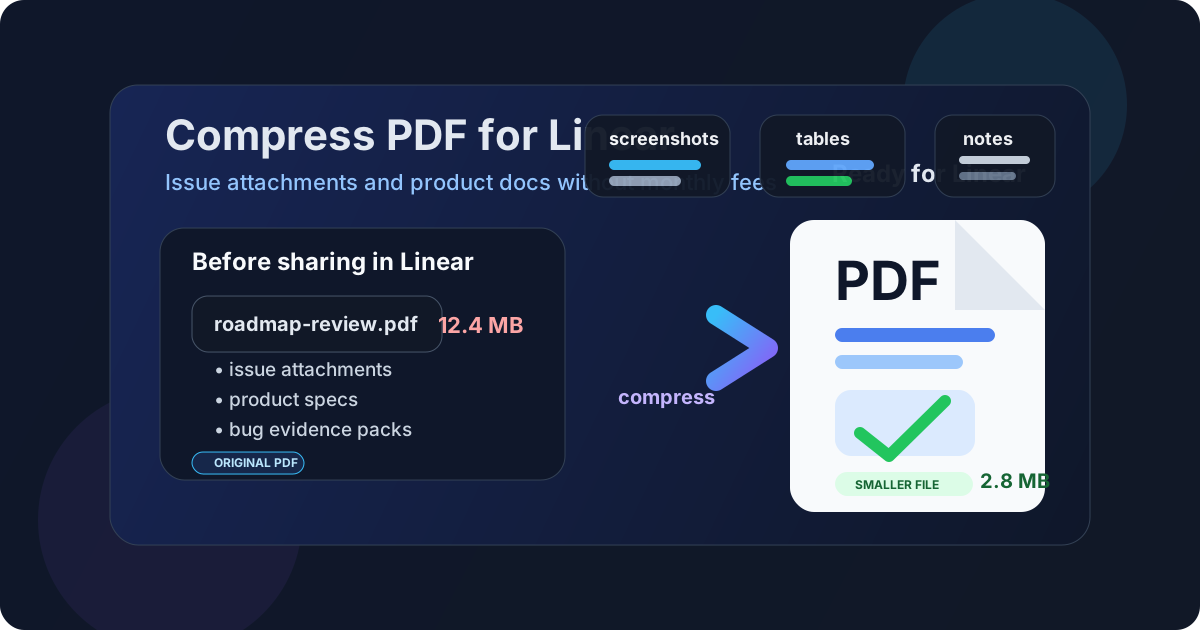
Table of contents
- Quick start: compress a Linear PDF in under 2 minutes
- Why "without monthly fees" matters here
- Why smaller PDFs work better in Linear
- What size should a Linear PDF be?
- Which compression level should you choose?
- Step-by-step: use LifetimePDF to shrink the file
- Common Linear PDFs that benefit from compression
- What to do if the PDF is still too large
- How to keep screenshots, tables, and issue details readable
- Workflow habits that reduce PDF bloat
- Related LifetimePDF tools and pages
- FAQ (People Also Ask)
Quick start: compress a Linear PDF in under 2 minutes
If your real goal is simply make this Linear attachment smaller so people can use it more easily, this workflow is usually enough:
- Open Compress PDF.
- Upload the exact issue attachment, product spec, roadmap export, bug evidence pack, review PDF, or postmortem you plan to share.
- Choose Medium compression first.
- Download the smaller file and compare the new size with the original.
- Open it once and check the details another person actually needs: screenshots, labels, tables, comments, dates, issue references, and diagram text.
- If the file is still bulky, use Extract Pages or Split PDF instead of forcing the whole document through harsher compression.
- If the PDF came from scans, use OCR PDF so text stays more usable after cleanup.
Why "without monthly fees" matters here
People search this phrase for a very plain reason: PDF cleanup is routine work, and routine work is hard to justify as another recurring bill. Teams already pay for issue tracking, product planning, docs, analytics, design tools, chat, and maybe half a dozen other systems. When the remaining problem is simply this attachment is too big, the last thing most people want is to start a new subscription just to click one more export button.
Linear workflows make this even more obvious. The attachment is usually supporting context, not the product itself. It might be a design review, a customer escalation appendix, a sprint recap, a vendor PDF, an incident summary, a specification, or a roadmap pack. Those documents matter, but the file-size problem is still finish-line work. A pay-once workflow fits that reality better than monthly software overhead.
There is also a trust angle. A lot of supposedly free PDF tools feel free right until the final step, then the download gets blocked behind an account wall, trial restriction, or upgrade prompt. For a task that should take two minutes, that friction feels more annoying than the attachment itself.
Linear attachments are normal team operations, not a reason for another subscription.
Why smaller PDFs work better in Linear
Linear is built for speed. The attachment is there to help a decision move, a bug get fixed, a reviewer get context, or a handoff stay clear. Oversized PDFs quietly fight that goal. They upload slower, reopen slower, feel clumsier on mobile, and create extra hesitation whenever someone thinks, Do I really need to open this?
Compression is useful because it reduces raw file weight, but the bigger benefit is smoother collaboration. Smaller PDFs are easier to attach to issues, easier to revisit during triage, and easier to resend in chat, docs, or email when the same work crosses tools. If a file feels lightweight, people use it sooner. If it feels annoying, they delay it.
Why lighter PDFs usually work better
- Faster uploads: useful when you are attaching evidence or updates in the middle of active issue work.
- Less review friction: teammates are more likely to open a clean smaller file immediately.
- Better mobile access: lighter PDFs are less painful when somebody checks an issue away from a desk.
- Cleaner issue history: threads stay easier to navigate when every supporting file is not oversized.
- Easier reuse: once a file is smaller, sending it into docs, chat, or a follow-up comment feels simpler everywhere else too.
What size should a Linear PDF be?
There is no universal perfect number because a one-page decision memo behaves differently from a screenshot-heavy bug appendix or a long roadmap review. Still, rough targets make it easier to decide whether the file is already fine or still worth trimming.
| Linear use case | Recommended target | Why it works |
|---|---|---|
| Short issue attachment | Under 2MB | Great for quick downloads, fast triage, and low-friction mobile review |
| Specs, reviews, and roadmap PDFs | 2MB-5MB | Usually the best balance between readability and convenience |
| Scan-heavy appendices or customer evidence packs | 5MB-10MB | Often acceptable when screenshots, signatures, and small labels still need to remain clear |
The point is not to force every PDF into the smallest bucket. The point is to make the attachment easier to work with. If chasing a smaller number makes screenshots unreadable or comments harder to trust, you went too far.
Which compression level should you choose?
For most Linear attachments, a simple three-level rule works well:
- Low compression: use it when visual quality matters most, such as polished product docs, design approvals, or roadmap exports with lots of tiny labels.
- Medium compression: the best default for most issue attachments, bug evidence packs, customer escalations, and postmortems.
- High compression: only use it when the file is still too large after cleanup and the document is less dependent on small screenshots or table detail.
Step-by-step: use LifetimePDF to shrink the file
- Start with the final file. Do not compress a draft if the attachment will change again. Use the PDF you actually plan to post in Linear.
- Open the compressor. Go to LifetimePDF Compress PDF.
- Upload the document. This could be a bug report appendix, product review PDF, roadmap deck, vendor attachment, or customer evidence pack.
- Choose Medium first. It is the right starting point more often than not.
- Download the smaller copy. Compare the new size against the original.
- Preview the parts that matter. Open the new file once and inspect screenshots, tables, diagram text, issue IDs, comments, signatures, and dates.
- Trim instead of over-compressing. If the file is still heavy, use Extract Pages, Delete Pages, or Split PDF.
- Only share the smaller copy when it still feels dependable. The right output is not the smallest one. It is the one that reduces friction without weakening the content.
Common Linear PDFs that benefit from compression
Not every attachment behaves the same way. These are the kinds of PDFs that most often benefit from cleanup before they go into Linear:
- Bug evidence packs: multiple screenshots, reproduction notes, exports, and log appendices often create more weight than the issue needs.
- Roadmap reviews: deck-style PDFs usually compress well as long as labels and priorities stay readable.
- Product specs and PRDs: text compresses easily, but charts and diagrams still need a quick check.
- Postmortems and incident summaries: longer files often benefit from splitting appendices away from the main narrative.
- Customer escalation attachments: these often include screenshots, comments, and exported evidence that should stay legible.
- Approval and signoff packets: scan-heavy pages are common here, so OCR and page trimming can matter more than raw compression strength.
A good rule is to ask what the next reader actually needs. If the attachment exists only to support one narrow decision, it usually does not need the full original bulk.
What to do if the PDF is still too large
Stronger compression is not always the best next move. In many cases, the smarter answer is to share less PDF, not a blurrier PDF.
Better ways to reduce size
- Extract only the needed section: use Extract Pages when the issue really depends on only part of the file.
- Split the appendix away: use Split PDF when support material does not belong in the main attachment.
- Delete repeated or blank pages: use Delete Pages to remove export clutter or duplicated scan waste.
- Crop oversized margins: use Crop PDF when screen captures or scanned pages carry a lot of useless border space.
- OCR scan-heavy files: use OCR PDF when text in scans is part of what people need to search or read clearly.
How to keep screenshots, tables, and issue details readable
Linear attachments often exist because the small details matter. That means your quality check should focus on the most failure-prone parts of the PDF, not just whether the file opens at all.
Check these before replacing the original
- Screenshot labels and callouts
- Small table text and row labels
- Issue references, ticket IDs, or release labels
- Comments, highlights, and annotation bubbles
- Diagram arrows, legends, and captions
- Dates, signatures, and approval marks in scanned material
If any of those feel annoying to read at normal zoom, back up. Try Medium instead of High. Or trim pages before you compress again. Readability problems usually come from unnecessary aggression, not from compression itself.
Workflow habits that reduce PDF bloat
Some file-size problems are created before the PDF ever reaches the compressor. A few small habits can keep Linear attachments cleaner from the start:
- Export only what matters: avoid printing extra appendix pages into the same file by default.
- Do not mix review copy with raw evidence unless you need both: separate them when possible.
- Flatten repeated screenshots: if three pages say the same thing, keep the clearest one.
- Watch scan quality early: oversized scans create file bloat that compression alone cannot fix elegantly.
- Reuse a clean share version: once you create a smaller readable attachment, keep that copy for follow-up threads instead of recompressing again later.
These habits matter because the best compression workflow is the one you do once. If the attachment stays clean from the beginning, the rest of the collaboration gets easier too.
FAQ (People Also Ask)
How do I compress a PDF for Linear without monthly fees?
Use a pay-once PDF tool like LifetimePDF, upload the Linear PDF, start with Medium compression, and keep the smaller copy only after a quick readability check. If the file is still too large, extract only the pages people need or split the document instead of forcing harsher compression across the whole file.
What file size should I aim for with Linear attachments?
Under 2MB is a strong target for short issue attachments, quick decision memos, and lightweight product updates. Longer roadmap reviews, screenshot-heavy bug evidence packs, and appendix-heavy PDFs usually work best around 2MB to 5MB as long as the small details still read clearly.
Will compression make screenshots or tables blurry in Linear?
It can if you compress too aggressively. That is why Medium compression is usually the safest first pass. Always check screenshots, labels, tables, comments, and issue references before replacing the original file.
Why look for a Linear PDF workflow without monthly fees?
Because PDF cleanup is finish-line work. If your team already pays for product, engineering, analytics, and collaboration tools, adding another recurring bill just to shrink attachments is hard to justify. A pay-once workflow fits the task better.
What if my Linear PDF is still too large after compression?
Extract only the section the issue really needs, split appendices into a second file, remove repeated export pages, crop wasted margins, or OCR heavy scans before compressing again. In many Linear workflows, sharing less PDF works better than crushing the whole document harder.