Compress PDF for InLinks: Reduce Entity Reports, Topic Maps, and Internal-Link PDFs Without Losing Detail
To compress a PDF for InLinks, export the report you actually plan to share, upload it to LifetimePDF's Compress PDF tool, start with Medium compression, and keep the smaller copy only if entity labels, topic-map branches, screenshots, and internal-link notes still look clear.
For most InLinks PDFs, under 2MB works well for focused handoffs, while broader topic maps, screenshot-backed audits, and client-ready summaries usually land best around 2MB to 4MB.
InLinks reports tend to get heavy for sensible reasons. They often combine entity research, topical structure, screenshots, page examples, notes for writers, and recommendations for editors or clients. That is useful when you are building the plan, but it can make the final PDF awkward to upload, slow to open, and annoying to forward. The real goal is not a tiny file at any cost. It is a lighter PDF that still preserves the labels, links, and context people need to act on the work.
Fastest path: run the InLinks PDF through LifetimePDF's Compress PDF tool on Medium, then do one quick readability check before you email, upload, or archive the smaller file.
Need the quick version first? Jump to Quick start: compress an InLinks PDF in under 2 minutes.
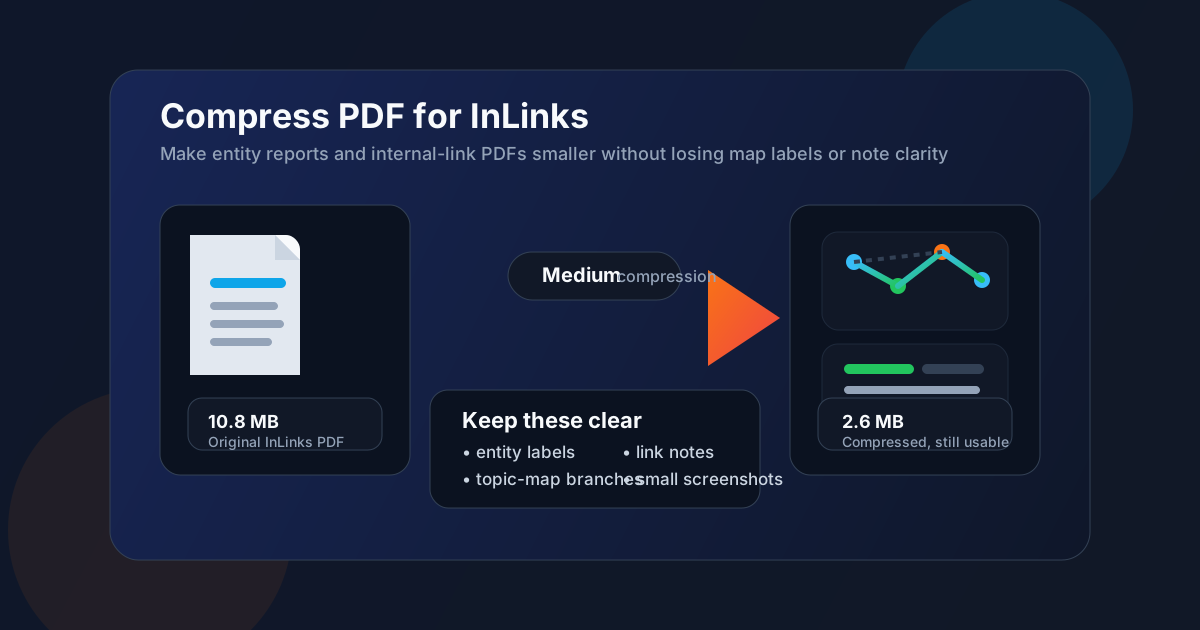
Table of contents
- Quick start: compress an InLinks PDF in under 2 minutes
- Why InLinks PDFs get heavy so quickly
- What file size should you aim for?
- Which compression level should you choose?
- Step-by-step: shrink an InLinks PDF with LifetimePDF
- Best strategy for common InLinks PDF types
- What if the PDF is still too large?
- How to keep labels, maps, and notes readable
- Workflow habits that reduce PDF bloat
- Related LifetimePDF tools and useful reading
- FAQ (People Also Ask)
Quick start: compress an InLinks PDF in under 2 minutes
If your real goal is simply make this InLinks PDF smaller so it is easier to send and review, this workflow is usually enough:
- Export only the InLinks PDF you actually need to share.
- Open Compress PDF.
- Upload the entity report, topic map, internal-link recommendation pack, content brief, or client-ready SEO PDF.
- Choose Medium compression first.
- Download the smaller file and compare the size reduction.
- Check the smallest important details once: entity labels, branch names, screenshots, note callouts, and page references.
- If the file is still bulky, use Extract Pages, Delete Pages, or Split PDF before pushing stronger compression across the whole document.
Why InLinks PDFs get heavy so quickly
InLinks is useful because it helps turn messy SEO ideas into structure. That structure often becomes a PDF only after the important thinking is done. You may be sending an entity report to a writer, handing internal-link suggestions to an editor, archiving a topic map, or packaging a client-ready summary for review. By that stage the PDF may include visuals, labels, commentary, and screenshots from several parts of the workflow.
Heavy files create friction at exactly the wrong moment. They take longer to upload, are harder to attach, and feel slower to open when someone only needs the key decision points. In practice, the biggest size problems usually come from full-page screenshots, appendix material, repeated exports, and one giant PDF trying to serve different audiences at once. Compression helps when it removes that weight without flattening the small details that still make the report actionable.
Why smaller InLinks PDFs are easier to work with
- Faster handoffs: writers, editors, and clients can open the file quickly instead of waiting on a bulky export.
- Cleaner sharing: lighter PDFs are easier to email, upload to project tools, and drop into shared drives.
- Better review flow: people spend more time discussing the recommendations and less time wrestling with the attachment.
- Smoother archiving: repeated research exports do not pile up as oversized files.
- Better mobile access: compact PDFs are more usable on a phone or laptop during a meeting.
What file size should you aim for?
There is no perfect number for every InLinks PDF, but a few practical ranges help in real workflows:
| PDF type | Good target | Why that range works |
|---|---|---|
| Focused entity report | Under 2MB | Usually enough for labels, summary notes, and a few supporting visuals without making the file awkward to send. |
| Internal-link recommendation pack | 1MB to 2.5MB | Keeps notes, page references, and screenshots readable while staying lightweight for editorial handoff. |
| Topic map or topical authority PDF | 2MB to 4MB | Broader maps often need more room so branch labels and small connectors do not become fuzzy. |
| Content brief bundle | Under 3MB | Useful for writer handoff without burying the brief under oversized screenshots or repeated pages. |
| Client-ready SEO summary | 2MB to 4MB | Lets you keep the story readable while making the file easier to forward, archive, and reopen later. |
If the PDF already looks good at a smaller size, there is no need to chase a stricter target. The number matters less than whether the smallest useful details still hold up.
Which compression level should you choose?
Most InLinks PDFs respond well to a moderate first pass. Stronger compression can help, but it is much more likely to hurt map labels, screenshots, and tiny note text.
A simple way to choose
- Low compression: useful when the file is already close to the size you want and you mainly need a small cleanup.
- Medium compression: the best starting point for most InLinks exports because it reduces bulk while protecting readability.
- High compression: only use this if the file is still too large after you trim unneeded pages and you can accept a more aggressive quality tradeoff.
Step-by-step: shrink an InLinks PDF with LifetimePDF
A clean compression workflow is usually faster than repeatedly exporting and guessing. This process works well for most InLinks files:
- Export the final version. Use the PDF you actually plan to send, not a rough draft with extra pages you already know you do not need.
- Open Compress PDF.
- Upload the file. That might be an entity report, topic map, internal-link recommendation pack, or content brief bundle.
- Choose Medium compression. In most InLinks cases, this is the safest balance between smaller file size and readable detail.
- Download the result. Compare the new size with the original so you know whether you solved the real problem.
- Review the weak spots. Look at branch labels, screenshots, note callouts, small page references, and anything color-coded or tightly spaced.
- Trim structure if needed. If the file is still bulky, use Extract Pages, Delete Pages, or Crop PDF before trying stronger compression.
That last step matters because many large PDFs are heavy for structural reasons, not because the compression setting was wrong.
Best strategy for common InLinks PDF types
Not every InLinks export behaves the same way. The safest workflow depends on what kind of PDF you are shrinking.
Entity reports
These often compress well because the information is structured and text-heavy, but the small labels still matter. Start with Medium and review entity names, notes, and any table-like sections once before sending.
Topic maps and topical structure PDFs
Topic maps are more fragile because the visual structure carries meaning. If the branches, connectors, or labels become hard to read, the PDF becomes less useful even if the file size improves dramatically. For these, compression should stay balanced and you should be careful with aggressive settings.
Internal-link recommendation packs
These usually contain page references, anchor guidance, screenshots, and short notes. They benefit from compression, but repeated screenshots often create more bloat than the text itself. Deleting or extracting repeated evidence pages is often smarter than compressing harder.
Content brief handoffs
When a brief is headed to a writer, the important thing is clarity, not maximum shrinkage. If screenshots and headings still read cleanly at normal zoom, the file is usually good enough. Over-compressing a brief makes the handoff feel cheaper and harder to use.
Client-ready summaries
Client PDFs often mix explanation and evidence. If one file includes both the summary and the appendix, consider splitting it with Split PDF so decision-makers get the lighter version and technical reviewers get the full backup.
What if the PDF is still too large?
If Medium compression still leaves the InLinks PDF heavier than you want, do not jump straight to the harshest setting. First, remove the parts that are creating unnecessary weight.
Try these fixes before compressing harder
- Split the appendix: keep the main recommendations separate from supporting evidence and screenshots.
- Extract only the pages each reader needs: many people do not need the full research pack.
- Delete repeated screenshots: duplication adds size faster than most text sections.
- Crop wide empty margins: wasted white space adds weight without adding value.
- Compare the cleaned version: use Compare PDFs if you want to verify that the useful content still made it through the cleanup.
Once the structure is cleaner, a second compression pass often performs much better than pushing the original oversized file harder.
How to keep labels, maps, and notes readable
In InLinks PDFs, the important details are often small. A tiny branch label, note, or screenshot callout can change how somebody interprets the entire recommendation. That is why a quick readability pass matters more than squeezing out one extra round of size reduction.
Check these before you share the compressed copy
- Entity labels and node names
- Topic-map branches and visual connectors
- Internal-link notes and page references
- Screenshot annotations and highlighted examples
- Summary recommendations, priorities, and next-step notes
Workflow habits that reduce PDF bloat
The easiest PDF to compress is the one prepared with the handoff in mind. A few simple habits make InLinks exports smaller and more usable before compression even begins:
- Export only what the audience needs. A focused handoff beats a giant just-in-case SEO packet.
- Separate summary and evidence. Writers, editors, clients, and archives often need different levels of detail.
- Avoid near-duplicate screenshots. One clear example usually beats several almost-identical captures.
- Use clear filenames and metadata. Clean naming makes later retrieval easier. Use PDF Metadata Editor if needed.
- Keep a lightweight outgoing version. The archive copy can stay fuller, but the share-ready file should open fast and travel easily.
These habits matter because compression works best as a finishing step, not as a rescue plan for a report that tried to do too many jobs at once.
Related LifetimePDF tools and useful reading
If you work with InLinks PDFs regularly, these tools usually pair well with compression:
- Compress PDF for the first size-reduction pass
- Split PDF for large research packs and appendices
- Extract Pages for audience-specific handoffs
- Delete Pages for duplicate screenshots and filler pages
- Crop PDF for wasted borders and margins
- OCR PDF if a scan-backed appendix also needs searchable text
You may also find these related guides useful:
- Compress PDF for InLinks: Share Smaller Entity Reports, Topic Maps, and Client PDFs Faster
- Compress PDF for InLinks Without Monthly Fees
- Compress PDF for Keyword Insights
- Compress PDF for Surfer SEO
- Compress PDF for Google Search Console
Bottom line: for most InLinks PDFs, start with Medium compression, review the smallest meaningful details once, and trim unneeded pages before you reach for stronger settings.
FAQ (People Also Ask)
How do I compress a PDF for InLinks?
Export the InLinks report as a PDF, upload it to a compressor, start with Medium compression, and keep the smaller copy only if entity labels, topic-map branches, screenshots, and internal-link notes still read clearly. Medium compression is usually the safest first pass because it lowers file size without removing useful context.
What file size should I aim for with InLinks PDFs?
Under 2MB works well for focused entity reports, short recommendation packs, and compact content-brief handoffs. Broader topic maps, screenshot-backed audits, and client-ready summaries usually work best around 2MB to 4MB as long as the smallest useful labels still read clearly.
Will compression make InLinks entity maps blurry?
It can if you compress too aggressively. That is why Medium compression is usually the best starting point. Always review node labels, branch connectors, screenshot notes, and summary recommendations before replacing the original file.
Should I split a large InLinks PDF instead of compressing it harder?
Often, yes. If one PDF mixes the summary, topic maps, screenshots, internal-link recommendations, appendix pages, and client commentary, splitting it usually works better than forcing stronger compression across the whole file.
Which LifetimePDF tools pair best with InLinks workflows?
Compress PDF is the main starting point. Split PDF, Extract Pages, Delete Pages, Crop PDF, Compare PDFs, OCR PDF, and PDF Metadata Editor are especially useful when you want smaller, cleaner InLinks handoffs without losing the pages people actually need.