Compress PDF for Hudu Without Monthly Fees: Keep SOPs, Runbooks, and Client Docs Light Without Another MSP Subscription
Yes — you can compress a PDF for Hudu without monthly fees by using a pay-once PDF toolkit, starting with Medium compression, and keeping the smaller copy only if screenshots, labels, tables, serial numbers, and instructions still read cleanly.
For most Hudu-ready SOPs, runbooks, client docs, onboarding packets, and MSP attachments, a practical target is under 2MB for short text-heavy files and roughly 2MB to 5MB for screenshot-heavy or scan-heavier documents that still need to feel dependable.
That is the short answer. The more useful answer is that Hudu PDF cleanup is not a one-off novelty job. It is recurring operations work. Teams shrink the same kinds of files over and over: SOPs, runbooks, client handoff docs, warranty PDFs, onboarding packets, audit snapshots, and reference manuals that keep getting reopened by technicians, account managers, and clients. This guide shows how to make those files smaller without adding yet another monthly tool bill or weakening the documents people actually rely on.
Fastest path: run the Hudu PDF through LifetimePDF's Compress PDF tool on Medium, review the smallest important detail once, and keep the pay-once workflow for the rest of your recurring document cleanup.
Need the short version? Jump to Quick start: compress a PDF for Hudu without monthly fees in about 2 minutes.
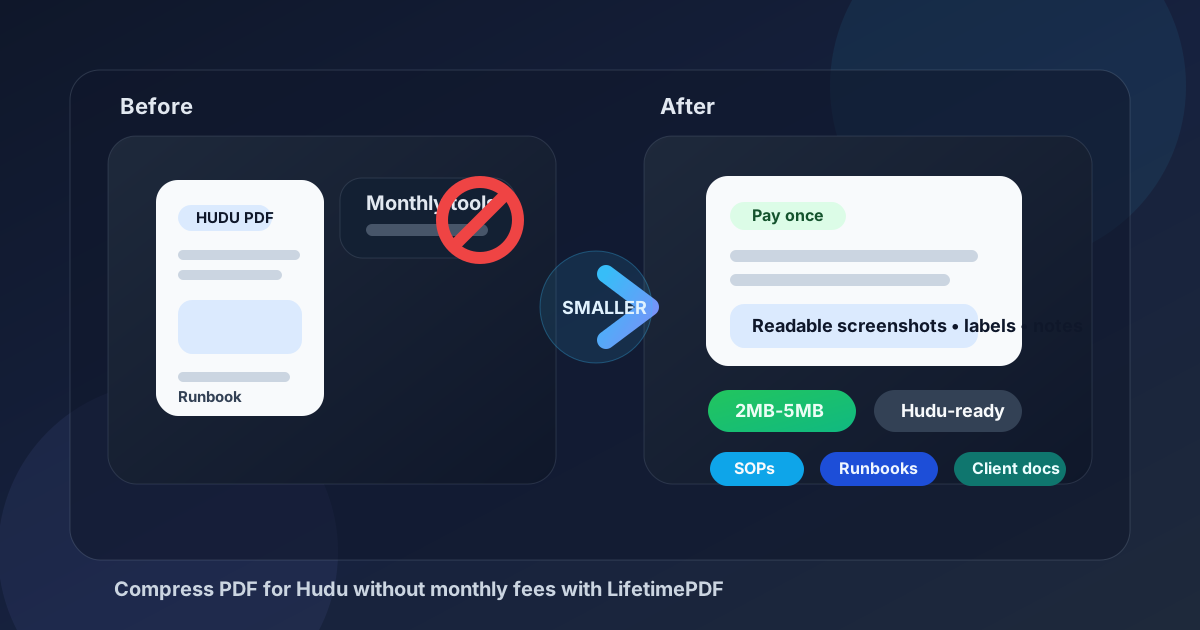
Table of contents
- Quick start: compress a PDF for Hudu without monthly fees in about 2 minutes
- Why “without monthly fees” matters for Hudu workflows
- Why smaller PDFs work better in Hudu
- What file size should you aim for?
- Which compression level should you choose?
- Step-by-step: shrink a Hudu PDF with LifetimePDF
- Best approach for common Hudu PDF types
- What if the PDF is still too large?
- How to keep screenshots, diagrams, and serial numbers readable
- Related LifetimePDF tools and useful reading
- FAQ (People Also Ask)
Quick start: compress a PDF for Hudu without monthly fees in about 2 minutes
If your actual goal is simply make this Hudu file smaller without paying another recurring subscription, this workflow is usually enough:
- Open Compress PDF.
- Upload the SOP, runbook, client handoff document, onboarding packet, vendor manual, warranty file, or internal MSP attachment you actually plan to keep in Hudu.
- Choose Medium compression first.
- Download the smaller result and compare the new size with the original.
- Open it once and check the details that matter most: screenshot text, labels, serial numbers, asset tags, table rows, diagram callouts, and step-by-step instructions.
- If the PDF is still bulkier than it should be, extract the useful pages or split the packet before trying stronger compression.
Why “without monthly fees” matters for Hudu workflows
People do not search this because PDF compression is exciting. They search it because the task keeps returning. One teammate cleans up a runbook. Another uploads a client handoff packet. Someone else trims a warranty PDF, a vendor guide, a network diagram packet, or a screenshot-heavy SOP. Suddenly a basic maintenance task starts demanding another subscription inside a stack that already includes PSA tools, RMM tools, documentation tools, security tools, and client systems.
That is why the “without monthly fees” part matters. Compressing a PDF for Hudu is recurring document work, but it is not the kind of work most MSPs want to rent forever. The need is practical: make the file smaller, easier to reopen, easier to reuse, and easier to share. A pay-once PDF toolkit fits that reality better than piling one more bill onto the operational stack.
It also helps that compression is rarely the only step. Real Hudu documents sometimes need page cleanup, appendix trimming, OCR, cropping, redaction, metadata cleanup, or splitting before they are truly ready. A toolkit that handles those jobs without another recurring charge usually feels more sensible than stitching together several monthly tools for ordinary PDF maintenance.
Plain reality: recurring Hudu document cleanup should feel like maintenance, not like buying a new subscription every time a PDF gets too heavy.
Why smaller PDFs work better in Hudu
Hudu sits close to moments where people need answers quickly. The PDF is not just a forgotten attachment in a random folder. It may be the SOP a technician needs during a live ticket, the onboarding guide reused during a handoff, the warranty file someone checks during an escalation, or the client-facing packet an account manager opens right before a call. When that file is heavier than it needs to be, every next click becomes slightly more annoying.
Smaller PDFs reopen faster, feel better on phones and tablets, and create less friction across documentation, support, onboarding, and client review work. That matters even more when the same Hudu file gets opened repeatedly by different people who do not care about the PDF itself. They care about the information inside it and whether they can trust it at a glance.
- Faster technician access: useful when someone needs the runbook, SOP, or vendor reference right now.
- Cleaner documentation reuse: lighter PDFs are easier to carry across client records, internal references, and handoff workflows.
- Better mobile experience: smaller files are less frustrating on phones and tablets in the field.
- Smoother client handoffs: account managers and technicians can open the same material without dragging around oversized packets.
- Less repeat friction: if the PDF gets reopened often, trimming it once saves time every time.
What file size should you aim for?
There is no perfect number for every Hudu document because a two-page checklist behaves differently from a screenshot-heavy runbook, a scan-heavy warranty bundle, or a long vendor manual. Practical ranges are more useful than chasing one magic target. The goal is the smallest file that still feels trustworthy.
| Document type | Practical target | Why it works |
|---|---|---|
| Text-heavy SOPs, checklists, and short how-to docs | Under 2MB | Best for fast reopen speed, mobile access, and low-friction support work |
| Everyday runbooks, client docs, and onboarding packets | 2MB to 5MB | Usually the best balance between readability and convenience |
| Long manuals, diagram packs, or scan-heavy PDFs | 5MB to 10MB | Still workable when the useful details remain readable and the structure is clean |
| Oversized packets above 10MB | Usually needs cleanup | At that point, trimming pages or fixing scan waste often works better than harsher compression |
If your Hudu PDF is far above these ranges, do not assume you need stronger compression first. Many oversized documents improve more when you remove duplicate pages, split internal and external sections, or crop empty scan borders.
Which compression level should you choose?
Stronger compression is not automatically better compression. The right setting depends on what people still need to read after the file is stored or shared.
| Compression level | Best for | Watch out for |
|---|---|---|
| Low | Already-clean PDFs with tiny labels, dense diagrams, fine print, or detailed screenshots | You may not save enough space if the document is bloated by scans or oversized appendix pages |
| Medium | Most Hudu work: SOPs, runbooks, client docs, onboarding packets, warranty files, and screenshot-heavy reference PDFs | Usually the best first choice; still preview the final file once |
| High | Bulky scans, image-heavy manuals, and oversized packets where smaller size matters more than polished visuals | Small screenshot text, diagram labels, serial numbers, and signatures can start to soften |
Step-by-step: shrink a Hudu PDF with LifetimePDF
1) Start with the final file you actually plan to keep in Hudu
If the document is still changing, finish the edit pass first. Compressing the wrong version just creates more clutter and makes later review more annoying. In Hudu workflows, that often means removing the outdated appendix, duplicate export, or internal-only section before you do anything else.
2) Open Compress PDF
Go to Compress PDF and upload the Hudu-ready file. That may be an SOP, runbook, client handoff document, onboarding packet, warranty PDF, diagram pack, vendor manual, or asset reference sheet.
3) Run Medium compression first
For most MSP documentation, Medium is the safest balance between weight reduction and practical readability. It usually trims the obvious excess without making the file feel risky the next time somebody has to rely on it during support work.
4) Check the parts people actually care about
Do not just glance at page one. Open the smaller copy and inspect the details that tend to break first:
- small screenshot text and interface labels
- serial numbers, asset tags, and model names
- table rows, device lists, and checklist items
- diagram labels, port notes, and callouts
- warranty dates, signatures, and support notes
5) Clean structure instead of crushing the whole file harder
If the PDF is still too large, the better fix is often structural. Use Extract Pages when only part of the document matters, or Split PDF when a bulky appendix does not need to travel with the main file.
Shortest version: compress once, review once, then remove extra page weight only if the file still feels too large.
Best approach for common Hudu PDF types
Different Hudu documents gain file weight in different ways. A better workflow depends on what kind of PDF you are actually trying to keep usable.
SOPs and checklists
These are usually text-heavy and compress well. The main job is keeping steps, labels, warnings, and table rows easy to scan. Medium compression is normally enough.
Runbooks with screenshots
Screenshot-heavy runbooks often look light at first glance, but tiny interface text is where mistakes happen. Compress moderately, then zoom into the smallest screenshot label before replacing the original.
Client handoff docs and onboarding packets
These often mix screenshots, diagrams, checklists, and process notes. Medium compression is usually the best balance, but if the packet is bulky because it includes repeated appendix pages or internal-only notes, trim those first instead of compressing harder.
Vendor manuals, warranty PDFs, and equipment references
These files are often heavy simply because they include more pages than the real task requires. If the team only needs installation steps, warranty pages, or one process section, extract the relevant pages instead of shrinking a giant manual until it becomes harder to read.
Scan-heavy forms and signed paperwork
Scans are often where size problems really begin. Every page behaves like an image, which means borders, shadows, blank backs, and awkward phone captures all add weight. Crop waste, rotate pages, and consider OCR PDF when searchability matters.
What if the PDF is still too large?
If one compression pass does not solve the problem, do not automatically jump to the harshest setting. Usually the file is bulky for a structural reason.
- Extract only the pages that matter: useful when the next technician or client does not need the whole packet.
- Delete dead weight: remove blank pages, duplicate exports, outdated appendices, or unnecessary covers with Delete Pages.
- Split one bulky attachment: keep the main document clean and separate the support material with Split PDF.
- Crop scan waste: trim empty borders or oversized margins with Crop PDF.
- Clean metadata before wider sharing: use PDF Metadata Editor if the file still carries stale titles or hidden document properties.
How to keep screenshots, diagrams, and serial numbers readable
The biggest fear with compression is not the number itself. It is whether the file still feels dependable when somebody opens it in the middle of real work. In Hudu, that usually means protecting the smallest useful reference details.
- Check screenshot labels: the smallest visible UI text should still feel effortless to read.
- Check serial numbers and asset tags: a single blurred character can waste time or create support mistakes.
- Check diagram labels and callouts: network notes and system labels must remain clear.
- Check table rows: dense warranty tables, device lists, and process steps should stay aligned and legible.
- Check signatures and dates: scan-heavy paperwork needs one careful look before you trust the smaller copy.
- Open the result on mobile if that matters: some Hudu documents are first opened from a phone or tablet.
If one or two image-heavy pages are causing most of the weight, it is often smarter to optimize those pages in the source file or split them off than to squeeze the entire PDF harder. A cleaner export usually beats a harsher setting.
Related LifetimePDF tools and useful reading
Compressing a PDF for Hudu is usually one step inside a bigger documentation workflow. These tools pair especially well with it:
- Compress PDF - shrink SOPs, runbooks, onboarding docs, and client attachments before storing or sharing
- Extract Pages - isolate only the pages the next technician or client actually needs
- Delete Pages - remove blank sheets, repeated exports, and outdated appendix pages
- Split PDF - break one bulky packet into cleaner files
- Crop PDF - trim scan borders and wasted margins
- OCR PDF - make scanned attachments more searchable
- PDF Metadata Editor - clean title, author, and keyword fields before wider sharing
Suggested internal blog links
- Compress PDF for Hudu
- Upload smaller Hudu SOPs, runbooks, and client docs faster
- Compress PDF for IT Glue
- Compress PDF for IT Glue uploads
- Compress PDF Without Monthly Fees
- Compress PDF Online Free
- Browse all LifetimePDF articles
Need the calm version of recurring Hudu PDF cleanup?
Best workflow: clean the source → compress once → review readability → store the lighter final version.
FAQ (People Also Ask)
How do I compress a PDF for Hudu without monthly fees?
Use a pay-once PDF toolkit like LifetimePDF: upload the Hudu-ready PDF to Compress PDF, start with Medium compression, and keep the smaller result only after screenshots, labels, serial numbers, tables, and instructions still read clearly.
What file size should I aim for before storing a PDF in Hudu?
Short text-heavy SOPs and checklists often work well under 2MB. Screenshot-heavy runbooks, onboarding packets, and mixed reference files usually land better around 2MB to 5MB as long as the smallest useful details remain easy to read.
Why do people look for a Hudu PDF compressor without monthly fees?
Because shrinking PDFs for Hudu is recurring maintenance work, not something most MSPs want to keep renting forever. A pay-once toolkit makes more sense when teams repeatedly need to compress, split, crop, OCR, redact, sign, and clean documentation without adding another monthly bill.
Will compression make Hudu screenshots, diagrams, or serial numbers blurry?
It can if you compress too aggressively. That is why Medium compression is usually the best first move. Always review the smallest screenshot text, diagram labels, serial numbers, model names, and table rows before you keep the smaller file.
What if my Hudu PDF is still too large after one pass?
Remove blank or duplicate pages, extract the relevant section, split one oversized packet, or crop scan waste before you try stronger compression. Structural cleanup usually protects readability better than repeatedly forcing the whole document into a smaller file.
Published by LifetimePDF — Pay once. Use forever.