Compress PDF for Google Trends: Share Smaller Search Interest Reports, Comparison Charts, and Client PDFs Faster
To compress a PDF for Google Trends, export or save the report, upload it to LifetimePDF's Compress PDF tool, start with Medium compression, and keep the smaller copy only if chart labels, compared keywords, dates, and notes still look clear.
For most Google Trends handoffs, under 2MB is a strong target for short snapshots, while screenshot-heavy research decks, comparison packs, and broader stakeholder PDFs usually work best around 2MB to 5MB after light cleanup.
Google Trends PDFs are usually not the analysis stage. They are the handoff stage. They get attached to a client email, dropped into a content brief, added to a slide deck, stored for later comparison, or shared with a teammate who only needs the takeaway without opening a live dashboard. That is where file size starts to matter. A smaller report travels faster, opens more smoothly, and creates less friction without sacrificing the chart story people still need to trust.
Fastest path: run the Google Trends PDF through LifetimePDF's Compress PDF tool at Medium, then do one quick readability check before you email, upload, archive, or present the smaller copy.
In a hurry? Jump to Quick start: compress a Google Trends PDF in about 2 minutes.
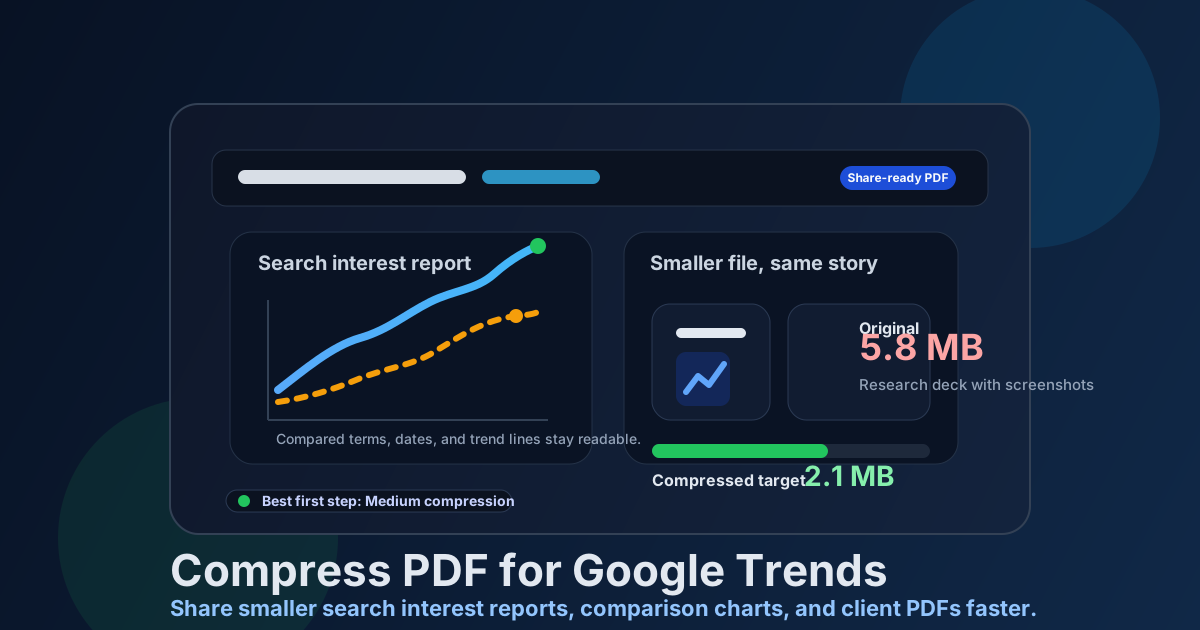
Table of contents
- Quick start: compress a Google Trends PDF in about 2 minutes
- Why smaller Google Trends PDFs help
- What file size should you aim for?
- Which compression level should you choose?
- Step-by-step: shrink a Google Trends PDF with LifetimePDF
- Best approach for common Google Trends report types
- What if the PDF is still too large?
- How to keep labels, charts, and notes readable
- Workflow habits that reduce PDF bloat
- Related LifetimePDF tools and useful reading
- FAQ (People Also Ask)
Quick start: compress a Google Trends PDF in about 2 minutes
If your real goal is simply make this Google Trends PDF smaller so it is easier to send and easier to open, this workflow is usually enough:
- Open Compress PDF.
- Upload the file you actually plan to share, such as a keyword comparison, seasonal interest snapshot, regional demand report, search trends appendix, or client-ready research summary.
- Choose Medium compression first.
- Download the smaller result and compare the new size with the original.
- Preview the weak points once: chart labels, compared terms, timeline dates, map labels, screenshot notes, and short commentary blocks.
- If the PDF is still bulky, extract only the summary pages, split the appendix, delete repeated charts, or crop oversized screenshot margins before you try stronger compression.
Why smaller Google Trends PDFs help
Google Trends is often used to support a bigger decision: what topic deserves content, whether seasonality is real, which region cares most, or how search interest shifted across time. The live chart is useful while you are exploring. The PDF is what gets shared when the exploration turns into a recommendation. That is why file size becomes a workflow problem instead of a storage problem.
A heavy report slows down simple handoffs. It takes longer to upload, feels clumsy in email, and makes stakeholders work harder than they should when all they wanted was a clean answer. Good compression helps, but the goal is not chasing the tiniest file possible. The goal is getting to a smaller PDF that still preserves the dates, labels, legends, compared terms, and notes that explain why the trend matters.
Why compression usually pays off
- Faster client delivery: lighter files are easier to attach, upload, and forward.
- Smoother internal review: teammates can open the report faster when they only need the headline takeaway.
- Cleaner archives: recurring trend snapshots stay easier to store when they are not bloated.
- Less presentation friction: smaller PDFs behave better in meetings, especially when people open them on laptops or phones.
- Less resend pain: compressing once is easier than rebuilding and resending an oversized report later.
What file size should you aim for?
There is no perfect number for every Google Trends export, but a few practical ranges help you avoid compressing harder than necessary:
| Google Trends PDF type | Practical target | Why it works |
|---|---|---|
| Short keyword snapshots and quick stakeholder updates | Under 2MB | Usually small enough for easy sharing while keeping the main charts, labels, and notes readable. |
| Comparison reports, seasonal research decks, and client summaries | 2MB to 5MB | Leaves room for several charts, supporting screenshots, and short commentary without making the file awkwardly heavy. |
| Screenshot-heavy appendices or region-by-region report packs | Up to about 5MB after cleanup | Reasonable if map labels, legends, and supporting annotations still need to stay readable. |
| Over 5MB | Usually needs cleanup first | Repeated screenshots, oversized appendix pages, and too many backup charts are often the real cause. |
If the report is mostly one or two clean charts, you can often aim smaller. If it contains dense screenshots, regional maps, or multiple compared terms that still need to hold up in conversation, a slightly larger file is the smarter tradeoff.
Which compression level should you choose?
For most Google Trends PDFs, Medium compression is the safest place to begin. It usually removes enough weight to matter without immediately softening the details people still rely on.
| Compression level | Best for | Watch out for |
|---|---|---|
| Low | Dense screenshots, small labels, and reports where exact detail matters more than maximum reduction | May not shrink enough if the PDF is heavy because of repeated pages, oversized screenshots, or long appendices. |
| Medium | Most comparison reports, seasonal trend decks, and client-ready share copies | The best default, but still review timeline labels, compared terms, legends, and commentary before keeping it. |
| High | Image-heavy backup pages or throwaway share copies where tiny labels are not the main concern | Can blur region names, date labels, compared keywords, and screenshot notes that matter later. |
Step-by-step: shrink a Google Trends PDF with LifetimePDF
- Start with the share-ready version. Use the PDF you actually plan to send, not a draft full of backup slides or repeated screenshots.
- Open Compress PDF.
- Upload the file. This might be a trend comparison, a topic validation deck, a regional interest report, or a search-demand appendix.
- Select Medium compression. That is the best first-pass balance for most Google Trends workflows.
- Download the result. Compare the original size with the smaller copy so you can see whether the reduction was meaningful.
- Preview the result once. Check timeline labels, compared terms, regional labels, screenshot notes, and the smallest useful commentary text.
- Trim more only if needed. If the file is still too heavy, split the appendix, extract the summary pages, crop wide screenshot borders, or remove repeated evidence before trying a stronger setting.
That one review step matters. Compression problems usually show up first in the smallest details: date ranges, compared keywords, map labels, chart legends, and screenshot annotations that looked fine before the file got smaller.
Good workflow: compress first, then decide whether you also need page cleanup, splitting, metadata cleanup, or a version comparison.
Best approach for common Google Trends report types
1) Keyword comparison snapshots
These often compress well because the file is focused and chart-led. Watch especially for compared keyword names, timeline labels, and any small legend text that tells the reader which line belongs to which topic.
2) Seasonal demand reports
These usually include several date ranges and supporting notes. Compression helps, but only if the seasonality pattern remains easy to see and the month or week labels still feel obvious at a glance.
3) Regional interest and market breakdowns
These depend on maps, city or country labels, and short notes explaining why the geography matters. If labels get fuzzy, the report loses value quickly. A slightly larger file is often worth it here.
4) Screenshot-heavy research decks
Screenshot-led pages are where file size often jumps fastest. If the PDF is too large, splitting backup pages or trimming duplicate screenshots usually works better than forcing stronger compression across every page.
5) Archive copies for SEO and content teams
Archive versions should be lighter, but still readable enough to answer future questions about timing, search interest shifts, compared terms, and what conclusion the report supported when it was shared.
What if the PDF is still too large?
If Medium compression does not get the file where you need it, do not assume the only answer is stronger compression. Google Trends PDFs often shrink better when you remove waste first.
- Extract only the pages people actually need: use Extract Pages for a tighter handoff.
- Split oversized packs: use Split PDF when summary pages and appendices belong in separate files.
- Delete repeated charts or stale appendix pages: use Delete Pages.
- Crop oversized screenshot borders: use Crop PDF if wide margins are inflating the file.
- Merge only what belongs together: use Merge PDF after cleanup.
- Only then try stronger compression: once the structure is cleaner, a second pass makes more sense.
How to keep labels, charts, and notes readable
Before you replace the original file, review the spots most likely to show quality loss. Do not stop at the first page. Check the busiest page or the page that holds the smallest useful detail.
Check these details
- Compared keyword names and category labels
- Timeline dates, chart legends, and axis labels
- Country, state, or city names in regional views
- Screenshot captions, callouts, and highlighted notes
- Summary recommendations and short commentary blocks
- Any small text that a client or teammate would still need to trust later
If any of those feel annoying to read, the PDF is probably compressed too hard for its real job. Go one step lighter or clean the page structure instead.
Workflow habits that reduce PDF bloat
- Separate the summary from the appendix: most readers need the top story first, not every backup chart.
- Export only the views that matter: a focused trend packet usually beats one giant all-purpose PDF.
- Trim repeated evidence: duplicated screenshots and stale comparison views add size without adding value.
- Keep screenshot margins tight: oversized captures make many Google Trends PDFs heavier than they need to be.
- Name the share copy clearly: labels like
client-copy,summary, orsharedreduce confusion later. - Clean metadata before external delivery: use PDF Metadata Editor when a polished client-ready file matters.
These habits usually improve the reading experience more than aggressive compression alone. A tidy report pack is easier to share, easier to compress, and easier to trust later.
Related LifetimePDF tools and useful reading
Compressing a Google Trends PDF is usually one step inside a broader reporting, content planning, or client-delivery workflow. These tools pair well with it:
- Compress PDF for the first size-reduction pass.
- Extract Pages when only the summary needs to go out.
- Split PDF for summary-versus-appendix sharing.
- Delete Pages to remove duplicate or outdated support pages.
- Crop PDF to trim wide screenshot borders.
- Compare PDFs when you need to review how reports changed between versions.
- PDF Metadata Editor to tidy hidden title, author, and keyword fields before delivery.
- Lifetime access if PDF cleanup is a regular part of your reporting stack.
Suggested internal reading
- Compress PDF for Google Trends
- Compress PDF for Google Search Console
- Compress PDF for Google Analytics
- Compress PDF for Ahrefs
- Compress PDF for Semrush
- Compress PDF for Looker Studio
- How to Reduce PDF File Size for Email
- Compare PDF Versions Online
FAQ (People Also Ask)
How do I compress a PDF for Google Trends before sending it to a client or teammate?
Export or save the Google Trends report as a PDF, upload it to a compressor, start with Medium compression, and preview the smaller copy before sharing it. For most Google Trends workflows, Medium is the safest first pass because it reduces file size while keeping charts, date labels, keyword names, regional views, and notes readable.
What file size should I aim for with Google Trends reports?
Under 2MB works well for short trend snapshots, quick keyword comparisons, and simple stakeholder updates. Broader research decks, screenshot-heavy reports, and appendix-rich Google Trends PDFs usually feel better around 2MB to 5MB as long as the smallest useful labels still look clear.
Will compressing a Google Trends PDF make the charts blurry?
It can if you compress too aggressively. That is why Medium compression is usually the best starting point. Always check timeline labels, compared terms, regional labels, legends, and screenshot annotations before keeping the smaller copy.
Is it better to split a Google Trends PDF instead of compressing it harder?
Often, yes. If one PDF mixes the executive summary, several comparison views, backup charts, screenshots, and appendices for different readers, splitting it usually works better than forcing stronger compression across the whole report.
What should I do if the Google Trends PDF is still too large after compression?
Remove duplicate pages, crop oversized screenshot borders, extract only the summary pages, or split the appendix before pushing compression harder. In many Google Trends workflows, the real size problem comes from packaging too much into one file, not from the charts themselves.
Ready to shrink it? Start with Medium compression, keep the chart story readable, and only split or trim further if the file is still heavier than it should be.
Published by LifetimePDF - Pay once. Use forever.