Compress PDF for Dropbox Sign: Make Contracts and Forms Smaller Without Hurting Readability
To compress a PDF for Dropbox Sign, upload the final contract, form, or agreement to LifetimePDF's Compress PDF tool, start with Medium compression, and keep the smaller copy only if signer-facing text, dates, initials, and signature boxes still look clean.
For most Dropbox Sign files, aim for under 2MB for text-heavy agreements and roughly 2MB to 5MB for scan-heavy packets, exhibits, or image-heavy supporting PDFs.
Dropbox Sign works best when the document disappears into the workflow instead of becoming the problem. A bloated agreement slows uploads, feels clumsy on mobile, and can create one more avoidable point of friction right before someone signs. The goal is not to squeeze every file into the smallest number possible. It is to make the PDF lighter while keeping the document trustworthy, readable, and easy to review.
Fastest path: run the Dropbox Sign file through LifetimePDF's Compress PDF tool on Medium, then do one quick readability check before sending the lighter copy.
Need the short version? Jump to Quick start: compress a PDF for Dropbox Sign in under 2 minutes.
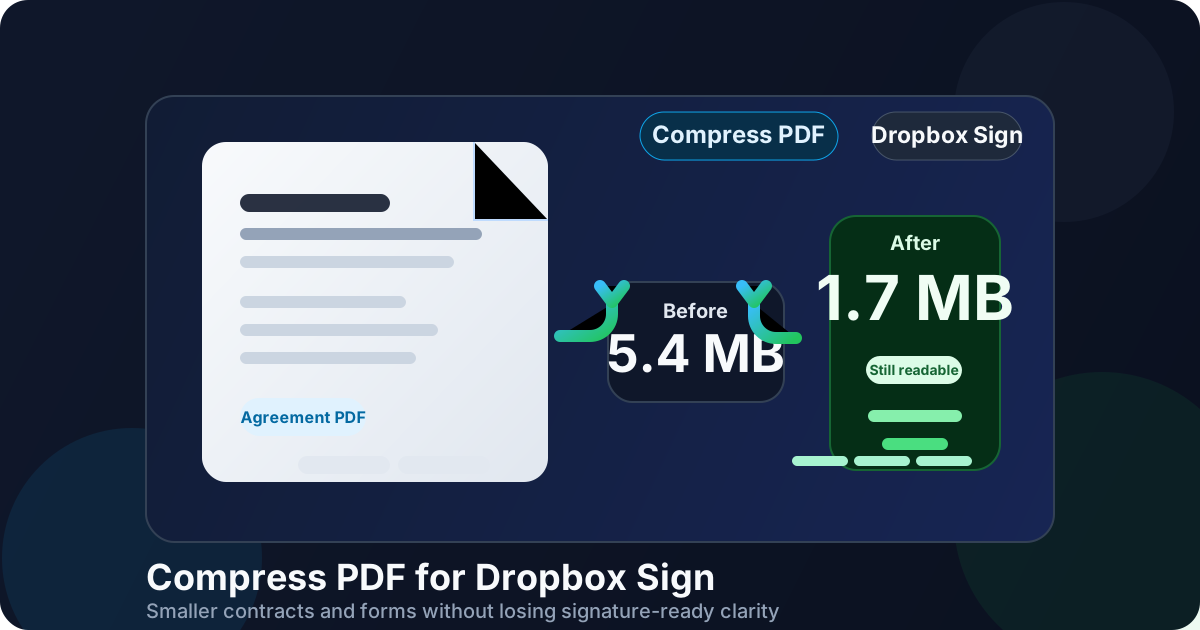
Table of contents
- Quick start: compress a PDF for Dropbox Sign in under 2 minutes
- Why smaller PDFs help in Dropbox Sign workflows
- What file size should you aim for?
- Which compression level should you choose?
- Step-by-step: shrink a Dropbox Sign PDF with LifetimePDF
- Best strategy for common Dropbox Sign file types
- What if the PDF is still too large?
- How to keep signer-facing details readable
- Dropbox Sign, HelloSign, and cleaner workflow habits
- Related LifetimePDF tools and useful internal links
- FAQ (People Also Ask)
Quick start: compress a PDF for Dropbox Sign in under 2 minutes
If your real goal is simply make this PDF smaller so it is easier to send through Dropbox Sign, this workflow is usually enough:
- Open Compress PDF.
- Upload the final contract, agreement, NDA, proposal, onboarding packet, approval form, or scanned PDF you plan to send.
- Choose Medium compression first.
- Download the smaller result and compare the new size with the original.
- Open it once and check the details that matter most: signer names, dates, field labels, checkboxes, initials areas, signature boxes, totals, and any fine print.
- If the file is still heavier than you want, use Delete Pages, Extract Pages, or Crop PDF before trying a stronger compression level.
Why smaller PDFs help in Dropbox Sign workflows
Dropbox Sign documents usually are not casual files. They are contracts, offers, policies, NDAs, approval forms, and signer packets that people need to open quickly and trust immediately. In that kind of workflow, extra file weight rarely adds value. It usually adds delay.
Smaller PDFs upload faster, preview more smoothly, and feel easier to handle on mobile. That matters even more when a file started as a scan, contains image-heavy attachments, or has quietly grown after several rounds of exporting, printing, rescanning, and merging. Compression is useful because it removes drag from the process. The trick is to reduce size without making the document look soft, messy, or risky to sign.
Why compression usually helps
- Faster sending: useful when you are working through multiple agreements or trying to replace a file quickly.
- Better mobile review: many signers first open a PDF on a phone or tablet.
- Cleaner internal handoffs: smaller PDFs are easier for legal, sales, HR, procurement, and operations teams to review before the signature request goes out.
- Less inbox friction: lighter files are easier to store, forward, and archive.
- Better scan behavior: scan-heavy PDFs often carry far more image weight than they need.
What file size should you aim for?
There is no single Dropbox Sign number that fits every document, but a few practical ranges keep you from compressing harder than necessary:
| Document type | Practical target | Why it works |
|---|---|---|
| Text-heavy contract, NDA, or agreement | Under 1MB to 2MB | Usually enough for ordinary signer-facing files that should open and upload quickly |
| Form, offer letter, or proposal | 1MB to 3MB | Leaves room for signatures, checkboxes, and moderate visual content without feeling bulky |
| Scanned packet or image-heavy exhibit bundle | 2MB to 5MB | Keeps scan-heavy pages manageable while protecting small details better than extreme compression |
| Over 5MB | Review and clean first | Usually means extra pages, large borders, repeated scans, or oversized images are adding unnecessary bulk |
These are not rigid rules. They are useful targets that keep the file practical. The real goal is the smallest version that still feels trustworthy when another person opens it.
Which compression level should you choose?
LifetimePDF keeps this simple with Low, Medium, and High compression. The important question is not which option sounds strongest. It is which option lowers file size without making signer-facing details harder to read.
| Compression level | Best for | What to expect |
|---|---|---|
| Low | Already-small text-heavy PDFs | Gentle reduction with very little visual change |
| Medium | Most Dropbox Sign workflows | Best balance of lower size and clean readability |
| High | Bulky scans, image-heavy exhibits, or oversized packets | Stronger reduction, but you should preview the result carefully before sending |
For most people, Medium is the right first move. It usually cuts enough size to make the workflow smoother while keeping dates, signature areas, field labels, and fine print usable. High is more of a rescue option when the source file is genuinely heavy.
Step-by-step: shrink a Dropbox Sign PDF with LifetimePDF
Step 1: Start with the final file
Finish the wording and structural edits first. If the agreement is still changing, or if you still need to remove a page, swap an exhibit, or correct a signer name, do that before compressing anything. The cleanest workflow is to optimize the exact PDF you plan to send.
Step 2: Open the compressor
Go to LifetimePDF Compress PDF and upload the file you want to use in Dropbox Sign. That might be a contract, NDA, proposal, onboarding packet, approval form, or scanned agreement.
Step 3: Start with Medium compression
Medium is the safest default because it usually lowers file size without immediately hurting readability. For clean text-based files, it often solves the problem in one pass.
Step 4: Review the result like a signer will
Open the compressed copy once and inspect the details that actually matter: names, dates, page numbers, signature boxes, initials areas, form labels, totals, and any small clauses or notes. If the document might be opened on a phone first, it is worth checking mobile readability too instead of only glancing at it on desktop.
Step 5: Clean the file instead of crushing it
If the PDF is still too large, stronger compression is not always the smartest next move. Often it is better to remove waste first with Delete Pages, Extract Pages, Crop PDF, or Rotate PDF.
Ready now? Compress the Dropbox Sign file first, then clean or split only if the result still feels heavier than it should.
Best strategy for common Dropbox Sign file types
Not every Dropbox Sign document needs the same treatment. A short agreement behaves very differently from a scan-heavy packet or a proposal with multiple visual pages.
Contracts and NDAs
These usually compress well because they are mostly text. If a simple agreement feels oddly large, the real problem is often a scan, a background image, or repeated export history rather than the text itself. Medium compression is usually enough.
Forms and onboarding packets
These need special attention because field labels, checkboxes, instructions, and initials areas must stay clear. A lighter file is good. A lighter file that makes someone hesitate about where to sign is not.
Proposals and quotes
Proposals often hide their size inside logos, screenshots, full-page cover art, and appendices. Compression helps, but cleanup helps just as much. If some pages do not need to be part of the signer-facing version, remove them first.
Scanned packets and exhibits
This is where file size problems show up most often. Crooked pages, giant borders, grayscale images, and blank backs all add weight without making the file more useful. Clean the scan first whenever possible, then compress the result.
Combined signer packets
If you know the final packet should be one document, use Merge PDF and then compress the finished file once. If some pages are only reference material, separate files are often easier to manage than one oversized bundle.
What if the PDF is still too large?
If one compression pass did not fix the problem, do not assume the next answer is always compress harder. Over-compression is how trustworthy files start looking cheap, fuzzy, or awkward. Cleanup usually works better.
- Too many pages? Remove extras with Delete Pages.
- Only a few pages matter? Keep the useful range with Extract Pages.
- Large scan borders? Trim them with Crop PDF.
- Pages sideways or inconsistent? Fix them with Rotate PDF.
- Need separate support files? Break large packets apart with Split PDF.
A smaller PDF is useful. A smaller PDF that also feels cleaner and more intentional is better. That is why removing the waste first often beats jumping straight to the harshest compression setting.
How to keep signer-facing details readable
The real concern behind compression is not the file-size number. It is the fear that the document will stop looking trustworthy. That concern is fair, but it is manageable if you preview the result and keep the source file sensible.
- Check names, dates, and totals first: those are often the fastest trust signals in a signer workflow.
- Review signature boxes and initials areas carefully: they should stay obvious, not muddy or cramped.
- Watch fine print: legal notes, footers, references, and disclosure text blur sooner than large headings.
- Be extra careful with scans: stamps, handwriting, and faint text often suffer before regular text does.
- Preview at normal zoom: if someone must zoom immediately just to read ordinary content, you probably compressed too hard.
Dropbox Sign, HelloSign, and cleaner workflow habits
Many people still search for HelloSign, while the current product name is Dropbox Sign. For practical PDF prep, the name change does not alter the advice. You still want a file that is compact, readable, and easy for the next person to trust.
It also helps to keep the process simple. Use a clear filename. Keep the signer-facing version focused. Preserve a clean master copy. Compress once, review once, and avoid passing the same file through too many export loops. Small habits like that protect quality better than trying to rescue a messy PDF at the last minute.
- Use a calm filename: something like
Client-Agreement-2026.pdfis better thanfinal-v11-new-scan.pdf. - Keep the packet focused: include only pages that actually belong in the signer workflow.
- Clean file properties when useful: use PDF Metadata Editor before sharing sensitive documents externally.
- Preserve the original: keep the untouched source so later revisions do not stack quality loss onto the same derivative file.
Related LifetimePDF tools and useful internal links
Compressing the PDF is often the main fix, but some Dropbox Sign workflows benefit from one or two supporting tools first. These are the most useful follow-up options:
- Compress PDF - shrink the final file before sending.
- PDF Form Filler - add typed information before the signing step.
- Merge PDF - combine the right pages into one clear packet.
- Extract Pages - keep only the pages that matter.
- Delete Pages - remove blanks, duplicates, and irrelevant inserts.
- Crop PDF - trim scan borders and wasted space.
- Rotate PDF - fix sideways pages before sending.
- PDF Metadata Editor - clean hidden title, author, and keyword fields.
If you want related reading around the same workflow, these guides fit naturally next: Compress PDF for Dropbox Sign: Upload Smaller Contracts and Forms Faster, Compress PDF for Dropbox Sign Without Monthly Fees, Compress PDF for SignNow, Compress PDF for Acrobat Sign, and Compress PDF for DocuSign.
Best workflow for most signer packets: export or assemble a clean PDF, compress it once, preview it once, then send the lighter version.
FAQ (People Also Ask)
1) How do I compress a PDF for Dropbox Sign?
Upload the final PDF to a compressor, start with Medium compression, and keep the smaller copy only if names, dates, field labels, and signature areas still look clear. For most Dropbox Sign workflows, Medium is the safest first step because it reduces size without making the document feel careless.
2) Is Dropbox Sign the same as HelloSign?
Yes. Dropbox Sign is the current name, but many people still use the older HelloSign name. The practical PDF advice is the same either way.
3) What PDF size should I aim for on Dropbox Sign?
Under 2MB is a strong target for most text-heavy contracts and forms. Scan-heavy or image-heavy supporting files can land higher, but staying around 2MB to 5MB usually keeps them easier to upload and review.
4) Will compression hurt signature fields or small legal text?
Usually not if you start with Medium compression and preview the file afterward. The bigger risks are weak scans, tiny text, or source files that already looked rough before you began.
5) Should I compress before or after merging files for Dropbox Sign?
If you already know the final signer packet, merge first and then compress the finished PDF once. If the bundle includes blank pages, duplicate scans, or unnecessary appendices, trim those first so you do not carry avoidable file weight into the final file.
Ready to shrink your Dropbox Sign PDF?
Best workflow: Export clean PDF - Compress - Review - Send.
Published by LifetimePDF - Pay once. Use forever.