Compress PDF for Diib: Keep Website Health Reports, Keyword Snapshots, and Client SEO PDFs Small Without Losing the Fixes That Matter
To compress a PDF for Diib, export the finished report, upload it to LifetimePDF's Compress PDF tool, start with Medium compression, and keep the smaller copy only if the health score cards, keyword tables, chart labels, and action steps still read clearly.
For most Diib PDFs, under 2MB is a good target for short website health summaries, while broader audit exports, ranking snapshots, and client-ready SEO packs usually work best around 2MB to 5MB after light cleanup.
Diib reports are often shared with people who only need the answer, not another login. That could be a business owner checking site health, a client reviewing SEO progress, or a teammate trying to act on the next fixes quickly. Smaller PDFs help because they move faster through email, project tools, and shared folders, but the file still has to feel trustworthy when somebody opens it. The goal is not to crush the document until it is tiny. The goal is to remove weight without stripping away the scores, charts, issue summaries, and notes that make the report useful.
Fastest path: run the Diib export through LifetimePDF's Compress PDF tool on Medium, then do one quick readability check before you send, upload, or archive the smaller version.
Want the shortest version? Jump to Quick start: compress a Diib PDF in under 2 minutes.
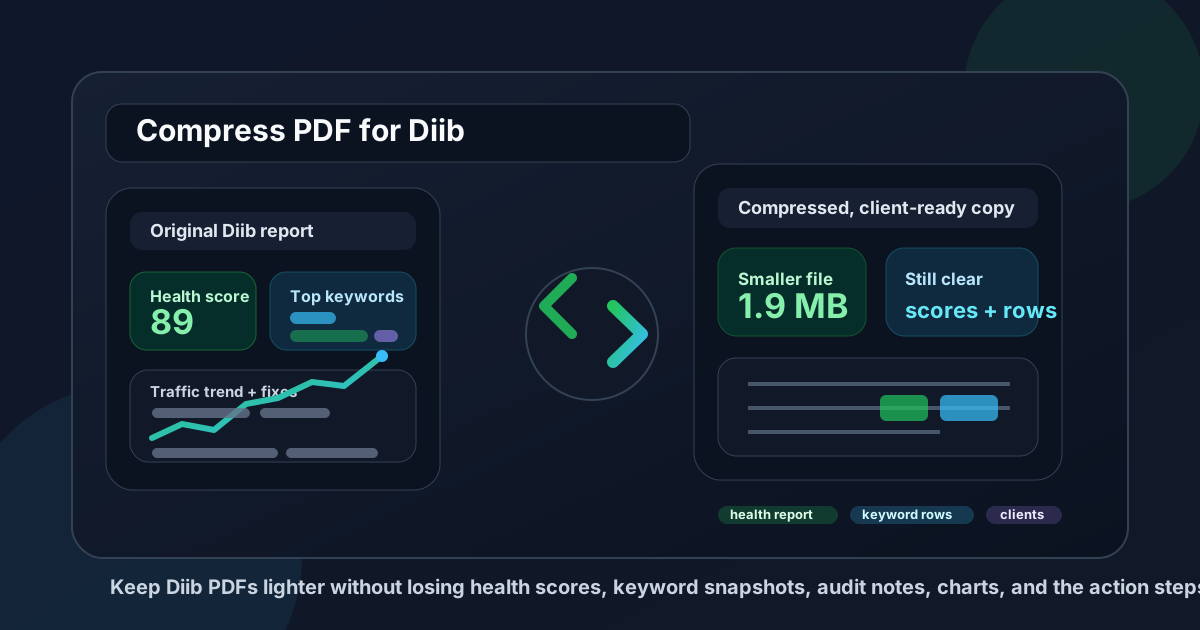
Table of contents
- Quick start: compress a Diib PDF in under 2 minutes
- Why Diib PDFs get heavy faster than expected
- What file size should you aim for?
- Which compression level is safest?
- Step-by-step: shrink a Diib PDF with LifetimePDF
- Best strategy for common Diib PDF types
- What to remove before compressing harder
- How to protect score cards, charts, and keyword rows
- Related LifetimePDF tools and useful internal links
- FAQ (People Also Ask)
Quick start: compress a Diib PDF in under 2 minutes
If your real task is simply make this Diib PDF smaller so it is easier to share, this is the most reliable quick workflow:
- Open Compress PDF.
- Upload the Diib PDF you actually plan to send, whether it is a website health summary, keyword snapshot, audit recap, or monthly client update.
- Start with Medium compression.
- Download the result and compare the new size with the original.
- Open the smaller copy once and check health score blocks, chart legends, keyword rows, issue lists, and recommendations.
- If the file is still bulky, remove appendix pages, extract the summary only, or split the report pack before trying stronger compression.
Why Diib PDFs get heavy faster than expected
Diib PDFs often become larger than they need to be because they are trying to do too many jobs at once. One report might work as a quick client recap, an internal record, a status update for a business owner, and a proof pack for future review. That usually means summary pages, screenshots, issue breakdowns, keyword details, and appendix material all end up in the same file.
Compression helps, but the smartest gains often come from understanding where the extra weight comes from. A score card with a few text summaries is not the problem. The real bulk usually comes from repeated screenshots, large visual sections, multi-audience reporting, or pages that were useful during prep but are no longer necessary in the final handoff.
What usually adds weight in a Diib export
- Screenshot-heavy audit sections: full-page captures add size quickly.
- One file serving several readers: the owner, SEO lead, and account manager often need different depths of detail.
- Repeated branding or cover pages: polished presentation is fine, but duplicates quietly inflate the file.
- Long issue appendices: useful for reference, but not always needed in the final shared copy.
- Archived comparison pages: keeping too much historical context in one PDF makes the document heavier without making it clearer.
What file size should you aim for?
A useful target depends on what the PDF is supposed to do after it leaves Diib. These ranges work well for most real-world sharing workflows:
| Diib PDF type | Good target | Why it works |
|---|---|---|
| Short website health summaries, quick score updates, and stakeholder recaps | < 1MB to 2MB | Usually small enough for smooth email delivery without sacrificing the main message |
| Keyword snapshots, ranking updates, and standard client SEO reviews | 2MB to 5MB | Leaves room for charts, score blocks, notes, and a few screenshots while staying manageable |
| Audit-heavy or screenshot-heavy report packs | Up to about 5MB or a little more | Reasonable if the smallest useful labels, issue notes, and proof screenshots still need to stay sharp |
| Over 5MB | Usually needs cleanup before stronger compression | That often means the file includes appendix pages, duplicated proof, or too many sections for one audience |
The key is to aim for the smallest file that still feels easy to trust. If a client needs to zoom in just to confirm what changed, the PDF may be lighter, but it is not better.
Which compression level is safest?
For most Diib PDFs, Medium compression is the best starting point. It usually reduces size enough to matter while keeping health scores, labels, keyword detail, and notes readable.
| Compression level | Best for | Watch out for |
|---|---|---|
| Low | Already-clean PDFs where preserving every small detail matters more than aggressive size reduction | May not solve the problem if the real issue is repeated screenshots or too many appendix pages |
| Medium | Most Diib exports, including health reports, keyword snapshots, and client-ready updates | The safest default, but still preview the small text areas before sending |
| High | Fallback for image-heavy files where delivery limits are strict | Can soften chart labels, dense keyword rows, and issue summaries faster than expected |
Step-by-step: shrink a Diib PDF with LifetimePDF
- Open Compress PDF.
- Upload the Diib export you want to make smaller.
- Select Medium compression.
- Download the compressed version.
- Review the weak spots first: health score blocks, chart legends, keyword rows, issue counts, screenshot callouts, and next-step notes.
- If the file is still heavier than it should be, use Delete Pages, Split PDF, or Crop PDF before trying stronger compression again.
That one review pass matters because the trouble rarely shows up in the big headline text. It shows up in the small pieces people still need later, like chart labels, keyword rows, issue summaries, and recommendation notes.
Good workflow: compress first, then decide whether the file also needs page cleanup, metadata cleanup, or a split by audience.
Best strategy for common Diib PDF types
1) Website health summaries
These usually compress well because they are built around score cards, top issues, and short recommendations. Medium compression is often enough, and your main job is to make sure the health score and summary text still read cleanly at normal zoom.
2) Keyword snapshots and ranking updates
These are more sensitive because the value lives in the small details. If rows, movement indicators, or column labels start to blur, keep the file a little larger rather than sacrificing the usefulness of the report.
3) Audit recaps with screenshots
Screenshot-heavy PDFs often benefit more from trimming than from stronger compression. If half the document exists only as proof pages, consider extracting the executive summary and keeping the proof pack as a separate file.
4) Client-ready monthly SEO packs
These often carry extra pages because everyone wants the file to feel polished and complete. That is fine, but completeness and bulk are not the same thing. Keep the key narrative in the main PDF, and move low-priority appendix material into a separate attachment if necessary.
What to remove before compressing harder
If one pass at Medium does not get the file where you need it, do not immediately jump to the strongest setting. Clean the document first:
- Remove repeated cover pages and duplicate screenshots with Delete Pages.
- Extract only the summary or action pages with Extract Pages.
- Split one giant report into a short shareable version and a supporting appendix with Split PDF.
- Crop oversized margins around screenshots with Crop PDF.
- Merge only the supporting documents you truly want in the final packet with Merge PDF.
In practice, oversized Diib PDFs are often a packaging problem rather than a compression problem. A cleaner source almost always produces a better final file.
How to protect score cards, charts, and keyword rows
Before you send the smaller copy, do a quick readability pass on the details that carry meaning:
- Health score cards and summary numbers
- Chart legends, labels, and date ranges
- Keyword rows and any movement indicators
- Issue counts, fix lists, and short explanations
- Screenshot callouts and highlighted problem areas
- Action notes and next-step recommendations
Related LifetimePDF tools and useful internal links
Compressing a Diib export is usually part of a broader reporting workflow. These tools pair well with it:
- Compress PDF - shrink the file before sharing
- Split PDF - separate the executive summary from the appendix
- Extract Pages - keep only the pages the next reader needs
- Delete Pages - remove stale or duplicate report pages
- Crop PDF - trim wasted margins around screenshots
- Merge PDF - combine only the final pieces you want to send
- PDF Metadata Editor - clean up hidden title and author fields before client delivery
- Compare PDFs - useful when reporting rounds change and you want to verify what moved
Suggested internal reading
- Compress PDF for Diib: Share Smaller SEO Reports, Site Audit Exports, and Client PDFs Faster
- Compress PDF for Diib Without Monthly Fees
- Compress PDF for Ahrefs
- Compress PDF for Moz Pro
- Compress PDF for Google Search Console
- Compress PDF for SE Ranking
- How to Reduce PDF File Size for Email
- Compare PDF Versions Online
- Browse all LifetimePDF articles
Ready to shrink your Diib PDF?
Best workflow: Export the final Diib PDF - Compress - Review the small text areas - Trim or split if needed - Share the cleaner copy.
FAQ (People Also Ask)
1) How do I compress a PDF for Diib?
Export the Diib report as a PDF, upload it to a PDF compressor, start with Medium compression, and preview the smaller result before you send it or archive it. Medium is usually the best first pass because it reduces size while keeping score cards, chart labels, keyword rows, and recommendations readable.
2) What file size should I aim for before sharing a Diib report?
A strong target is under 2MB for short website health summaries and quick stakeholder updates. For fuller audit exports, ranking snapshots, and client-ready SEO packs, 2MB to 5MB is usually more realistic.
3) Will compression make Diib charts or keyword tables blurry?
It can if you compress too aggressively. That is why Medium compression is the safest place to start. Always review chart labels, keyword rows, issue summaries, and notes before keeping the compressed copy.
4) Should I split a large Diib PDF instead of compressing it harder?
Often, yes. If one file includes the executive summary, screenshot proof, keyword details, and appendix material for several readers, splitting it usually works better than forcing stronger compression across the entire report.
5) Which LifetimePDF tools pair best with Diib exports?
Compress PDF is the main starting point. Split PDF, Extract Pages, Delete Pages, Crop PDF, Merge PDF, PDF Metadata Editor, and Compare PDFs all help create smaller, cleaner, client-ready Diib PDFs.
Published by LifetimePDF - Pay once. Use forever.