Compress PDF for Deel: Keep Contracts, Invoices, and Onboarding Files Small Without Losing the Details
To compress a PDF for Deel, upload the final contract, invoice, onboarding packet, tax form, or ID-related support file to LifetimePDF's Compress PDF tool, start with Medium compression, and keep the smaller copy only if names, dates, totals, signature blocks, and fine print still look clear.
For most text-heavy Deel uploads, under 2MB is a strong target, while scan-heavy IDs, tax bundles, and image-based packets usually work best around 2MB to 5MB.
Deel paperwork gets heavy for very ordinary reasons. Contracts collect addenda, invoices pick up backup pages, onboarding packets turn into mixed exports and scans, and tax documents often arrive from older systems or phone cameras. The goal is not to crush every PDF into the tiniest number possible. The goal is to make the file lighter while keeping the parts that finance, HR, legal, payroll, or the contractor still need to trust.
Fastest path: run the Deel-ready file through LifetimePDF's Compress PDF tool at Medium, then use OCR, page cleanup, or splitting only if the PDF still carries more weight than the workflow actually needs.
In a hurry? Jump to Quick start: compress a Deel PDF in about 2 minutes.
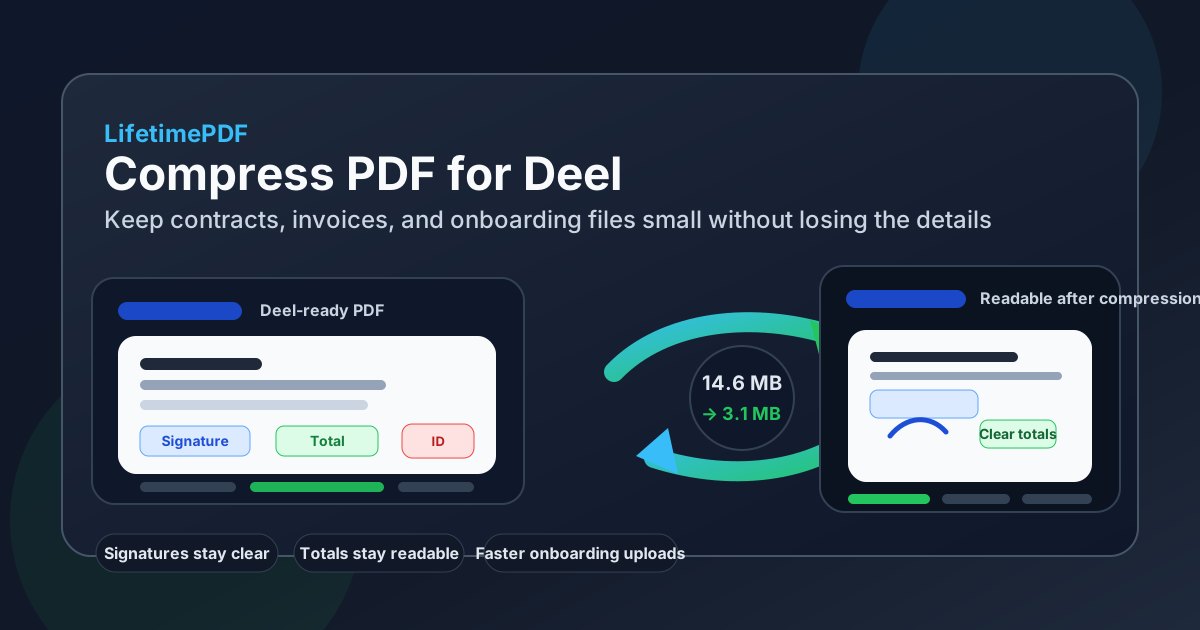
Table of contents
- Quick start: compress a Deel PDF in about 2 minutes
- Why smaller PDFs help in Deel workflows
- What file size should you aim for?
- Which compression level should you choose?
- Step-by-step: shrink a PDF for Deel
- Best approach for common Deel PDFs
- What to do if the PDF is still too large
- How to keep important details readable
- Workflow habits that prevent PDF bloat
- Related LifetimePDF tools and guides
- FAQ (People Also Ask)
Quick start: compress a Deel PDF in about 2 minutes
If your real goal is simply make this PDF smaller so it is easier to use in Deel, this workflow is usually enough:
- Save the final contract, invoice, onboarding packet, tax form, statement of work, or support PDF you actually plan to use.
- Open Compress PDF.
- Upload the file and choose Medium compression first.
- Download the smaller result and compare the new size.
- Preview the weak spots: names, dates, totals, signatures, tax numbers, and any faint scanned text.
- If the file is still bulky, run OCR PDF, crop empty borders, remove duplicate pages, or split one oversized packet before trying stronger compression.
Why smaller PDFs help in Deel workflows
Deel often sits in the middle of documents people genuinely care about: contractor agreements, statements of work, invoice PDFs, onboarding packets, tax forms, signed acknowledgements, and proof documents that need to move cleanly through an admin process. These are not throwaway files. They are review documents, approval documents, payment documents, and record-keeping documents.
When those PDFs get bloated, the friction shows up everywhere. Uploads feel slower, previews feel clumsier, mobile review becomes annoying, and resend cycles take longer than they should. Compression helps because it strips away unnecessary weight. Just as important, it forces one useful question: does this packet actually need every page that is currently inside it?
What usually adds weight to Deel PDFs
- Scan-heavy pages: phone photos, ID scans, signed printouts, and tax forms exported as images.
- Mixed document bundles: one upload quietly collects instructions, covers, appendices, and backup that the workflow no longer needs.
- Repeated save cycles: PDFs exported, reprinted, rescanned, and resaved tend to grow in messy ways.
- Uncropped borders and blank pages: scan waste adds file size without adding value.
- Oversized onboarding packets: a single file tries to do too many jobs at once.
What file size should you aim for?
There is no single perfect size for every Deel upload, so practical ranges are more useful than chasing the smallest number possible. You want a PDF that uploads cleanly, opens quickly, and still looks professional when somebody reviews it later.
| Document type | Practical target | Why it works |
|---|---|---|
| Text-heavy contract, invoice, or ordinary form | < 1MB to 2MB | Usually enough for fast uploads while keeping legal text, line items, and signatures clear |
| Onboarding packet or tax-form bundle | 2MB to 4MB | Gives more room for mixed layouts and multi-page packets without making the file awkward |
| ID scan or image-heavy support PDF | 2MB to 5MB | Leaves enough quality for scan detail, stamps, and faint text to stay readable |
| Oversized record packet | Split it instead of forcing one number | If unrelated sections travel together, structure cleanup usually beats harsher compression |
If a basic contract or invoice still feels heavy after one medium pass, the next move is usually not stronger compression. It is checking for duplicate pages, blank scans, uncropped margins, or pages the workflow does not actually need.
Which compression level should you choose?
Compression works best when you match the level to the document. The safest default for Deel files is still Medium, but there are times when lighter or stronger settings make sense.
| Compression level | Best use | Watch out for |
|---|---|---|
| Low | Contracts, signed forms, or documents that are already fairly small | You may not save enough size to solve the upload problem |
| Medium | Best default for contracts, invoices, onboarding forms, and mixed document bundles | Still review fine print, tax numbers, and small signature areas once |
| High | Only when the PDF is still too heavy after cleanup or when it is a secondary convenience copy | Small text, faint scans, or ID details may degrade faster than you expect |
Step-by-step: shrink a PDF for Deel
Here is the cleanest order for most Deel-related uploads:
- Identify the final PDF you actually need, not the largest working binder.
- Open Compress PDF.
- Upload the file and begin with Medium compression.
- Download the smaller copy and compare the file size improvement.
- Check legal names, dates, totals, signature blocks, tax numbers, and the faintest page once.
- If the PDF is still too large, use Crop PDF, Delete Pages, Split PDF, or OCR PDF before you try stronger compression.
The mistake people make is compressing over and over without changing the document itself. If the real problem is extra pages, fat scan borders, or a packet that should have been split, stronger compression only hides the symptom.
Best approach for common Deel PDFs
Different files need slightly different habits. One compression setting does not behave the same way across contracts, invoices, and scan-heavy support documents.
Contracts and statements of work
These are usually text-first documents, so medium compression often works very well. Review legal names, dates, payment terms, signature blocks, and any tiny clause text before replacing the original.
Invoices and payment support PDFs
Keep an eye on totals, invoice numbers, bank or tax references, and line-item readability. If the invoice bundle includes backup pages that no reviewer needs, trim them out before compressing the final packet.
Onboarding packets
These files get heavy fast because they often combine forms, signed acknowledgements, screenshots, and old scans. If one packet mixes unrelated sections, splitting it into cleaner parts often works better than forcing the entire bundle smaller.
Tax forms and compliance paperwork
These documents can contain small boxes, faint print, and image-based pages that do not forgive harsh compression. If the source is an old scan, run OCR first so text becomes more searchable and the file is easier to review.
ID scans and supporting proof documents
Crop empty borders, rotate crooked pages, and avoid jumping straight to high compression. Image-heavy files often benefit more from cleanup than from aggressive shrinking.
What to do if the PDF is still too large
If the PDF remains bulky after a normal compression pass, there are better fixes than simply turning the setting up again:
- Delete blank or repeated pages: duplicated covers and empty scans quietly add weight.
- Crop wasted margins: big white borders or phone-camera backgrounds are unnecessary image data.
- OCR old scans: searchable text often behaves better than image-only pages.
- Split one giant packet: if the upload combines unrelated forms, separate them into cleaner PDFs.
- Merge only the final set: if you are combining files, do it once at the end instead of repeatedly rebuilding the packet.
In other words, if a file is structurally messy, fix the structure. Compression is strongest when the PDF already contains only the pages people actually need.
How to keep important details readable
Before you trust the compressed copy, zoom in on the parts that would cause real trouble if they blurred. That review takes seconds and avoids a lot of avoidable back-and-forth later.
- Legal names and business names
- Dates and effective dates
- Invoice totals and invoice numbers
- Signature blocks and initials
- Tax numbers or form fields
- Faint stamps, scan edges, or ID details
- Tiny footnotes or clause text
Workflow habits that prevent PDF bloat
A few habits make future Deel uploads cleaner before compression even starts:
- Export once from the cleanest source you have. Reprinting and rescanning usually makes the file heavier and uglier.
- Remove pages nobody needs. The cleanest upload is often the shortest useful one.
- Keep scans straight and tightly cropped. Cleaner input gives better compression output.
- Merge intentionally. Do not build one giant packet unless the workflow truly needs one giant packet.
- Use OCR when a document started on paper. It helps both readability and later searchability.
These habits matter because Deel-related documents tend to repeat across onboarding, payroll, contracts, renewals, invoice support, and compliance follow-up. A cleaner PDF workflow pays you back every time the next upload appears.
Related LifetimePDF tools and guides
Compression is usually the first move, but not always the only one. These tools pair especially well with Deel-ready PDFs:
- Compress PDF — the main starting point for shrinking contracts, invoices, and onboarding files.
- OCR PDF — useful for older scans, tax forms, and image-only support pages.
- Split PDF — best when one oversized packet should really be two smaller uploads.
- Crop PDF — trims wasted scan borders and phone-camera background space.
- Delete Pages — removes repeated covers, blanks, and unneeded appendix pages.
- Merge PDF — combine only the files that genuinely belong together.
Ready to clean the file up? Start with the compressor, then use OCR or page cleanup only if the PDF still feels heavier than the workflow needs.
FAQ (People Also Ask)
How do I compress a PDF for Deel?
Open a PDF compressor, upload the Deel-ready file, start with Medium compression, and review the smaller result before you use it. For most contracts, invoices, onboarding forms, and tax documents, Medium gives the best balance between file size and readability.
What file size should I aim for before uploading a PDF to Deel?
Under 2MB is a strong target for text-heavy contracts, invoices, and standard forms. Scan-heavy IDs, tax-form bundles, and image-based onboarding packets often work better around 2MB to 5MB as long as names, totals, signatures, and fine print still look clear.
Will compression hurt signatures, totals, or ID details?
It can if you compress too aggressively. That is why Medium compression is usually the safest first pass. Always zoom in on signature blocks, invoice totals, tax numbers, dates, and any faint scan detail before keeping the compressed file.
Should I compress before or after merging files for Deel?
If you already know the final packet, merge first and compress the finished PDF once. If the file is heavy because it contains unnecessary pages, remove those pages first so you are not compressing avoidable weight.
What if my onboarding packet is still too large after compression?
Split unrelated sections, crop empty scan borders, delete blank pages, OCR image-only scans, or extract only the required forms. Structural cleanup usually protects readability better than pushing the strongest compression setting across the whole packet.