Compress PDF for CEIPAL: Keep Resumes, Recruiter Submissions, and Supporting PDFs Small Without Losing Clarity
To compress a PDF for CEIPAL, upload your final resume, CV, recruiter submission, certification, transcript, or supporting document to LifetimePDF's Compress PDF tool, start with Medium compression, and keep the smaller copy only if names, dates, headings, bullet points, and contact details still look clear.
For most CEIPAL workflows, aim for under 2MB for resumes and cover letters, and roughly 2MB to 5MB for certifications, transcripts, recruiter packets, or other scan-heavy supporting PDFs.
CEIPAL-related document uploads are usually easy until one oversized PDF slows everything down. Maybe your resume export picked up bloated fonts or images, maybe a recruiter asked for a combined submission packet, or maybe a transcript scan is carrying far more weight than the actual content deserves. The goal is not the tiniest file possible. It is a smaller PDF that still looks trustworthy when a recruiter, account manager, or hiring team opens it.
Fastest path: run the CEIPAL file through LifetimePDF's Compress PDF tool on Medium, then do one quick readability check before uploading the lighter copy.
Need the short version? Jump to Quick start: compress a PDF for CEIPAL in under 2 minutes.
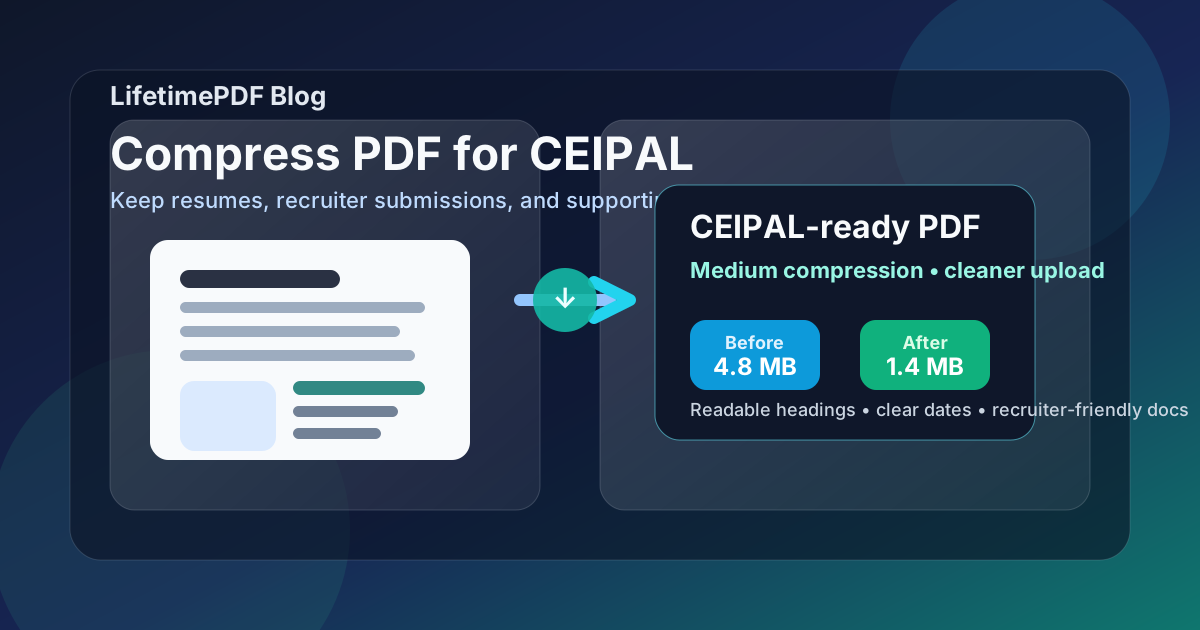
Table of contents
- Quick start: compress a PDF for CEIPAL in under 2 minutes
- Why smaller PDFs help in CEIPAL workflows
- What file size should you aim for?
- Which compression level should you choose?
- Step-by-step: shrink a CEIPAL PDF with LifetimePDF
- Best strategy for common CEIPAL file types
- What if the PDF is still too large?
- How to keep CEIPAL files readable and ATS-friendly
- Privacy and document-cleanup habits before you upload
- Related LifetimePDF tools and useful internal links
- FAQ (People Also Ask)
Quick start: compress a PDF for CEIPAL in under 2 minutes
If your real goal is simply make this PDF smaller so the CEIPAL upload or recruiter submission goes through cleanly, this workflow is usually enough:
- Open Compress PDF.
- Upload the final resume, CV, cover letter, transcript, certification, or supporting PDF you plan to submit.
- Choose Medium compression first.
- Download the smaller result and compare the new size with the original.
- Open it once and check the details that matter most: your name, contact info, section headings, dates, bullet points, links, and any fine text inside certifications or transcripts.
- If the file is still heavier than you want, use Extract Pages, Delete Pages, or Crop PDF before trying a stronger compression setting.
Why smaller PDFs help in CEIPAL workflows
CEIPAL sits in the middle of fast-moving recruiting work. A candidate profile might be updated for several roles, a recruiter may want a fresh resume copy, or supporting documents may need to be added after the first conversation. In that kind of workflow, bloated PDFs create friction far out of proportion to the actual problem.
Smaller files upload faster, re-upload faster, and are easier to pass between recruiters, hiring teams, and internal reviewers. They also reduce the odds that a scan-heavy transcript, certification, or bundled submission packet becomes the annoying part of an otherwise simple update. Compression is not only about saving space. It is a way to remove pointless technical drag from a process that already has enough moving parts.
- Faster recruiter submissions: lighter PDFs are easier to attach, preview, and move through profile updates.
- Smoother repeat applications: a smaller base resume is easier to reuse when tailoring for multiple openings.
- Cleaner supporting files: transcripts, certifications, right-to-work documents, and portfolio samples often carry wasted scan weight.
- Lower risk of awkward previews: smaller well-made PDFs tend to open more predictably than oversized messy exports.
What file size should you aim for?
There is no single magic CEIPAL file-size rule that fits every employer or recruiter workflow. Still, practical targets help because they keep you from compressing too lightly or crushing a document harder than necessary.
- Resume or CV: under 2MB is a strong default target.
- Cover letter: usually well under 1MB, often much lower.
- Certification or transcript: roughly 2MB to 5MB is often reasonable if the document includes fine text or scan-based pages.
- Combined recruiter packet: try to stay as lean as possible without making the smallest text, logos, signatures, or table lines look soft.
The right question is not How small can I force this? It is What is the smallest version that still looks professional the moment someone opens it? That mindset usually leads to better uploads than chasing an arbitrary number.
Which compression level should you choose?
For most CEIPAL documents, Medium compression is the right starting point. It usually removes enough weight to make uploads easier while keeping text sharp enough for recruiters and ATS parsing.
| Compression level | Best for | Watch out for |
|---|---|---|
| Low | Already-clean text PDFs that only need a modest size drop | You may not save enough size to matter |
| Medium | Most resumes, CVs, cover letters, and standard supporting files | Still review links, headings, and fine text once |
| High | Bulky scans or oversized supporting PDFs that still need help after cleanup | Fine lines, seals, signatures, or tiny text can start to look soft |
If your file started as a good text-based PDF, Medium compression is usually enough. If it started as a scan or a PDF built from screenshots, cleanup matters just as much as the compression level itself.
Step-by-step: shrink a CEIPAL PDF with LifetimePDF
- Start with the final version. Compress the actual file you plan to send, not an older draft you will re-export later.
- Open LifetimePDF's compressor. Go to Compress PDF.
- Upload the document. This could be a resume, cover letter, recruiter packet, certification, transcript, or combined supporting PDF.
- Choose Medium first. It is the safest default for readability and size balance.
- Download and review. Check names, dates, bullet points, links, line spacing, and any text inside certificates or transcripts.
- Only escalate if needed. If the file is still larger than it should be, clean it up first, then test stronger compression.
Best strategy for common CEIPAL file types
Resume or CV
These files should usually stay crisp and compact. If your resume is much larger than expected, the problem is often an export setting, embedded images, or a design-heavy template rather than the text itself. Medium compression is normally enough.
Cover letter
Cover letters are usually light unless they were exported from a tool that baked in unnecessary graphics or unusual fonts. A clean PDF export plus light or medium compression is often all you need.
Certifications and licenses
These are common troublemakers because they often come from scans, screenshots, or photo-based exports. Keep seals, expiration dates, license numbers, and issuing-body details clear. If those look fuzzy, the file is too compressed.
Transcripts and multi-page records
Transcripts can stay larger than resumes without being a problem, but they should not carry blank pages, crooked scans, or giant white borders. Clean first, then compress. If only a few pages matter, extracting those pages often helps more than forcing harsher compression.
Recruiter submission packets
Sometimes the CEIPAL workflow involves a combined packet with a resume, summary, skills matrix, or extra supporting pages. In those cases, structure matters. Use Merge PDF only after each component file already looks clean, and remove duplicate or unnecessary pages before combining everything.
What if the PDF is still too large?
If Medium compression did not get you where you need to be, do not jump straight to crushing the entire document. First remove the waste that is inflating the file.
- Delete blank pages or irrelevant appendices with Delete Pages.
- Pull only the pages that actually matter with Extract Pages.
- Trim huge scan borders with Crop PDF.
- Re-export Word-based files through Word to PDF if the original PDF came out bloated.
- Use OCR PDF when a scan should become more searchable before the final save.
That sequence usually gives a better result than immediately applying the harshest compression setting to a messy source file.
How to keep CEIPAL files readable and ATS-friendly
Compression rarely breaks ATS readability on its own when the source document is already well made. The bigger risks are image-based resumes, unusual layouts, screenshot text, and decorative design choices that were fragile from the start.
- Keep real selectable text whenever possible.
- Use simple section headings and normal bullet points.
- Check that links still work and are visibly readable.
- Avoid turning a text resume into a flattened image export.
- Preview the compressed file at normal zoom, not only zoomed way in.
If a recruiter or ATS will be scanning the document quickly, clarity beats visual cleverness. A smaller plain PDF that opens cleanly is usually the stronger choice.
Privacy and document-cleanup habits before you upload
Job-application PDFs often carry more than the visible page shows. Hidden metadata, extra pages, and old revision exports can all travel with the file if you never clean them up.
- Remove extra pages that a recruiter or employer did not ask for.
- Check PDF properties and metadata if the file came from a template or shared computer.
- Use Remove PDF Metadata or PDF Metadata Editor when you want a cleaner final copy.
- Make sure filenames are professional and easy to understand.
Good document hygiene matters because CEIPAL files often move through several hands. A cleaner PDF is easier to trust and easier to reuse.
Related LifetimePDF tools and useful internal links
If you are building a CEIPAL-ready file set rather than fixing only one oversized PDF, these tools are the most helpful companions:
- Compress PDF for the final size reduction.
- Word to PDF for cleaner resume exports.
- Merge PDF for recruiter packets or bundled supporting documents.
- Extract Pages and Delete Pages for trimming what does not belong.
- Crop PDF and OCR PDF for scan cleanup.
- Remove PDF Metadata for cleaner sharing.
Ready to fix the file now? Start with the compressor, then use the supporting tools only if the PDF still needs cleanup.
FAQ (People Also Ask)
How do I compress a PDF for CEIPAL?
Upload the PDF to a compressor, start with Medium compression, and keep the smaller copy only if names, dates, headings, links, and contact details still look clear. For most CEIPAL documents, that gives the best balance between file size and readability.
What PDF size should I aim for on CEIPAL?
Under 2MB is a strong target for resumes and cover letters. Certifications, transcripts, and other scan-heavy supporting PDFs can reasonably land around 2MB to 5MB if that keeps fine text and important details intact.
Will compression hurt ATS readability in CEIPAL?
Usually not if you start with Medium compression and your source file already contains real selectable text. The bigger ATS risk is a PDF built from screenshots, scans, or decorative layouts instead of a clean text-based document.
Should I upload one combined PDF or separate files in CEIPAL?
Follow the structure of the workflow you are using. If the CEIPAL application or recruiter portal gives you separate upload fields, separate files are usually cleaner than one oversized combined packet.
Which LifetimePDF tools pair best with CEIPAL uploads?
Compress PDF is the main starting point. Word to PDF, Merge PDF, Extract Pages, Delete Pages, Crop PDF, OCR PDF, Remove PDF Metadata, and PDF Metadata Editor are the most useful supporting tools when you want smaller, cleaner CEIPAL files.