Compress PDF for BuzzStream: Keep Outreach Reports, Prospect Reviews, and Client PDFs Small Without Losing the Details
To compress a PDF for BuzzStream, export the final BuzzStream file, upload it to LifetimePDF's Compress PDF tool, start with Medium compression, and keep the smaller copy only if prospect names, domains, stage labels, screenshots, and notes still read clearly.
For most BuzzStream PDFs, under 2MB is a strong target for quick prospect reviews and campaign updates, while broader outreach recaps, screenshot-heavy client deliverables, and appendix-heavy exports usually feel best around 2MB to 5MB after light cleanup.
BuzzStream PDFs usually show up at the exact moment outreach work needs to become portable. A strategist wants a review copy, an account manager needs a client-ready recap, or a teammate just wants the shortlist and next steps without digging through the platform. The goal is not the tiniest file possible. The goal is a smaller PDF that still keeps the rows, stages, commentary, and proof clear enough for somebody else to act on it with confidence.
Fastest path: run the BuzzStream export through LifetimePDF's Compress PDF tool on Medium, then do one quick readability check before you email, upload, archive, or attach the smaller copy to a client update.
Want the shortest version? Jump to Quick start: compress a BuzzStream PDF in about 2 minutes.
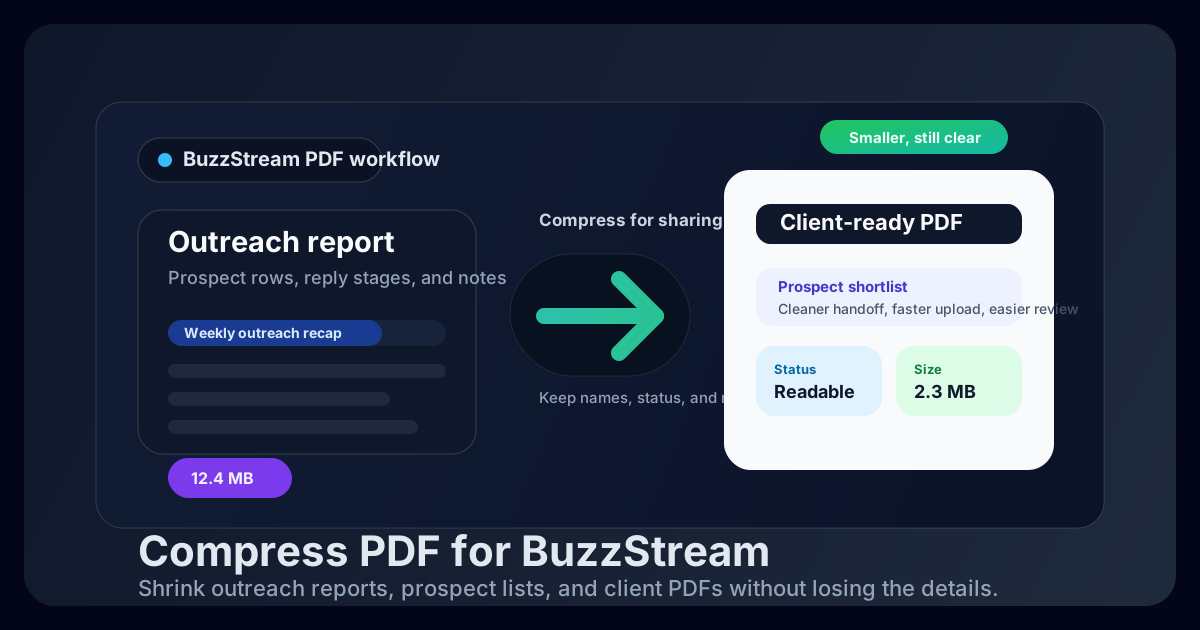
Table of contents
- Quick start: compress a BuzzStream PDF in about 2 minutes
- Why BuzzStream PDFs get heavy so quickly
- What file size should you aim for?
- Which compression level should you choose?
- Step-by-step: shrink a BuzzStream PDF with LifetimePDF
- Best strategy for common BuzzStream PDF types
- When to split instead of compressing harder
- How to protect prospect rows, notes, and screenshots
- Workflow habits that keep BuzzStream exports cleaner
- Related LifetimePDF tools and useful reading
- FAQ (People Also Ask)
Quick start: compress a BuzzStream PDF in about 2 minutes
If your real goal is simply make this BuzzStream PDF smaller so it is easier to send, review, and archive, this workflow is usually enough:
- Open Compress PDF.
- Upload the exact BuzzStream file you plan to share, such as an outreach report, prospect review, campaign summary, or client-facing recap.
- Choose Medium compression first.
- Download the smaller result and compare the new size with the original.
- Open it once and check the weak spots: prospect names, website URLs, stage labels, reply notes, screenshots, and summary comments.
- If the PDF is still bulkier than it should be, extract the summary pages, split the appendix, or crop wasted margins before you try stronger compression.
Why BuzzStream PDFs get heavy so quickly
BuzzStream exports rarely become large because anything is broken. They get large because outreach reporting naturally piles detail into one place. Prospect tables are wide. Notes stretch longer than expected. Screenshots sneak in. Client-facing commentary sits next to internal context. One useful PDF slowly turns into a document that tries to answer every question for every audience.
That is why compression helps, but editing discipline helps too. A smaller PDF matters. A focused PDF often matters more. If the next reader only needs the shortlist, send the shortlist. If the client needs the narrative plus a few proof pages, do not bury that inside a full internal appendix unless they actually asked for it.
Where the weight usually comes from
- Long prospect tables: names, domains, status labels, and notes add real value, but they also add density.
- Screenshot-heavy recaps: email examples, placement proof, and campaign snapshots make the file larger very quickly.
- Multi-audience reports: a strategist, an outreach specialist, and a client rarely need the exact same level of detail.
- Appendix creep: older rounds, duplicate screenshots, and raw exports quietly turn simple updates into bulky attachments.
- Decorative pages: covers, dividers, and extra branding are fine in moderation, but they add size faster than most people expect.
What file size should you aim for?
The right target depends on what happens next. A file going to email, Slack, or a client portal has a different sweet spot than one staying in your internal archive.
| BuzzStream PDF type | Good target | Details you should protect |
|---|---|---|
| Short prospect review or internal handoff | Under 2MB | Names, domains, stage labels, and next-step notes |
| Campaign summary or weekly outreach update | 2MB to 4MB | Summary commentary, status changes, screenshots, and action items |
| Client-facing recap with screenshots or appendix pages | 2MB to 5MB | Proof pages, notes, visuals, and the smallest useful labels |
| Over 5MB | Review the structure | Often a sign the file is trying to do too many jobs at once |
Which compression level should you choose?
For BuzzStream exports, the safest answer is usually simple:
- Medium compression: the best first choice for most BuzzStream PDFs because it balances file-size reduction and readability.
- Low compression: useful when the export is already fairly lean and only needs a small cleanup pass.
- High compression: worth trying only when the PDF is still too large after trimming extra pages or splitting the appendix.
The details that usually break first are not the big headings. They are the small things people rely on to make decisions: prospect names, domain labels, stage columns, timestamps, screenshots, and short notes. That is why Medium is such a strong default here.
Step-by-step: shrink a BuzzStream PDF with LifetimePDF
- Export the final file you actually plan to share. Avoid compressing a rough internal dump if you already know the final reader only needs the cleaned-up version.
- Open Compress PDF.
- Choose Medium compression first. Start from the balanced option before trying anything stronger.
- Download the compressed result. Compare the file size with the original so you know whether the reduction was meaningful.
- Review the risky details once. Check prospect rows, stage labels, domains, notes, screenshots, and short commentary blocks.
- Trim or split only if needed. If the file is still heavier than it should be, use Extract Pages, Delete Pages, or Split PDF before compressing harder.
Best strategy for common BuzzStream PDF types
Prospect review PDFs
These are often the easiest files to shrink, but they still depend on row clarity. If contact names, domains, or stage labels become muddy, the file loses most of its value immediately. Medium compression is usually enough.
Campaign status updates
These usually mix summary commentary with a few supporting tables or screenshots. They compress well, especially if you keep only the current round instead of carrying forward every historical section.
Client-ready recaps
These tend to grow because they combine narrative pages, performance proof, prospect examples, and screenshots. Compression helps, but separating the executive summary from the raw appendix often helps more. One short narrative PDF and one backup appendix usually work better than one oversized file trying to do both jobs.
Internal review packs
If one PDF covers every prospect, every stage, and every note, the smartest move is often to split by audience or decision type instead of forcing heavier compression across the whole file.
When to split instead of compressing harder
Stronger compression is not always the smart next move. In many BuzzStream workflows, splitting produces a cleaner result than forcing the entire file smaller.
- Split when audiences differ: internal notes and external client summaries do not always belong in the same PDF.
- Split when screenshots dominate size: proof pages and examples can live in a separate attachment.
- Split when only one section matters: send the current campaign snapshot instead of a cross-account export.
- Split when archive needs differ from delivery needs: keep the full export internally and send the lighter decision-ready version externally.
If you already know the next reader only needs the top-line result, splitting is usually the faster and cleaner fix.
How to protect prospect rows, notes, and screenshots
The biggest risk with BuzzStream PDFs is not the file staying a little large. It is losing the exact details that explain who was contacted, what stage the campaign is in, and why the update should be trusted.
- Check small text at normal zoom: if names, domains, or stage columns already feel strained, the compression was too aggressive.
- Review screenshots closely: tiny proof images and labels blur before headings do.
- Watch commentary blocks: short notes and summary bullets need to stay comfortable to scan.
- Keep one clean master copy: if you need a lighter send-out version, archive the original export separately.
- Compare versions when in doubt: use Compare PDFs if you want to verify that trimming or revisions did not remove something important.
Workflow habits that keep BuzzStream exports cleaner
- Export only the sections the next reader needs: focused reports are easier to compress and easier to act on.
- Separate the summary from the proof: one short decision-ready file and one deeper appendix often work better than one oversized bundle.
- Remove repeated evidence pages: duplicate screenshots and repeated metric views add weight without adding much clarity.
- Keep branding extras light: polished presentation is good, but repeated covers and dividers add size quickly.
- Clean metadata before delivery: use PDF Metadata Editor if you want to tidy titles or remove internal authoring details before sending the final PDF.
Related LifetimePDF tools and useful reading
If you work with BuzzStream exports regularly, these tools and companion guides are usually the most useful next step:
- Compress PDF for the first size-reduction pass.
- Extract Pages when you only need the client-facing summary.
- Split PDF when internal prospect notes should stay separate from the polished recap.
- Delete Pages for duplicate screenshots, stale appendices, and empty filler pages.
- Crop PDF when screenshot borders and empty margins are wasting space.
Suggested internal blog links
- Compress PDF for BuzzStream: Share Smaller Outreach Reports, Prospect Lists, and Client PDFs Faster
- Compress PDF for BuzzStream Without Monthly Fees
- Compress PDF for Pitchbox
- Compress PDF for LinkAssistant
- Compress PDF for Monitor Backlinks
Need the short version? Start with Medium compression, keep the review copy focused, and split the appendix before you over-compress the details that make the outreach report useful.
FAQ (People Also Ask)
How do I compress a PDF for BuzzStream?
Export the final BuzzStream PDF, upload it to a compressor, start with Medium compression, and keep the smaller copy only if prospect names, domains, stage labels, and notes still read clearly. Medium compression is usually the safest first pass because it lowers file size without flattening the details that make the outreach handoff useful.
What file size should I aim for with BuzzStream PDFs?
Under 2MB is a strong target for short prospect reviews, compact campaign updates, and quick internal handoffs. Broader outreach recaps, screenshot-heavy client summaries, and appendix-heavy exports usually work best around 2MB to 5MB as long as the smallest useful labels and notes still read clearly.
Will compression make BuzzStream prospect rows or notes blurry?
It can if you compress too aggressively. That is why Medium compression is usually the best place to start. Always review prospect names, domains, stage labels, reply notes, screenshots, and summary comments before you keep the compressed copy.
Should I split a large BuzzStream PDF instead of compressing it harder?
Often, yes. If one BuzzStream PDF combines the executive summary, screenshot appendix, detailed prospect tables, and internal notes for different readers, splitting it usually works better than pushing stronger compression across the whole file.
Published by LifetimePDF - Pay once. Use forever.