Compress PDF for Bluebeam: Keep Markups, Drawing Sets, and Project PDFs Small Without Losing the Details
To compress a PDF for Bluebeam, export the final marked-up drawing or packet, upload it to LifetimePDF's Compress PDF tool, start with Medium compression, and keep the smaller copy only if dimensions, linework, revision clouds, title blocks, and markup notes still look clear.
For most Bluebeam PDFs, under 2MB works well for short field packets and punch lists, while drawing sets, submittals, and closeout sections usually land best around 2MB to 5MB.
Bluebeam files rarely stop at one review. A drawing set gets marked up, forwarded, reopened, annotated again, attached to a submittal, and then repackaged for field review or closeout. Smaller PDFs help because they are easier to upload, easier to reopen on slower connections, and less painful to pass between project managers, supers, coordinators, estimators, consultants, and owners. The goal is not to crush every file into the tiniest possible version. The goal is to remove waste while keeping the details people still need to trust.
Fastest path: run the Bluebeam PDF through LifetimePDF's Compress PDF tool at Medium, then extract sheets, split sections, or crop scan waste only if the packet is still heavier than the next reviewer needs.
Need the short version? Jump to Quick start: compress a Bluebeam PDF in about 2 minutes.
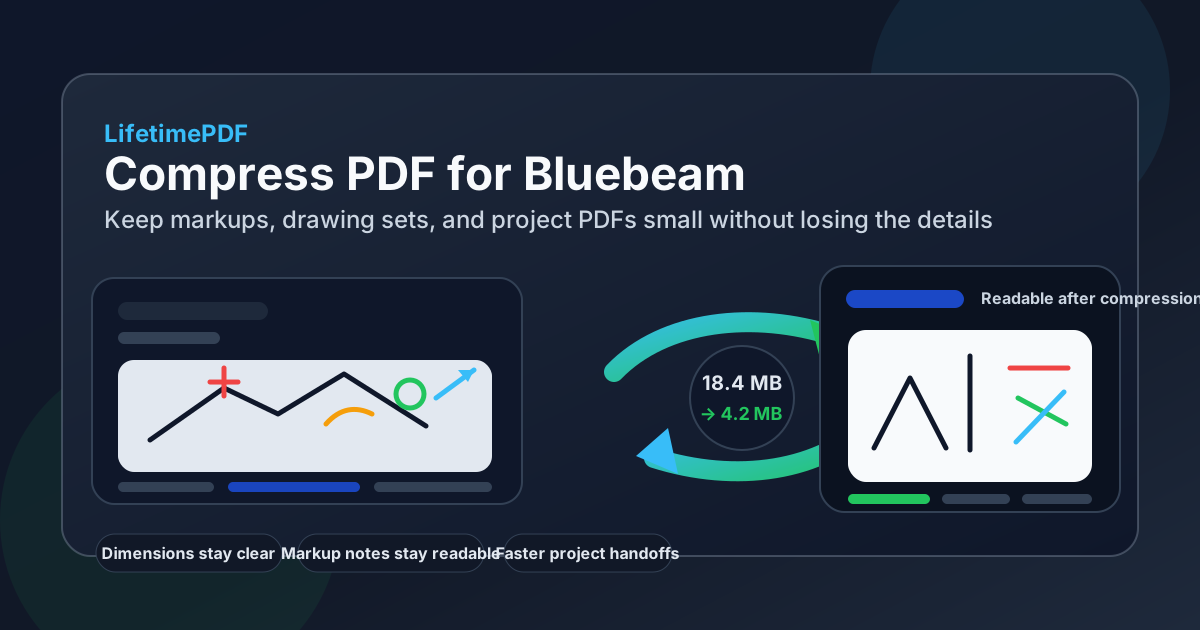
Table of contents
- Quick start: compress a Bluebeam PDF in about 2 minutes
- Why Bluebeam PDFs get heavy so quickly
- What file size should you aim for?
- Which compression level should you choose?
- Step-by-step: shrink a Bluebeam PDF with LifetimePDF
- Best strategy for common Bluebeam PDF types
- What if the file is still too large?
- How to protect markup and drawing readability
- Workflow habits that keep Bluebeam PDFs cleaner
- Related LifetimePDF tools and useful reading
- FAQ (People Also Ask)
Quick start: compress a Bluebeam PDF in about 2 minutes
If your real goal is simply make this Bluebeam PDF smaller so it is easier to send, reopen, and review, this workflow is usually enough:
- Open Compress PDF.
- Upload the final marked-up drawing, submittal packet, punch report, closeout section, or field-ready PDF you actually plan to share.
- Choose Medium compression first.
- Download the smaller result and compare the size difference.
- Zoom in on the weak spots once: dimensions, title blocks, lineweights, revision clouds, callouts, hyperlinks, stamps, and markup comments.
- If the file is still bulkier than you want, extract only the sheets people need, split appendix sections, crop white scan borders, or delete duplicates before pushing compression harder.
Why Bluebeam PDFs get heavy so quickly
Bluebeam PDFs often get large for a simple reason: one file starts doing too many jobs at once. A single packet might hold marked-up plan sheets, support sketches, approval notes, stamped submittals, scanned sign-offs, field photos, and repeated covers. Compression helps, but the biggest gains often come from realizing the next reviewer does not need every page that the previous reviewer needed.
Another reason these files get bulky is that useful construction and project detail is visually dense. Thin linework, detail bubbles, keynotes, revision clouds, punch comments, sketches, and screenshots do not all compress the same way. A short vector-heavy plan excerpt behaves differently from a scan-heavy closeout binder. That is why smarter cleanup plus balanced compression usually beats the strongest setting.
What usually adds weight
- Full drawing sets: many sheets stay attached even when only a few are relevant to the next handoff.
- Repeated covers and appendices: summary pages, issue logs, or support sections quietly add bulk without helping the next reviewer.
- Scanned sign-off pages: image-based sheets often weigh more than the plan or markup pages around them.
- Photo-heavy evidence: field photos, screenshots, and embedded images inflate size faster than text-heavy pages.
- Multiple review stages in one file: design review, coordination, punch, and closeout content get stacked into one oversized packet.
What file size should you aim for?
There is no single perfect target for every Bluebeam PDF, but a few practical ranges keep you from over-compressing:
| Bluebeam PDF type | Comfortable target | Why it usually works |
|---|---|---|
| Punch lists, short field packets, single-sheet reviews | Under 2MB | Easy to preview, forward, and reopen quickly on mobile or in the field. |
| Submittal excerpts, marked-up sheet groups, coordination packets | 2MB to 5MB | Usually enough room to preserve linework, comments, and title-block detail without bloating the handoff. |
| Scan-heavy closeout or approval sections | 5MB and up if needed | These can stay larger, but they often improve more from cleanup and splitting than from harsher compression. |
If you are unsure, do not optimize for the smallest number. Optimize for the easiest handoff. If the next person can open the file quickly and still verify dimensions, notes, stamps, and key details without frustration, you probably hit the right size.
Which compression level should you choose?
The safest answer for most Bluebeam files is still the same: start with Medium. It usually reduces file size enough to improve sharing while keeping the technical detail that makes the document useful.
| Compression level | Best use | Main risk |
|---|---|---|
| Low | Already-clean drawings where you only need a light reduction | May not shrink enough to fix the sharing problem |
| Medium | Most marked-up drawings, submittals, punch reports, and review packets | Usually low risk if you check the smallest important details once |
| High | Disposable copies, oversized scans, or packets where detail has already been simplified | Thin linework, dimensions, stamps, and tiny markup text can become harder to trust |
Step-by-step: shrink a Bluebeam PDF with LifetimePDF
- Start with the final handoff copy. Use the version you actually plan to send, not the giant working packet with every possible appendix still attached.
- Open Compress PDF.
- Choose Medium compression. It is usually the best balance for drawings, markups, and review PDFs.
- Download the smaller result. Compare the file size, but do not stop there.
- Review the details that matter most. Open the compressed copy and inspect dimensions, title blocks, sheet numbers, callouts, revision clouds, hyperlinks, stamps, and markup notes.
- Only then decide whether it is done. If the file is still too large, reduce scope before you reduce quality.
In many Bluebeam workflows, the real upgrade comes from sharing less PDF rather than more compression. A tight, relevant packet usually performs better than a bloated all-in-one file that no one wants to scroll through.
Need more than compression? Bluebeam-ready files often improve faster when you trim the packet before you shrink it.
Best strategy for common Bluebeam PDF types
Marked-up drawing sheets
These usually compress well with Medium compression, but they are also the easiest place to make a mistake. Always check the smallest dimensions, lineweights, and comments before you replace the original.
Submittal packages
Submittals often include a mix of product sheets, stamps, response pages, and support attachments. If the packet feels heavy, remove repeated covers and split the supporting appendix before you try stronger compression.
Punch reports and field packets
These are strong candidates for smaller targets because they are frequently reopened on mobile devices or slower jobsite connections. Short, focused packets usually work better than one oversized PDF with every image and support page still attached.
Closeout or turnover sections
These often combine scans, photos, approvals, and drawing excerpts. They may not shrink dramatically with compression alone, so cropping borders, deleting redundant pages, and separating sections usually produces the cleaner result.
What if the file is still too large?
If Medium compression is not enough, resist the urge to keep turning quality down first. Bluebeam packets usually respond better to structural cleanup:
- Use Extract Pages to send only the sheets the next reviewer actually needs.
- Use Split PDF when one packet mixes field review, support documents, and archived sections.
- Use Delete Pages to remove repeated covers, blank scans, or outdated inserts.
- Use Crop PDF if large white borders or scanner waste are inflating image-heavy pages.
- Use OCR PDF when scanned sections need to become more usable before you finalize the file.
How to protect markup and drawing readability
A Bluebeam PDF only helps if the next person can still trust it. Before you replace the original, check these areas at normal zoom and one closer zoom level:
- Dimensions and lineweights: confirm they are still crisp enough to distinguish.
- Title blocks and sheet numbers: make sure quick navigation details still read clearly.
- Revision clouds and callouts: verify that highlighted changes remain obvious.
- Markup notes and punch comments: small text often reveals compression damage first.
- Stamps, approvals, and signatures: especially important when the packet moves outside the original project team.
- Embedded screenshots or photos: look for muddy text, jagged labels, or lost contrast.
If one of those elements starts feeling risky, step back. Usually the right fix is not to abandon compression altogether. It is to share a tighter packet, not a blurrier one.
Workflow habits that keep Bluebeam PDFs cleaner
- Export for the handoff, not for every possible future use. Keep the shared packet focused.
- Separate review layers by audience. Field teams, consultants, and owners often do not need the same page mix.
- Trim support material early. Repeated covers, outdated inserts, and backup sheets quietly inflate the final file.
- Handle scans before final compression. Cropping borders and removing sideways or blank pages improves both size and professionalism.
- Keep one trusted original. Compress the share copy, but hold onto the source when the packet matters.
Related LifetimePDF tools and useful reading
Core tools
When the packet needs cleanup first
Use page-level cleanup before stronger compression if the file still feels bulkier than the next reviewer needs.
See the full toolkitFAQ (People Also Ask)
How do I compress a PDF for Bluebeam?
Export the final marked-up drawing or project PDF, upload it to a compressor, start with Medium compression, and keep the smaller copy only if dimensions, linework, revision clouds, title blocks, and markup notes still look clear. Medium is usually the safest first pass for most Bluebeam workflows.
What file size should I aim for with Bluebeam PDFs?
Under 2MB is a strong target for short punch lists, field packets, and focused review sheets. Multi-page drawing sets, submittals, and closeout sections usually work well around 2MB to 5MB as long as the smallest important details still read clearly.
Will compression make Bluebeam markups or dimensions blurry?
It can if you compress too aggressively. That is why Medium compression is usually the best starting point. Always review dimensions, lineweights, revision clouds, callouts, stamps, hyperlinks, and markup comments before you replace the original.
Should I split a large Bluebeam package instead of compressing it harder?
Often, yes. If one PDF contains a full plan set, appendix sheets, repeated covers, closeout sections, and supporting scans that different reviewers do not all need, splitting it usually works better than forcing stronger compression across the whole packet.
Which LifetimePDF tools pair best with Bluebeam workflows?
Compress PDF is the main starting point. Extract Pages, Delete Pages, Split PDF, Crop PDF, OCR PDF, and Merge PDF are the most useful companions when you want smaller Bluebeam-ready files without carrying extra pages, scan waste, or duplicate sections into the next handoff.