Compress PDF for Blogger: Speed Up Downloadable Guides, Freebies, and Resource PDFs
To compress a PDF for Blogger, upload the final file to LifetimePDF's Compress PDF tool, start with Medium compression, and keep the smaller copy only if text, screenshots, charts, and call-to-action pages still look clean from the real blog link.
For most Blogger downloads, under 3MB is a comfortable target for checklists, lead magnets, and short freebies, while longer guides, media kits, and image-heavy resource packs usually work best around 3MB to 6MB after light cleanup.
In Blogger, the file does not have to be huge to feel clunky. A PDF linked from a post, static page, sidebar button, or freebie page can still feel slow once a reader opens it on mobile. The goal is not the tiniest possible PDF. The goal is a lighter file that still feels polished and worth downloading.
Fastest path: run the Blogger PDF through LifetimePDF's Compress PDF tool on Medium, then test the smaller copy from the exact post, page, menu link, or lead magnet button your readers actually click.
In a hurry? Jump to Quick start: compress a Blogger PDF in about 2 minutes.
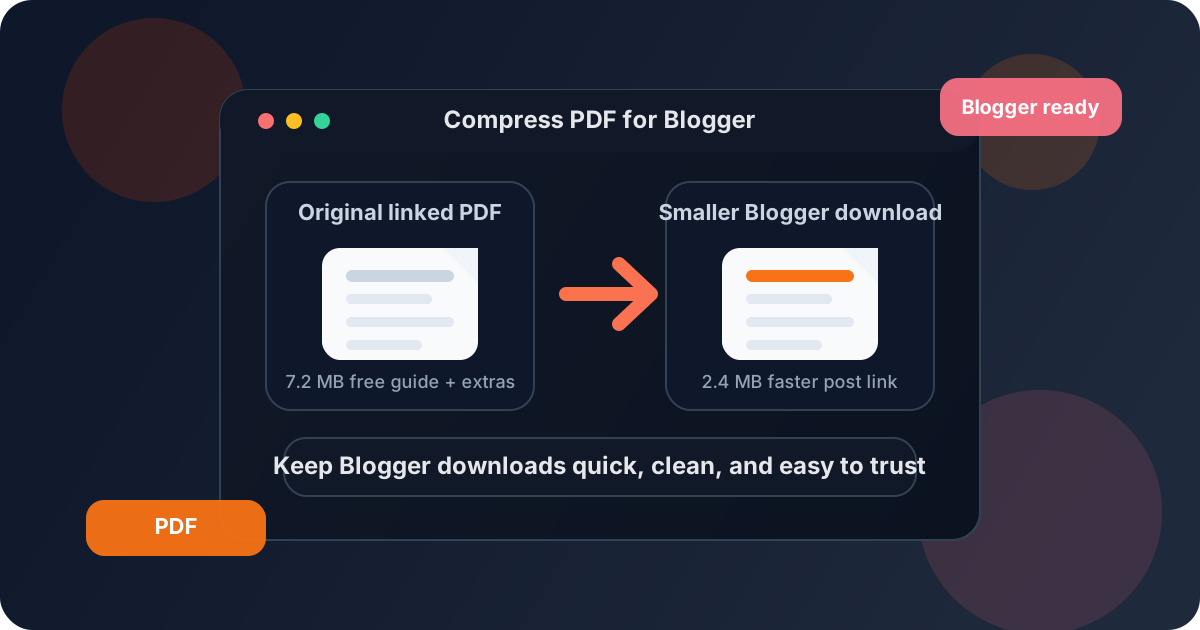
Table of contents
- Quick start: compress a Blogger PDF in about 2 minutes
- Why Blogger PDFs get heavy so quickly
- Why file weight matters after the link goes live
- What file size should you aim for?
- Which compression level should you choose?
- Step-by-step: shrink a Blogger PDF with LifetimePDF
- Best strategy for common Blogger PDF types
- What if the file is still too heavy?
- How to keep text, screenshots, and CTA pages readable
- Workflow habits that keep Blogger PDFs lighter
- Related LifetimePDF tools and useful internal reading
- FAQ (People Also Ask)
Quick start: compress a Blogger PDF in about 2 minutes
If your real goal is simply make this PDF small enough for Blogger without making it feel cheap, this workflow is usually enough:
- Open Compress PDF.
- Upload the exact freebie, checklist, workbook, media kit, printable, or downloadable guide you plan to link.
- Choose Medium compression first.
- Download the smaller file and compare the new size with the original.
- Place that copy in the exact Blogger post, static page, resource page, opt-in page, or navigation link you actually use.
- Open the live link once and check the weak points: cover text, body text, screenshots, charts, worksheets, and CTA pages.
- If the file is still too heavy, split the appendix, delete extra pages, or crop wasted margins before trying stronger compression.
Why Blogger PDFs get heavy so quickly
Blogger PDFs often become larger than they need to be because the file started life somewhere else. A freebie may have been designed for print. A media kit may have been exported from slides. A blog resource pack may include bonus pages, archive notes, full-width screenshots, branded covers, and appendix material that only a small fraction of readers will ever use.
Another common issue is that one PDF quietly tries to do too many jobs at once. It becomes the blog freebie, the email opt-in reward, the sponsor leave-behind, the printable worksheet, and the archive master. Compression helps, but the strongest result usually comes from a cleaner reader copy plus balanced compression instead of maximum shrinkage alone.
What usually adds the most weight
- Oversized screenshots and charts: tutorials, dashboards, and before-and-after examples often outweigh the actual text.
- Bonus sections that are not core to the promise: appendices, extra case studies, worksheets, or archive pages can bloat the reader copy.
- Print-first layouts: decorative covers, wide margins, and divider pages look nice but create wasted area.
- One PDF for several audiences: blog readers, email subscribers, sponsors, and your internal archive rarely need the exact same file.
- Repeated exports: PDFs exported from Canva, slides, design tools, or document editors can stay heavy long after the content became simple.
Why file weight matters after the link goes live
A Blogger PDF can be linked correctly and still be the wrong file. Success is not just whether the button works. Success is whether the download opens quickly from a blog post, static page, menu link, or mobile tap and still feels worth keeping.
| Blogger touchpoint | What the problem feels like | Most useful fix |
|---|---|---|
| Freebie link inside a post | The post is helpful, but the reward feels heavier than readers expected | Use Medium compression and trim appendix pages the average reader does not need |
| Static resource page | The file opens, but it feels clunky on phones or slower connections | Compress once, then crop or split image-heavy sections if needed |
| Media kit or sponsor PDF | The file looks professional, but it is heavier than a quick review should require | Keep a lighter share copy and store the heavier archive master separately |
| Printable workbook or checklist | The PDF is valid, but it feels bulkier than the value it delivers on first open | Remove duplicate pages and keep only the printable sections readers truly need |
| Sidebar or menu download link | A simple resource feels like a bigger commitment than it should | Keep the public file lean and use stronger compression only as a last resort |
In other words, getting the link live is only part of the job. The better result is a Blogger PDF that feels quick, clean, and dependable once a real reader clicks it.
What file size should you aim for?
There is no universal Blogger number because every audience and PDF type is different. Still, a practical target range helps you stop over-compressing a file that is already fine.
| Blogger PDF type | Comfortable target | Why that range works |
|---|---|---|
| Checklist, short freebie, printable handout | 1MB to 3MB | Fast enough for most readers while keeping text-first content readable on desktop and mobile |
| Guide, workbook, media kit, resource download | 2MB to 5MB | Leaves room for screenshots, charts, and branded pages without making the file feel bloated |
| Image-heavy bundle, sponsor deck, portfolio PDF | 3MB to 6MB | Longer or more visual PDFs need more room, but still benefit from trimming appendix pages and oversized images |
| Very large archive or multi-audience pack | Split it | If one file is serving several audiences, splitting usually works better than forcing stronger compression |
Which compression level should you choose?
Most Blogger PDFs should start at Medium. That level usually gives the best balance between a lighter file and a download that still feels polished when someone opens it from a post, page, or freebie link.
- Light compression: good when the PDF is already close to your target and you only need a modest size reduction.
- Medium compression: the best default for most blog freebies, printable guides, workbooks, and sponsor PDFs.
- Strong compression: better as a last resort when the file is still far too heavy after cleanup.
If your PDF contains small labels, screenshots, charts, QR codes, or dense worksheets, stronger compression can make the resource feel weaker than the content deserves. That is why a small cleanup pass often beats jumping straight to the harshest setting.
Step-by-step: shrink a Blogger PDF with LifetimePDF
- Start with the final reader-facing file. Use the exact PDF you want blog readers or subscribers to open, not a master archive with extra pages.
- Open Compress PDF.
- Choose Medium compression first. That is usually the most reliable starting point for Blogger downloads.
- Download the smaller result. Compare the size with the original so you know whether the change was meaningful.
- Replace the live file deliberately. Update the exact Blogger post, static page, resource hub, or freebie button your audience actually uses.
- Test the real click path. Open the live PDF from the post or page where people will actually find it, and check it once on mobile too.
- Clean up only if needed. If the file is still too large, use Delete Pages, Extract Pages, or Crop PDF before pushing compression harder.
Best practical sequence: compress first, test the live Blogger link second, trim pages third, and only then consider stronger compression.
Best strategy for common Blogger PDF types
Lead magnets and blog freebies
These usually need the lightest footprint because the download often sits close to a sign-up or trust moment. If the file is slow to open or awkward on mobile, the resource feels less valuable before the reader reaches page one. Start with Medium compression and aim for a fast, dependable download rather than a print-perfect file.
Printable guides and worksheets
These resources often mix text with screenshots, boxes, and wide margins. Keep the printable version readable, but trim decorative pages and repeated instructions that do not add value to the saved copy.
Media kits and sponsor PDFs
These are trust documents. They should stay sharp enough to feel professional. Use compression carefully, then check the cover, audience stats, charts, pricing tables, logos, and contact details before you replace the original.
Resource packs and bonus libraries
These become heavy because they bundle the main guide with templates, workbook pages, archive notes, or appendix sections. Compress once, then decide whether the pack would feel better as two cleaner downloads instead of one bulky file.
What if the file is still too heavy?
If you compressed the PDF and it still feels wrong for Blogger, the problem may not be the compressor. The file may still carry too much structural weight for compression alone to solve.
- Split the PDF if one document combines the main guide, printable appendix, bonus templates, and archive material.
- Delete repeated pages such as duplicate covers, stale promo pages, or old bonus sections.
- Crop wide margins when the layout wastes space without improving readability.
- Convert page-like content to HTML with PDF to HTML if the information belongs in the Blogger post instead of inside the download.
- Keep an archive copy and a live copy if the heavier master still matters to you internally.
How to keep text, screenshots, and CTA pages readable
The PDF is only better if it still works. Before you replace the original file, review the details most likely to break trust:
- cover headlines and subheads
- small body text and footnotes
- screenshots, charts, and labels
- tables, worksheet prompts, and form-style fields
- CTA pages, coupon sections, and sign-up prompts
- the busiest page in the whole file, not just the cleanest one
If the smallest useful detail still feels easy to trust at normal laptop zoom and on a phone download, the file is probably compressed enough.
Workflow habits that keep Blogger PDFs lighter
- Export a reader copy and an archive copy when the same PDF does not need to do both jobs.
- Keep the core freebie separate from the appendix when readers only need the main guide or worksheet.
- Trim oversized screenshots before export instead of letting them bloat every future download.
- Design for the first mobile click because many Blogger readers will open resources from phones.
- Clean metadata before publishing with PDF Metadata Editor if you want the file title and properties to look polished.
- Use PDF to HTML or HTML to PDF intentionally when part of the resource belongs on the page instead of inside the download.
Compression works best as final polish, not as a rescue plan for a PDF that was oversized long before you linked it from Blogger.
Related LifetimePDF tools and useful internal reading
If Blogger is part of your normal publishing workflow, these tools and articles pair well with this guide:
- Compress PDF for the first size-reduction pass.
- Split PDF for long downloads that should be broken into smaller parts.
- Extract Pages when only the core section should be published.
- Delete Pages to remove stale appendix or duplicate cover pages.
- Crop PDF to trim wasted margins from print-oriented layouts.
- PDF Metadata Editor for cleaner titles and download properties.
- PDF to HTML when part of the resource belongs on the page instead of inside the file.
- HTML to PDF if you are turning a blog page into a cleaner downloadable asset.
- Compress PDF for WordPress.
- Compress PDF for Ghost.
- Compress PDF for Medium.
- Compress PDF for Substack.
- Lifetime access if PDF cleanup is a recurring part of your publishing stack.
Bottom line: for most Blogger PDFs, start with Medium compression, test the live post or page link, and trim page weight before you use stronger compression.
FAQ (People Also Ask)
How do I compress a PDF for Blogger?
Upload the final PDF to a compressor, start with Medium compression, download the smaller copy, and test the exact Blogger post or page link before sharing it widely. Medium is usually the safest first pass because it lowers file size without making text, screenshots, charts, or CTA pages feel unreliable.
What file size should I aim for when linking a PDF from Blogger?
For many Blogger freebies, checklists, and short downloadable guides, under 3MB is a comfortable target. Longer resource packs, media kits, and image-heavy PDFs often land best around 3MB to 6MB as long as the smallest useful text still reads clearly.
Why does a Blogger PDF still feel slow after I add the link?
Because a PDF can be linked correctly and still feel heavy once someone opens it from a blog post or page, especially on mobile. Compression helps, but removing extra pages, wide margins, and oversized images often helps even more.
Will PDF compression make my Blogger freebie or guide blurry?
It can if you compress too aggressively. That is why Medium compression is the best place to start. Always check body text, screenshots, charts, branded covers, and call-to-action pages before replacing the original.
Should I use a web page instead of a PDF on Blogger?
If the information is meant to be skimmed quickly, updated often, or read mostly on phones, a web page is often better. PDFs still make sense for printable guides, workbooks, checklists, media kits, and resources people want to save offline.
Published by LifetimePDF - Pay once. Use forever.