Compress PDF for Astro: Keep Docs, Lead Magnets, and Resource Downloads Fast
To compress a PDF for Astro, upload the final guide, whitepaper, one-pager, case study, docs appendix, or downloadable resource to LifetimePDF's Compress PDF tool, start with Medium compression, and keep the smaller copy only if charts, screenshots, tables, and fine print still read clearly when you reopen it from the real Astro page where visitors will click it.
For most Astro sites, aim for roughly under 3MB for text-heavy downloads and around 3MB to 8MB for screenshot-rich docs, design-heavy lead magnets, or denser reference PDFs that still need to feel trustworthy.
Astro is built for speed, so a bloated PDF can quietly ruin the feeling you worked hard to create. The page loads fast, the layout feels crisp, and then one heavy download slows the whole experience. The goal is not to squeeze every file until it looks cheap. The goal is to cut wasted weight while keeping the pages people actually need readable.
Fastest path: compress the final PDF on Medium, reopen the smaller copy from the real Astro page where it will live, then check one dense text page and one chart-heavy, screenshot-heavy, or table-heavy page before you replace the original.
Need the short version? Jump to Quick start: compress a PDF for Astro in under 2 minutes.
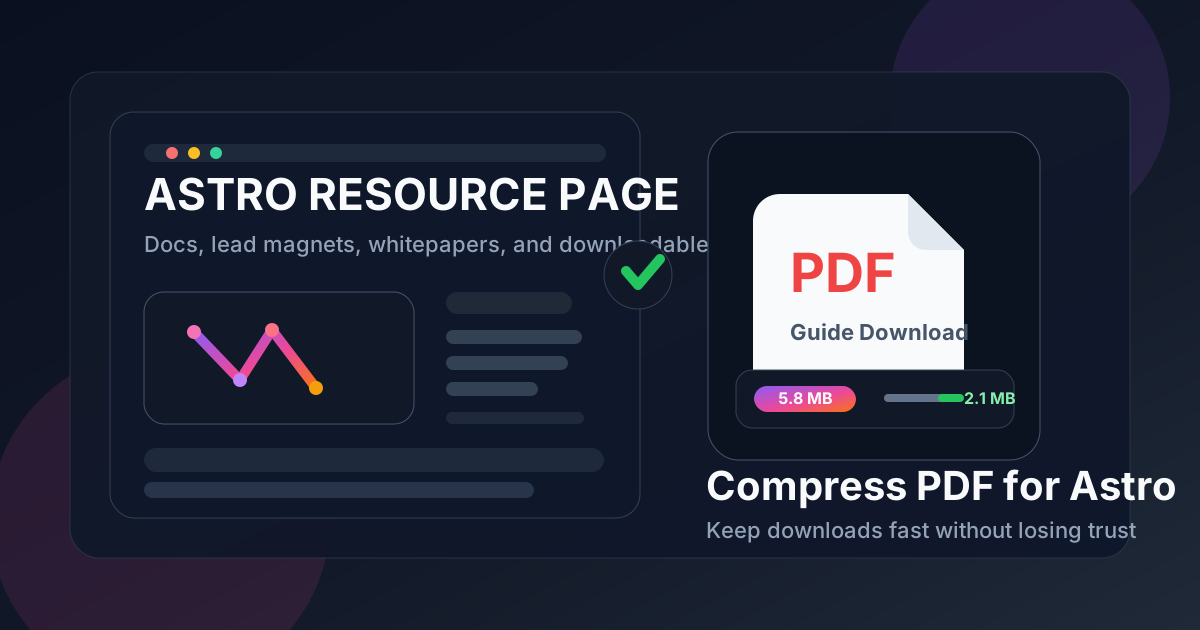
Table of contents
- Quick start: compress a PDF for Astro in under 2 minutes
- Why smaller PDFs matter on Astro
- What makes a good Astro PDF download
- What file size should you aim for?
- Which compression level should you choose?
- Step-by-step: shrink an Astro PDF with LifetimePDF
- Best strategy for common Astro PDF types
- What if the PDF is still too large?
- Site habits that keep Astro downloads lean
- Related LifetimePDF tools and useful internal links
- FAQ
Quick start: compress a PDF for Astro in under 2 minutes
- Start with the final file. Use the PDF you actually plan to link from Astro, not a draft that still contains removed pages, bloated screenshots, or last-minute edits.
- Open Compress PDF. Medium compression is usually the safest first pass for resource-library downloads, docs appendices, whitepapers, and one-pagers.
- Reopen the smaller copy before publishing it. Check charts, tables, screenshot labels, fine print, and any CTA or footer text that still needs to look professional.
- Test it from the real page. Open the PDF from the actual Astro page where it will live so you see the file in the same context visitors will.
- Fix structure before using harsher compression. If the file is still too large, remove junk pages, split giant bundles, crop dead margins, or OCR scans instead of endlessly squeezing everything harder.
That workflow is short on purpose. Most Astro downloads do not need an elaborate optimization ritual. They need a cleaner file, a quick readability check, and some discipline about not shipping pages people never needed in the first place.
Why smaller PDFs matter on Astro
Astro is often chosen because it feels fast and clean. Teams use it for docs sites, marketing sites, product pages, case-study hubs, startup websites, developer content, and resource libraries. The pages themselves are usually light. That makes a heavy PDF stand out more than it would on a slower site.
A large PDF is not only a bandwidth problem. It also creates hesitation. Visitors wonder whether they should click now, wait until they are on desktop, or skip the download entirely. That is a bad trade when the PDF was supposed to help a signup, explain a feature, support a sales conversation, or make a resource page more useful.
Why lighter PDFs fit Astro better
- Faster resource pages: one bloated whitepaper or case study can make a polished content hub feel heavier than it needs to.
- Better mobile experience: many people open lead magnets, onboarding PDFs, and docs attachments from a phone first.
- Less friction in docs: implementation guides, setup sheets, and appendices should feel like helpful extras, not a slowdown.
- Cleaner handoff between page and download: a lightweight PDF feels consistent with the speed visitors already expect from Astro.
- More dependable sharing: smaller files are easier to send in email, chat, sales follow-ups, and support replies.
In other words, lighter PDFs protect the thing Astro is already good at: making the whole site feel quick, intentional, and pleasant to use.
What makes a good Astro PDF download
A good PDF download is not simply the smallest file you can produce. It is the smallest file that still does its job well.
- It opens quickly from the page where it is linked.
- It keeps important detail readable, especially charts, screenshot labels, tables, form fields, and small text inside diagrams.
- It has one clear purpose, like a lead magnet, pricing sheet, setup guide, partner handout, customer case study, or docs appendix.
- It is not carrying dead weight, such as duplicate pages, giant cover art, empty appendices, or old version history no visitor asked for.
- It still feels trustworthy, which means the compressed copy should look intentional, not visibly degraded.
If a file fails one of those tests, compression alone will not save it. You may need to restructure the document before you publish the final version.
What file size should you aim for?
There is no universal perfect number, but these targets are practical for many Astro sites:
- Under 3MB: a strong target for many text-heavy lead magnets, one-pagers, pricing sheets, and short guides.
- 3MB to 8MB: normal for screenshot-rich docs, case studies, onboarding packs, multi-page whitepapers, and denser reference files.
- Over 10MB: worth reviewing before you publish, especially if the PDF is linked from a public resource hub, landing page, or docs flow.
The right size depends on what the reader must still see. If the file contains tiny chart labels, product screenshots, dense tables, or detailed diagrams, keep more quality. If it is mostly text, oversized margins, and duplicated pages, you can usually push it lower.
Which compression level should you choose?
Low compression
Use Low when the PDF includes lots of small labels, design-sensitive visuals, investor charts, detailed screenshots, or fine-print information that still needs to look crisp. It is also the safer choice for files people may print.
Medium compression
Medium is the best default for most Astro workflows. It usually cuts enough size to matter without making screenshots muddy or charts annoying to inspect. If you only try one setting first, make it this one.
High compression
High is useful when the current file is clearly too heavy and the visual detail is less delicate. It works better after you have already cleaned the document structure. If High makes charts, screenshots, or labels feel uncertain, back up and simplify the file instead.
Step-by-step: shrink an Astro PDF with LifetimePDF
- Pick the final version. Do not optimize a draft if you already know the PDF is about to change.
- Upload it to Compress PDF. Start with Medium compression.
- Download the smaller copy and open it immediately. Check one dense text page, one chart-heavy or table-heavy page, and one screenshot-heavy page.
- Replace the file in the real page flow. Open it from the actual Astro page, not only from your downloads folder.
- Watch for trust-breakers. Fuzzy charts, unreadable screenshot labels, broken tables, and muddy diagrams matter more than saving one extra megabyte.
- Clean the file name and metadata. If the PDF still says things like final-v9 or export-copy, fix that before you publish.
- Only go further if needed. If the file is still awkwardly large, use Extract Pages, Split PDF, Crop PDF, or OCR PDF before pushing compression harder.
Best strategy for common Astro PDF types
Lead magnets and downloadable guides
These usually mix text, brand design, screenshots, and a few charts. Medium is normally the best starting point. Pay close attention to cover text, callout boxes, and CTA sections because those are the places that start looking cheap fastest.
Docs appendices and implementation guides
These are often text-heavy and compress well, but small screenshots and code examples still need care. Check any page that includes terminal captures, dense tables, or technical diagrams before you replace the original.
Case studies, proposals, and sales handouts
These files often depend on visual trust. If logos, charts, testimonial layouts, or screenshots start looking soft, the document feels less credible. It is better to keep a little more weight than to make the file feel second-rate.
Resource-library bundles and partner packs
Big bundles are often large because they are doing too many jobs at once. If one file contains onboarding, feature overviews, pricing sheets, and support notes all together, split it into clearer downloads instead of compressing harder and hoping for the best.
Scanned forms or signed PDFs
Scans get heavy quickly. If the file is mostly image-based, compression alone may not be enough. Use OCR PDF so the document becomes more usable, then compress the OCRed version. If pages have big white borders, cropping them before compression can help more than an aggressive setting.
What if the PDF is still too large?
That usually means the file has a structure problem, not just a compression problem.
- Extract only the useful pages: Extract Pages is the fastest fix when only part of a PDF belongs on the Astro page.
- Split giant bundles: Split PDF works better than endless recompression when one file is trying to do five jobs.
- Remove junk pages: draft covers, duplicate exports, internal notes, and old appendices add surprising weight.
- Crop wasted margins: Crop PDF can shrink scan-heavy or slide-based files before you compress them again.
- OCR old scans: OCR can make a messy scanned handout more usable and sometimes easier to optimize afterward.
If a PDF still feels stubborn after that, step back and ask whether the page really needs a PDF at all. Sometimes the better answer is to move more information into the Astro page itself and leave the PDF for the part that truly belongs in a document.
Site habits that keep Astro downloads lean
- Give each PDF one job. Separate docs appendices, case studies, pricing sheets, and lead magnets instead of bundling everything together.
- Compress after cleanup, not before. Deleting junk pages first usually beats harsher compression later.
- Keep screenshots sensible at the source. Giant exports pasted into a small guide create avoidable file weight.
- Audit old attachments during content updates. The PDF linked from an Astro page six months ago may not still be the right download today.
- Use clear naming. Readers trust a file called astro-onboarding-guide.pdf more than final-final-v12.pdf.
- Favor live pages for fast-changing details. Leave the PDF for printable packs, polished resources, handoffs, and offline-friendly reference material.
FAQ: Compress PDF for Astro
How do I compress a PDF for Astro?
Upload the final PDF to a compressor, start with Medium compression, and keep the smaller copy only if charts, screenshots, tables, and small labels still look clean when you reopen it from the Astro page where it belongs. Medium is usually the safest first step because it reduces file size without making the download feel flimsy or frustrating.
What file size should I aim for on an Astro site?
Under 3MB is a strong target for many text-heavy lead magnets, one-pagers, and short guides. Screenshot-rich docs, case studies, onboarding packs, and whitepapers often land best around 3MB to 8MB if the important detail remains readable.
Will compression hurt charts, screenshots, or code examples?
Usually not if you begin with Medium compression and the source file is already clean. Problems usually show up first in tiny chart labels, table columns, screenshot callouts, and code snippets inside images, so those are the places worth checking before you replace the original.
Should I split a large Astro PDF instead of compressing harder?
If one PDF contains several unrelated sections, splitting it is usually better than pushing compression harder. Astro works better when each download has one clear purpose and visitors do not have to drag around a giant bundle to get one useful section.
Which LifetimePDF tools pair best with Astro?
Compress PDF is the main starting point. Extract Pages, Split PDF, Delete Pages, Crop PDF, OCR PDF, and PDF Metadata Editor are the most useful companion workflows when you want smaller, cleaner PDF downloads inside Astro docs pages, resource hubs, onboarding guides, and marketing pages.
Published by LifetimePDF - Pay once. Use forever.