Compress PDF for Airtable Without Monthly Fees: Upload Smaller Record Attachments, Shared Views, and Base Files Without Another Subscription
If you need to compress a PDF for Airtable without monthly fees, upload the file to LifetimePDF's Compress PDF tool, start with Medium compression, and keep the smaller copy only if tables, comments, screenshots, signatures, and labels still read clearly.
For most Airtable workflows, that is enough to shrink record attachments, shared-view PDFs, and base files without adding another recurring subscription just to finish the upload step.
Airtable already does the organizing work. It keeps records, linked data, approvals, and handoff details in one place. The PDF problem shows up right after that. Somebody needs a lighter file that uploads faster, opens more comfortably on mobile, and still feels dependable when a teammate, client, or approver clicks it later. That is why a pay-once PDF workflow makes more sense here than yet another monthly add-on layered on top of a collaboration stack.
Fastest path: run the Airtable PDF through LifetimePDF's Compress PDF tool at Medium, then extract, split, crop, or delete pages only if the file still carries more weight than the next record or shared view actually needs.
In a hurry? Jump to Quick start: compress an Airtable PDF in under 2 minutes.
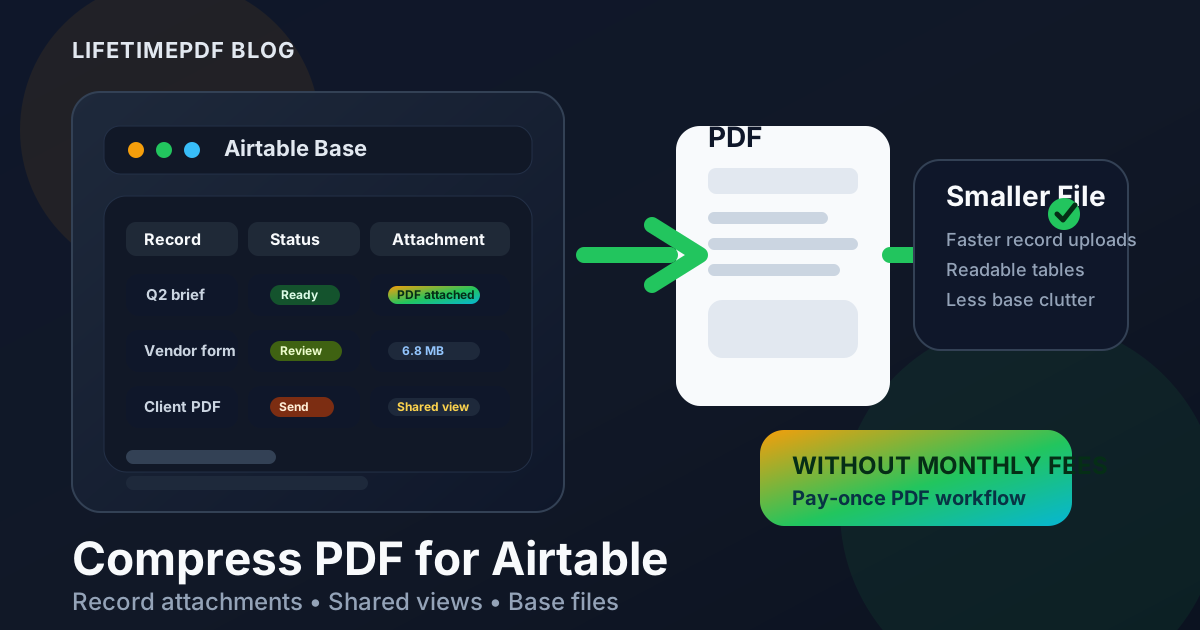
Table of contents
- Quick start: compress an Airtable PDF in under 2 minutes
- Why "without monthly fees" matters here
- Why smaller PDFs help in Airtable workflows
- What file size should an Airtable PDF be?
- Which compression level should you choose?
- Step-by-step: use LifetimePDF to shrink the file
- Best approach for common Airtable PDFs
- What to do if the PDF is still too large
- How to keep record attachments readable
- Workflow habits that reduce PDF bloat
- Related LifetimePDF tools and useful reading
- FAQ (People Also Ask)
Quick start: compress an Airtable PDF in under 2 minutes
If your real goal is simply make this Airtable PDF smaller so it is easier to upload and reopen later, this workflow is usually enough:
- Start with the file the next person actually needs, whether that is a proposal, shared-view export, contract, approval packet, SOP, handoff PDF, or scan.
- Open Compress PDF.
- Upload the file and choose Medium compression first.
- Download the smaller result and compare the new size.
- Preview the details that matter most: table text, comments, screenshots, signatures, labels, and any small footer text.
- If the file is still bulky, use Extract Pages, Split PDF, Delete Pages, or Crop PDF before forcing stronger compression across the whole document.
Why "without monthly fees" matters here
This is finish-line work. The record already exists. The workflow already exists. The approval, client handoff, or internal note already has a place to live. Paying forever just to make the final PDF smaller is hard to justify.
Airtable often sits beside other paid tools. Teams already pay for the base, connected apps, forms, storage, project software, and whatever else feeds data into the workflow. Once the remaining job is simply make this PDF easier to upload, preview, attach, or resend, another recurring bill usually feels like friction instead of value. A pay-once workflow fits the real task because the task is narrow, practical, and repeated often enough to matter.
That is even more obvious when a team is handling ordinary work: vendor paperwork this morning, a client brief after lunch, a signed form in the afternoon, and a shared-view export before the day ends. Those are real needs. They do not automatically justify one more monthly line item just to shrink the final PDF.
Simple logic: if Airtable already handles the workflow, a pay-once PDF toolkit usually fits the attachment step better than another monthly add-on.
Why smaller PDFs help in Airtable workflows
Airtable PDFs rarely stay where they started. A file attached to one record gets opened on a phone, forwarded to a client, reused in another linked record, checked during an approval, exported for a handoff, or referenced weeks later by somebody who was not part of the original upload. Heavy PDFs make every one of those moments slower.
The file-size problem usually does not come from the useful part of the document. It comes from everything wrapped around it: repeated pages, giant scans, unnecessary appendix material, oversized margins, or one bulky PDF trying to serve three different readers at once. Compression helps because it removes some of that weight without automatically making the file feel cheap or hard to trust.
- Faster uploads: lighter files are easier to attach from laptops, mobile devices, and slower connections.
- Smoother record review: teammates can open the file quickly instead of waiting through avoidable weight.
- Cleaner shared views: smaller files feel less clunky when a client or collaborator opens supporting documents.
- Less base clutter: recurring approvals, forms, contracts, and SOPs stop accumulating as bloated attachments.
- Better reuse: once the file is lighter, it is easier to duplicate across records, share in an automation, or archive without annoyance.
What file size should an Airtable PDF be?
There is no perfect number, but practical targets help:
| Airtable PDF type | Practical target | What to protect |
|---|---|---|
| Text-heavy record attachments, approvals, SOPs, and briefs | < 2MB | Body text, tables, signatures, and normal annotations |
| Shared-view exports and screenshot-heavy handoff PDFs | 2MB to 4MB | Small labels, screenshots, table headers, and comments |
| Scan-heavy forms, vendor packets, and archive copies | 3MB to 5MB | Readable scans, fine print, stamps, and signatures |
| Over 5MB everyday attachments | Usually needs cleanup | Only keep the pages the next reader truly needs |
The smaller target is not automatically better if it ruins readability. A 1.1MB file that makes comments, dates, or signatures unpleasant to inspect is worse than a 3MB file that opens quickly and still feels trustworthy. In Airtable workflows, trust matters because attachments often support a decision, an approval, or a handoff rather than just sitting there as dead storage.
Which compression level should you choose?
Start with Medium compression unless you already know the file is wildly oversized. Medium is usually the best balance for Airtable because it cuts enough weight to improve upload and review speed without softening text and screenshots too much.
| Compression level | Best for | Watch out for |
|---|---|---|
| Low | Polished client-facing PDFs and files that are already close to the target size | You may not save enough size to matter |
| Medium | Most record attachments, SOPs, approvals, shared-view exports, and handoff files | Still review the smallest text and screenshots once |
| High | Bulky scans, archive copies, or reference files that still feel too heavy after cleanup | Fine text, stamps, or screenshot details can start to look soft |
Step-by-step: use LifetimePDF to shrink the file
- Start with the version that actually needs to travel. If the next person only needs the approval pages or the summary handoff, do not start with the biggest possible packet.
- Open Compress PDF.
- Upload the Airtable PDF. That could be a contract, proposal, SOP, client handoff, shared-view export, scanned form, or internal review file.
- Choose Medium compression. It is usually the safest first pass.
- Download the smaller result.
- Review the details people will actually use. Check comments, signatures, table text, screenshots, dates, initials, and any fine print.
- Only do extra cleanup if the file is still too large. Use extraction, deletion, splitting, or cropping before pushing harder compression across every page.
This order matters. If you compress aggressively before removing unnecessary pages, you often end up with a file that is both softer and still heavier than it needs to be.
Best sequence: keep the useful pages, compress once, review once, and then upload the focused copy into Airtable.
Best approach for common Airtable PDFs
Record attachments tied to one task or approval
These are usually the easiest files to shrink. Start with Medium compression and check only the smallest details that support the decision: dates, signatures, total amounts, comments, and table text.
Shared-view exports and client-facing PDFs
These often grow because they mix screenshots, notes, appendix pages, and decorative covers. If a client only needs the current view or summary section, extract that portion instead of shipping everything. A shorter, lighter document is usually easier to open and easier to trust.
SOPs, onboarding packets, and reference docs
These files get reopened often, sometimes by people on phones or in a hurry. That makes small size more valuable than people expect. Medium compression is usually enough, and lighter files make repeated review less annoying over time.
Scan-heavy forms and archive paperwork
This is where the real weight usually hides. Crop empty borders, delete blank sheets, and remove unnecessary pages before you compress. That usually works better than trying to force one giant scan through aggressive compression alone.
What to do if the PDF is still too large
If Medium compression leaves the file bigger than you want, do not assume the next step is harsher compression. Usually the smarter move is structural cleanup.
- Extract the useful section: keep only the pages the next reader actually needs.
- Split by audience: a client, an approver, and an internal teammate often do not need the same PDF.
- Delete repeated support pages: duplicate scans, covers, and stale appendices add weight quickly.
- Crop empty borders: especially helpful on scan-heavy paperwork and phone-origin PDFs.
- Then try stronger compression only if necessary: once the unnecessary weight is gone, stronger compression has a better chance of working cleanly.
In many Airtable workflows, the real problem is not that the PDF is hard to compress. It is that the file tries to serve too many readers at once. Smaller page sets almost always beat harsher compression when readability matters.
How to keep record attachments readable
Before you upload the smaller file, scan it once like a real reader would. Do not just compare file sizes. Check the parts people actually rely on:
- record-specific notes and labels
- table columns and row text
- comments, initials, and signatures
- screenshots with small interface text
- dates, totals, or approval fields
- fine print inside contracts or vendor forms
If any of those feel fuzzy at normal viewing size, step back. Either use a lighter compression level or trim the file instead. The goal is not the smallest possible PDF. The goal is the smallest useful PDF.
Workflow habits that reduce PDF bloat
A few habits make Airtable attachments easier to manage before compression even begins:
- Upload for one reader: keep one file focused on the audience in front of you instead of stuffing every supporting page into one bundle.
- Keep a master copy elsewhere: use a smaller working copy for Airtable if the heavyweight original still matters for print or archive quality.
- Clean scans before compressing: remove empty borders and blank sheets first.
- Trim before attaching: if only four pages belong on the record, attach four pages, not forty.
- Compress at the end: do content cleanup first, then run the final version through the compressor once.
These habits make every downstream step easier, whether the file is going to a linked record, a client-facing shared view, an approval flow, or a long-term archive.
Best combination: simplify the document first, then use LifetimePDF to shrink the final Airtable attachment without adding another recurring tool.
Related LifetimePDF tools and useful reading
- Compress PDF for the fastest size reduction.
- Extract Pages when only part of the file needs to travel.
- Split PDF for separating client, approval, and archive versions.
- Delete Pages to remove repeated covers or stale support material.
- Crop PDF when scan borders and margins add avoidable weight.
- PDF Metadata Editor if you want a cleaner file before wider sharing.
- Compress PDF for Airtable
- Compress PDF for Asana Without Monthly Fees
- Compress PDF for Monday.com Without Monthly Fees
- Compress PDF for Dropbox Without Monthly Fees
- Compress PDF for ClickUp Without Monthly Fees
- Compress PDF Without Monthly Fees
FAQ (People Also Ask)
How do I compress a PDF for Airtable without monthly fees?
Use a pay-once PDF tool like LifetimePDF, upload the Airtable file, start with Medium compression, and review the smaller result before attaching it to a record or sharing it from your base. If the file is still too large, extract or split the pages people actually need instead of over-compressing the entire document.
What PDF size should I aim for in Airtable?
Under 2MB is a strong target for text-heavy approvals, SOPs, short briefs, and everyday record attachments. Screenshot-heavy exports and scan-based packets often work better around 2MB to 5MB as long as key details still read clearly.
Will compression make Airtable attachments blurry?
It can if you compress too aggressively, especially with screenshots and scans that contain tiny text. Medium compression is usually the safest first pass. Always review the smallest important detail before replacing the original file.
Should I split a large Airtable PDF instead of compressing it harder?
Often, yes. If one PDF mixes approvals, appendix pages, screenshots, vendor support, and background material for different readers, splitting or extracting the relevant section usually works better than forcing stronger compression across the entire file.
Why look for an Airtable PDF workflow without monthly fees?
Because shrinking the attachment is finish-line work. If you already pay for collaboration tools, storage, and the rest of your workflow stack, another recurring bill just to reduce PDF size is hard to justify. A pay-once workflow fits the job better.
Published by LifetimePDF - Pay once. Use forever.