Compare Two PDF Files: Fastest Way to Spot Real Differences Without Rereading Everything
To compare two PDF files, open a PDF comparison tool, upload both versions, and review the highlighted differences in text, numbers, pages, images, and layout.
If either file is scanned or protected, run OCR or unlock it first so the comparison is cleaner and easier to trust.
Most people searching this phrase are trying to answer one practical question fast: what actually changed? That could be a contract revision, a quote with updated totals, a policy file with small wording edits, or a long report that came back with one important clause moved halfway down the document. A good comparison workflow saves you from rereading everything manually and helps you focus on the differences that matter.
Fastest path: compare the full files once, check the obvious changes first, then narrow the review to the exact pages that matter if you want a cleaner second pass.
Want the short version? Jump to Quick start: compare two PDF files in a few minutes.
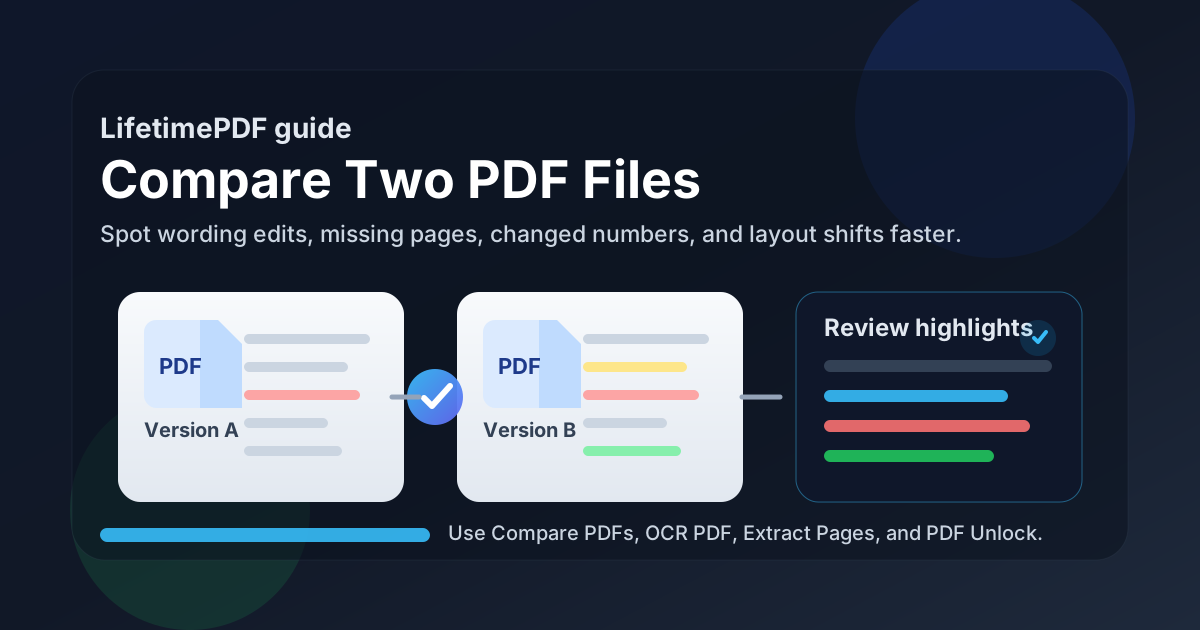
Table of contents
- Quick start: compare two PDF files in a few minutes
- What a PDF comparison can actually catch
- Step-by-step: the cleanest way to compare two PDFs
- Best real-world use cases
- How to reduce noisy or confusing results
- Scanned PDFs and OCR
- Whole document vs selected pages
- What to review first so you do not miss the important edits
- Related LifetimePDF tools and guides
- FAQ (People Also Ask)
Quick start: compare two PDF files in a few minutes
If you already have both files ready, this is the fastest dependable workflow:
- Open Compare PDFs.
- Upload the earlier file and the newer file in a clear order.
- Review the highlighted differences for wording edits, revised numbers, page additions, missing sections, and layout changes.
- If the result feels messy, compare only the relevant pages or unlock and OCR the files first.
- Do one final human review on the high-risk sections before approving, sending, or signing anything.
contract-v2.pdf and contract-v3-client-edits.pdf are much safer than two vague files named final.pdf and final-new.pdf.
What a PDF comparison can actually catch
A good comparison tool is not just looking for obvious page differences. It helps you catch the edits that are easy to miss when two files look almost identical at first glance.
- Changed wording inside contracts, policies, statements, and proposals
- Updated numbers such as totals, dates, percentages, quantities, discounts, and reference IDs
- Added or removed pages anywhere in the document, not just at the end
- Moved sections that change the structure or reading flow
- Replaced images, tables, or charts in reports and manuals
- Formatting shifts that may signal deeper edits under the surface
That is why this workflow is useful even when a file looks “basically the same.” One line change in a payment schedule, renewal clause, shipping term, or compliance note can matter more than a dozen harmless formatting edits.
Step-by-step: the cleanest way to compare two PDFs
1) Start with the right version pair
Many messy comparison results are not tool problems. They come from comparing the wrong two files. Make sure you are using the actual earlier version and the actual revised version, not two unrelated exports that only happen to share a similar filename.
2) Open Compare PDFs and upload both files
Use LifetimePDF Compare PDFs and keep the upload order consistent. If you always place the older version first and the newer version second, the review becomes easier to interpret and easier to explain later.
3) Review the biggest differences first
Start with missing pages, added pages, changed totals, updated dates, signature sections, clause edits, and any content near decision points. Do not waste your first pass on cosmetic details if the document is something that may affect money, timing, approval, or compliance.
4) Tighten the scope if the file is too large
If the first pass shows that only one appendix or one section changed, extract that area and compare it separately. Extract Pages and Split PDF are useful when you need a faster second review without the noise of the rest of the document.
5) Keep the final review human
Once the tool shows you the changed areas, do one deliberate manual check of the parts that matter most. That final pass is where you confirm that the changed price, date, clause, image, or appendix actually says what you think it says.
Simple workflow that holds up in real work: compare once, isolate the changed pages, then review the critical lines with full attention.
Best real-world use cases
Comparing two PDF files is most valuable when a small edit can create a large downstream mistake.
Contracts and legal drafts
Catch changed payment terms, notice periods, indemnity language, renewal rules, signature pages, or deleted attachments before someone assumes the revision was minor.
Quotes, invoices, and proposals
Spot revised totals, missing line items, added scope notes, changed delivery dates, or updated assumptions without hunting through every page manually.
Policies, SOPs, and compliance files
See what was added, removed, or softened between review rounds so approvals are based on the actual current wording instead of memory.
Reports, manuals, and review packets
Find changed charts, revised notes, new appendices, removed evidence pages, or updated screenshots in long files where manual visual scanning becomes tedious fast.
In all of those cases, the value is not just speed. It is confidence. You stop relying on guesswork and start reviewing the actual differences.
How to reduce noisy or confusing results
If a PDF comparison looks chaotic, the fix is often to clean the files before you compare them again.
Check for wrong file pairs
If nearly everything lights up, you may be comparing the wrong revision or a file exported from a different branch of edits. Verify the sources before assuming the document changed everywhere.
Remove irrelevant pages
Cover sheets, blank pages, old appendices, and unrelated attachments create distraction. If they are not part of the real review target, remove them with Delete Pages or keep only the useful section with Extract Pages.
Unlock restricted files first
Password restrictions or permissions can interfere with a clean read of the content. Use PDF Unlock first if you are authorized to review the document.
Fix page order and orientation problems
If one file has rotated pages or a different page order, the comparison becomes harder to interpret than it needs to be. Straighten the structure first with Rotate PDF or rebuild the page order if needed.
| Problem | Likely cause | Best fix |
|---|---|---|
| Almost every page looks different | Wrong version pair or unrelated export | Verify the two source files before comparing again |
| The result feels cluttered | Extra pages or irrelevant sections | Extract only the section you actually need |
| The tool cannot read the file cleanly | Protection or restrictions | Unlock the PDF first |
| Changes seem random or hard to trust | Scanned image-only PDF | Run OCR before comparison |
Scanned PDFs and OCR
Scanned PDFs often need one extra step because the visible text may not actually be text yet. It may just be a page image. That makes comparison harder and often noisier.
How to tell when OCR should come first
- You cannot select the text with your cursor
- Search inside the PDF does not find obvious words
- The file looks like a scan, photocopy, or camera capture
- The comparison feels overly visual instead of content-focused
In those cases, use OCR PDF first. OCR usually makes the result cleaner because it turns image-only pages into searchable text before comparison.
Whole document vs selected pages
Both approaches are useful. The better choice depends on what you already know about the edit.
| Approach | Best when | Why it helps |
|---|---|---|
| Compare the whole PDF | You do not know where the changes happened | It helps you discover missing pages, moved sections, or edits buried in unexpected places |
| Compare selected pages | You already know the changed section | It reduces noise, speeds up review, and keeps attention on the pages that matter |
A very practical workflow is: compare the full documents once, identify the changed area, then extract and re-compare only that section for a cleaner second review.
If the file is long, do not stay stuck in full-document mode. Use the first pass to locate the changes, then narrow the review to the exact section you care about.
What to review first so you do not miss the important edits
When a document matters, not every difference deserves the same attention. Review in this order:
- Dates, totals, quantities, percentages, and deadlines
- Names, addresses, account numbers, and reference IDs
- Clauses, footnotes, conditions, and exception language
- Added or removed pages, exhibits, appendices, and signatures
- Secondary formatting or cosmetic differences
That order works because it prioritizes the changes most likely to affect money, timing, obligations, or approval decisions. Cosmetic changes can wait.
Related LifetimePDF tools and guides
Comparing two PDF files is usually part of a bigger review workflow. These tools fit naturally around it:
- Compare PDFs - review two versions and spot meaningful differences faster
- OCR PDF - make scanned PDFs searchable before comparison
- Extract Pages - isolate the exact pages that changed
- Delete Pages - remove blank or irrelevant pages that create noise
- PDF Unlock - open restricted files for authorized comparison
- Rotate PDF - fix sideways pages before review
- Merge PDF - rebuild the final approved packet after review
Nearby reading on the same topic: Compare PDFs Online, Compare PDF Versions Online, Compare Two PDF Files Online, Compare PDF Files Online and Detect Differences, and OCR PDF Without Monthly Fees.
Bottom line: the cleanest way to compare two PDF files is to use the tool for the first pass, clean up the source files when needed, and isolate the important pages before you make a final decision.
FAQ (People Also Ask)
How do I compare two PDF files?
Open a PDF comparison tool, upload both files, and review the highlighted differences in wording, numbers, pages, images, and layout. If either file is scanned or protected, run OCR or unlock it first for a cleaner result.
Can I compare scanned PDF files?
Yes. You can compare scanned PDFs, but OCR usually improves the result by turning image-only pages into searchable text before the comparison starts.
What kinds of changes can a PDF comparison catch?
A PDF comparison can help you catch inserted or deleted text, changed numbers, added or removed pages, replaced images, moved sections, and other meaningful edits between two versions.
Why does a PDF comparison sometimes look messy?
Messy comparisons usually come from wrong version pairs, different page order, protected files, extra irrelevant pages, or low-quality scans that need OCR or cleanup first.
Should I compare the whole PDF or just the changed pages?
Compare the whole file when you do not know where the edits happened. If you already know the section that matters, extracting just those pages usually gives a faster and cleaner review.
Published by LifetimePDF - Pay once. Use forever.