Check PDF Accessibility Without Monthly Fees: Review Text, Reading Order, Forms, and Titles Without Another Subscription
Yes — you can check PDF accessibility without monthly fees by confirming the file has selectable text, logical reading order, clear headings, understandable links and forms, and a useful document title before you publish it.
If the PDF fails those basics, the smartest next step is usually to run OCR or repair the source file instead of paying for another recurring checker that still cannot fix a structurally broken document for you.
This keyword exists because accessibility review is one of those jobs that matters every time, but not in a way that should feel like rent. Teams publish reports, forms, guides, brochures, handbooks, agendas, client packets, and public resources all year long. They need a practical workflow they can repeat. They do not need a bloated platform that turns basic document QA into yet another monthly software relationship.
Fastest path: check the text layer first, run the file through the PDF accessibility checker, then fix the source if reading order, headings, forms, or titles are weak.
Need the short version? Jump to Quick start: check PDF accessibility in about 10 minutes.
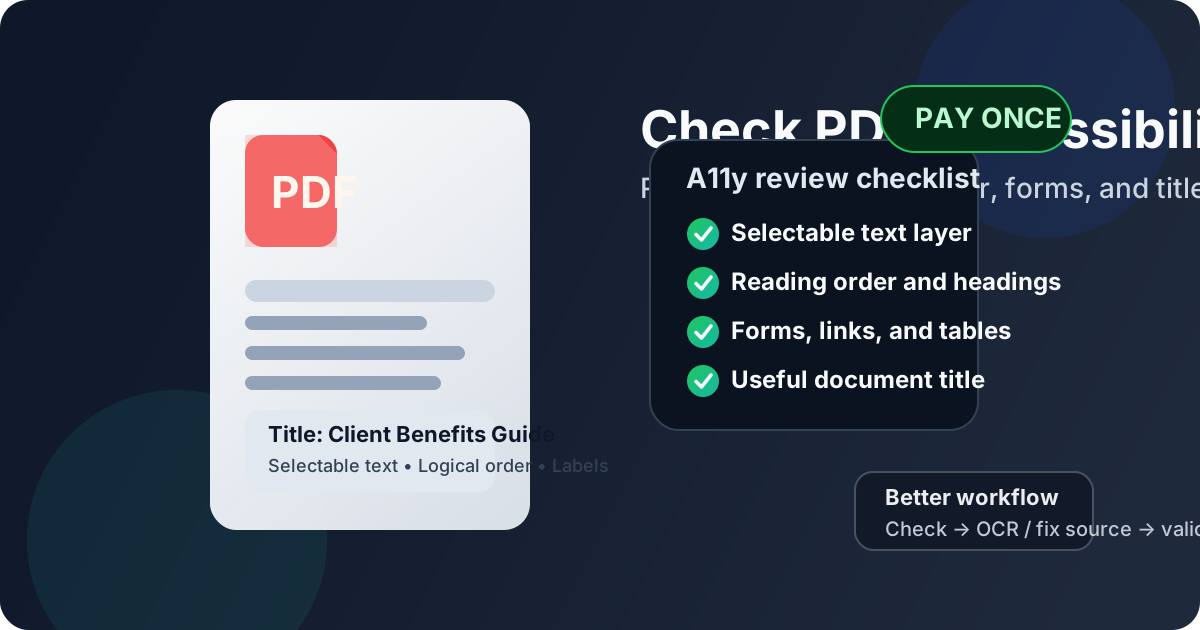
Table of contents
- Quick start: check PDF accessibility in about 10 minutes
- Why people search for this without-monthly-fees workflow
- What a practical PDF accessibility review should actually cover
- Step-by-step: use the checker without wasting time
- Scanned PDFs, OCR, and text-layer trouble
- The common failures: headings, links, forms, tables, titles
- When to fix the source instead of patching the PDF
- Why a pay-once workflow often fits better
- Related LifetimePDF tools and guides
- FAQ (People Also Ask)
Quick start: check PDF accessibility in about 10 minutes
If the real question is is this PDF basically safe to publish or share?, this order works well:
- Open the PDF and try to select text.
- Search for a word you can clearly see on the page.
- Run the file through PDF Accessibility Checker.
- Use PDF to Text or simple copy and paste to see whether the reading order comes out sensibly.
- Review headings, links, tables, and form labels with the question: would this still make sense if someone could not rely on the visual layout?
- Check the document title and filename so the PDF announces itself clearly before anyone reads it deeply.
- If several basics fail at once, use OCR PDF, PDF to Word, or HTML to PDF to rebuild the file cleanly.
Why people search for this without-monthly-fees workflow
Most people do not want “accessibility software” in the abstract. They want a document to be usable by real people. That usually means checking whether the text is actually text, whether the order makes sense, whether links say something useful, whether forms are understandable, and whether the packaging details are not an afterthought.
The without monthly fees angle matters because this work is repetitive but practical. Schools, nonprofits, agencies, HR teams, legal teams, consultants, and operations groups may need to review PDFs all year long. They want a workflow they can return to whenever a document is about to go live. They do not want to keep paying extra just to answer the same basic quality questions every week.
| What people actually need | What wastes time |
|---|---|
| Quick screening before publishing or sending a PDF | Complex dashboards when the file itself is the real issue |
| Repeatable checks for text, order, forms, and titles | Paying monthly for occasional review tasks |
| A source-first repair path when the export is weak | Trying to patch the same broken PDF over and over |
What a practical PDF accessibility review should actually cover
Accessibility review becomes much simpler when you stop treating it like mystery compliance and start treating it like document usability. A good check answers a few clear questions.
1) Does the PDF contain real text?
If you cannot select or search the text, the file may only be a scan or a flattened export. That is often the first major warning sign because every other accessibility step becomes harder when the document is basically a set of pictures.
2) Does the content flow in the right order?
Multi-column layouts, sidebars, footers, callout boxes, and tables can look fine visually while becoming confusing in extraction. A quick copy-and-paste test or a pass through PDF to Text can expose that problem fast.
3) Are headings really doing structural work?
Large bold text is not automatically useful structure. A document needs meaningful organization so sections are easy to understand, skim, and navigate.
4) Are forms, links, and tables understandable?
A form field that only makes sense because it sits near a visual label is fragile. A link that says “click here” is weak. A table that loses its row-and-column meaning outside the layout can become frustrating very quickly.
5) Does the document identify itself clearly?
A useful title and sensible filename matter more than people expect. If the PDF announces itself as “scan_004_final_v7” or a generic export string, it starts the reading experience badly before the content even begins.
Start with the fastest signal: if the PDF has no good text layer, everything else gets harder.
Step-by-step: use the checker without wasting time
The best accessibility check is not necessarily the longest one. It is the one that tells you quickly whether the file is solid, salvageable, or should be rebuilt upstream.
Step 1: Check the obvious text-layer question first
If the file behaves like images, do not spend ten minutes pretending the deeper structure matters yet. Run OCR PDF first or go back to the source file.
Step 2: Run the PDF through the accessibility checker
Use PDF Accessibility Checker as the fast screening layer. It helps surface common problems early so you are not guessing where to look.
Step 3: Validate reading order with a human eye
Automated signals are useful, but real usability still depends on whether the document reads in a sane sequence. That matters especially for newsletters, brochures, reports, slide exports, and anything with multiple columns or side content.
Step 4: Review form logic, link wording, and table clarity
These are common places where a document looks polished but feels awkward in practice. If you can simplify the wording or repair the structure in the source, do it there.
Step 5: Decide whether this is a small patch or a rebuild
A good workflow ends with a decision. Either the PDF is basically good, it needs one or two targeted fixes, or it should be rebuilt in Word, PowerPoint, Excel, or HTML and exported again.
Scanned PDFs, OCR, and text-layer trouble
Scanned PDFs cause a lot of confusion because they often look normal. The page appears readable to a person, but the file may still have no usable text layer underneath. That means search fails, copy-and-paste breaks, and accessibility review starts from a much weaker foundation.
- Use OCR when the file is image-only: this creates searchable text so the document can be tested more realistically.
- Do not assume OCR solves everything: it helps with text, but headings, order, tables, and form logic may still need attention.
- Prefer the source file when you have it: OCR is recovery, not magic. A clean export from Word or HTML is often better than repairing a poor scan forever.
If the document came from paper, a phone photo, a copier, or an old archive, start with OCR PDF and then review the extracted text before you trust anything deeper.
The common failures: headings, links, forms, tables, titles
Most accessibility issues are not exotic. They are ordinary layout habits that became a PDF too early.
| Failure point | What usually goes wrong | Best practical fix |
|---|---|---|
| Headings | Sections are only styled visually, not meaningfully structured | Repair the source document structure, then export again |
| Links | Link text is vague or depends on surrounding design | Rewrite the visible text so the destination is clear |
| Forms | Fields make sense only because of their placement on screen | Clarify labels and rebuild the interactive logic upstream |
| Tables | Complex layouts collapse when extracted or read linearly | Simplify the table or improve the source layout before export |
| Titles | The file name and document title are generic, messy, or missing | Clean the packaging details before distribution |
When to fix the source instead of patching the PDF
Some PDFs need light cleanup. Others are quietly telling you the source file was never healthy. The difference matters because patching the export can waste far more time than rebuilding the document properly once.
- Fix the source if the reading order is chaotic: use Word, PowerPoint, Excel, or HTML and export again.
- Fix the source if headings are only visual: real structure is easier to build before export than after.
- Fix the source if the file was flattened into images: OCR may help, but a clean source is usually better.
- Fix the source if the PDF is a complicated form: form logic belongs upstream, not in endless rescue work.
When you do need that repair route, the practical helpers are PDF to Word to recover editable content, Word to PDF for a cleaner export, and HTML to PDF when a structured web source makes more sense.
Best workflow for difficult files: recover the text, fix the structure, export a cleaner PDF, then run the review again.
Why a pay-once workflow often fits better
Accessibility review is important, but for many teams it is not a daily full-platform discipline. It is part of a broader document workflow: publish the report, review the handbook, check the form, clean the title, fix the scan, export the final PDF. That is exactly why a pay-once tool stack often feels more honest than another monthly bill.
You are not buying endless novelty. You are buying repeatable utility. The work stays grounded in documents, not in subscription management.
Want the simple version? use the checker for fast screening, OCR when needed, and source-file fixes when the export is structurally weak.
Related LifetimePDF tools and guides
Accessibility review works best as part of a small workflow instead of one isolated click. These tools and guides are the most natural follow-ons:
- PDF Accessibility Checker - screen the file for common accessibility issues.
- OCR PDF - recover usable text from scanned documents.
- PDF to Text - spot reading-order problems quickly.
- PDF to Word - recover editable text for deeper repair work.
- Word to PDF - export a cleaner final file after source fixes.
- PDF Metadata Editor - clean document titles and packaging details.
For related reading, these guides fit naturally next: Check PDF Accessibility, Check PDF Accessibility Online, Check PDF Accessibility Online Free, and Make Accessible PDF: A11y and WCAG Guide.
FAQ (People Also Ask)
1) How do I check PDF accessibility without paying monthly fees?
Start by checking for real selectable text, logical reading order, clear headings, understandable links, usable forms, readable tables, and a useful document title. Then use a practical tool stack only for the parts that actually need work, instead of adding another recurring subscription.
2) Can an accessibility checker prove a PDF is fully compliant?
No. Automated checks are useful for catching common problems quickly, but they cannot fully judge meaning, navigation quality, or whether the document truly works well with assistive technology.
3) What should I do if the PDF is only a scan?
Run OCR first so the file has a usable text layer, then review the extracted content for reading order and accuracy. If the original source still exists, rebuilding from that source is often better than trying to rescue a poor scan forever.
4) When should I fix the source instead of patching the PDF?
Fix the source when the document has several structural problems at once, such as messy reading order, fake headings, confusing forms, or broken tables. Rebuilding upstream usually produces a cleaner final PDF than repeatedly patching the export.
5) Why do people search for PDF accessibility without monthly fees?
Because they want a workflow they can repeat whenever a document is about to go live. For many teams, accessibility review is a routine publishing task, not a product category that should keep charging them every month.
Ready to review your document?
Best workflow: Check text layer - Review order - Fix source if needed - Validate again.
Published by LifetimePDF - Pay once. Use forever.