Best Tools to Convert PDF to Word on Windows
The best tool to convert PDF to Word on Windows depends on the file: use a dedicated PDF-to-Word converter for normal text PDFs, OCR first for scans, and Microsoft Word mainly for cleanup after the DOCX is created.
For most people, the fastest Windows workflow is convert first, OCR when needed, then edit rather than opening the PDF directly in Word and hoping the layout survives.
That sounds simple, but it fixes most of the frustration people run into on Windows. A clean report, a scan from a copier, a contract with signature blocks, and a brochure full of columns are not the same job. The real trick is choosing the tool that matches the document before you start editing.
Fastest practical path: start with PDF to Word for ordinary files, switch to OCR if text is not selectable, then use Word on Windows to clean up styles, tables, and spacing.
In a hurry? Jump to the best tool by situation or the step-by-step Windows workflow.
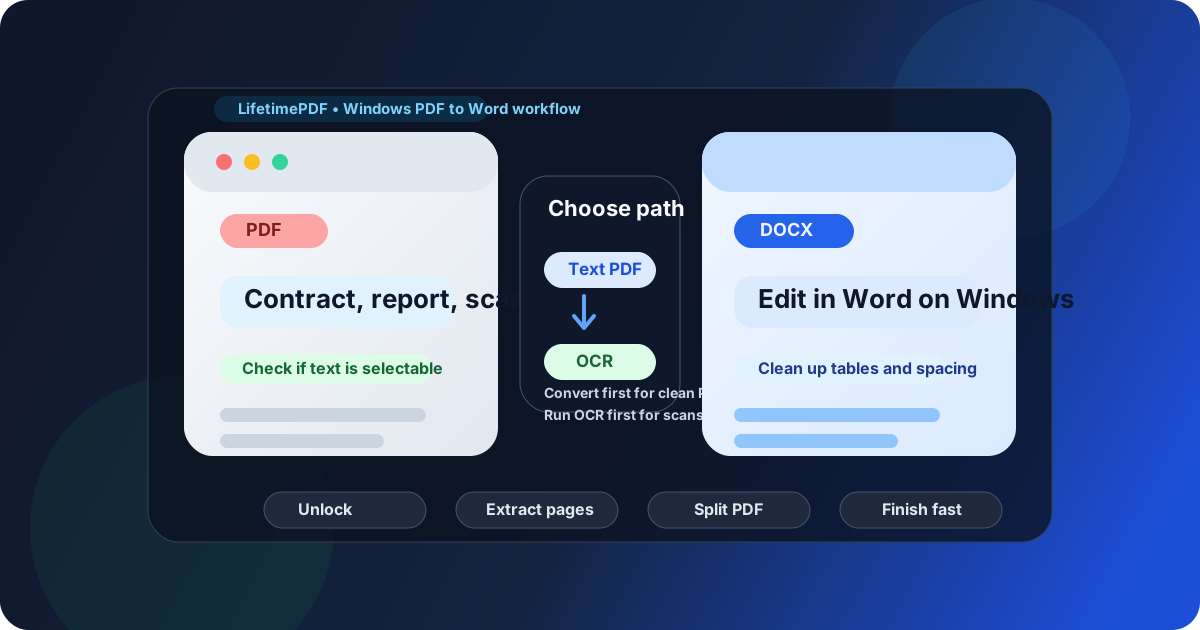
Table of contents
The short answer
If your PDF already contains selectable text, the best tool on Windows is usually a dedicated browser-based PDF to Word converter. It is the quickest route to an editable DOCX and avoids the trial-and-error feeling that comes from opening the PDF directly in Word too early.
If the file is scanned, photographed, or image-only, the best first tool is OCR. OCR turns the page into readable text before you convert it, which is what makes later editing in Word realistic instead of painful.
And if the PDF already converted but still looks messy, the best tool becomes Microsoft Word on Windows for cleanup. That distinction matters: conversion, text recognition, and final editing are related, but they are not the same job.
Why Windows users get stuck with PDF to Word
Windows users usually get stuck for three reasons. First, Word can open some PDFs, so people assume it must always be the best converter. Second, browser preview, local viewing, and true editable conversion all look similar at first, even though they solve different problems. Third, many PDFs are not plain text documents at all. They may be scans, tables, forms, multi-column layouts, or heavily formatted exports.
In other words, the problem is rarely Windows itself. The problem is using the wrong workflow for the document in front of you. A one-page letter, a scanned invoice pack, a contract with signature fields, and a design-heavy brochure will behave very differently once you ask Word to rebuild them as editable content.
Once you sort PDFs into those categories, the right choice becomes much easier. That is why the best Windows setup is usually not one magic tool. It is one main converter plus one or two helper steps when the file is difficult.
Best tools by situation
1) Best overall tool for most Windows users: browser-based PDF to Word
For normal text-based PDFs, the best tool is a dedicated browser workflow such as LifetimePDF PDF to Word. It handles the actual conversion directly instead of asking Word to reverse-engineer every page from scratch.
- Best for: reports, contracts, proposals, manuals, invoices, resumes, and office documents with selectable text
- Why it works well on Windows: quick in Edge or Chrome, no heavy desktop dependency, easy DOCX export
- Less ideal for: scans, handwriting, noisy photos, or highly visual brochures
2) Best tool for scanned PDFs: OCR first
If the PDF came from a scanner, copier, or phone camera, a direct converter often produces a disappointing Word file because the page is basically an image. That is where OCR PDF becomes the real best tool in the workflow.
- Best for: scanned contracts, archive files, photographed forms, paper records, receipts, and image-only PDFs
- Use it before: converting to Word, extracting text, searching, or summarizing
- Reality check: OCR quality still depends on scan clarity, rotation, contrast, and page damage
3) Best tool for cleanup after conversion: Microsoft Word on Windows
Word on Windows is still extremely useful, just not always as the first step. Once you already have a DOCX, Word becomes the best place to repair styles, headings, tables, page breaks, spacing, comments, and tracked changes.
- Best for: final editing, cleanup, formatting repair, and review workflows
- Strong at: tables, comments, tracked changes, and document polish
- Weakest at: raw OCR, difficult scan recovery, and preserving every complex visual layout automatically
4) Best helper tools for tricky files: unlock, extract, and split
Sometimes the best conversion result comes from one small prep step before the main conversion. That is especially true when a big mixed-quality PDF is slowing you down.
- Locked file? Use PDF Unlock first, if you are authorized.
- Only need a few pages? Use Extract Pages so you do not convert the whole document.
- Mixed clean and bad pages? Use Split PDF and treat the problem section separately.
Step-by-step: the best Windows workflow
If you want the most reliable result on Windows, this is the workflow that makes the most sense in real work.
Step 1: Check whether the PDF already contains real text
Open the PDF and try selecting a sentence. If text highlights cleanly and search works, the file is probably text-based and ready for direct conversion.
Step 2: If text is not selectable, run OCR first
Do not force an image-only PDF through a normal converter and hope it improves. OCR is the step that turns a picture of text into something Word can actually edit.
Step 3: Reduce the problem before you convert
Huge PDFs, mixed orientations, appendices, and scanned attachments create extra cleanup later. If you only need certain pages, extract them first. If part of the PDF is clean and part is messy, split the file.
Step 4: Convert to Word
Once the PDF is in the right condition, convert it to DOCX. This is where a dedicated PDF to Word workflow does the heavy lifting quickly.
Step 5: Clean up the result in Word
Review headings, bullet lists, tables, page breaks, spacing, and fonts. Conversion gets you into editable form; Word is where you make the file presentable.
Step 6: Save or re-export the final version
Once the DOCX looks right, save your editable copy and export a fresh PDF if you need a final shareable version. That way you keep both the editable draft and the finished output.
The biggest gain here is not speed alone. It is predictability. When you stop asking one tool to do everything, the output becomes much more consistent.
How to choose when formatting matters
Not every PDF conversion has the same goal. Sometimes you only need the words. Other times you need the layout to stay as close as possible to the original.
- Need editable text fast? Use direct PDF to Word for clean digital PDFs.
- Need to rescue a scan? OCR first, then convert or edit.
- Need tables to survive? Expect some cleanup in Word even after a good conversion.
- Need only a small section? Extract pages first so the converter handles less noise.
- Need perfect visual fidelity? Remember that Word is an editable format, not a fixed-layout twin of the original PDF.
This is where expectations matter. PDF is designed to preserve appearance. Word is designed to let you edit. A good workflow gets you close, but a complex layout still needs human review afterward.
Common mistakes Windows users make
Opening every PDF directly in Word
Word can help, but using it as the first step for every file often creates extra cleanup. It is better as an editor after the right conversion path is chosen.
Skipping OCR on scans
If the text is really just an image, no amount of wishful thinking will make the DOCX clean. OCR is the difference between a usable file and a frustrating mess.
Converting huge mixed PDFs all at once
A 150-page file with clean pages, scanned pages, forms, and appendices usually converts better when you split it into logical parts first.
Expecting perfect formatting with zero cleanup
Even good conversion has limits. Tables, columns, signatures, footnotes, and floating images may need a final pass in Word.
Helpful LifetimePDF tools for the full workflow
The best Windows conversion setup usually combines one main tool with a few support tools. These are the most useful next steps when the file needs more than a plain conversion.
Useful tools
- PDF to Word for the main DOCX conversion
- OCR PDF for scans and photographed pages
- PDF Unlock for authorized access to protected files
- Extract Pages when you only need part of the document
- Split PDF for large or mixed-quality files
Ready to convert PDF to Word on Windows the easy way? Start with the file type, pick the right path, and use Word only after the content is truly editable.
Best Windows workflow for tough files: check whether text is selectable → OCR scans if needed → convert to DOCX → clean up in Word → export the final version.
FAQ
1) What is the best tool to convert PDF to Word on Windows?
For most people, the best starting point is a dedicated PDF-to-Word converter for ordinary text PDFs. If the file is scanned, OCR is the best first tool. If the DOCX already exists but needs repair, Word on Windows becomes the best cleanup tool.
2) Can Microsoft Word on Windows convert PDF to Word by itself?
Sometimes, yes. But that does not mean it is always the best first step. Dedicated conversion is usually faster for clean PDFs, and scanned files still need OCR before Word editing becomes practical.
3) What should I use for scanned PDFs on Windows?
Use OCR first. A scanned PDF is often just an image of text, so direct conversion usually produces weak output until the text has been recognized properly.
4) Why does formatting break after converting PDF to Word?
Because PDF is designed to preserve appearance while Word is designed for editing. Tables, columns, signatures, page breaks, and floating images often need manual cleanup even after a good conversion.
5) Should I use helper tools before converting?
Often yes. Unlocking an authorized file, extracting only the pages you need, or splitting a mixed PDF into smaller parts can improve the final Word result and save time.
Published by LifetimePDF — Pay once. Use forever.