Annotate Contract PDF Online: Highlight Clauses, Add Comments, and Keep the Original Clean
To annotate a contract PDF online, upload the contract to a PDF annotation tool, highlight the clauses that matter, add short comments where decisions are needed, and download the marked-up review copy. That lets legal, procurement, sales, or operations teams comment on the agreement without rewriting the source contract or losing track of what changed.
This is the practical contract-review workflow most teams actually need: flag payment terms, renewal language, termination clauses, and signature issues fast, then send a clean copy back for revision or approval. Below, we will walk through the step-by-step process, when annotation is better than editing, how to compare revised versions, and how to share the final file securely.
Fastest path: Open LifetimePDF's Annotate PDF tool, mark the contract clauses that need attention, then download the reviewed copy.
In a hurry? Jump to Quick start: annotate a contract PDF in a few minutes.
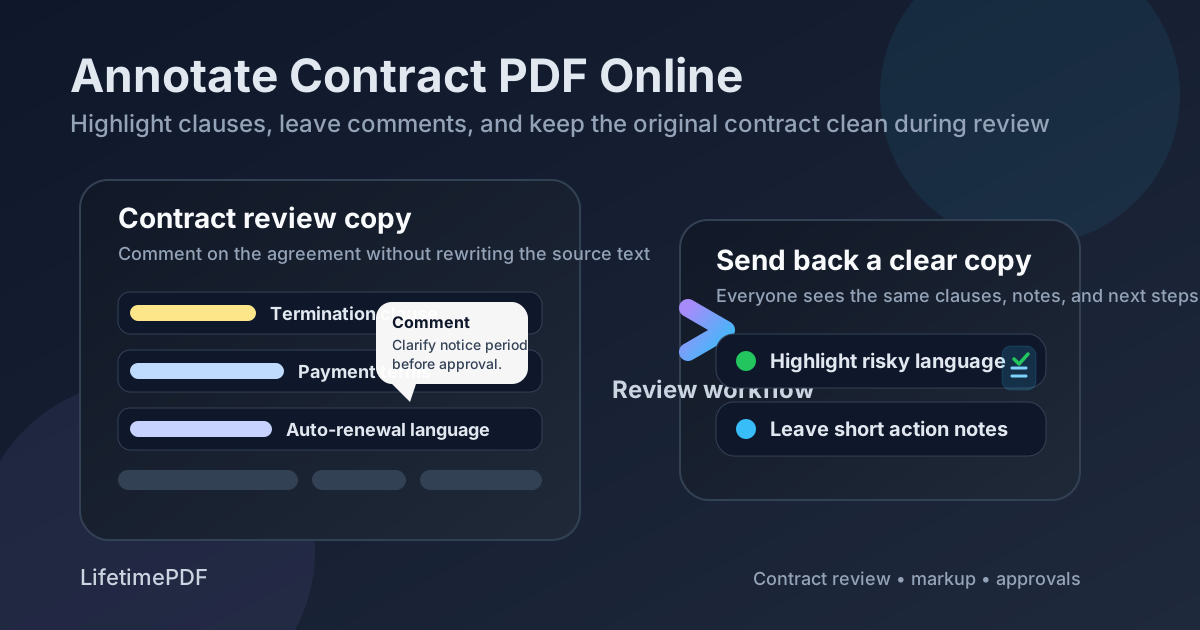
Table of contents
- Quick start: annotate a contract PDF in a few minutes
- Why contract annotation is different from contract editing
- Step-by-step: annotate a contract PDF online
- What to highlight in a contract review
- A cleaner contract review workflow for teams
- How to compare revised contract PDFs after markup
- How to share an annotated contract PDF securely
- Scanned, signed, or image-only contracts
- Common contract annotation mistakes
- Related LifetimePDF tools
- FAQ (People Also Ask)
Quick start: annotate a contract PDF in a few minutes
If you just need the shortest reliable workflow, use this:
- Open Annotate PDF.
- Upload the exact contract version under review.
- Highlight the clauses that need action, such as payment terms, renewal language, indemnity, deadlines, or signatures.
- Add short comments next to those clauses so the next reviewer knows what needs to be confirmed, changed, or escalated.
- Download the annotated copy.
- If a revised file comes back, use Compare PDFs to confirm the language was updated correctly.
Why contract annotation is different from contract editing
Contract review is not the same as contract drafting. Most of the time, the first job is not to rewrite the agreement directly. The first job is to make the risky or unclear sections impossible to miss.
Annotation is better than direct editing when multiple people need to review the same file, when you need a clear record of discussion points, or when you want the counterparty to see exactly which clause triggered the feedback. A highlighted clause plus a one-line note is usually far clearer than a separate email saying, please check section 8.
| Task | Use annotation when... | Use editing when... |
|---|---|---|
| Internal review | You want to point out issues without touching the source wording yet | You already own the contract draft and are updating the actual text |
| Vendor negotiation | You need the other side to see exactly which clause caused the objection | You are preparing the next revised contract version yourself |
| Approval routing | You need short decision notes like approved, revise, legal review, or confirm cap | You are producing the final executable agreement |
| Audit trail | You want a visible markup layer showing what reviewers flagged | You want a clean final version with the accepted wording only |
Good review habit: use annotation to make the question obvious before anyone starts rewriting the contract.
Step-by-step: annotate a contract PDF online
A good contract annotation workflow is less about fancy markup and more about clarity. Every mark on the page should help the next person make a decision faster.
1) Upload the exact contract copy under review
Do not annotate an outdated attachment if procurement, legal, or the counterparty is already using a newer copy. Start with the real working version so everyone is talking about the same agreement.
2) Highlight the clauses that actually matter
Focus on terms that affect money, risk, timing, access, or obligations. If every paragraph is highlighted, the markup stops helping.
3) Add short, direct comments
Keep review notes specific and local to the clause. Good examples:
- Need 30-day notice, not 10
- Legal to confirm liability cap
- Renewal should be opt-in, not automatic
- Match payment terms to MSA
4) Review the page at normal zoom
Contract markup often looks fine when you are zoomed in and terrible when someone else opens the PDF at normal size. Scroll the entire document before export and make sure your notes are readable without covering the key language.
5) Download the review copy and move it to the next step
Some contracts move from markup to revision. Others move from markup to approval, signature, or secure external sharing. The best workflow depends on where the contract sits in the cycle.
What to highlight in a contract review
Most contract reviews stall because the markup is vague. Instead of circling random sections, mark the clauses that control business risk, obligations, or negotiation leverage.
| Clause area | What to look for | Typical annotation |
|---|---|---|
| Payment terms | Due dates, fees, late charges, billing triggers | Highlight amounts and add a note if terms conflict with the quote or purchase order |
| Termination | Notice periods, termination for cause, survival language | Highlight the notice window and flag anything too short or one-sided |
| Renewal | Auto-renewal, opt-out deadlines, pricing changes | Mark the renewal sentence and note whether approval should be required |
| Liability and indemnity | Caps, exclusions, defense obligations, carve-outs | Flag risky language and route it to legal instead of burying it in email |
| Security or confidentiality | Data handling, breach notice, confidentiality scope | Highlight obligations that affect customer, employee, or regulated data |
| Signatures and dates | Missing signers, blank dates, incomplete execution blocks | Place a note showing who still needs to sign or confirm authority |
The best contract annotation is usually not long. It is just precise enough that the next reviewer can see where the issue is and what decision is needed.
A cleaner contract review workflow for teams
Contracts rarely move through one person. Sales may care about commercial terms. Legal may care about indemnity and governing law. Procurement may care about approval routing. Finance may care about billing triggers. Annotation helps all of them work on the same PDF without turning the process into a dozen separate comment threads.
Internal review
- Highlight clauses that need functional review
- Add short owner notes such as legal review, finance confirm, or sales OK
- Keep the contract in one visible review copy instead of scattering feedback across emails
Counterparty revision round
- Send the marked-up contract with only the clauses that need changes
- Keep notes short enough that the requested change is obvious
- When the revised file returns, compare the two PDFs before approving anything
Final approval and execution
- Once the wording is settled, save a clean final version
- Use Sign PDF if the agreement is ready for execution
- If you need a fixed copy where comments always render the same way, use Flatten PDF at the end, not in the middle of review
How to compare revised contract PDFs after markup
Annotation is only half the job. After the other side sends back a revised agreement, you still need to confirm whether the requested change actually happened. This is where teams lose time by manually scanning a 30-page contract again.
Instead, compare the original marked-up copy against the revised PDF using Compare PDFs. That helps you answer the question that matters: Did the clause change the way we asked?
- Keep your annotated review copy.
- Upload the revised contract version when it comes back.
- Compare the two PDFs for wording, clauses, dates, and signature page changes.
- Only move to approval after the revised language matches the negotiated outcome.
Do not rely on memory: compare the revised contract before you approve it.
How to share an annotated contract PDF securely
Contract markup can be more sensitive than the contract itself. Internal review notes often reveal negotiation limits, legal concerns, pricing objections, or approval friction. That means the reviewed copy should be handled intentionally.
- Remove what should not leave the team: use Redact PDF if an external version needs hidden notes or sensitive details removed.
- Protect the file: use PDF Protect before sending outside your organization when password control makes sense.
- Flatten only when appropriate: use Flatten PDF if you need a fixed copy where annotations should no longer be editable.
- Sign only the clean final version: keep draft review markup out of the executable agreement unless it is intentionally part of the record.
Security in contract review is mostly about timing. Keep markup editable during review. Lock, flatten, or sign only when the contract reaches the right stage.
Scanned, signed, or image-only contracts
Some contract PDFs are really just images. That is common with older scans, photographed signature pages, and agreements exported from poor source files. You can still annotate them visually, but the experience is cleaner when the text is searchable.
If the contract is image-only, run it through OCR PDF first. OCR makes the document easier to search, copy, and navigate before you start marking clauses.
Common contract annotation mistakes
Highlighting everything
If every paragraph is bright yellow, none of it stands out. Mark only the clauses that need discussion or action.
Writing long comments instead of useful comments
Contract notes should explain the issue fast. Short, directional comments are easier to act on than mini-memos.
Skipping version control
Always know which copy is the reviewed one and which copy is the revised one. Otherwise your markup becomes disconnected from the negotiation.
Sending internal notes externally by accident
Internal negotiation comments can easily contain pricing positions, legal concerns, or sensitive strategy. Review the file before sending it out, and protect or redact when needed.
Approving the revision without comparing it
A returned contract can look cleaner while still missing the requested language change. Compare the PDFs before the final sign-off.
Related LifetimePDF tools
Contract annotation works best as part of a complete PDF review workflow.
- Annotate PDF - highlight clauses, place notes, and mark the contract review copy
- Compare PDFs - confirm the revised contract actually changed where requested
- Sign PDF - execute the clean final contract version
- PDF Protect - password-protect sensitive contract files before sharing
- Redact PDF - remove sensitive details from external review copies
- Flatten PDF - lock annotations into a fixed review copy when the markup should no longer move
- OCR PDF - make scanned contracts searchable before review
Related contract and review articles
- Compare PDF Contract Revisions Without Monthly Fees
- Compare PDF Versions Online
- Annotate PDF Online: Add Comments, Highlights & Annotations Free
- Sign PDF Online Free
FAQ: Annotate contract PDF online
1) How do I annotate a contract PDF online?
Open Annotate PDF, upload the contract, highlight the clauses that need attention, add short comments beside those sections, then download the marked-up copy for review or negotiation.
2) What is the difference between annotating a contract and editing contract text?
Annotation adds markup on top of the contract for review. Editing changes the actual contract wording. If your goal is to flag issues before the draft is rewritten, annotation is the cleaner first step.
3) Can I compare two contract PDF versions after review?
Yes. After a revised contract comes back, use Compare PDFs to check that the requested language really changed before anyone approves or signs it.
4) Should I flatten contract annotations before sending the file?
Flattening helps when you need a fixed review copy and want the annotations to render consistently. Keep annotations editable while the contract is still actively being reviewed internally.
5) How do I share an annotated contract PDF securely?
Review the markup carefully, redact anything that should not leave your team, then use PDF Protect before sending the final file externally.
Ready to review a contract without turning the file into a mess?
Best workflow for contract PDFs: Annotate → Revise → Compare → Protect or Sign.
Published by LifetimePDF — Pay once. Use forever.