How to Verify a PDF Signature in Firefox: Check Signed Files from Gmail, Drive, and Downloads Before You Trust Them
To verify a PDF signature in Firefox, open LifetimePDF's Verify PDF Signature tool in Firefox, upload the original signed PDF from Gmail, Google Drive, Downloads, or a portal export, and read whether the signature is valid before you trust, forward, or archive the document.
If Firefox is only showing the file in its built-in PDF viewer, use that preview to confirm you opened the right document and a dedicated verification tool to check the signature data, signer details, and whether the PDF changed after signing.
That is the short answer. The part that causes trouble in Firefox is usually not the signature itself. It is tab confusion, restored sessions, multiple downloads with nearly identical names, and the easy assumption that a visible signature box proves more than it does. The reliable workflow is simple: identify the real signed PDF, read the verification status first, confirm the signer details, and slow down immediately if Firefox is showing a warning or an older copy.
Fastest path: open LifetimePDF's Verify PDF Signature tool in Firefox, upload the original signed PDF, read the status first, then confirm the signer and signing time before you rely on the document.
In a hurry? Jump to Quick start: verify a signed PDF in Firefox in a few minutes.
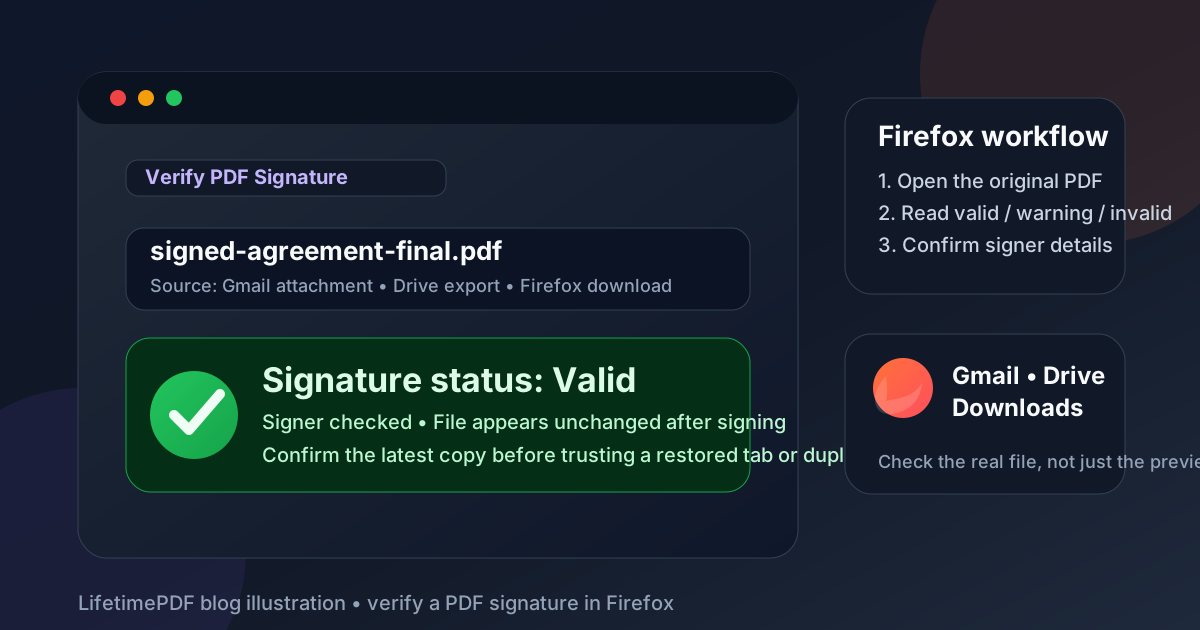
Table of contents
- Quick start: verify a signed PDF in Firefox in a few minutes
- Why Firefox verification gets messy faster than people expect
- Firefox preview vs real signature verification
- Step-by-step: how to verify a PDF signature in Firefox
- What valid, warning, and invalid results usually mean
- How to handle Gmail attachments, Drive files, downloads, and portal links in Firefox
- Common Firefox mistakes when checking signed PDFs
- What to do if a signed PDF looks suspicious in Firefox
- Related LifetimePDF tools and guides
- FAQ (People Also Ask)
Quick start: verify a signed PDF in Firefox in a few minutes
If the signed file is already open in Firefox or sitting in your Downloads folder and you just need a dependable answer, this is the workflow most people actually want:
- Start with the original signed PDF from Gmail, Google Drive, Downloads, or a portal export.
- Open Verify PDF Signature in Firefox.
- Upload the file and read whether the result is valid, warning, or invalid.
- Check the signer name, signing time, and whether the file appears unchanged after signing.
- If anything feels off, compare versions or ask for a fresh signed PDF before you trust it.
The useful Firefox habit is this: never decide based only on the visible signature mark inside the viewer. The verification result matters more than the appearance.
Why Firefox verification gets messy faster than people expect
Firefox is often where signed PDFs first appear, but it also hides a few small traps. A Gmail attachment opens in the same browser. A Drive file launches in preview. A portal can replace the current tab with a PDF. And if Firefox restores your previous session, yesterday's signed document may still be sitting there looking current when it is not.
Most verification mistakes in Firefox are not advanced cryptography problems. They are ordinary workflow mistakes:
- You verify the copy in Downloads, but the final version is still in the portal.
- You open a signed attachment in Firefox, then later upload a duplicate file with a (1) suffix.
- You trust the visible signature box in the viewer without checking whether the signature is actually valid.
- You restore a session and accidentally review an older PDF tab from a previous approval cycle.
The safer pattern is simple: identify the exact signed file, verify that exact file, read the status first, then confirm the signer details and document context.
| Situation | Best Firefox-friendly move | Why it works better |
|---|---|---|
| You need to know whether the signature is trustworthy | Verify PDF Signature | It checks signature data and document integrity instead of relying on what the Firefox preview looks like. |
| You have two similar versions and are not sure what changed | Compare PDFs | Comparing versions helps you see whether the signed copy and the file you received later are actually the same. |
| You are holding an unsigned form | Sign PDF instead | Verification is for signed files. If the document still needs your signature, switch to the signing workflow. |
Firefox preview vs real signature verification
Firefox's built-in PDF viewer is genuinely useful. It lets you open the file quickly, confirm the document title, skim the pages, and make sure you are looking at the right attachment or download. But preview is not the same thing as verification.
A visible signature field only tells you that the PDF contains something that looks signed. What matters is whether the signature data checks out, whether the file changed after signing, and whether the signer details fit the situation you are handling.
- Firefox preview is useful for opening and reviewing the file.
- Downloads or saved copies help you make sure you are checking the exact file you intend to trust.
- Verification is the step that tells you whether the signature is valid enough to rely on.
Step-by-step: how to verify a PDF signature in Firefox
Here is the clean browser workflow that avoids most Firefox-specific confusion.
1. Start with the real signed PDF
If the document is still in Gmail, Drive, or a portal, that is fine. Just make sure you are using the actual signed attachment or exported PDF. If you only have a screenshot, printed copy, or rescan, you are no longer holding the same digital object that was originally signed.
2. Open Verify PDF Signature in Firefox
Go to Verify PDF Signature in Firefox. Keeping the process in the same browser session makes it easier to move from Gmail, Drive, or a portal into a deliberate signature check without bouncing through extra apps.
3. Upload the exact file you intend to trust
If Firefox has several copies in the Downloads list, pause long enough to confirm which one is supposed to be the final signed PDF. Similar filenames are one of the easiest ways to verify the wrong document.
4. Read the status first
Start with the main result: valid, warning, or invalid. That gives you the right level of caution immediately. Do not skip past the top-line result just because the visible signature block looks normal.
5. Review the signer details and timing
Confirm the signer name, signing time, and whether the file appears unchanged after signing. Even when the signature is technically present, the surrounding context still matters. An unexpected signer or odd timestamp is worth a second look.
6. Stop if the file is unclear or inconsistent
If Firefox is showing warnings, the document feels out of sequence, or you are not sure whether you have the current copy, slow down. That is when Compare PDFs or a fresh resend from the sender can save you from trusting the wrong version.
Need the shortest possible route? Use the original signed PDF, check the status first, then confirm who signed it and whether the file stayed unchanged.
What valid, warning, and invalid results usually mean
Different verification tools phrase results a little differently, but the practical meaning is usually close to this:
| Status | What it usually means | What to do next |
|---|---|---|
| Valid | The signature data checks out and the PDF does not appear to have changed after signing. | Continue, but still confirm the signer and situation make sense. |
| Warning | The file may still be legitimate, but something needs review such as trust context, certificate details, or post-signing changes. | Slow down and understand the warning before you trust the document. |
| Invalid | The signature failed validation, the PDF may have changed after signing, or the signature cannot be trusted as presented. | Stop the workflow and ask for clarification or a fresh signed copy. |
The common mistake is treating a warning like a green light because the document is urgent. If the file matters enough to act on, it matters enough to verify patiently.
How to handle Gmail attachments, Drive files, downloads, and portal links in Firefox
Gmail attachments
Gmail preview is helpful for confirming that you received the expected file, but it is not the place to make the trust decision. If the document matters, open the original attachment, save it if needed, and verify that actual file instead of assuming the preview tab tells the whole story.
Google Drive files
Drive is convenient, but it can blur the line between the shared cloud copy and a downloaded local copy. If the file may have been replaced, renamed, or exported again, confirm which version is supposed to be final before you verify it.
Downloads in Firefox
Firefox's download panel is handy, but duplicate names can pile up quickly. A file with a (1) or (2) suffix may be newer, older, or just a repeated download. Check the file deliberately before you verify it.
Portal links and restored tabs
Firefox often restores previous tabs cleanly, which is useful until an older signed PDF is sitting beside the current one. If you reopened the browser and found the document already there, do not assume it is the latest approved copy. Confirm the source first.
Rule of thumb: if you are not completely sure which copy is current, stop and identify the source file before verifying anything. A slow correct decision beats a fast wrong one.
Common Firefox mistakes when checking signed PDFs
Firefox is comfortable enough that people move quickly, which is exactly why these mistakes happen so often:
- Trusting the viewer alone. The PDF opens cleanly, so it feels safe, but appearance is not the same thing as validation.
- Checking the wrong copy. Multiple downloads or exports can leave you with nearly identical filenames.
- Working from a screenshot or rescan. That preserves the look of the page, not the original signature data.
- Using a restored tab without confirming freshness. Session restore is helpful, but it can make stale PDFs look current.
- Ignoring warnings because the document is urgent. Warnings are the moment to slow down, not speed up.
None of these are rare edge cases. They are the normal human mistakes that happen when people are rushing through browser-based document work.
What to do if a signed PDF looks suspicious in Firefox
Sometimes the verification result is not obviously bad, but the whole situation still feels wrong. Maybe the signer name is unfamiliar. Maybe the timestamp does not line up with the story you were told. Maybe Firefox reopened an older tab and now you are not fully sure which version is supposed to be final.
In those cases, do not power through just because the workflow is moving quickly. A few small checks usually do more good than another round of guessing:
- Confirm the sender through a trusted channel.
- Ask for a fresh signed PDF if the file history is messy.
- Use Compare PDFs if you have two versions and need to see what changed.
- If the file still needs your signature, switch to Sign PDF instead of treating an unsigned copy like a verification problem.
Related LifetimePDF tools and guides
Firefox-based PDF work goes more smoothly when you use the right tool for the actual job instead of trying to solve everything with the preview tab.
- Verify PDF Signature — check signature validity and document integrity in Firefox.
- Compare PDFs — spot changes between two versions before you trust the wrong file.
- Sign PDF — add your own signature when the file is unsigned.
Related reading on LifetimePDF: how to sign a PDF in Firefox, how to compare PDFs in Firefox, how to flatten a PDF in Firefox, and how to verify a PDF signature on Windows.
If you work with signed PDFs regularly, LifetimePDF is useful for this exact browser workflow: open the real file, verify it properly, compare versions when needed, and move on without turning a routine document check into a subscription problem.
FAQ: How to verify a PDF signature in Firefox
How do I verify a PDF signature in Firefox?
Open the original signed PDF in Firefox using a signature verification tool, upload it from Gmail, Google Drive, Downloads, or another folder, read whether the signature is valid, and then review the signer details before you trust the document.
Can Firefox's built-in PDF viewer tell me whether a signature is valid?
Not reliably on its own. Firefox's built-in viewer is useful for opening the file and checking that you have the right document, but you still need a dedicated verification workflow to inspect signature status and document integrity.
What should I do if a signed PDF shows a warning in Firefox?
Do not ignore it. Review the signer details, confirm whether the file changed after signing, and request a clean resend or compare versions if the warning is not clearly explainable.
Can I verify a screenshot or printed copy of a signed PDF in Firefox?
No, not in the same meaningful way. Screenshots, printed copies, and rescanned PDFs usually lose the original signature data, so you need the real signed PDF to verify authenticity properly.
What if Firefox restored an older PDF tab and I am not sure which file is current?
Stop and identify the exact current file before you verify anything. Restored tabs and duplicate downloads can make two similar PDFs look interchangeable when they are not.
Published by LifetimePDF — Pay once. Use forever.