Translate PDF to Thai: OCR Scans First, Review Names and Key Terms, and Export a Clean Final PDF
To translate a PDF to Thai, upload a text-based PDF to LifetimePDF's Translate PDF tool, choose Thai, then review names, numbers, labels, and awkward short line breaks before you export or rebuild the final file.
If the PDF is scanned, run OCR first; that step usually matters more than anything else for clean Thai output.
Most people searching for this do not need a perfect literary translation of every page on the first pass. They need a document they can read, share, review, or adapt without wasting time fixing avoidable issues afterward. The biggest gains usually come from three practical choices: start with real text instead of page images, catch names and mixed terminology early, and rebuild the final PDF only when presentation quality truly matters.
Fastest practical path: translate readable PDFs directly, OCR scanned files first, then do a short review for names, labels, numbers, and Thai text flow before sending the final file.
In a hurry? Jump to the quick answer and workflow.
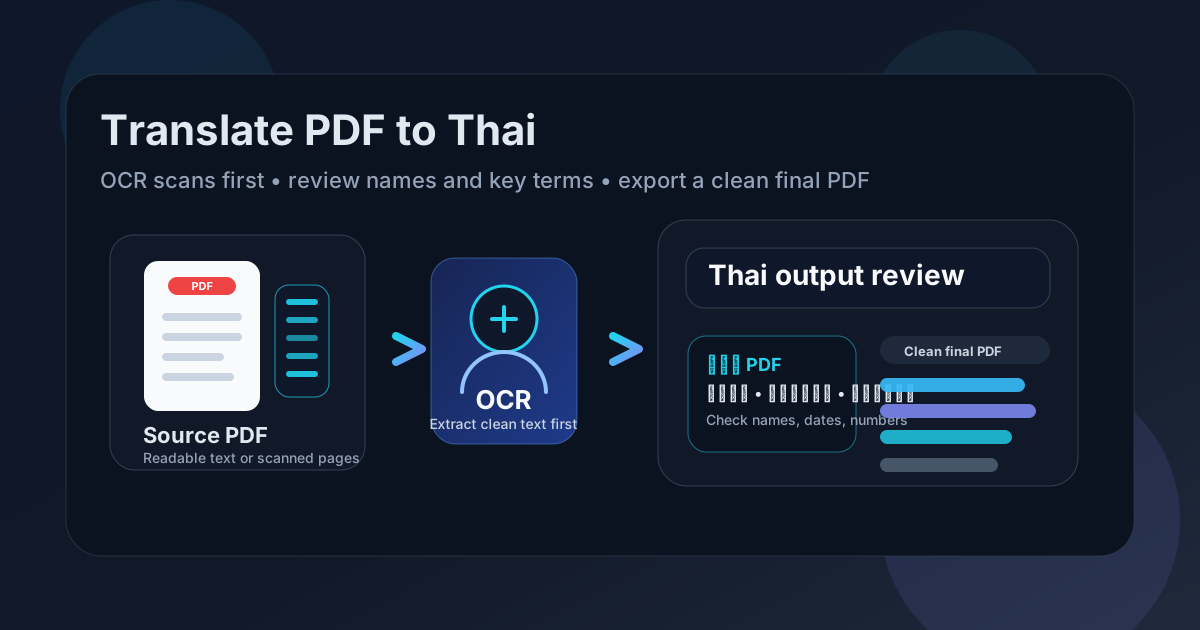
Table of contents
- Quick answer: the cleanest way to translate PDF to Thai
- When direct PDF translation works well
- Why Thai needs a careful review pass
- Scanned PDFs: why OCR comes first
- A practical Thai PDF workflow from start to finish
- When to rebuild the final Thai PDF instead of sending raw output
- Common mistakes that make Thai PDF translations look careless
- Where this workflow is especially useful
- FAQ
Quick answer: the cleanest way to translate PDF to Thai
The shortest reliable workflow is simple:
- Check whether the PDF already has selectable text.
- If it does, open Translate PDF and choose Thai.
- If it does not, run OCR PDF first.
- Review names, dates, amounts, labels, acronyms, and awkward short line breaks after translation.
- If layout quality matters, rebuild the final file with Text to PDF or Word to PDF.
When direct PDF translation works well
Direct translation works best when the PDF is already text-based and structurally calm. Manuals, contracts, invoices, reports, onboarding documents, letters, and policy files often translate reasonably well on the first pass if the original PDF has a clean text layer.
In those cases, the translation step itself is usually not the real problem. The bigger question is whether the Thai version is clear enough for the audience that has to use it. Internal review, supplier communication, document comprehension, academic reading, and draft localization work are often perfectly good use cases for a fast browser workflow.
- Good fit: readable PDFs with paragraphs, headings, lists, and straightforward tables.
- Still workable with review: invoices, forms, product docs, and legal summaries where wording matters.
- Usually needs cleanup: scans, brochures, dense tables, multi-column layouts, and documents with stamps or handwriting.
Have a clean source PDF already? Start with translation first and only add more steps if the result still needs work.
Why Thai needs a careful review pass
This is where generic "translate PDF" advice often becomes too shallow to help. Thai can look mostly readable after a quick machine pass, but a file can still feel rough if names drift, short labels split awkwardly, or mixed English and Thai business terms stop sounding natural. The document may remain understandable while still not feeling trustworthy.
Thai line flow can look odd even when the meaning is roughly right
Thai usually does not separate every word with spaces the way English does. That means extracted text, buttons, labels, bullets, or narrow columns can break in awkward places after OCR or translation. The text may not be fully wrong, but it can still feel harder to scan quickly, especially in forms, guides, or customer-facing material.
Names, acronyms, and shared terms deserve a second look
Business, legal, educational, and support documents often contain personal names, company names, place names, brand terms, menu labels, and acronyms that readers use to orient themselves. In Thai, those details can become awkward if the engine over-translates something that should stay in its original form, or if a transliterated name stops matching the source well enough to be recognizable. The issue is not always total inaccuracy. Sometimes the problem is simply that the document stops feeling clean and intentional.
Dates, numbers, and action lines matter more than stylistic perfection
Names, addresses, dates, totals, page references, and instructions with obligations or deadlines deserve a short manual review. Those are the lines readers actually act on. If you only have time for one pass, spend it there.
Scanned PDFs: why OCR comes first
If the PDF is really a stack of images, the translation tool has much less to work with. That is why OCR should happen first, not as an afterthought. OCR turns the visible page content into searchable text, and that text becomes the foundation of the Thai translation.
When people say translating a PDF "did not work," the source file is often the real problem. The tool was given blurry scans, low-contrast receipts, photographed pages, or uneven text capture. Thai output cannot be cleaner than the source material feeding it.
Use OCR first when:
- You cannot highlight any words in the PDF.
- Search does not find obvious visible text.
- The document came from a scanner, camera, or screenshot workflow.
- The pages contain faded print, stamps, handwriting, or uneven lighting.
If that sounds like your document, start with OCR PDF, confirm the extracted text is usable, and only then move to translation. That single decision saves more cleanup than almost anything else.
A practical Thai PDF workflow from start to finish
1) Check whether the PDF is text-based or scanned
Try to highlight a sentence or search for a visible word. If those tests work, translate directly. If not, OCR first.
2) Translate only the pages you actually need
If you only need a chapter, contract section, invoice pages, or a few support pages, do not force yourself to process the whole file every time. Smaller inputs are easier to review and usually faster to clean up afterward.
3) Choose Thai and run the first pass
Use Translate PDF and choose Thai deliberately. Then read the result with a reviewer mindset rather than assuming the first output is final.
4) Review the high-risk details
Start with the lines that carry real consequences:
- document titles and section headings
- names, addresses, and company references
- dates, totals, currencies, and measurements
- product labels, feature names, and interface wording
- short labels, bullet points, and lines that wrap awkwardly
- instructions, disclaimers, and legal or compliance text
5) Rebuild the final Thai PDF only if needed
If the translated content is mainly for understanding, the text result may already be enough. If the output needs to be client-ready, print-ready, or cleaner for formal sharing, move it into Text to PDF or Word to PDF and create a polished final version.
Practical sequence: OCR if needed, translate, review the risky lines, then rebuild only when presentation matters.
When to rebuild the final Thai PDF instead of sending raw output
Sometimes the translated content is accurate enough, but the PDF still looks patched together. That is common when the original layout was complicated or when translated Thai text wraps differently than the source language.
Rebuild the final PDF when:
- the document is going to a customer, partner, or external reviewer
- line breaks make headings or bullet points feel sloppy
- tables or labels become hard to read after translation
- the output needs branding, cleaner spacing, or a more intentional finish
- you need a version worth storing, printing, or forwarding widely
That is where a simple text or word-based rebuild pays off. You keep the translated meaning, improve the presentation, and avoid sending something that technically works but feels unfinished.
Common mistakes that make Thai PDF translations look careless
Skipping OCR on scans
This is the classic mistake. If the file is image-based, translation quality drops before the process even really begins.
Trusting the first pass on names and shared terms
A document can look mostly right while still being full of avoidable naming or terminology issues. Product terms, menu labels, and personal or company names deserve a quick review before the file reaches anyone important.
Ignoring short lines and labels readers scan quickly
Even when paragraph meaning is fine, short labels, buttons, field names, and narrow-column lines can become awkward after extraction or translation. Those are often the first places readers notice something feels off.
Sending a translated draft that still needs visual cleanup
The translation may be understandable, but if headings break awkwardly, columns collapse, or table labels become cramped, the document still feels rough. A quick rebuild step is often the difference between "usable" and "ready."
Where this workflow is especially useful
Translating a PDF to Thai is especially helpful when you need fast comprehension or a clean shareable version of documents like:
- contracts and policy summaries
- invoices, shipping paperwork, and supplier documents
- product manuals and support instructions
- research papers and internal reports
- customer communication drafts and partner-facing materials
In all of those cases, the same rule applies: the first output gets you speed, and the review plus rebuild steps give you confidence.
Ready to make a Thai version of your file? Start with the translator, then protect the final PDF if it contains sensitive material.
FAQ
How do I translate a PDF to Thai?
Upload a text-based PDF to a translation tool, choose Thai, review names, numbers, labels, and awkward line breaks, then export or rebuild the final file. If the PDF is scanned, OCR it first so the translation works from readable text instead of page images.
Can I translate a scanned PDF to Thai?
Yes. OCR the PDF first so the text becomes searchable and readable, then translate that text into Thai. Skipping OCR is one of the biggest reasons scanned translations turn messy.
Why can Thai text look awkward after PDF translation?
Because extraction and translation can make short labels, bullets, and narrow-column text break awkwardly. Names, acronyms, and mixed English and Thai terms also need a quick review before the file feels polished.
Will a translated Thai PDF keep the original formatting?
Sometimes partly, but not perfectly. Text-heavy pages usually hold up better than brochures, forms, tables, and multi-column layouts. If presentation matters, rebuild the final file after translation.
What should I check before sharing a Thai PDF externally?
Recheck names, dates, amounts, addresses, product terms, field labels, legal wording, and any sentence the reader must act on. Then protect the finished file if it contains private or commercially sensitive material.