Translate PDF to Lithuanian: OCR Scans First, Review Lithuanian Characters and Inflected Terms, and Export a Clean Final PDF
To translate a PDF to Lithuanian, upload a text-based PDF to LifetimePDF's Translate PDF tool, choose Lithuanian, then review names, dates, labels, and Lithuanian characters before you export or rebuild the final file.
If the PDF is scanned, run OCR first; that step usually matters more than any translation setting for clean Lithuanian output.
Most people searching for this are not trying to produce polished literary Lithuanian on the first pass. They need a document they can understand, pass to a colleague, send to a supplier, share with family, use in customer support, or turn into a cleaner final version without wasting time fixing predictable formatting issues. In practice, the biggest gains come from starting with real text instead of page images, keeping an eye on Lithuanian endings and character marks, and reviewing the short sections of the document where small mistakes cause the biggest confusion.
Fastest practical path: translate readable PDFs directly, OCR scanned files first, then do a short review for names, dates, labels, Lithuanian characters, and mixed terminology before sending the final file.
In a hurry? Jump to the quick answer and workflow.
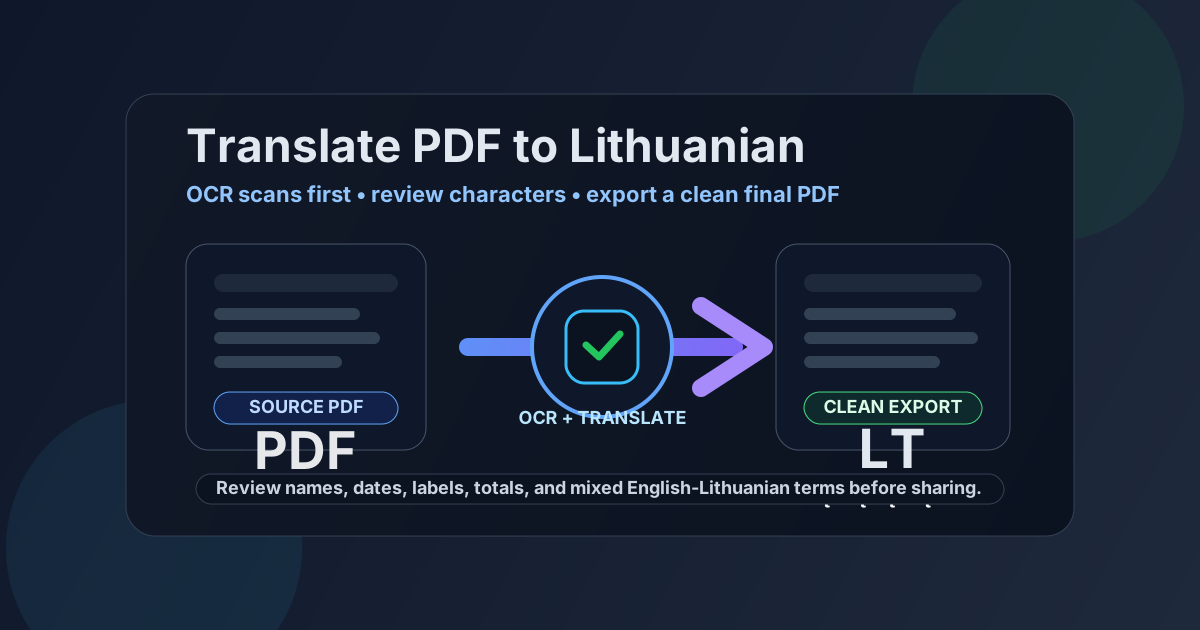
Table of contents
- Quick answer: the cleanest way to translate PDF to Lithuanian
- When direct PDF translation works well
- Why Lithuanian needs a careful review pass
- Scanned PDFs: why OCR comes first
- A practical step-by-step workflow
- What to check before sharing the final Lithuanian PDF
- When to rebuild instead of trusting the raw export
- Safe sharing and useful follow-up tools
- FAQ
Quick answer: the cleanest way to translate PDF to Lithuanian
If your PDF already contains selectable text, the fastest route is simple: upload it to Translate PDF, choose Lithuanian, export the result, and review the lines people will actually act on. That usually means headings, names, dates, product terms, field labels, totals, and any sentence where a Lithuanian case ending changes the meaning.
If the PDF is scanned or behaves like a stack of images, use OCR PDF first. OCR is what turns the source into readable text, and readable text is what gives the translation engine a fair chance of producing something trustworthy. Skipping that step is the fastest way to end up with broken names, missing words, or awkward Lithuanian output that needs far more cleanup than it should.
When direct PDF translation works well
Direct translation works best when the PDF is mostly plain text and the reader mainly needs comprehension, not perfect design preservation. Reports, policy documents, contracts for internal review, instructions, invoices, onboarding packs, school notices, support documentation, and simple forms often translate into useful Lithuanian surprisingly quickly.
Good candidates for a fast first pass
- Text-heavy PDFs: the more the file behaves like paragraphs instead of a poster, the smoother the workflow.
- Simple structure: headings, lists, and standard tables usually survive better than brochure layouts.
- Internal understanding: if the goal is to read, summarize, approve, or discuss the content, a direct translation is often enough.
- Short turnaround jobs: customer support, procurement, HR, and operations teams often just need a clear Lithuanian version fast.
Where people usually get frustrated
- Scanned pages: image-only PDFs need OCR before translation can work well.
- Dense layouts: columns, forms, labels inside diagrams, and marketing PDFs rarely keep their original visual structure perfectly.
- Mixed-language wording: software, legal, medical, logistics, and ecommerce documents often keep part of the terminology in English.
- High-stakes documents: if someone will sign it, submit it, pay from it, or rely on it legally, you still need a careful review.
That is the right mindset for this keyword: not one click makes everything perfect, but one smart workflow gets you to a usable Lithuanian version much faster.
Why Lithuanian needs a careful review pass
Lithuanian translation problems are rarely dramatic enough to make the whole document unreadable. The problem is subtler: the document looks mostly right, but a few practical details feel off to a real reader. That is exactly what makes review important.
1. Lithuanian characters matter
Review letters such as ą, č, ę, ė, į, š, ų, ū, and ž wherever they appear in headings, names, locations, labels, and product descriptions. A translation can still be understandable when one of these is wrong, but it instantly looks less trustworthy. That matters more in customer-facing PDFs, formal notices, and any document that gets saved or printed.
2. Inflected forms can drift
Lithuanian uses endings that change depending on how a noun or phrase is functioning in the sentence. Machine translation often gets the main idea right but can occasionally produce wording that sounds slightly stiff, mismatched, or overly literal. The fastest fix is to check sentence fragments around names, actions, quantities, deadlines, and instructions rather than rereading every paragraph from scratch.
3. Mixed English-Lithuanian terminology is normal
Many PDFs include software labels, product names, UI terms, shipping language, accounting phrases, or legal references that should remain partly in English. That is not a failure. It is a normal part of modern business writing. What you want is consistency: either keep the original term where it helps recognition, or translate it where clarity matters more than brand familiarity.
Scanned PDFs: why OCR comes first
A lot of people say they want to translate a PDF when what they really have is a photographed or scanned document. In that situation, the translator is not reading words yet. It is trying to interpret an image. That is why OCR is the make-or-break step.
OCR adds a text layer that makes the PDF searchable and selectable. Once that text exists, translation becomes much cleaner because the system can work with actual characters instead of guessing from page shapes. This matters even more for Lithuanian because character marks and short word endings can disappear or distort if the scanned source is poor.
Use OCR first when:
- You cannot highlight words in the PDF.
- Search does not find visible text.
- The document came from a phone camera, copier, or archive scan.
- The source contains stamps, skewed text, or faded letters.
Start with OCR PDF, confirm the extracted text is readable, then continue with Translate PDF. That small extra step usually saves much more time than it costs.
A practical step-by-step workflow
- Check the PDF type. Try selecting text or searching a visible word.
- Run OCR if needed. Do this before translation, not after a bad result.
- Translate into Lithuanian. Use the readable source file in Translate PDF.
- Review the high-risk lines. Focus on titles, labels, names, dates, numbers, addresses, and action instructions.
- Decide whether the raw export is enough. If comprehension is the only goal, you may already be done.
- Rebuild the final version if presentation matters. Use Text to PDF or Word to PDF to create a cleaner shareable file.
- Protect sensitive outputs. If the file contains personal, legal, or financial information, secure it with PDF Protect.
Best tool sequence for most people: OCR if needed → Translate PDF → quick Lithuanian review → clean export only if formatting matters.
What to check before sharing the final Lithuanian PDF
You do not need a line-by-line language audit for every document. You do need a smart checklist. These are the places where quick human review pays off fastest.
Names, locations, and legal identifiers
Verify personal names, company names, addresses, invoice numbers, contract references, and IDs. These items should often stay exactly as they are, even when the surrounding sentence is translated. Incorrect spacing or altered endings can create real confusion later.
Dates, amounts, and table entries
Tables and short fields are common failure points because the translated text may become longer than the original. Recheck due dates, totals, tax lines, units, percentages, and column headings before you assume the document is ready to send.
Labels and actions
Readers act on small pieces of text: buttons, signatures, approval notes, warnings, eligibility statements, delivery instructions, and checklist items. Those lines deserve attention because one odd phrase can make the whole document feel unreliable.
Character accuracy and word endings
This is the Lithuanian-specific pass. Look for missing character marks, awkward word endings, and phrases that feel too literal around headings, captions, bullet points, and repeated labels. You are not trying to perfect every sentence. You are trying to remove the friction a native reader would notice immediately.
When to rebuild instead of trusting the raw export
Sometimes the translation is good, but the PDF layout is not. That usually happens with brochures, forms, training handouts, catalogs, price sheets, certificates, multi-column reports, and visually designed documents.
In those cases, the cleanest move is often to treat the translated text as approved content, then rebuild the final deliverable in a simpler format. You can paste the Lithuanian output into Text to PDF, refine it in a word processor, and convert it back with Word to PDF. That is usually faster than fighting every broken line break in the original design.
Safe sharing and useful follow-up tools
Once your Lithuanian PDF is readable and checked, think about the next step. If it will be sent outside your team, archived, or attached to a transaction, it often deserves a little cleanup or protection.
- Need a translation workflow in the browser? Use Translate PDF to Lithuanian Online.
- Trying to avoid recurring subscriptions? See Translate PDF to Lithuanian Without Monthly Fees.
- Need a cleaner rewritten final version? Use Text to PDF or Word to PDF.
- Need to share the result safely? Lock it with PDF Protect.
If you only remember one workflow: OCR first when needed, translate into Lithuanian, review the high-risk lines, then export the simplest clean version that does the job.
Frequently asked questions
How do I translate a PDF to Lithuanian?
Upload a text-based PDF to a translation tool, choose Lithuanian, review names, dates, labels, official wording, and Lithuanian characters, then export or rebuild the final file. If the PDF is scanned, OCR it first so the translation works from readable text instead of page images.
Can I translate a scanned PDF to Lithuanian?
Yes. OCR should come first because it creates the searchable text layer the translator needs. Once the source text is readable, the Lithuanian translation usually improves immediately.
Why does Lithuanian translation still need a human review?
Because the overall meaning can be correct while small but important details still need work. Characters, names, dates, labels, and inflected wording are the parts most worth checking before you share the file.
Will a translated Lithuanian PDF keep the original formatting?
Sometimes partly, but not perfectly. Text-heavy PDFs stay usable more often, while forms, tables, brochures, and multi-column layouts usually need cleanup or a rebuild for a cleaner final document.
What is the best way to share a finished Lithuanian PDF safely?
Export the cleanest version that meets the need, then use PDF protection if the file contains personal, legal, financial, or business-sensitive information. That extra step is often worth it for external sharing.