Translate PDF to Galician: OCR Scans First, Review Accents, Mixed Galician-Spanish Wording, and Export a Clean Final PDF
To translate a PDF to Galician, upload a text-based PDF to LifetimePDF's Translate PDF tool, choose Galician, then review names, dates, headings, accents, and mixed Galician-Spanish wording before you export or rebuild the final file.
If the PDF is scanned, run OCR first; Galician output gets better fast when the translator works from real text instead of page images.
Most people searching for this are not trying to create perfect literary Galician from a messy PDF in one click. They need to understand a school letter, localize customer support material, review a municipal notice, translate onboarding instructions, share tourism information, check a supplier document, or produce a cleaner regional handout without wasting time on broken formatting. In practice, the biggest wins come from starting with searchable text, reviewing the short lines where language mixing causes confusion, and rebuilding the PDF only when presentation actually matters.
Fastest practical path: translate readable PDFs directly, OCR scanned files first, then do a short review for accents, names, dates, labels, and mixed Galician-Spanish wording before sending the final file.
In a hurry? Jump to the quick answer and workflow.
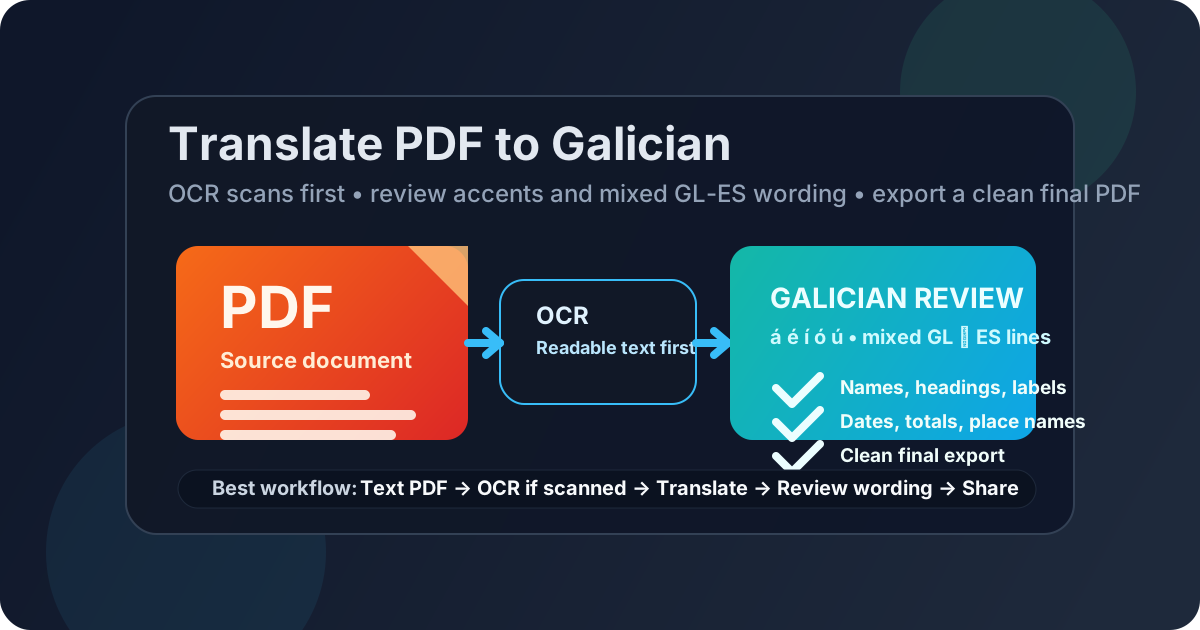
Table of contents
- Quick answer: the cleanest way to translate PDF to Galician
- When direct PDF translation works well
- Why Galician still needs a short review pass
- Scanned PDFs: why OCR should come first
- Step-by-step workflow with LifetimePDF
- How to create a clean final Galician PDF
- Before you share: privacy and final checks
- Helpful tools and related Galician pages
- FAQ
Quick answer: the cleanest way to translate PDF to Galician
If your PDF already contains selectable text, the cleanest workflow is simple: upload it to Translate PDF, choose Galician, translate the file, then review the parts where small errors would matter before you share the result. Those usually are names, dates, amounts, section headings, field labels, municipality names, official references, and the places where Galician and Spanish appear together in a way that could feel inconsistent to the final reader.
If the source is scanned, photographed, faxed, or exported from an older copier, do OCR first. That step usually matters more than any translation setting because the translator works far better with real text than with page images.
When direct PDF translation works well
Direct translation works best when the file is mostly text and the layout is not doing anything too clever. In real use, that includes letters, school notices, customer support guides, onboarding packs, invoices, community handouts, contracts, operations documents, tourism information sheets, internal policies, and public-service material.
Good candidates for direct translation
- Text-heavy pages: paragraphs, headings, bullet lists, and ordinary tables usually translate faster and more cleanly than design-heavy layouts.
- Comprehension-first jobs: when the goal is to understand the document quickly, even a rough first pass into Galician can save a lot of time.
- Internal review workflows: support, HR, education, compliance, tourism, operations, and municipal teams often need a readable Galician version first and a polished version later.
- Bilingual follow-up: if the translated text will be pasted into email, chat, notes, or another document, perfect PDF formatting matters much less.
Where people usually get frustrated
- Scanned PDFs: poor OCR can break words, table structure, and line order before translation even starts.
- Heavy layouts: brochures, certificates, forms, and multi-column pages rarely keep their original formatting perfectly.
- Mixed terminology: many Galician documents keep Spanish labels, official names, acronyms, and imported technical language that should be reviewed instead of translated blindly.
- Accent and spelling details: marks such as á, é, í, ó, ú, and ñ deserve a quick visual check before you trust the final file.
- High-stakes content: legal, financial, healthcare, immigration, and academic material should not be trusted on translation alone without a human check.
Why Galician still needs a short review pass
Galician PDF translation is not tricky only because of vocabulary. The real issues usually come from extraction quality, mixed Spanish terminology, official labels, proper nouns, and whether the final wording still sounds natural for the audience reading it. A two-minute review catches most of the mistakes that make a translated document feel awkward or less trustworthy than it should.
What to review first
- Headings and short labels: these are the first places readers notice if something looks copied, vague, or oddly mixed.
- Names and places: people, schools, municipalities, agencies, clinics, suppliers, and neighborhoods should stay recognizable and consistent across the document.
- Dates, times, and totals: these are the details readers lose trust in first if anything looks off.
- Mixed Galician-Spanish wording: software labels, administrative terms, transport names, form references, and legal phrases sometimes read better when key Spanish terms stay recognizable instead of being translated mechanically.
- Accents and short functional text: if headings, labels, buttons, or list items lose accent marks or read like literal Spanish phrasing, fix them before the PDF goes further.
- Action lines and tables: if the document uses checklists, schedules, forms, or instructions, make sure the translated text still lines up with the right field or row.
This matters a lot for school letters, tourism notices, municipal documents, support guides, HR paperwork, procurement files, and community information sheets. If the source mixes Galician and Spanish line by line, the right outcome is not “every word translated blindly.” It is “a Galician version that people can read, trust, and act on.”
Scanned PDFs: why OCR should come first
If a PDF came from a scanner, phone camera, fax, legacy copier, or screenshot workflow, it may look readable to you while still being unreadable to the translation engine. In that case, translation errors are often OCR errors wearing a different coat.
Run OCR PDF first when:
- you cannot highlight normal text in the PDF,
- search does not find words that are clearly visible,
- the file looks like page photos instead of text,
- stamps, signatures, or handwritten notes break the reading order, or
- the source contains forms and labels that already look inconsistent.
OCR is not just a technical extra. It gives the translator a searchable text layer so the Galician output has a better chance of preserving names, numbers, list structure, and line order. Even a short OCR pass can dramatically reduce cleanup later.
If the file is a scan, do this first. It is the easiest way to improve the final Galician result.
Step-by-step workflow with LifetimePDF
- Check the PDF type. If you can select or search the text, translate directly. If not, OCR first.
- Trim the file if needed. Remove irrelevant pages, signatures, appendices, or repeated inserts before translation.
- Open Translate PDF. Go to LifetimePDF Translate PDF.
- Choose Galician. Set Galician as the target language before or after upload, depending on your workflow.
- Upload the file. Start with the original PDF or the OCR-ready version.
- Review the first screen of output. Check headings, dates, totals, names, and whether the mixed wording still feels consistent.
- Spot-check the important pages. Contracts, forms, notices, invoices, guides, and approvals deserve more attention than filler pages.
- Rebuild or protect. Use Text to PDF when you need a cleaner handoff document, and protect the final PDF if the contents are sensitive.
The reason this workflow works is that it prioritizes the actual bottlenecks. Most PDF translation failures are not about the target language itself. They come from bad source extraction, poor scan quality, mixed terminology, and skipping the short human review that would have caught the obvious problems.
How to create a clean final Galician PDF
If you only need the translated content for internal understanding, copying the Galician text may be enough. But if the document is going to a customer, public office, supplier, school, parent, traveler, student, or community partner, it is usually worth producing a cleaner final PDF.
When a rebuild makes sense
- The translated lines wrap badly and the page no longer feels easy to read.
- The original file had complex layout that did not survive extraction well.
- You need a cleaner handoff document for external sharing.
- You want a simpler Galician-first version instead of a messy copy of the original layout.
In those cases, use Text to PDF for a fast clean export. If you need more control, rebuild the content in Word first and then export a new PDF. The goal is not to imitate every original design choice. The goal is to create a Galician document people can actually use confidently.
Before you share: privacy and final checks
Before a translated PDF leaves your hands, do one last check. This is especially important when the document contains personal data, commercial terms, internal instructions, or anything that could create confusion if a date, number, or name is wrong.
- Recheck names and organizations so proper nouns still match the source.
- Recheck dates, totals, account numbers, and addresses because these are the highest-risk fields for practical mistakes.
- Confirm action lines are understandable so the reader knows what to sign, submit, pay, or send next.
- Confirm the mixed wording still feels intentional instead of half-translated or inconsistent across pages.
- Protect the final PDF with PDF Protect if the contents are private or high-stakes.
This final pass is short, but it is what turns a machine-assisted translation into something usable in the real world.
Helpful tools and related Galician pages
If you are building a repeatable workflow rather than solving one document once, these are the most relevant next stops:
- Translate PDF for the main translation step
- OCR PDF for scanned files
- Text to PDF for a quick clean Galician export
- PDF Protect before sharing sensitive files
- Translate PDF to Galician Online for the broader browser-based workflow
- Translate PDF to Galician Without Monthly Fees for the pay-once angle
- Translate PDF to Catalan for a nearby regional workflow
- Translate PDF to Spanish for an adjacent bilingual workflow
- Translate PDF to Portuguese for another closely related language path
Ready to do it now? Start with the translator, OCR first if needed, then rebuild or protect the final file only if the document actually needs it.
FAQ
How do I translate a PDF to Galician?
Upload a text-based PDF to a translation tool, choose Galician, review accents, names, dates, headings, and mixed wording, then export or rebuild the final file. If the source is scanned, OCR it first so the translation runs on real text.
Can I translate a scanned PDF to Galician?
Yes. OCR should come first. Once the scan becomes searchable text, Galician translation is much cleaner and easier to review.
Why should I review mixed Galician-Spanish wording after translation?
Because many real-world PDFs include Spanish labels, place names, legal phrases, and public-service terminology inside otherwise Galician content. A quick check catches the details readers notice first.
Will the translated Galician PDF keep the original formatting?
Sometimes partly, but not perfectly. Text-heavy PDFs often stay readable, while forms, brochures, tables, and multi-column layouts usually need a rebuild step for a clean final Galician PDF.
What should I check before sharing a Galician PDF externally?
Check names, dates, totals, addresses, headings, action steps, and any mixed terminology the reader needs to act on. Then protect the file if the contents are private or high-stakes.