PDF Field Editor Online: Best Way to Edit Fillable PDF Forms in Your Browser
Yes — you can use a PDF field editor online to reveal and update existing fillable PDF form fields right in your browser, then save the edited file without desktop software.
It works best when the PDF already contains real interactive fields, and it is usually the cleanest option when you need more control than a basic form filler gives you.
That matters because a lot of PDFs only look editable. Some are true fillable forms with built-in text boxes, checkboxes, and signature areas. Others are flat exports, locked files, or scans pretending to be forms. A good workflow starts by figuring out which kind of PDF you actually have, then using the right tool for the next step instead of fighting the document for twenty minutes.
Fastest path: open the field editor, reveal the real form fields, update the values you need, then download the corrected PDF once everything looks right.
In a hurry? Jump to Quick start: edit a fillable PDF field online in a few minutes.
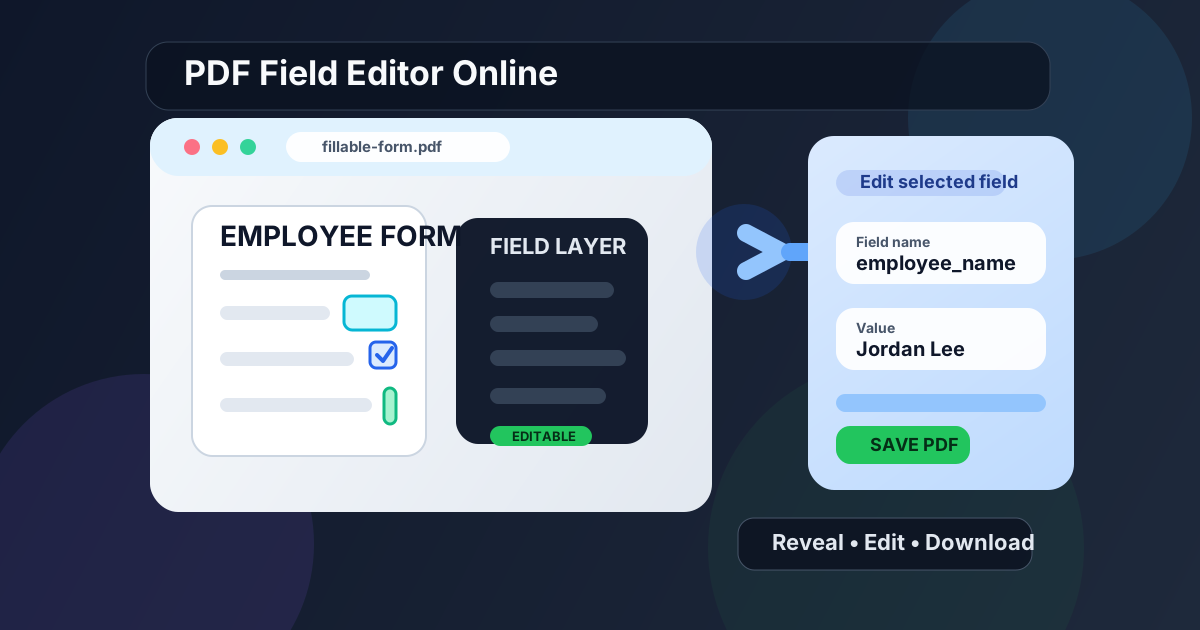
Table of contents
- Quick start: edit a fillable PDF field online in a few minutes
- What a PDF field editor online actually does
- PDF field editor vs PDF form filler vs sign tool
- Step-by-step: use LifetimePDF PDF Field Editor
- When a PDF field editor will not work well
- Best workflows for HR forms, applications, contracts, and approvals
- What to do after you finish editing
- Related LifetimePDF tools and guides
- FAQ (People Also Ask)
Quick start: edit a fillable PDF field online in a few minutes
If your PDF already contains interactive fields, this is the easiest order:
- Open PDF Field Editor.
- Upload the fillable PDF you need to update.
- Reveal the fields so you can see exactly where the editable areas are.
- Click the field you want to change and update the value.
- Repeat for any checkboxes, text areas, or other fields that still need attention.
- Download the finished PDF and review the important entries once before sharing it.
What a PDF field editor online actually does
A PDF field editor online is built for documents that already contain interactive form structure. Instead of typing blindly on top of a page, you can reveal the underlying fields and work with the document in a more deliberate way. That is useful when accuracy matters and the form has more than one or two blanks.
Think of it like the difference between writing on a printed form with a marker and opening the actual form logic underneath. When the fields are real, the editor can help you target the right text box, checkbox, or area without guessing where the document expects the data to go.
What it is especially good at
- Showing existing fillable fields clearly before you start editing
- Updating form values with more control than a basic overlay-style workflow
- Handling structured business or admin forms where missing one field can create rework
- Saving time on repeatable PDFs used in HR, finance, legal, education, or operations
What it does not magically fix
- Flat scans with no real field structure
- Heavily restricted files that block editing until they are unlocked
- Documents that were never built as fillable PDFs in the first place
PDF field editor vs PDF form filler vs sign tool
These tools overlap, but they are not the same job. Choosing the right one up front usually saves the most time.
| Tool | Best when you need | Typical use |
|---|---|---|
| PDF Field Editor | Visibility and precision around existing fields | Complex forms, approvals, applications, structured internal documents |
| PDF Form Filler | A quicker fill-and-move-on workflow | Simple forms, routine paperwork, lightweight data entry |
| Sign PDF | A signature or sign-off step after the form is ready | Contracts, authorizations, vendor paperwork, approvals |
In real life, the sequence often looks like this: field editor first, sign tool second. Or, if the document is easy and you do not need to inspect the field structure closely, a form filler may be enough.
Not sure which one fits? Start with the tool that matches the document state, not the marketing label.
Step-by-step: use LifetimePDF PDF Field Editor
Here is the workflow that usually keeps things fastest and least annoying.
1) Upload the PDF and confirm it is actually fillable
Open PDF Field Editor and load the document. If the form was created properly, the editable structure should become visible. That gives you a much clearer starting point than guessing where the author intended each answer to go.
2) Reveal the fields before typing everywhere
This is where a field editor shines. Instead of treating the page like one flat canvas, you can see the field regions and work on the correct inputs one by one. That matters on longer applications, onboarding packets, or internal approval forms where the wrong entry in the wrong place creates cleanup work later.
3) Update the values that actually changed
Edit what you need and leave the rest alone. This sounds obvious, but it matters when you inherit a partially completed form from somebody else. Review names, dates, totals, IDs, addresses, and checkboxes carefully before moving on.
4) Handle restricted files before forcing the edit
If the document resists editing because it is protected, use PDF Unlock first when you are authorized to do so. A restriction problem and a field-structure problem can look similar from the outside, but they need different fixes.
5) Review and download the final file
Before you send it out, check the important fields once more. The fastest form workflow is still the one that does not bounce back because a name, date, or checkbox was missed on the last page.
When a PDF field editor will not work well
A field editor is powerful, but it cannot reveal form structure that does not exist. These are the most common reasons a document feels “uneditable” even though the file opens normally.
The PDF is a scan, not a real form
If the whole document behaves like an image, you probably have a scanned PDF. In that case, start with OCR PDF so the file becomes easier to work with. OCR will not create true fillable fields by magic, but it usually makes the document much more usable.
The form was flattened
Some PDFs were once fillable and later saved in a way that removed the interactive field behavior. If the fields no longer respond, that may be the issue. At that point, a field editor may not have anything left to target.
The file is restricted
Password protection or edit restrictions can block normal changes even when fields exist. When you have permission to proceed, try PDF Unlock before assuming the document is corrupted.
The document was never designed as a fillable PDF
Some forms are just static PDFs with blank lines on the page. They are easy for humans to read but do not contain structured fields underneath. In those cases, a form filler may be the more practical short-term option than a field editor.
Best workflows for HR forms, applications, contracts, and approvals
HR and onboarding forms
HR documents often include repeated names, addresses, dates, employee IDs, and checkbox sections. A field editor helps because those forms usually contain enough repeated structure that one misplaced value can create downstream confusion.
Applications and registrations
School forms, rental applications, insurance documents, and registration packets often need precise edits more than fancy editing. The main win is clarity: see the fields, fill the correct ones, and move on without overlaying text in the wrong spot.
Contracts and internal approvals
For contracts, approvals, and routing documents, it helps to separate the steps. Use the field editor to fix the content first. Then use Sign PDF only after the form values are correct. That keeps the signing step clean and avoids redoing approvals because the underlying data changed later.
Shared team workflows
If multiple people touch the same PDF, a field-based workflow is usually calmer than a visual markup workflow. One person can update the fields, another can review the data, and the final version can be signed or shared only after those checks are complete.
What to do after you finish editing
Once the fields are updated, the next step depends on the document’s real destination.
- Need a signature? Use Sign PDF.
- Need to fill other non-field areas quickly? Use PDF Form Filler.
- Need to open a protected file first? Use PDF Unlock.
- Need better text from a scanned source document? Use OCR PDF.
The main idea is simple: edit the right fields first, then finish the document only after the data is trustworthy. That prevents messy rework and keeps signatures, approvals, or sharing steps from happening on the wrong version.
Ready to update a fillable PDF properly?
Related LifetimePDF tools and guides
PDF field editing usually works best when the whole document workflow stays inside one toolkit. These are the most useful follow-up tools and guides for that job:
- PDF Field Editor - reveal and update existing fillable fields with more precision.
- PDF Form Filler - faster for simpler form-completion workflows.
- PDF Unlock - remove editing barriers when you are authorized to modify the file.
- OCR PDF - convert scanned documents into more workable text-based files.
- Sign PDF - add the signature step only after the form values are correct.
Related blog guides
- PDF Form Filler Online
- Make PDF Fillable Online Free
- Unlock PDF Online
- Fill and Sign PDF Online Free
- Can You Edit a PDF Without Special Software?
FAQ (People Also Ask)
1) How do I use a PDF field editor online?
Upload a fillable PDF, reveal the existing fields, click the field you want to edit, update the value, and download the finished file. This works best when the PDF already contains real interactive fields.
2) What is the difference between a PDF field editor and a PDF form filler?
A field editor is especially useful when you want to inspect and target the document’s existing fields with more precision. A form filler is usually the faster option when you mostly want to type into a form and finish quickly.
3) Can I edit a scanned PDF with a PDF field editor online?
Usually not directly. Scanned PDFs often do not contain real interactive fields, so you may need OCR PDF first or a different workflow built for image-based documents.
4) Why are the fields not showing up in my PDF?
The most common reasons are that the PDF was flattened, scanned, restricted, or never created as a true fillable form. A field editor cannot expose structure that the file no longer contains.
5) What should I do after editing the form?
Review the critical fields once, then sign, protect, or share the file depending on what the document needs next. The safest sequence is to finish the content first and only then move into approvals or sending.
Need to update a fillable PDF without wrestling the layout?
Best practical flow: reveal the fields → edit the right values → review the important entries → sign or share only after the form is correct.
Published by LifetimePDF — practical PDF tools without subscription fatigue.