Convert PDF to PNG: Keep Text Sharp, Export Only the Pages You Need, and Reuse Crisp Page Images Anywhere
To convert a PDF to PNG, upload the file to LifetimePDF's PDF to Image tool, choose PNG, and export the pages you actually need.
If the document is long, scanned, or full of white margins, extract pages or crop first so the PNG files stay sharper and easier to reuse.
That short answer handles the basic query, but the useful part is knowing when PNG is the right output and how to avoid turning a clean PDF into a messy batch of oversized images. Most people searching for this want one of a few practical outcomes: a sharp page for a slide deck, a clean screenshot for a support article, a diagram for a design file, a single signed page for quick sharing, or a visual export that holds detail better than JPG. The fastest workflow is usually not "convert the whole thing and sort it out later." It is "clean the source a little, export only the right pages, and choose PNG because clarity actually matters."
Fastest practical path: select only the pages you need, export them as PNG, and fix margins or rotation before converting if clarity matters.
In a hurry? Jump to the quick answer and workflow.
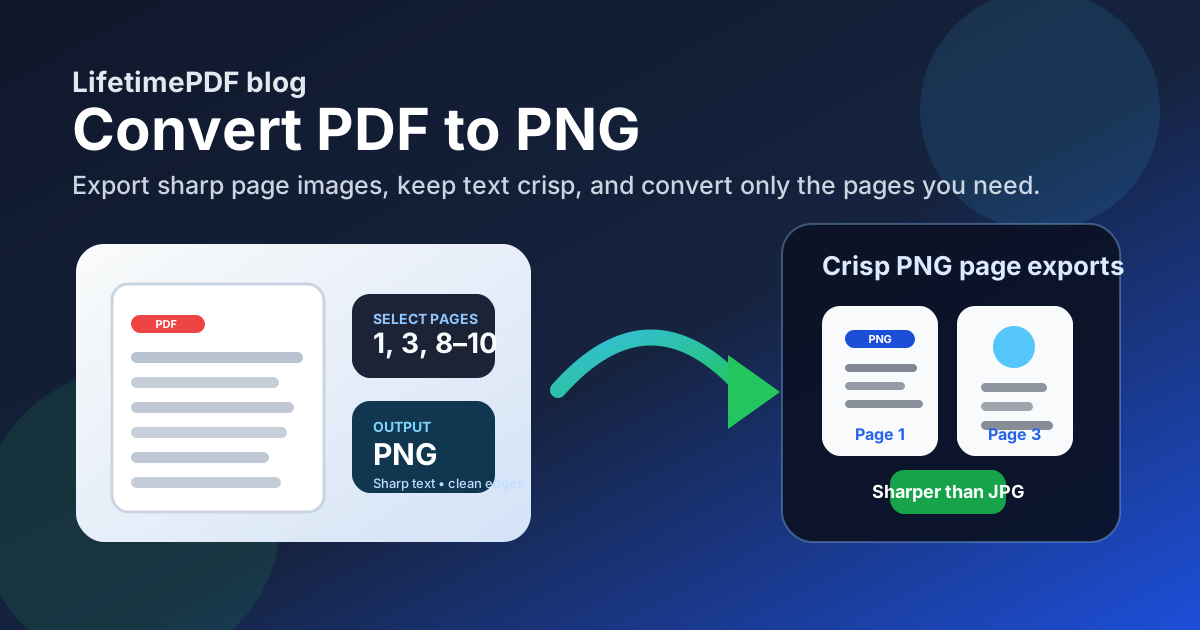
Table of contents
- Quick answer: the cleanest way to convert PDF to PNG
- When PNG is the right output
- PNG vs JPG for PDF pages
- Convert only the pages you actually need
- Step-by-step workflow with LifetimePDF
- How to keep PNG exports sharp and readable
- Scanned PDFs, OCR, and what changes
- Helpful tools and related guides
- FAQ
Quick answer: the cleanest way to convert PDF to PNG
If your PDF is already clean and you just need page images, upload it to PDF to Image, choose PNG, and export the result. Each page becomes a standalone image you can use in slides, support docs, websites, design tools, chats, or knowledge-base articles.
If the source PDF is long, only convert the pages that matter. If the file has oversized white borders or sideways pages, fix that before export. Those two small decisions usually save more time than any later cleanup because they make the final PNG files smaller, cleaner, and easier to reuse.
When PNG is the right output
People often search for convert PDF to PNG when what they really mean is: "I need a page image that still looks crisp when text, diagrams, or interface elements matter." That is where PNG shines.
PNG is usually the better choice when you need
- sharp text: invoices, reports, tables, UI screenshots, and help-center images often look cleaner as PNG than JPG.
- clean diagrams and charts: lines, icons, and contrast-heavy graphics hold up well.
- presentation-ready page snapshots: a slide deck or internal memo often needs one page as a clean visual, not the full PDF.
- design reuse: if the exported page will go into another tool for markup or layout, lossless output is usually safer.
- documentation screenshots: support teams and product teams often want a page image that stays readable in a browser or wiki.
When PNG is not automatically the best answer
- Lightweight preview only: if file size matters more than edge quality, JPG may be enough.
- Photo-heavy pages: a page that is basically one big photo may not benefit much from PNG compared with a smaller JPG.
- Text extraction goals: if you actually need editable or searchable text, PDF-to-PNG is not the workflow. OCR or text extraction is.
My practical rule: use PNG when your eyes would notice compression mistakes. If the page has small labels, diagrams, screenshots, signatures, or dense text, PNG is usually the safer export.
PNG vs JPG for PDF pages
Both formats are useful, but they solve different problems. PNG keeps more visual fidelity; JPG often gives you smaller files.
| Feature | PNG | JPG |
|---|---|---|
| Compression | Lossless | Lossy |
| Best for | Text, diagrams, screenshots, charts, interface pages | Photo-heavy pages, lightweight previews |
| Text clarity | Usually sharper | Can show artifacts around edges |
| File size | Larger | Smaller |
| Best choice when | Quality matters more than size | Size matters more than perfect crispness |
If you are unsure, start with PNG for documents and screenshots, then switch to JPG only if the images feel unnecessarily heavy. And if you were actually trying to pull embedded graphics out of a PDF rather than make page snapshots, that is a different task altogether. In that case, see Extract Images from PDF Without Monthly Fees.
Convert only the pages you actually need
This is the smartest step in the entire workflow. A lot of people convert a 60-page PDF when they only need the cover, one pricing page, and one signed page. That creates more downloads, more clutter, and more quality-checking than the task ever needed.
Good reasons to isolate pages first
- Faster conversion: smaller PDFs process more quickly.
- Cleaner output: you avoid a pile of unnecessary PNG files.
- Easier review: it is much simpler to QA 3 exported images than 47.
- Better privacy habits: you only process the pages you truly need to share or reuse.
Use Extract Pages if you already know the page numbers. Use Split PDF if the document needs breaking into smaller chunks first. In practice, this step matters almost as much as choosing PNG itself.
Step-by-step workflow with LifetimePDF
- Check the PDF. Decide whether you need all pages or only a few.
- Trim the file first if needed. Use Extract Pages or Split PDF to keep the job smaller.
- Fix margins or rotation before export. Oversized borders and sideways pages make the PNG output look worse than it needs to.
- Open PDF to Image. Go to LifetimePDF PDF to Image.
- Choose PNG. Pick PNG when text, diagrams, and clarity matter more than minimal file size.
- Export and review the result. Check that the smallest text, page edges, and key graphics still look clean.
- Reuse the images where they actually help. Slides, articles, onboarding docs, support notes, project wikis, and design reviews are all common destinations.
The reason this works so well is that it keeps the job close to your real goal. You are not trying to create a universal archive format here. You are creating page images that travel well into other tools.
How to keep PNG exports sharp and readable
If a PDF-to-PNG result looks disappointing, the PNG format usually is not the real problem. The issue is often upstream: the PDF itself is blurry, full of dead space, rotated wrong, or based on poor scans.
Quality problems people hit most often
- Bad scans: if the source PDF is already fuzzy, PNG will preserve that fuzziness faithfully.
- Huge white margins: too much empty space makes the useful content occupy a smaller part of the image.
- Wrong orientation: sideways pages feel worse and often preview badly in other apps.
- Too many pages exported at once: clutter makes it harder to spot the images that actually matter.
How to improve the output before conversion
- Crop margins first: use Crop PDF when scan borders or whitespace are excessive.
- Rotate before export: use Rotate PDF instead of expecting viewers to tolerate sideways pages.
- Export fewer pages: smaller batches are easier to check and easier to store.
- Start from the cleanest version of the file: if you have both a rough scan and a digital original, always convert the cleaner source.
Scanned PDFs, OCR, and what changes
Scanned PDFs can absolutely be converted to PNG, because a scan is already image-like by nature. But it helps to be clear about the goal.
- If you only need page images, converting the scanned PDF directly to PNG is fine.
- If you also need searchable or selectable text, run OCR PDF so you keep a more useful document version alongside the image export.
- If the scan is ugly, crop and rotate first because PNG will not magically repair the original capture quality.
OCR is not required for PNG export itself. It just becomes valuable when your real workflow includes future search, text selection, translation, or archival use. That is why scanned PDFs sometimes need two outputs: a searchable PDF for internal use and PNG pages for visual reuse.
Helpful tools and related guides
If you are building a repeatable PDF-to-image workflow instead of solving one file once, these are the most relevant next steps:
- PDF to Image for the main PNG export step
- Extract Pages for selecting only the pages you need
- Split PDF for large multi-page documents
- Crop PDF for removing oversized borders before export
- Rotate PDF for fixing orientation first
- OCR PDF for scanned files that should also remain searchable
- Convert PDF to PNG Online for the broader browser-based workflow
- Convert PDF to PNG Without Monthly Fees for the pay-once angle
- Convert PDF to JPEG Without Monthly Fees for the smaller-file alternative
- PDF to Image Without Monthly Fees for the wider image-export workflow
Ready to do it now? Start with the image converter, but keep the workflow tight: fewer pages, cleaner source, sharper export.
FAQ
How do I convert a PDF to PNG?
Upload the PDF to a PDF-to-image converter, choose PNG output, and download the exported page images. If you only need certain pages, isolate those first so the result is faster to generate and easier to manage.
How do I convert only one page of a PDF to PNG?
Extract the page you need into a smaller PDF first, then convert that smaller file to PNG. This avoids exporting a whole document when you only need one visual page.
Why is my PDF to PNG output blurry?
Usually because the source PDF was already low quality, the page had oversized white margins, or the file needed rotation or cleanup before export. Crop, rotate, and start from the cleanest source file you have.
Should I use PNG or JPG when converting a PDF?
Use PNG when text, diagrams, or screenshots need to stay crisp. Use JPG when smaller file size matters more than edge quality.
Can I convert a scanned PDF to PNG?
Yes. A scanned PDF can be converted directly to PNG, but if you also need searchable text later, OCR the PDF as a separate step so you keep a more useful searchable version too.
Published by LifetimePDF — Pay once. Use forever.