Bookmark PDF Online Free: Add Clickable Navigation to Long PDFs Fast
Yes — you can bookmark a PDF online free by adding clickable sidebar links to chapters, sections, or exhibits and saving the file with the outline embedded.
The cleanest workflow is to bookmark the major sections first, add sub-bookmarks only where they genuinely help, and test the finished navigation once before you share the PDF.
This is one of those small upgrades that makes a document feel dramatically more professional. A bookmarked proposal is easier to review, a bookmarked handbook is easier to use, and a bookmarked legal or compliance PDF is far less annoying to navigate under pressure. If a reader has to scroll for every section, the file is working harder against them than it should.
Fastest path: upload the PDF, add bookmarks for the big sections first, save the file, and click through the outline once before you send it anywhere important.
In a hurry? Jump to Quick start: bookmark a PDF online in a few minutes.
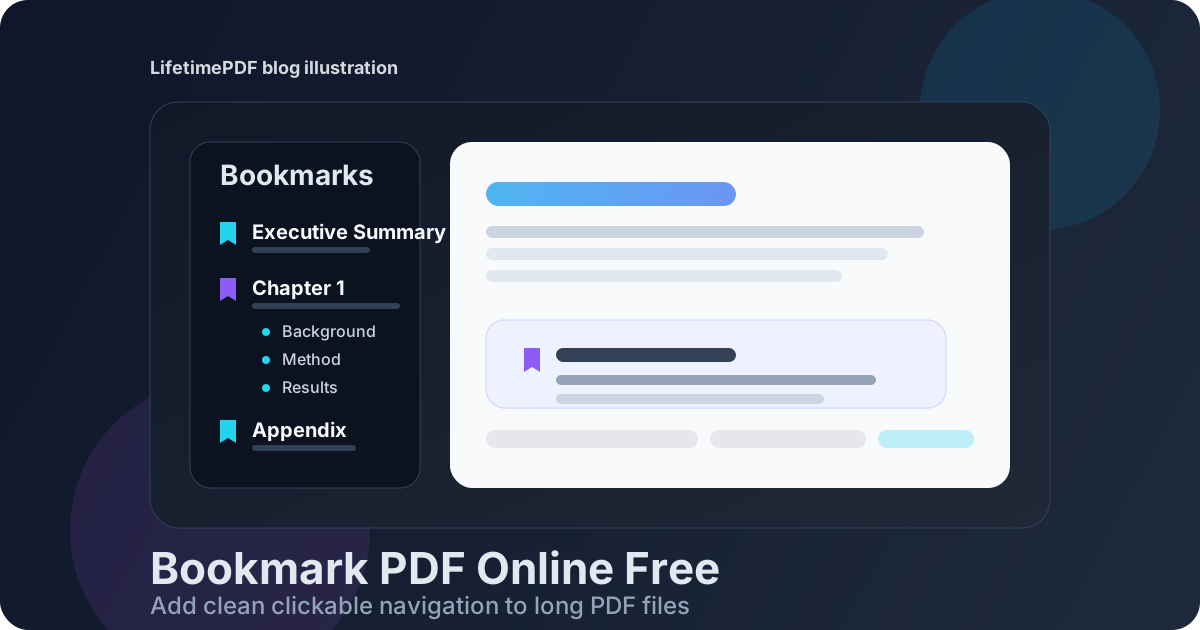
Table of contents
- Quick start: bookmark a PDF online in a few minutes
- Why PDF bookmarks matter more than people think
- Step-by-step: bookmark PDF online free
- How to name and structure bookmarks so people actually use them
- Working with scanned PDFs, exhibits, and reordered pages
- Best bookmark workflows for reports, proposals, manuals, and legal files
- Common bookmark mistakes that make PDFs harder to use
- Related LifetimePDF tools and guides
- FAQ (People Also Ask)
Quick start: bookmark a PDF online in a few minutes
If you already have the final PDF ready, this is the fastest reliable order:
- Open Bookmark PDF.
- Upload the file you want to improve.
- Add bookmarks for the title page and every major section first.
- If the PDF is long, add child bookmarks under the major sections instead of dumping everything at one level.
- Save the finished file and click through the bookmark list once to confirm every jump lands on the right page.
Why PDF bookmarks matter more than people think
A lot of PDFs are technically complete and still frustrating to use. The content is there, the pages are in the right order, and the formatting looks fine, but the reader has no fast way to move through the file. That is where bookmarks punch above their weight.
Bookmarks are especially valuable when the document is longer than a few pages, contains repeated headings, or will be reviewed on a laptop during a meeting. People do not want to drag a scrollbar around a 70-page report, a compliance packet, or a set of exhibits just to find one section. A clean bookmark outline fixes that immediately.
| Document type | Why bookmarks help | What to bookmark first |
|---|---|---|
| Reports | Readers jump straight to findings, charts, or appendices | Executive summary, chapters, appendix |
| Proposals | Clients can find pricing, scope, and timeline faster | Overview, deliverables, pricing, terms |
| Manuals | Users can move between setup, troubleshooting, and reference sections | Getting started, key tasks, FAQ |
| Legal or court PDFs | Exhibits and sections become easier to review under time pressure | Pleadings, exhibits, declarations, appendix |
Step-by-step: bookmark PDF online free
Here is the workflow that tends to produce the cleanest result without overcomplicating the file.
1. Make sure the page order is final
Before you add any bookmarks, confirm the PDF is in the order you actually want people to read. If pages still need to be moved, deleted, or grouped, do that first with Organize PDF. Bookmarking too early is how people end up with an outline that points to the wrong places later.
2. Add the major sections before the minor ones
Start with the big landmarks: cover page, executive summary, chapter headings, exhibits, appendices, pricing section, or signature pages. Once those anchors exist, you can decide whether the file really needs a second level of detail.
3. Use bookmark names that make instant sense
Good bookmark labels look like navigation, not notes to yourself. A reader should understand them without opening the page first. "Pricing", "Implementation Timeline", "Appendix C", and "Exhibit 7" are better than vague labels like "Section 3" or "More Info".
4. Nest subsections only when they improve scanning
Hierarchy is useful, but only up to a point. A long research report might deserve chapter bookmarks with subsection children. A 10-page proposal usually does not. If the outline starts feeling like a spreadsheet, simplify it.
5. Save and test the finished outline
After saving the PDF, click every important bookmark once. This final check catches broken page targets, duplicate labels, and sections that shifted after edits. It takes less than a minute and saves you from sending a file that looks polished but navigates badly.
Practical rule: if a reader can jump from the bookmark list to any important section in one click, the PDF is doing its job.
How to name and structure bookmarks so people actually use them
The difference between a helpful bookmark outline and a messy one is usually not technical. It is editorial. You are building a navigation layer, so clarity matters more than cleverness.
Keep names short, specific, and familiar
- Good: Introduction, Scope of Work, Pricing, Exhibit A, Appendix B
- Less helpful: Important Notes, Stuff to Review, Final Section, More Details
Mirror the document structure when it already works
If the PDF has clean headings, use them. Readers trust navigation more when the bookmark names match the wording on the page. Changing every heading into a different naming system usually adds friction, not value.
Do not over-bookmark tiny sections
Not every subheading deserves its own entry. If the document is short or the sections are only a paragraph long, too many bookmarks make the sidebar noisy. Focus on the places people are most likely to revisit.
Use hierarchy to reduce clutter
A good outline often looks like this:
- Chapter 1
- Background
- Method
- Results
- Chapter 2
- Analysis
- Recommendations
- Appendix
That is easier to read than a single flat list with 30 items in it.
Working with scanned PDFs, exhibits, and reordered pages
Bookmarks still help even when the source document is messy, but the order of operations matters more.
Scanned PDFs
If the PDF is a scan, you can still add bookmarks manually. But when the pages are crooked, unclear, or hard to search, it helps to run OCR PDF first. OCR does not create bookmarks by itself, but it makes the file more usable and often makes the section breaks easier to identify.
Exhibit sets and appendices
For legal, compliance, insurance, or procurement files, bookmarks are often most useful when they mirror the exhibit names. Think "Exhibit A - Master Agreement" or "Appendix 3 - Rate Sheet" rather than generic page numbers. That keeps the navigation aligned with the way people talk about the file.
Pages that were split, merged, or moved
If you merged multiple PDFs together or extracted only part of a longer document, rebuild the bookmarks after the final assembly. You can use Extract Pages or Merge PDF earlier in the workflow, then apply the bookmark structure once the packet is locked.
Best bookmark workflows for reports, proposals, manuals, and legal files
Different PDFs benefit from different bookmark styles. A useful outline depends on how the file will be read.
Business reports
Start with executive summary, methodology, key findings, recommendations, and appendix. If the report is data-heavy, bookmark charts or tables people will revisit during meetings.
Sales proposals and client decks
Bookmark the overview, deliverables, timeline, pricing, and terms. These are the sections clients jump back to most, especially when a PDF circulates by email.
Training guides and manuals
Use bookmarks for setup steps, core tasks, troubleshooting, and reference sections. If the manual is long, child bookmarks under each major task can save people a surprising amount of time.
Court filings, exhibits, and evidence bundles
Use exhibit names, declaration titles, or attachment labels exactly as they appear in the packet. Consistency matters more than clever formatting here because people may be cross-checking the file against a separate index.
Common bookmark mistakes that make PDFs harder to use
- Bookmarking everything: too many entries make the sidebar harder to scan.
- Using vague labels: bookmarks should describe a destination, not your internal thought process.
- Ignoring hierarchy: long outlines become much clearer when related sections sit under parent bookmarks.
- Building bookmarks before final page edits: reordering pages later often breaks the usefulness of the outline.
- Skipping the final test: one quick click-through catches most real-world problems.
The fix is usually simple: fewer, clearer, better-placed bookmarks. Think like the person opening the PDF cold, not like the person who created it.
Related LifetimePDF tools and guides
Bookmarking works best when the file itself is already tidy. These tools usually pair well with the workflow:
- Bookmark PDF — add and save the navigation outline.
- Organize PDF — reorder pages before bookmarks are finalized.
- OCR PDF — make scanned files easier to search and review.
- Extract Pages — split out the exact pages you need before you build the final packet.
- Merge PDF — assemble one final document before you add the bookmark structure.
If you also want a visible contents page inside the file, see How to Add a Table of Contents to a PDF.
Want the simplest workflow? Clean the page order first, bookmark the final version once, and only then send or archive the PDF.
FAQ (People Also Ask)
How do I bookmark a PDF online for free?
Upload the document to a bookmark editor, move to each major section, create a clear bookmark name, save the updated file, and test the sidebar once. Starting with the major sections first usually creates the cleanest outline.
What is the difference between PDF bookmarks and a table of contents?
A table of contents is part of the page content, while bookmarks live in the PDF reader sidebar. The strongest long-form PDFs often use both so readers can navigate inside the page and from the sidebar.
Can I add bookmarks to a scanned PDF?
Yes. You can add them manually, and running OCR first usually makes the file easier to search, review, and organize before you finalize the bookmarks.
How many bookmarks should I add to a PDF?
Add enough bookmarks to cover the important destinations, but not so many that the outline becomes cluttered. A long report may need chapters and subsections; a short proposal may only need a handful of entries.
Why do bookmarks stop making sense after I edit a PDF?
Page order changes, deleted pages, and merged files can all make an old bookmark structure misleading. Recheck the outline after organizing pages so every label still points to the right destination.