Best Tools to Convert PDF to Word on Android
The best tool to convert PDF to Word on Android depends on the file: use a dedicated PDF-to-Word converter for normal text PDFs, OCR first for scans, and Google Docs or Word mainly for cleanup after the DOCX is created.
For most people, the fastest Android workflow is convert first, OCR when needed, then edit rather than jumping between random apps and hoping one rebuilds the layout perfectly.
That sounds simple, but it solves most of the frustration Android users run into. A Google Drive attachment, a photographed receipt, a contract from Gmail, and a table-heavy report are not the same job. The real trick is choosing the tool that matches the document before you start editing.
Fastest practical path: start with PDF to Word for ordinary files, switch to OCR if text is not selectable, then use Word or Google Docs on Android to clean up spacing, headings, and tables.
In a hurry? Jump to the best tool by situation or the step-by-step Android workflow.
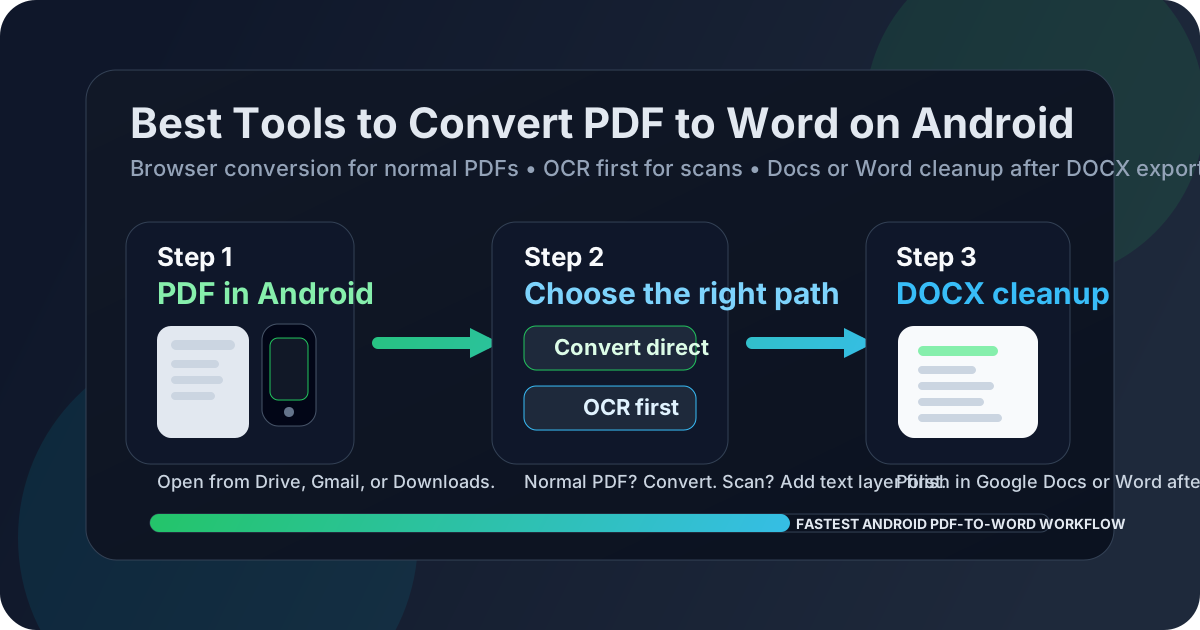
Table of contents
The short answer
If your PDF already contains selectable text, the best tool on Android is usually a dedicated browser-based PDF to Word converter. It is simple, quick, and avoids the slow “open it in an editor and hope” workflow that wastes time on a phone.
If the PDF is a scan, the best tool is not really a converter at first. It is OCR. That is the step that turns a picture of text into real text so Word or Google Docs can actually work with it.
And if the PDF is already converted but still looks messy, the best tool becomes Google Docs or Microsoft Word on Android, because editing and cleanup are different jobs from conversion. A lot of people judge the wrong tool because they expect one button to handle extraction, OCR, layout rebuilding, and final proofreading all at once.
Why Android users get stuck with PDF to Word
Android users usually run into the same pattern. The file comes from Drive, Gmail, WhatsApp, or the Downloads folder, and it is tempting to open it in whatever app appears first. That feels convenient, but convenience is not the same thing as the right workflow.
The real problem is usually one of four things: the PDF is scanned, the file is larger than you want to upload over mobile data, the layout is more complex than a quick conversion can preserve, or the document has restrictions that should be handled first. Once you identify which problem you actually have, the right Android tool becomes obvious.
Best tools by situation
The best Android tool changes with the file type. One converter is not equally good at text extraction, OCR, page reduction, and final document cleanup.
| Situation | Best tool | Why it works on Android |
|---|---|---|
| Normal text-based PDF from Drive, email, or Downloads | PDF to Word | Fast in Chrome, easy to upload from Android storage, and better suited to raw conversion than opening the PDF inside a word processor first. |
| Scanned PDF, photographed pages, copier output, or image-only file | OCR PDF | OCR creates a text layer first, which makes the later DOCX far more usable on a phone or tablet. |
| Converted DOCX needs cleanup, headings fixed, or tables adjusted | Google Docs or Microsoft Word on Android | These are editing tools, not magic converters, but they are useful once the text is already editable. |
| Huge PDF, mixed appendix, or only a few pages are needed | Extract Pages or Split PDF | Reducing the job first speeds up upload and avoids converting pages you never wanted. |
| Authorized locked or restricted PDF | PDF Unlock | It removes an avoidable roadblock before conversion, which often prevents failed or partial output. |
1) Best overall tool for most Android users: browser-based PDF to Word
For ordinary text-based PDFs, the best tool is a dedicated browser-based converter such as LifetimePDF PDF to Word. This is the sweet spot on Android because it works well in Chrome, handles uploads from local storage or cloud apps, and focuses on the job of making the file editable.
- Best for: reports, letters, contracts, proposals, exported forms, policy documents
- Not ideal for: low-quality scans, handwriting, badly locked files, highly decorative layouts
- Why Android users like it: no desktop dependency, fewer taps, and easy handoff back into Docs or Word
2) Best tool for scanned PDFs on Android: OCR first
If the PDF came from a scanner, camera scan, or photographed page, direct conversion usually creates disappointing output. That is where OCR PDF becomes the best tool in the stack.
- Best for: scanned forms, receipts, copier exports, photo scans, archive pages
- Use it before: converting to Word, extracting text, searching the file, or summarizing it
- Reality check: OCR quality still depends on scan sharpness, rotation, and contrast
3) Best tool for cleanup after conversion: Docs or Word on Android
Once you already have a DOCX, Google Docs and Microsoft Word on Android become useful for cleanup. They are good for fixing headings, spacing, bullet lists, tables that need touch-up, and comments you want to add before sharing.
- Best for: final editing, comments, spacing cleanup, light table repair, quick sharing
- Weakest at: raw OCR, reconstructing complex layouts, and handling the whole workflow by themselves
- Best mindset: convert first, then edit
4) Best helper tools for tricky files: unlock, split, and extract
Sometimes the best Android result comes from using one small helper tool before the main conversion. That is especially true when mobile data is limited, the file is oversized, or only part of the PDF actually matters.
- Locked file? Use PDF Unlock first, if you are authorized.
- Only need a few pages? Use Extract Pages.
- Mixed clean and messy sections? Use Split PDF and treat each part properly.
Step-by-step: the best Android workflow
If you want the most reliable result on Android, this is the workflow worth remembering.
Step 1: Test whether the PDF already contains real text
Open the PDF and try selecting a sentence. If text highlights cleanly and search works, it is probably text-based. That means you can go straight to PDF to Word.
Step 2: If text is not selectable, run OCR first
Do not force a scanned file through a normal converter and hope it improves. Use OCR first so the document becomes readable as text. This is the biggest quality jump you can make in an Android workflow.
Step 3: Reduce the problem before you convert
Huge PDFs, mixed page orientations, and appendices create more cleanup later. If you only need a section, extract those pages first. If half the PDF is clean text and half is a noisy scan, split them and handle each section differently.
Step 4: Convert to Word
Once the PDF is in the right condition, convert it to DOCX. On Android, the easiest route is usually a browser-based tool because it keeps the steps short and works across brands, launchers, and storage apps.
Step 5: Clean up only what actually needs cleanup
Open the DOCX in Word or Google Docs and fix the parts that matter most: title styles, paragraph breaks, table alignment, bullet spacing, and section headings. Do not waste ten minutes repairing decorative details that nobody needs.
How to choose when formatting matters
Android users often blame the converter when the real issue is the document design. A one-column report converts differently from a brochure, a two-column newsletter, or a signed form full of boxes.
If the file is mostly plain text, direct conversion is usually enough. If the file contains dense tables, sidebars, floating images, or legal numbering, expect some cleanup after conversion no matter which Android app you use. The best tool is not the one that promises perfection. It is the one that gives you the cleanest editable starting point.
That is also why helper steps matter. Unlocking a file you are authorized to edit, extracting only the useful pages, or OCR-processing a scan before conversion often improves the final Word result more than switching to a different phone or app.
Common mistakes Android users make
Mistake 1: Treating every PDF the same
A clean exported PDF and a camera scan are different problems. If you skip that distinction, the workflow feels broken before it starts.
Mistake 2: Editing before converting properly
Opening the file in a word processor too early often creates more cleanup. Convert or OCR first, then edit what matters.
Mistake 3: Uploading giant PDFs when only a few pages matter
On Android especially, trimming the job first saves time, battery, and patience.
Helpful LifetimePDF tools for the full workflow
FAQ
What is the best tool to convert PDF to Word on Android?
For most Android users, the best starting point is a browser-based PDF to Word converter for normal text PDFs. If the file is scanned, OCR is the best first tool. If the DOCX already exists but needs cleanup, use Google Docs or Microsoft Word on Android after conversion.
Do I need to install an app to convert PDF to Word on Android?
Usually no. A browser-based converter works well in Chrome and other Android browsers, which makes it the easiest option for many people. Install an editing app only if you want to review or polish the DOCX afterward.
Can Android handle scanned PDFs well?
Yes, but only if you treat them as scans first. Run OCR before conversion so the text becomes selectable and editable. Without OCR, the output often looks like images or broken fragments.
Why does my converted Word document still need cleanup?
Because PDF preserves a fixed page layout while Word rebuilds editable structure. Tables, multi-column layouts, headers, footers, and floating images often need touch-ups even after a good conversion.
What if the PDF is too large to convert comfortably on Android?
Use Extract Pages or Split PDF first. Shorter files upload faster, are easier to review on a small screen, and often produce cleaner DOCX output.